Azure DevOps
The Azure DevOps connector indexes content from your Azure DevOps Services (cloud) projects: wiki pages, work items and boards, and repository content such as source files, commits, and pull requests. This makes it searchable in Glean alongside other sources such as Confluence, Google Drive, and Slack. After setup and an initial crawl, this content is available in Glean Search, Glean Assistant, Glean Agents, and Glean MCP.
The connector depends on a healthy Microsoft 365 connector for identity and permission mapping. It does not resolve users and groups on its own — that identity data comes from your Microsoft 365 connector.
- Cloud only. This connector supports Azure DevOps Services. On-premises Azure DevOps Server is not supported.
- A Microsoft 365 connector is required. Set up and run the Microsoft 365 connector first. Without a healthy one, Azure DevOps content can be crawled but won't appear in search, because user and group identities can't be resolved.
What gets indexed
| Content type | Support | Notes |
|---|---|---|
| Wiki pages | Indexed | Project wikis and code wikis. Page title, body content, and the project and wiki names. |
| Work items | Indexed | Bugs, tasks, user stories, epics, features, and custom types, including comments. |
| Boards | Indexed | Board metadata only (board name, team, and project). The visual Kanban or sprint arrangement is not rendered. |
| Repositories and source code | Indexed | Source files, READMEs, and folders in each project's Git repositories. Repository indexing is on by default. |
| Commits | Indexed | Commit history from project repositories. |
| Pull requests | Indexed | Pull requests from project repositories. |
Example questions
Once content is indexed, users can ask questions like these in Glean Search and Glean Assistant:
- "What's our service onboarding runbook?" returns the wiki page that documents it.
- "Where is the architecture decision record for the payments service?" surfaces the relevant wiki page.
- "Summarize the deployment process described in the platform wiki."
Because work items are indexed too, users can also ask:
- "What open bugs are assigned to the checkout team?"
- "Summarize the user stories in the current sprint epic."
Results are always scoped to each user's existing Azure DevOps permissions.
Before you start
Have these in place before you configure the connector, to avoid mid-setup delays:
- A Microsoft 365 connector. Microsoft 365 must be configured and healthy in Glean, on the same Microsoft Entra ID tenant. It is the source of truth for the users and groups used to enforce Azure DevOps permissions.
- Azure app registration rights. Permission to register an application in Microsoft Entra ID and generate a client secret.
- Azure DevOps organization access. Rights to add a user to your Azure DevOps organization and assign the Project Reader role on each project you want to index.
Permissions to request from IT
Azure DevOps authenticates as a service principal (an Azure app registration) that you add as a user in your Azure DevOps organization. Request the items below in one pass so you don't discover a missing grant after setup. Hand this section to whoever administers your Azure and Azure DevOps tenants.
Glean operates read-only. The service principal is granted only the read-level Project Reader role on the projects you choose. No write, manage, or administrator access is requested. No additional API permissions are required for this connector. Don't add Microsoft Graph permissions or the Azure DevOps user_impersonation delegated permission. User and group identity is resolved entirely through your existing Microsoft 365 connector.
- Microsoft Entra ID
- Azure DevOps organization
| Grant | Why Glean needs it | What breaks without it |
|---|---|---|
| App registration with a client secret | Authenticates Glean to the Azure DevOps REST APIs as a service principal. | Glean can't authenticate, and no content is crawled. |
No additional API permissions are required for this connector. Don't add Microsoft Graph permissions or the Azure DevOps user_impersonation delegated permission. Grant access through the service principal's Azure DevOps organization and project permissions.
| Grant | Why Glean needs it | What breaks without it |
|---|---|---|
| Basic access level (for the service principal) | Lets the service principal call the Azure DevOps REST APIs. | The service principal can't read any Azure DevOps content. |
| Project Reader role, on each selected project | Grants read access to the wikis, work items, and boards in each project you want to index. | Projects without this role are skipped entirely; they crawl zero content. |
| Read on repositories, on each selected project | Grants read access to each project's Git repositories: source files, commits, pull requests, and the code wikis backed by those repositories. | Repository content and code wiki pages in that project aren't indexed. |
Request summary
Copy this into your IT request so every grant is approved in one pass:
Microsoft Entra ID
- App registration with a client secret (no additional API permissions required)
- Do not add Microsoft Graph permissions or the Azure DevOps user_impersonation delegated permission

Azure DevOps organization (for each project to index)
- Basic access level for the service principal
- Project Reader role
- Read on repositories
Set up the connector
You need Azure app-registration rights in Microsoft Entra ID (to register the app and create a client secret) and Azure DevOps organization access (to add the service principal as a user and assign the Project Reader role).
Steps 1–5 are completed in Azure and Azure DevOps; steps 6–7 in the Glean Admin console.
1. Register a new Azure app
Sign in to the Azure portal. Go to Microsoft Entra ID → Manage → App registrations → New registration. Register an app with the following:
| Field | Value |
|---|---|
| Name | Glean for Azure DevOps (recommended) |
| Supported account types | Accounts in this organizational directory only (Single tenant) |
| Redirect URI | Leave blank |
Click Register.
API permissions
No additional API permissions are required for this connector. Don't add Microsoft Graph permissions or the Azure DevOps user_impersonation delegated permission. Grant the service principal access in Azure DevOps as described in steps 3 and 4.
2. Generate a client secret
In the same app registration, go to Manage → Certificates & secrets → New client secret. Enter a description, choose an expiry (for example, 24 months), and click Add. Under Client secrets, copy the Value (not the Secret ID), which is shown only once. This is the client secret you'll paste into Glean.
3. Add the service principal to Azure DevOps
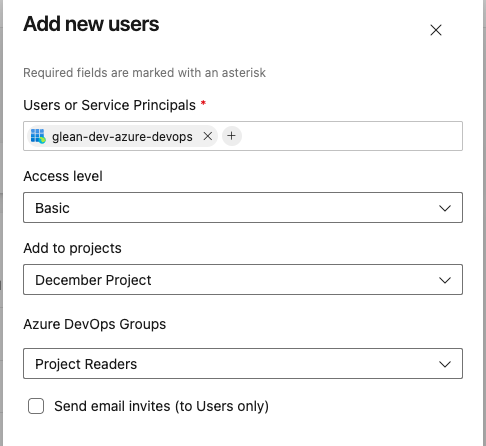
Open the Microsoft app launcher, select Azure DevOps, and choose the organization you want to connect. Go to Organization settings → Users → Add users, then add the service principal from step 1 with:
- Access level: Basic
- Projects: the projects you want Glean to index. Only selected projects are crawled.
- Project role: Project Reader
Click Add.
4. Grant repository access
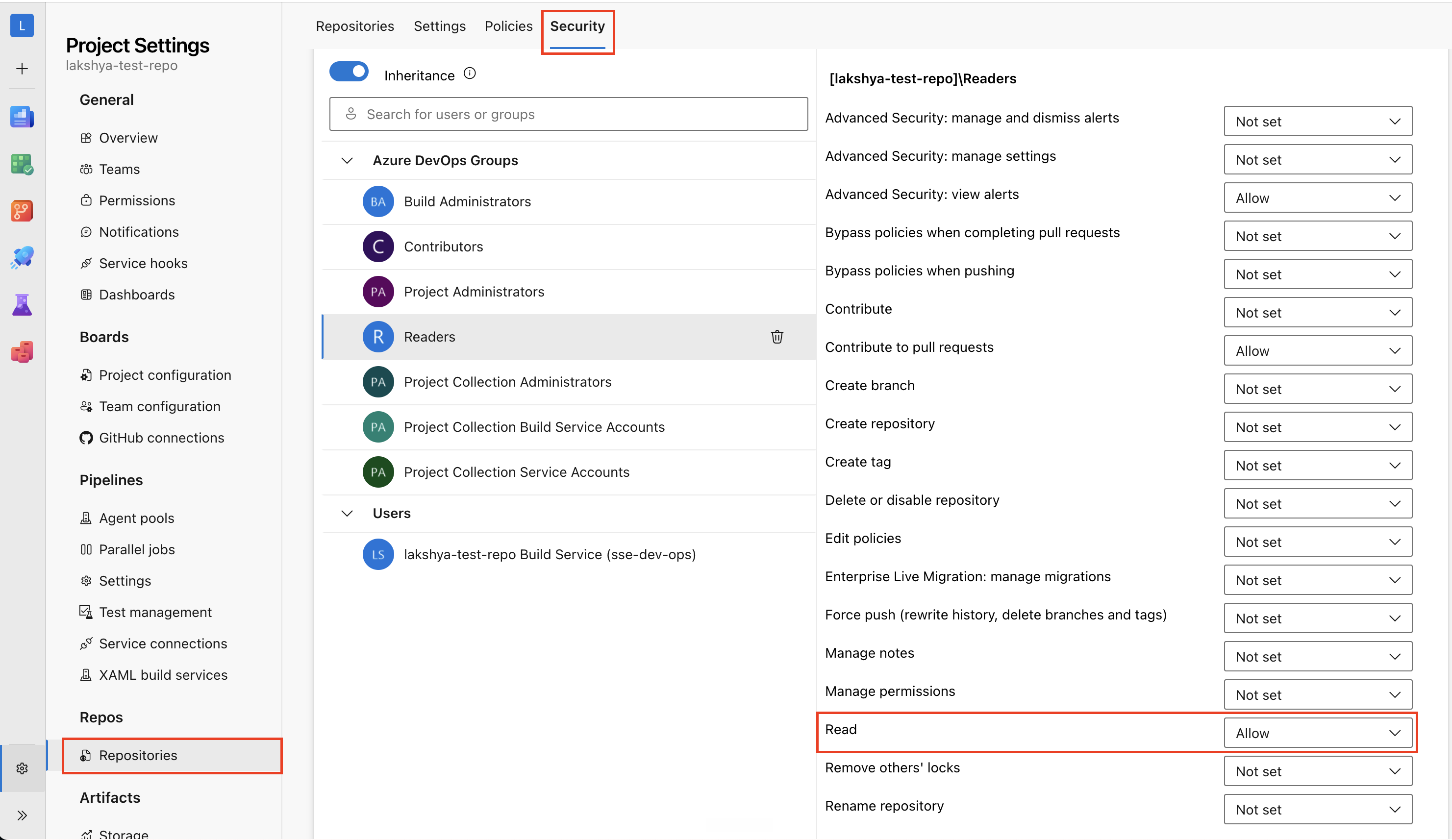
For each selected project, open Project Settings → Repos → Repositories → Settings. Under Azure DevOps Groups select Readers (or select the service principal under Users), then set Read to Allow. Repeat for each project. This grants access to code wikis, which are backed by Git repositories.
5. Find your Azure DevOps organization name
Copy the organization name from your Azure DevOps URL. In https://dev.azure.com/contoso/MyProject, the organization name is contoso.
6. Configure the connector in Glean
In the Glean Admin console, go to Connectors → Add connector → Azure DevOps. Provide:
- Application (client) ID and Directory (tenant) ID: from the app registration Overview tab
- Client secret: the value from step 2
- Organization: the organization name from step 5
Click Save. If the credentials validate, setup is complete.
7. Start the initial crawl
Trigger a full crawl from the Azure DevOps connector page, then confirm the results as described in Verify the connection.
Verify the connection
After the initial crawl completes:
- Check crawl status. In the Glean Admin console, confirm the Azure DevOps connector's crawl completed without errors.
- Search with the app filter. Search in Glean using the Azure DevOps app filter and confirm wiki, work item, and repository content appears for a user who has access in Azure DevOps.
- No results? A successful crawl with empty search results almost always means the Microsoft 365 connector is missing or unhealthy. See Troubleshooting.
Limit what gets indexed
Azure DevOps content is scoped at two levels: by project access (which projects the connector can see at all) and by repository rules in the connector's Manage data tab.
Scope projects with the Project Reader role
The connector only crawls projects where the service principal holds the Project Reader role (step 3), so the set of projects you grant determines the outer boundary of what Glean indexes. To narrow or expand coverage:
- Add projects by assigning the service principal Project Reader on each one, then run a crawl. New projects aren't indexed until the role is granted.
- Remove a project by revoking the service principal's role on it. Its content stops being crawled and is removed on the next crawl.
Refine repositories in the Manage data tab
The connector's Manage data tab in the Admin console adds repository-level controls on top of project access:
- Inclusion rules. List specific repositories (as
project/repo) to crawl only those, instead of every repository in the granted projects. - Exclusion rules. List repositories to skip.
- Code repository options. Select Index Code File Body to index and make code file body content searchable.
- Under Code file types to index body, select supported file extensions or add custom extensions, such as
.pyor.md. - Under Code files to index body, enter an exact filename. This can be a file without an extension, such as
Dockerfile, a file with an extension, such asskill.md, or a dot-prefixed filename, such as.gitignore. Glean matches the value with the repository file name after removing its directory path. To match every filename ending in.dockerfile, add.dockerfileunder Code file types to index body. - Enter multiple filenames as comma-separated values. Filename matching is case-insensitive.
- This connector-level setting applies across the repositories included in the connector. You can also toggle Crawl repositories in maintenance (off by default) and Crawl disabled repositories (off by default).
- Under Code file types to index body, select supported file extensions or add custom extensions, such as
- URL settings. Enable Use legacy URLs if your organization uses
org.visualstudio.comURLs instead ofdev.azure.com/org.
Inclusion and exclusion rules apply to repositories. There are no per-item rules for individual wikis or work item types — project membership is what scopes those.
Test with a pilot group
Before rolling Azure DevOps out to everyone, validate the connector with a small group. This lets your team confirm content quality and permission enforcement on real data without exposing results org-wide. Two levers work together:
- Scope what gets crawled by project. Grant the service principal Project Reader on just one or two representative projects for the pilot, and add the rest once you're ready to expand. See Limit what gets indexed.
- Scope who sees results with a test group. In the connector's Overview tab, set visibility to Visible to test group only and assign a test group. Only members of that group see Azure DevOps results in Glean while you validate; everyone else sees nothing from this source.
A typical rollout:
- Add the service principal to a small set of pilot projects and run a full crawl.
- Set visibility to Visible to test group only and assign your pilot users.
- Have the pilot group verify that wiki (and, if enabled, work item) results are accurate and correctly permissioned.
- Add the remaining projects and expand or remove the test group.
- Set visibility to Visible to everyone once validation is complete.
For the full set of visibility options and the recommended rollout process, see Manage connector settings and visibility.
Crawling strategy
The connector uses scheduled crawls; it does not use Azure DevOps webhooks, so freshness is governed by the crawl cadence.
| Content | Full crawl | Incremental crawl | People data | Activity | Webhook | Notes |
|---|---|---|---|---|---|---|
| Wiki pages | 1d | N/A | No | No | No | The daily Projects full crawl enumerates wiki pages. When the connector crawls repositories, Glean associates each wiki page with the corresponding Git file document, whose content follows the Git crawl cadence. When the connector does not crawl repositories, Glean stores a standalone wiki document. |
| Work items | 7d | 1h | No | No | No | Includes comments. |
| Boards | 1d | N/A | No | No | No | The daily Projects full crawl refreshes board metadata. |
| Repos & code | Varies | 1h (pull requests and Git content) | No | No | No | Repository discovery is full-only and runs every 4h. See the scope details below. |
The connector also runs separate identity and permission crawls. User, group, membership, and project-group data refresh daily. Repository-group, access control list, and identity-descriptor data refresh hourly. The connector has no activity crawl or webhook-based update path. See Connector refresh rates for a summary of the default cadence by connector.
Repos & code cadence: Repository discovery has a 4-hour full crawl, pull requests have a 3-day full crawl and 1-hour incremental crawl, and Git content has a 30-day full crawl and 1-hour incremental crawl. Actual timing depends on repository crawling configuration and deployment health.
Troubleshooting
- Crawl succeeds but no results appear. Azure DevOps relies on a healthy Microsoft 365 connector on the same Microsoft Entra ID tenant to resolve users and groups. If that identity connector is missing or unhealthy, content is crawled but can't be permission-mapped, so results are empty. Confirm the identity connector is configured and healthy.
- Content is missing, or a result reads "not accessible with your current permissions." The service principal needs Basic access, the Project Reader role on each project, and Read on repositories for code, commits, and pull requests. Grant the missing permission and run a full crawl.
- Authentication fails. If the client secret has expired, generate a new one in Azure and re-enter the Value (not the Secret ID) in the Glean Admin console.
Limitations
- Boards index metadata only. A board document carries the board name, team, and project, not the visual Kanban or sprint arrangement of its work items.
- Repository scope is configurable. Source files, commits, and pull requests are indexed by default. Use the inclusion and exclusion rules in the Manage data tab to control which repositories are crawled. See Limit what gets indexed.
- Pipelines, releases, test plans, and artifacts are not crawled.
- No webhooks. Freshness follows Glean's scheduled crawls rather than real-time events.
- One organization per identity connector. A single Azure DevOps instance can't be connected to the same Microsoft 365 (O365) connector more than once.
Permissions and security
Azure DevOps content is filtered at query time so users only see what they can access in the source.
- Azure DevOps project permissions. The service principal reads content only in the projects where it has been added with the Project Reader role. Content from any other project is never crawled.
- Microsoft 365 identity mapping. Glean uses your Microsoft 365 connector as the source of truth for the users and groups in your Microsoft 365 tenant. Azure DevOps permissions are projected onto those identities, so search results appear only for users who have access in Azure DevOps.
If the required Microsoft 365 connector is missing or unhealthy, Azure DevOps results are generally empty even when crawls appear to succeed. Authentication uses a Microsoft Entra ID application (service principal) with a client secret, and all data is encrypted in transit and at rest following Glean's standard security and compliance practices.