Coda setup
You'll do the setup in two places: Coda to gather the required values and the Glean Admin console to save them.
Requirements
Technical requirements
- A Coda Enterprise subscription with Admin API access.
- Network access from Glean to the Coda APIs.
- Access to the Glean Admin console.
Credential requirements
- Your Coda Organization ID.
- A Coda Admin API token created by an Organization Admin.
- The token should be scoped for organization-level access.
Permission requirements
- The account that creates the token must have the Organization Admin role in Coda.
- The token must be able to read the docs, pages, tables, users, and permissions you want Glean to crawl.
- Organization-level access is required for complete permission mapping.
Step 1: Find your Coda Organization ID
- Sign in to Coda with an Organization Admin account.
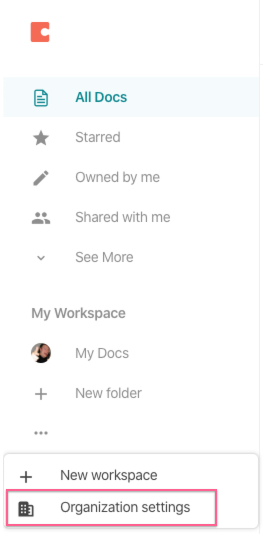
- Open your organization settings.
- Find the Organization ID for your Enterprise tenant.
- Copy the value — you will paste it into Glean later.
Step 2: Generate an Admin API token
- Open Coda account settings while signed in as an Organization Admin.
- Create a new API token for Glean.
- Grant the token organization-level access.
- Copy the token value — you will paste it into Glean later.
Step 3: Enter the values in Glean
- In the Glean Admin console, go to Connectors and select Add connector.
- Select Coda.
- Enter a connector name.
- Paste the Organization ID from step 1 into the Coda Organization ID field.
- Paste the Admin API token from step 2 into the Admin API token field.
- Select Save.
What happens next
After you save the connector, Glean begins crawling the Coda content and permission metadata that the connector can access. Because this connector relies on scheduled crawls rather than webhooks, recent updates may take time to appear.