Confluence (Cloud)
The Confluence (Cloud) connector for Glean allows Glean to fetch and index content from Confluence, making your Confluence pages, blogs, attachments, and comments searchable within Glean.
Key features
- Glean captures Confluence pages (including their hierarchical parent/child structure), blog posts, metadata attachments, comments, and more.
- Glean respects all user access permissions, ensuring users only see search results for documents they can access. When a user clicks on a search result, they are taken to the Confluence web application, which enforces the permission.
- The connector ensures comprehensive data coverage, including metadata, identity data, permissions data, and activity data. It provides near real-time synchronization for most content and permission changes, with the exception of comment additions or edits (see Limitations), which are primarily indexed during full crawls.
- All data is stored in the cloud project within the customer’s cloud account (Glean or customer hosted), ensuring no data leaves the customer’s environment.
- Glean uses Atlassian's standard REST API for Confluence to ingest all data.
Versions supported
-
The Confluence cloud connector has no specific version limitations, which is Atlassian's SaaS offering of Confluence in the cloud.
-
Glean also supports Confluence datacenter edition, a customer-managed deployment (not SaaS). For information on the Confluence Data Center (Confluence On-Prem) connector, see the Confluence Data Center Connector.
Indexed content and data
The Glean Confluence connector crawls three distinct types of data—Content, Identity, and Activity—to ensure a fast, comprehensive, and securely managed index.
Content
Glean crawls the following core Confluence content entities and their associated metadata:
- Pages: All Confluence pages, including their hierarchical structure and content.
- Blog Posts: All blog posts created within Confluence.
- Comments: Comments from both pages and blog posts (footer comments only, not inline).
- Spaces: The structural container for content.
- Folders: All folders created within Confluence including their hierarchical structure.
- Attachments: Metadata about files attached to pages and blog posts.
- Restricted pages: Supported through additional user configuration (see Setup section).
Activity data and webhooks
Glean crawls and indexes user interactions with content to keep the index current and provide personalized search results.
| Activity Type | Description |
|---|---|
| Adds/Updates/Deletions | Tracks new content (Spaces, Pages, Blogs) and modifications or deletions of existing content. |
| Permissions Changes | Records all changes to content sharing permissions. |
| View Activity | Events indicating when any piece of content (Page, Blog, etc.) has been viewed by a user. |
Identity data
Glean crawls the following identity information to map permissions and group access correctly:
- Users: Information about all users.
- Groups: Details about groups within the domain.
- Memberships: Information about group memberships (which users belong to which groups).
Crawl strategy: Identity data is kept up-to-date using a combination of incremental identity crawls (to capture recent changes) and full identity crawls (conducted periodically to ensure comprehensive accuracy).
Limitations
The Confluence connector for Glean has the following known limitations in its crawling process:
- The Glean app can read all unrestricted pages in the Confluence spaces. However, Glean can only read restricted pages if the admin grants access to the app for them.
- Glean only indexes page (footer) comments and not inline comments.
- In Confluence Cloud and Confluence Server, blogposts do not have a hierarchical structure and will perform a normal list-all-content-ids REST API call. Additionally, Glean does not support databases, whiteboards, smart links, and other custom content.
- Archived pages are not crawled.
- New or updated comments are primarily indexed during full crawls. They are not processed via webhooks or incremental crawls unless a change to the page content or permissions triggers a re-index of the entire page.
If the connector is running under PoC mode and a Confluence page was last updated before the PoC start date, the connector won't crawl that page and all its descendants, even if the descendants were updated after the PoC start date.
Prerequisites
- The user setting up this connector must have administrator permissions.
- For Confluence Cloud, the Atlassian admin needs to install Glean's Forge App on the instance. The Admin scope is required to fetch permissions associated with Confluence objects, which is necessary for correctly enforcing permissions in the search experience.
- Glean requires authentication to the Atlassian instance to fetch relevant information from Confluence.
- The Forge app by default can access data in any Confluence space.
- For per-user authorization (restricted-page search): Before individual users can authorize Glean from their own settings, a site admin must authorize Glean's OAuth app for the Atlassian site. In Atlassian Administration, select your organization, then go to Apps → under Sites, select your site → Connected apps, and authorize the Glean app. Until this is done, the user-side Authorize action shows a "Needs authentication" prompt that can't be completed. For more information, see Atlassian's Your site admin must authorize this app.
Setup instructions
Perform the following steps to connect your Confluence Cloud to Glean:
-
In Glean Admin console → Connector → select Confluence (Cloud).
-
Sign in to Confluence as an administrator.
-
Copy your Atlassian domain from the browser URL bar (e.g.,
YourAtlassianDomain.atlassian.net) and paste it into the corresponding field in Glean. -
Go to
https://admin.atlassian.comand select your organization. -
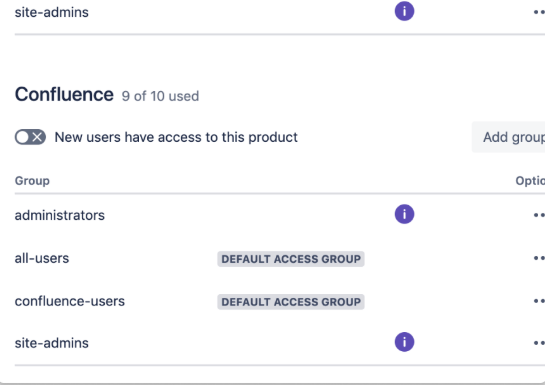
In the row for Confluence, click the three dots (
...) and select Manage product access. -
Identify the default groups with access and enter them into Glean as a comma-separated list. (Only users in these groups will see results in Glean.)
-
Click Create Forge Crawler App in Glean. This should create an installation link for the Glean crawler app.
-
Click on Get app and install the app in the correct Confluence instance.
-
After the app installation is successful, click Save in Glean.
(Optional) Configure Glean Search for Confluence to crawl restricted pages
By default, the Glean connector for Confluence accesses all Confluence spaces and pages except restricted pages. Atlassian admins can't view restricted pages unless the admin user is given explicit access.
Restricted pages can be important for users who want their content included in search results. Glean can crawl and index restricted pages in a permissions-enforced way by giving the "Glean Crawler [Connector Instance Name]" app view access to those pages.
Restricted-page search is authorized by each user individually. A user authorizes Glean from their own settings, which lets Glean act with that user's Confluence permissions to update page restrictions. Glean then uses that authorization to give the crawler app view access to the restricted pages the user can edit.
To have their restricted pages crawled and indexed, a user must:
- Have edit access to the restricted pages in Confluence.
- Have the Add/Delete Restrictions permission for the space.
A site admin must authorize Glean's OAuth app for the Atlassian site before individual users can complete authorization. See Prerequisites.
Authorize Glean as an individual user
To authorize Glean with your own Confluence permissions:
- In Glean, click your profile picture (bottom-left corner) → Your settings → Connectors → Confluence Cloud.
- Turn on Access Confluence restricted pages and complete the Atlassian sign-in prompt.
If the toggle shows a "Needs authentication" message that you can't complete, your site admin hasn't yet authorized Glean's OAuth app for the Atlassian site. See Prerequisites.
What happens after a user authorizes
When a user authorizes Glean, the connector adds the "Glean Search Crawler for Confluence" app with view-only access to the view restrictions of the restricted pages that user can edit, and then crawls and indexes those pages.
Authorization controls which pages Glean can reach, not who can see them. Once a page is indexed, Glean enforces that page's own Confluence view restrictions, so the users and groups listed in those restrictions see the page in Glean search results whether or not they authorized Glean themselves. One user with edit access is enough to make a page available to everyone else who already has access to it.
Authorization is still per user, because Glean can only reach the restricted pages that an authorizing user can edit. A restricted page that no authorizing user can edit is not crawled.
The Forge app created for connector crawling was previously named just "Glean Crawler".
Rate limits
Queries per Second (QPS): The default rate limit is set to 2 queries per second per user.
Update Frequency
Content updates for the Confluence connector in Glean can happen quite rapidly, depending on the type of update and the configuration settings. Here are the key areas:
- People / identity crawl: Changes to group memberships are picked up by the identity crawl, which runs every 8 hours. This ensures that updates to user groups and their permissions are reflected promptly.
- Incremental crawl: These occur every 1 hour and club together the updates we received in last one hour so that we can reduce the number of API calls
- Full crawl: The frequency of full crawls can be configured, but they are generally less frequent than incremental crawls at 30 days
- Backup crawls: These occur every 12 hours where they check for any document that was updated 2 days back but we didn't receive webhook for the same.
Changes in data must be crawled, processed, and indexed before the data is reflected in the UI. Actual time may vary depending on the number of changes and corpus size. For more information, see the Glean crawling strategy.
How the crawl works
The crawler follows the traditional crawler strategy, including utilizing the API and the following ways to get and update data:
- Identity Crawl: updating and adding of People data, including users, groups, and other information
- Webhooks: are messages sent by the application to notify Glean of changes in real-time, and then Glean either initiates a crawl or picks up the change on the next crawl.
- Content Crawls: Full crawls the entire defined scope of the application whereas incremental crawls only capture the changes from the previous full or incremental crawl.
API Endpoints
| Purpose | Endpoint | Method | Permission/Scope |
|---|---|---|---|
| List users | search/user | GET | READ |
| List groups | group | GET | READ |
| List group members | group/member | GET | READ |
| List groups of user | user/memberof | GET | READ |
| Get current user | user/current | GET | READ |
| Get email of users | user/email/bulk | POST | ADMIN |
| List spaces | space | GET | SPACE_ADMIN |
| CQL based list spaces | search | GET | READ |
| List pages in space | space/%s/content/page | GET | READ |
| List blogposts in space | space/%s/content/blogpost | GET | READ |
| Get space permissions | space/%s | GET | READ |
| List content | content | GET | READ |
| Get content | content/%s | GET | READ |
| CQL based list content | content/search | GET | READ |
| List children of page | pages/%s/children | GET | READ |
| Fetch applinks | N/A | GET | |
| Create webhook | N/A | POST | |
| Get content restrictions | content/%s/restriction/byOperation/read | GET | READ |
| Update content restriction | content/%s/restriction | PUT | Uses per-user authorization |
| Configure plugin | N/A | POST | |
| Get installed plugin version | N/A | GET | |
| Get space permissions via plugin | N/A | GET |
Content configuration
Note: If Inclusion (Green-Listing) options are enabled, only content from the Inclusion category will be indexed. If Exclusion (Red-Listing) options are enabled, all content in the exclusion category will be removed. If both rules are applied to the same content, then the content will NOT be indexed, as exclusion rules take priority.
The rules below should be used MINIMALLY to preserve the enterprise search experience, as most end-users expect to find all content. Most customers do not apply any rules or apply exclusion rules sparingly for sensitive folders. Exclusion rules are applied automatically after the next full crawl, which can vary by corpus size. If a recrawl is needed, please reach out to your Glean representative.
Exclusion (Red-listing) options
Glean provides several options for excluding content from the data crawl, which excludes data from search and chat results.
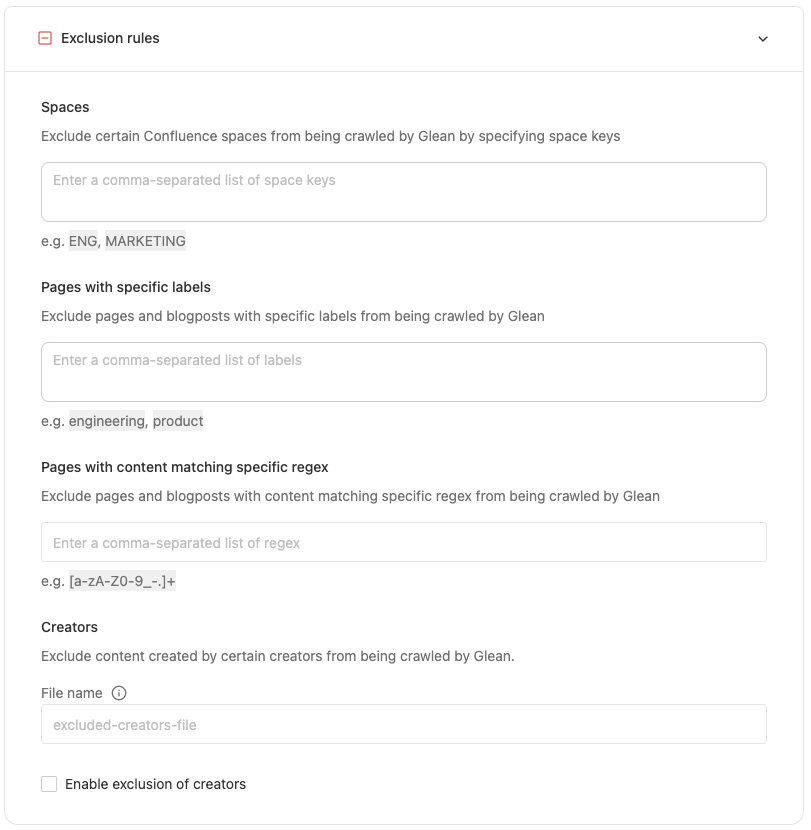
- Space: Exclude certain Confluence spaces from being crawled by Glean by specifying space keys
- Pages with specific labels: Exclude pages and blog posts with specific labels from being crawled by Glean
- Pages with content matching specific regex: Exclude pages and blog posts with content matching specific regex from being crawled by Glean
- Creators: Exclude content created by certain creators from being crawled by Glean.
Inclusion (Green-listing) options
Glean provides several options for including content from the data crawl, which includes data from search and chat results.
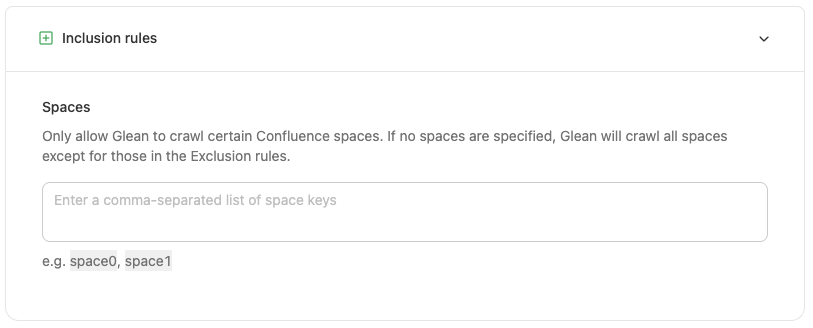
- Spaces: Only allow Glean to crawl certain Confluence spaces. Glean will crawl all spaces except those in the Exclusion rules if no spaces are specified.
Note: Only content specified to be included items will show in search results, chat, or any other Glean applications. Unspecified content will not be included in search results, chat, or other Glean applications.