Choose your Dropbox setup
New Dropbox connections use unified setup in workspaces where that flow is enabled. Existing indexing connections keep the Setup tab. Use the guide that matches your screen, rather than choosing a different flow to change an existing connector.
Compare the setup paths
Both paths use Glean's managed Dropbox app for indexing authorization. Unified setup adds a separate connection to Dropbox tools.
| Capability | Unified setup | Indexing setup |
|---|---|---|
| Setup flow | Connect → Set up indexing → Review setup. | The Setup tab contains indexing authorization. |
| Tools connection | Register a custom Dropbox app and authorize your account in Connect. | The indexing form does not connect tools. |
| Indexing authorization | A Dropbox team admin clicks Authorize in Set up indexing. | A Dropbox team admin clicks Authorize in Setup. |
| Crawl start | Review indexed-content access, then click Begin indexing. | Complete the crawl-start controls after authorization. |
Connecting tools does not authorize indexing. Each user authorizes their own Dropbox account before using tools.
Find your setup
Open Dropbox in the Glean Admin console and compare the setup controls.
- Unified setup
- Indexing setup
Use unified setup when you see Connect, Set up indexing, and Review setup. An existing unified connection has an Edit setup button and a Tools tab.

Identify an existing unified connection by the Edit setup button and Tools tab.
Continue with unified setup
Use indexing setup when the connection starts with Setup, rather than Connect. The indexing form has an Authorize button. Existing indexing connectors have a Setup tab.
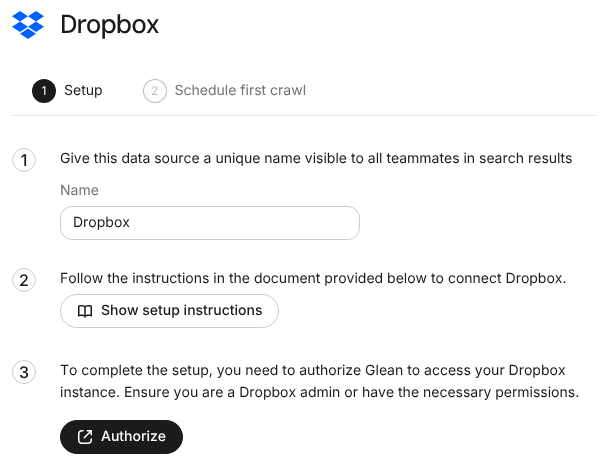
Example of the indexing-only setup screen.
Continue with indexing setup
Keep an existing connection
Glean supports one Dropbox connector instance per workspace. Enabling unified setup does not automatically migrate an existing indexing connector. Do not delete or recreate a working connection to change the setup screen.
For an existing unified connection, use Edit setup. For an existing indexing connection, use the Setup tab. Contact Glean Support before changing the setup path of an existing connector.
See also
- Dropbox overview: Check supported content, permissions, and limitations.
- Set up tools and MCP integrations from Connectors: Learn how tool connections and management differ from indexing.