Dropbox unified setup
Use unified setup to connect Dropbox tools and make Dropbox content searchable. Follow this guide when setup shows Connect → Set up indexing → Review setup.
Dropbox's Model Context Protocol (MCP) server provides tools through a custom OAuth app and per-user authorization. Indexing uses Glean's managed Dropbox app and a separate authorization by a Dropbox team admin. Complete both authorizations in the standard setup flow.
Prerequisites
Before you start:
- Have permission to configure connectors and manage tools in the Glean Admin console.
- Have a Dropbox Business (team) account and a Dropbox team admin available to authorize indexing.
- Confirm that the authorizing Dropbox admin belongs to a team folder. Glean checks team-folder access during validation.
- Have permission to create and configure an app in the Dropbox App Console for tools.
Glean supports one Dropbox connector instance per workspace. If Dropbox is already connected, keep that instance and use the guide that matches its setup screen. See Choose your Dropbox setup.
Connect Dropbox tools
In Connect, create the custom app and register the callback URL before authorizing tools. The custom app credentials do not replace the separate indexing authorization.
Create the custom app
- In the Glean Admin console, open Connectors, click Add connector, and select Dropbox.
- In Connect, enter the connector Name and copy the displayed Callback URL.
- Sign in to the Dropbox App Console and click Create app.
- Select Scoped access, then select the access type approved for your organization's Dropbox content.
- Enter an app name, such as
Glean Dropbox MCP, and click Create app. - In the app's Settings, find OAuth 2 → Redirect URIs. Add the exact callback URL copied from Glean, then click Add.
The callback must match the scheme, host, and path displayed in Glean. Do not construct it from your Glean sign-in address.
Configure app permissions
Open the app's Permissions page. Enable the permissions shown in Glean's setup form, then click Submit to save them.
The tools connection requests these permissions:
account_info.read
files.metadata.write
files.metadata.read
files.content.write
files.content.read
sharing.write
sharing.read
file_requests.write
file_requests.read
profile
openid
email
These permissions include write access. They belong to the tools app, not the indexing authorization. The Dropbox tools setup form does not offer a read-only mode. Review which tools your organization makes available after connecting.
Authorize the tools connection
Connecting discovers and deploys the available Dropbox tools. Plan the intended audiences before authorizing the connection.
New tools default to all users in Agents and Glean MCP Server. Chat defaults to all users when the connecting admin can manage the Glean workspace, and to none otherwise. Review the tool access settings after connecting. The indexing audience does not restrict these tool audiences.
- In the Dropbox app's Settings, copy App key and App secret.
- Return to Glean and enter them in the matching fields in Connect.
- Click Connect, sign in to the intended Dropbox account, and approve the requested access.
- Return to Glean and wait for authorization and tool discovery to finish before continuing to Set up indexing. Resolve any reported connection error before retrying.
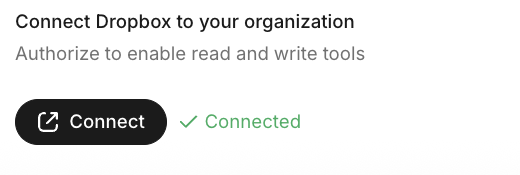
The Dropbox tools connection control after authorization succeeds.
Connecting as an admin does not authorize everyone else's Dropbox account. Each user completes their own tools authorization. A successful connection is not a substitute for checking the app's permissions or testing the tools users need.
Set up indexing
Authorize Glean's managed Dropbox app to index content. You do not create another custom app or enter the tools app's key and secret in this step.
- In Set up indexing, click Authorize.
- Sign in as a Dropbox team admin, review the permissions requested by Glean's managed app, and approve access.
- Return to Glean. Resolve any authorization or validation errors, then continue to Review setup.
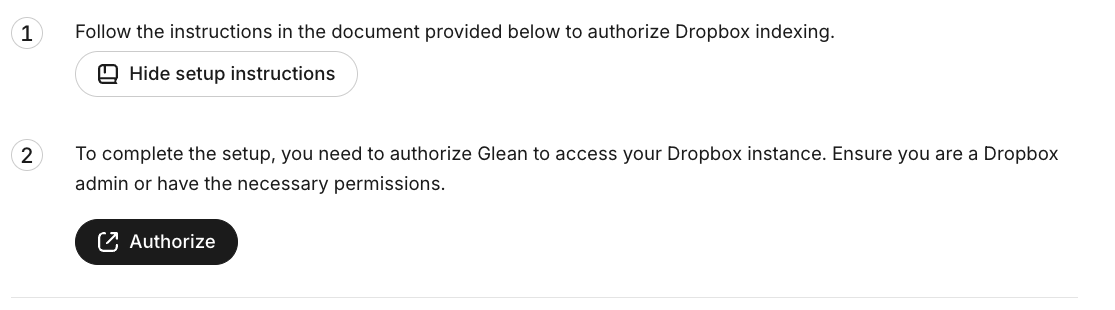
Authorize Dropbox indexing separately from the tools connection.
This authorization grants indexing access. It does not authorize users' tools or start the initial crawl. Start the crawl in Review setup.
Review setup and begin indexing
Confirm that both authorizations succeeded, then choose who can access indexed content.
- Review User access. The default selection is All users. To limit the initial rollout, select Test group only and choose a test group. Select None to keep indexed content unavailable to users in Glean.
- Click Begin indexing to start the crawl.
- Open the connector's Overview tab to monitor indexing status, then check the Tools tab for the connected tools.
User access does not grant new Dropbox permissions or control tool audiences. Glean still applies the source permissions to indexed search results.
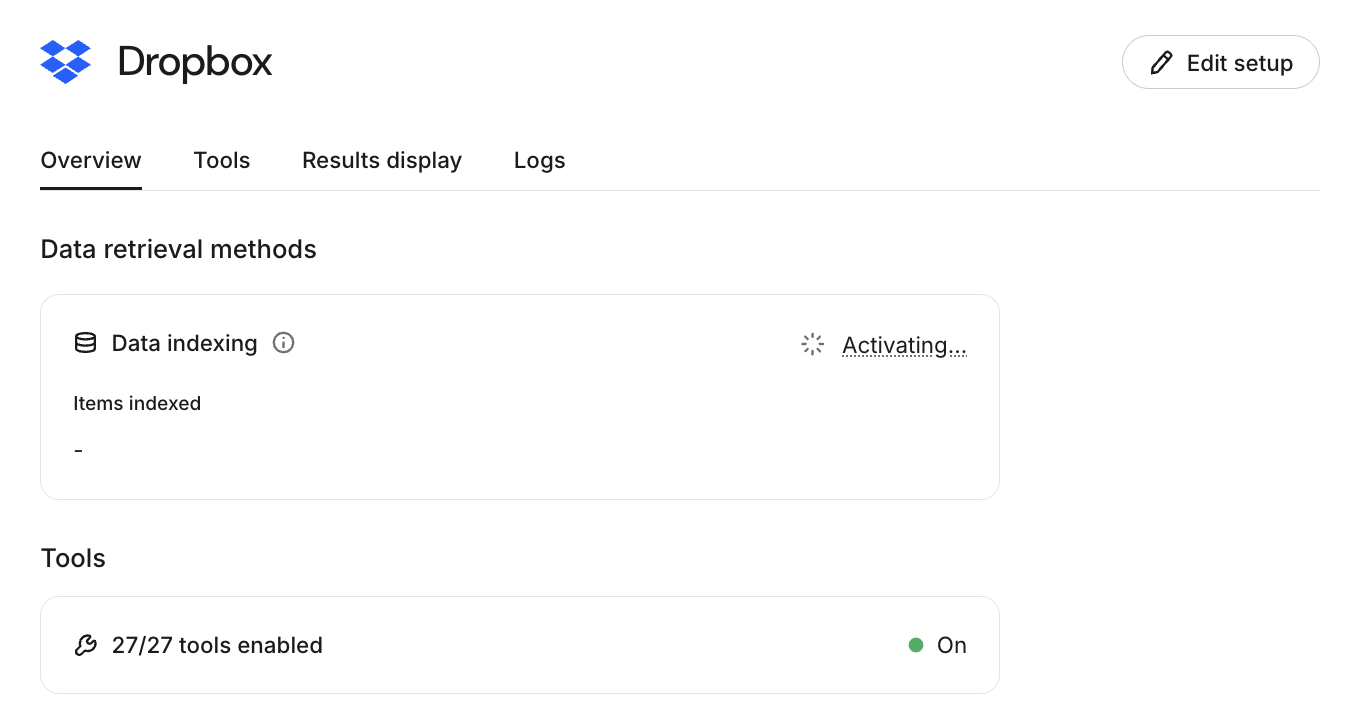
Example Overview with indexing still activating and tools on. The tool count depends on the connected server.
Manage Dropbox tools
Review the available tools and their audiences after connection.
- In Admin console → Connectors, open Dropbox and select Tools.
- Review the tools discovered from Dropbox's MCP server and open Advanced settings.
- For Chat, Agents, and Glean MCP Server, set the intended access scope and turn off tools your organization does not need.
- Save your changes.
For Agents, the access scope controls which creators can add or configure the tools. It does not control who can run an existing shared agent. Each user's Dropbox permissions still apply. See Managing tool access.
Verify search and tools
Check indexing and tools independently:
- Wait for the initial crawl to complete. Search for a known file with a user who has access in Dropbox, then confirm that a user without access cannot retrieve it.
- Have an intended tool user authorize their own Dropbox account and run an available read tool. Verify that results respect the user's Dropbox access, including for a file they cannot access.
- For Chat and Glean MCP Server, confirm that a user outside the configured audience cannot use the tool on that surface.
- For Agents, confirm that a creator outside the configured audience cannot add or configure the tool in Agent Builder. This audience does not restrict execution of existing shared agents.
Do not run a write tool merely to test connectivity. An indexing status of Activating does not mean the initial crawl has finished.
Troubleshooting
Use the failed step to identify which authorization needs attention.
| What you see | What to check |
|---|---|
| Tools connection fails | Check the custom app's key and secret, exact callback URL, and saved permissions. Reauthorize the intended Dropbox account. |
| Indexing authorization fails | Use a Dropbox team admin with verified email and access to a team folder. Tools authorization does not replace indexing authorization. |
| Tools connect, but indexed files are missing | Complete indexing authorization and Begin indexing. Check crawl status and the test user's Dropbox access. |
| A connected tool fails or cannot access content | Check the custom app's permissions, the user's Dropbox access, and Glean tool access settings. Do not treat the connection status as proof of every requested permission. |
| You cannot add a second Dropbox connector | Use the existing instance. Glean supports one Dropbox connector instance per workspace. |
Contact Glean Support if setup remains blocked. Do not include app secrets or OAuth tokens in a support message.
See also
- Dropbox overview: Review indexed objects, permissions, and limitations.
- Tools authentication troubleshooting: Resolve authorization failures and repeated connection prompts.