Fathom unified setup
Use unified setup to make Fathom meetings searchable, with an optional connection to Fathom's Model Context Protocol (MCP) tools. Follow this guide when setup shows Set up indexing, Connect Fathom MCP, and Review setup.
Indexing uses a custom OAuth app. The tools connection registers its OAuth client automatically. Each user authorizes their own Fathom account for indexed content and tools separately.
Prerequisites
Before you start:
- Confirm that you can add connectors and manage tools in the Glean Admin console.
- Have a Fathom account admin authorize the setup connection used to read the Fathom user list.
- Have access to Settings → API access in Fathom to register the indexing app.
- Identify users and meetings for a controlled test. Confirm that those users can access the test meetings in Fathom.
Set up indexing
Register a Fathom OAuth app, then save its credentials and authorize access with a Fathom account admin. Complete this step even if you plan to defer the crawl.
Register the indexing app
- In the Glean Admin console, open Connectors, click Add connector, and select Fathom.
- In Set up indexing, enter the connector Name and click Show setup instructions.
- Copy the complete redirect URL from the instructions. It ends in
/oauth/instance/verify_code. Don't construct it from your Glean sign-in address. - In Fathom, sign in as an account admin and go to Settings → My settings → API access.
- Click Add, then select Create public app.
- Enter an app name, such as
Glean, a description, and a logo. Fathom shows these when users authorize the app. - Set Production redirect URL to the value copied from Glean. If you use a separate development environment, configure its corresponding redirect URL rather than reusing the production address.
- Click Register app and copy the client ID and client secret for the environment you are connecting.
Glean's indexing connection requests the public_api scope.
Save and authorize
- Return to Set up indexing in Glean.
- Enter the app's credentials in OAuth Client ID and OAuth Client Secret. Use the production credentials for a production Glean deployment.
- Click Save to store the configuration.
- Click Authorize, sign in to Fathom as an account admin, and approve access.
- After authorization succeeds, continue to Connect Fathom MCP.
Saving credentials doesn't authorize indexing or start the crawl. Complete authorization, then finish Review setup to begin indexing.
This setup authorization lets Glean read the Fathom user list. Each intended user, including the setup admin, also needs a per-user indexing authorization. See Verify indexed search.
(Optional) Connect Fathom MCP
Connecting Fathom MCP is optional. To use indexing without tools, click Skip on Connect Fathom MCP, then continue to Review setup. You can connect MCP later through the connector's Edit setup flow.
Glean registers the MCP OAuth client automatically. You don't create a second app or enter a client ID, client secret, or server URL in this step.
To connect Fathom tools:
- In Connect Fathom MCP, click Connect.
- Sign in to Fathom, approve access, and return to Glean.
- Wait for authorization and tool discovery to finish before continuing to Review setup. Resolve any displayed connection or discovery error before retrying.
After a successful connection, Glean discovers and deploys the available tools before Review setup. Connecting as an admin doesn't authorize every teammate's account. Each user completes their own tools authorization on first use.
When Glean first deploys Fathom tools, the initial audience is all users for Agents and Glean MCP Server. For Chat, Glean sets the audience to all users if you can manage the Glean workspace, or none otherwise. Review the tool access settings after connecting. User access and crawl controls do not restrict these tool audiences.
Review setup and begin indexing
Confirm the connection status and choose who can access indexed content before starting the crawl:
- Confirm that indexing authorization succeeded and that MCP connected or was skipped.
- If User access appears, choose who can access indexed content from this connector:
- All users: make indexed content available to your organization, subject to each user's Fathom authorization and permissions.
- Test group only: select the group that should have access.
- None: keep connector content unavailable to users in Glean.
- Click Begin indexing.
User access settings don't grant new Fathom permissions or control tools access. Manage tool audiences in the Tools tab.
Glean shows Skip for now only in workspaces configured to allow crawl deferral. Click it to defer the crawl after completing indexing authorization. This differs from Skip on Connect Fathom MCP, which skips the tools connection.
Manage Fathom tools
If you skipped MCP, complete the tools connection before managing tools. See (Optional) Connect Fathom MCP.
- In Admin console → Connectors, open your Fathom connector and select Tools.
- Review the discovered tools. Confirm that the tools you intend to use appear in the list.
- If Advanced settings appears, open it.
- In each available section (Chat, Agents, or Glean MCP Server), choose which tools are on and who can use them. Configure each section separately.
- Save your changes.
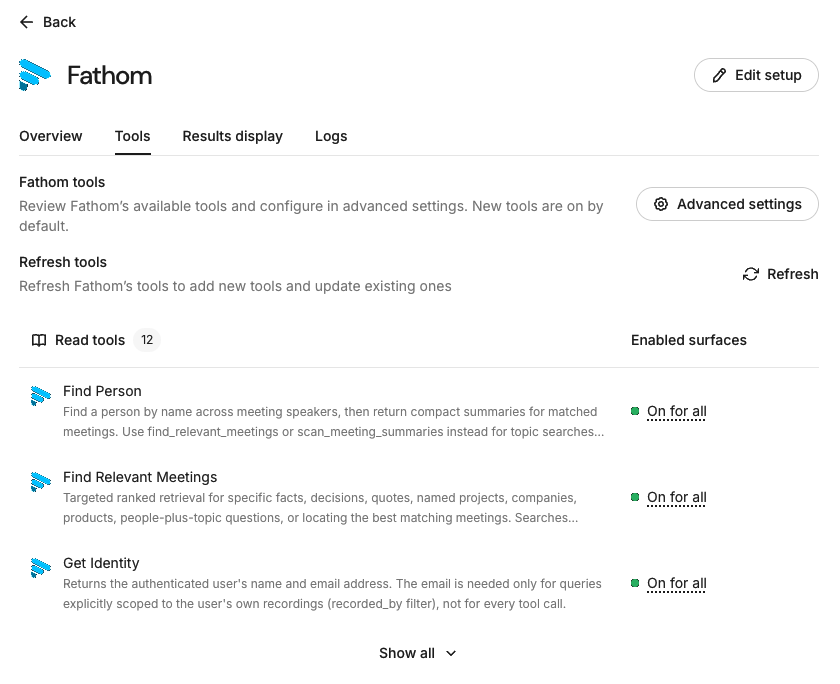
Review discovered tools and manage their availability from the Tools tab.
For Agents, the audience controls which creators can add or configure tools in an agent. It doesn't control who can run an existing shared agent. These settings don't grant additional Fathom permissions. See Manage tool access.
To update the tool list, click Refresh in the Tools tab. Glean preserves settings for existing tools. Review newly discovered tools and configure their audiences in each available section.
Verify access
Test indexed search and tools separately with approved test meetings. A successful connection doesn't confirm content coverage or tool behavior.
Verify indexed search
After setup, have each intended user, including the setup admin, authorize Fathom for indexed content:
- Check the connector's indexing status and resolve any reported errors.
- Choose a test user included in the connector's User access settings, if configured. Have the user connect Fathom through the search-results banner or Settings → Connectors. Users who dismissed the banner can still connect through Settings.
- After a crawl processes the user's meetings, search for a known meeting and open the result.
- Confirm that a user without access to that meeting can't retrieve its indexed content.
Glean discovers meetings through per-user indexing authorizations and builds permissions from the accounts that returned each meeting. Access changes require crawl and index processing. Admin setup alone doesn't provide access to everyone's recordings. See Fathom authorization model.
If you skipped MCP, indexed search should still work after indexing authorization and crawling. An absent tools connection isn't an indexing failure.
Verify Fathom tools
If you connected MCP, test an available tool with an intended user:
- Choose a user who has access to the tool in Glean and the test meeting in Fathom.
- Ask the user to request an operation in Glean or an agent where the tool is enabled. For example, ask Glean to retrieve a meeting that the user can open in Fathom.
- Have the user complete Fathom authorization when prompted, then return to Glean and retry the request if needed.
- Confirm that Glean ran a Fathom tool, not just a search, and that the result matches Fathom. Repeat with a meeting the user can't access and confirm that the tool doesn't return it.
Indexing authorization doesn't authorize MCP tools. Users need both authorizations if they use indexed search and tools. An MCP result doesn't prove that a meeting has been indexed. See Fathom MCP documentation.
See also
- Fathom troubleshooting and FAQs: Resolve indexing, tools authorization, and missing-content issues.
- Tools authentication troubleshooting: Resolve repeated authorization prompts and requests that don't run a tool.