Search experience
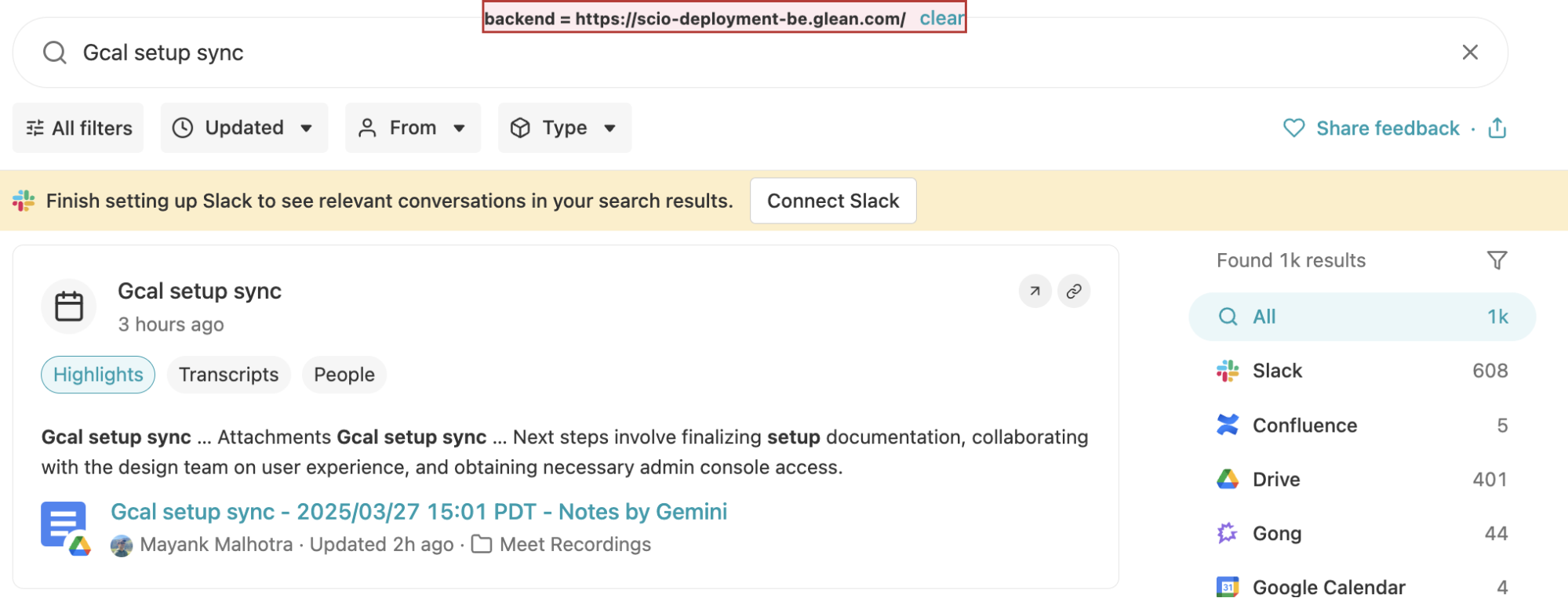
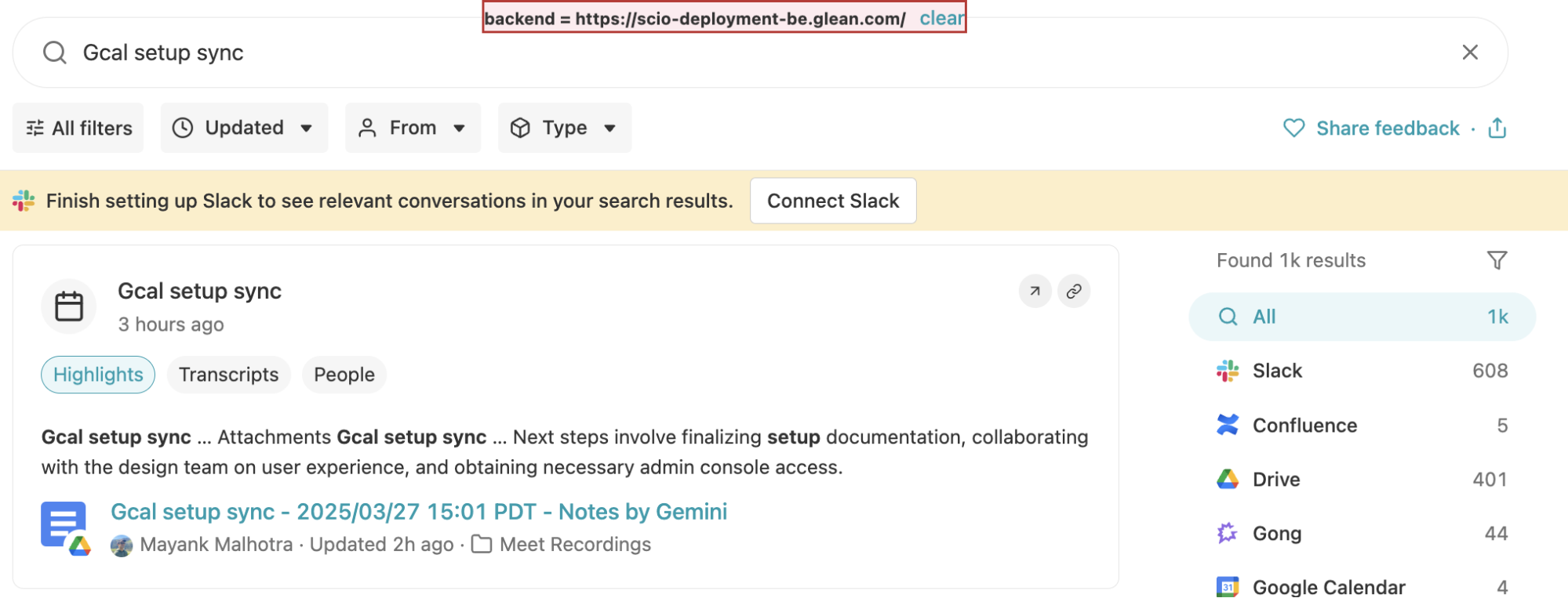
Rich meeting results
When a user searches for terms that match:
- A meeting title
- Transcript or Gemini notes content
- Attached documents referenced in a meeting invite
Glean can show a hero meeting card at the top of the results page, highlighting:
- The meeting title
- Key participants
- Linked documents
- Transcript snippets matching the query
This makes it easy to go from a question (“What did we decide for Gcal setup changes?”) to the exact meeting that contains the answer.
User's query matches a meeting transcript:
User's query matches a meeting title:
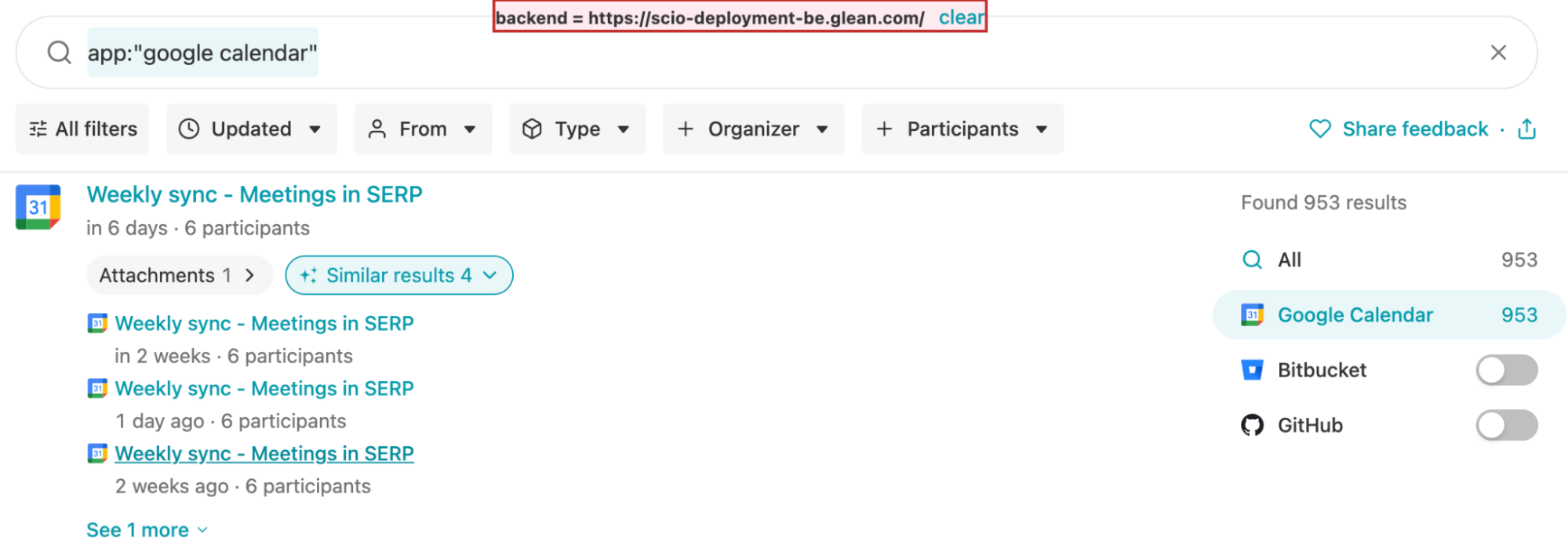
Operator search
Users can narrow calendar results with standard operators. Supported operators include (among others):
app:googlecalendar— Restrict results to Google Calendar eventsupdated:— Search based on the meeting start time (as “updated” field)type:— Filter by event type (currently a single event type is supported)organizer:— Filter by organizerparticipants:— Filter by invited participantsbefore:/after:— Time-bounded search for meetings before or after a date/time
Example:
app:googlecalendar after:now organizer:"alex@company.com"
finds upcoming meetings organized by a specific user.
Meeting Summary agent
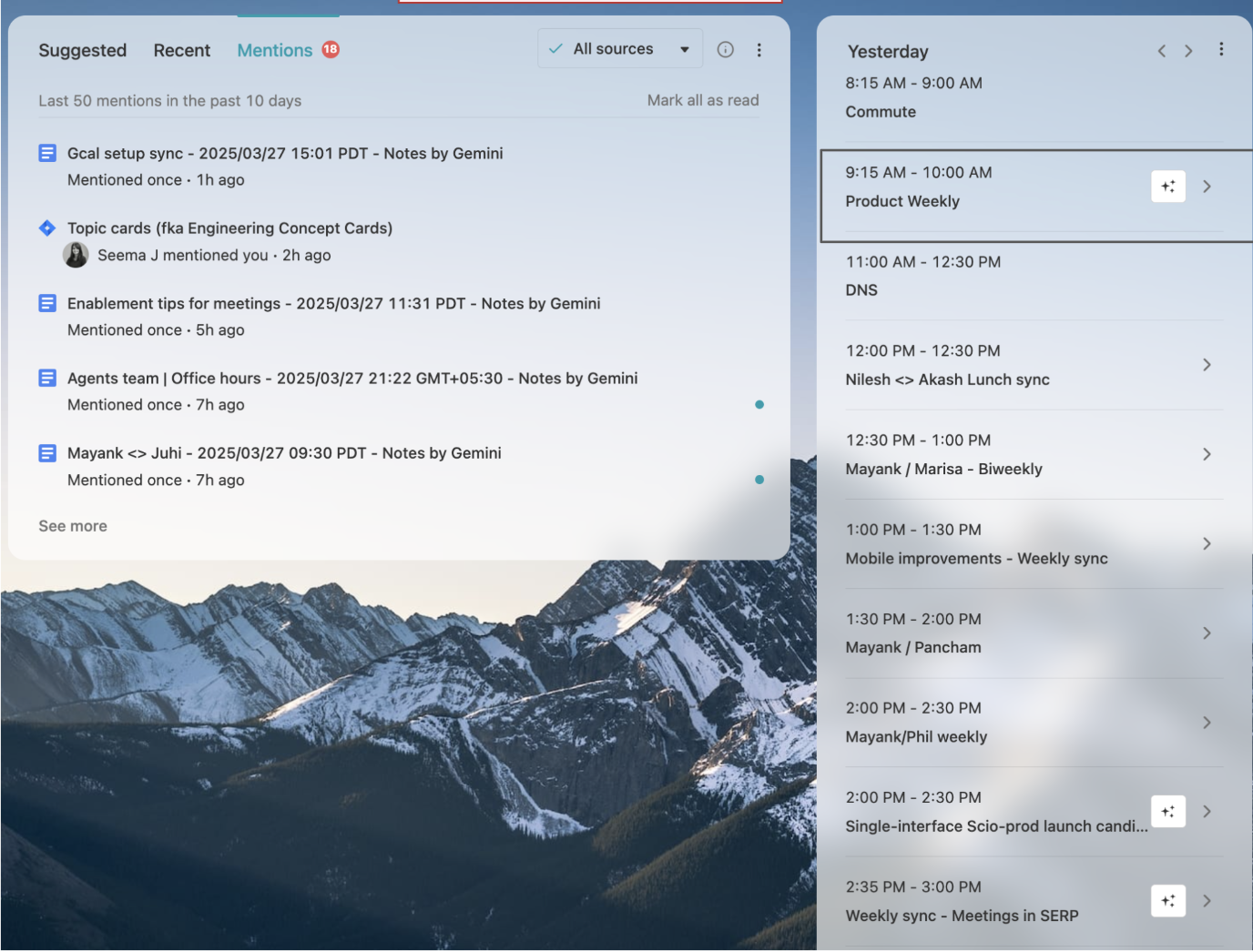
On the Glean home page, when the connector and transcripts are configured, past meetings show a sparkle icon. Clicking it opens the Meeting Summary agent, which:
- Summarizes the meeting
- Highlights explicit action items
- Identifies key decision-makers and potential experts
- Surfaces related documents for follow-up work
This requires:
- Google Calendar native indexing
- Available transcript or Gemini notes for that meeting
Calendar search tool for agents
Once data crawling and indexing is enabled for Google Calendar, you can use the Calendar search tool in agents:
- Agents can look up meetings the user is allowed to see.
- Custom flows (via Agent Builder) can chain “search meetings → summarize → propose next steps”.
To enable:
- Ensure the Google Calendar connector has data crawling and indexing enabled.
- In the agent configuration, enable the Calendar Search tools, following the setup guidance.