Restrict Google Drive content based on sensitivity labels
Many organizations store highly sensitive documents in Google Drive, such as legal contracts, HR records, and executive strategy files. They want users to benefit from Glean search without ever surfacing this sensitive content in Glean, even if users can access it directly in Drive.
Restrict Google Drive content based on sensitivity labels lets Glean admins:
- Use Google Drive labels (for example, a
Sensitivitylabel) to mark documents that are too sensitive for Glean. - Configure an exclusion list of label choices in the Glean Admin console.
- Ensure that any Google Drive file with one of those label choices is excluded from Glean crawling and indexing and does not appear in indexed Glean search results or other index-based experiences.
The feature works at the Google Drive connector level and targets Glean admins and security teams.
Usage examples
- Glean admins, IT, and security: Need a central, policy-based control to prevent sensitive Drive content from being indexed in Glean.
- Solution architects and onboarding teams: Need a repeatable pattern to connect Google Drive while respecting existing sensitivity labels and reducing rollout risk.
- Support and customer-facing teams: Need a clear way to diagnose why specific Drive documents do or do not appear in Glean, especially when label-based exclusions are enabled.
- End users: Indirectly benefit from search that avoids exposing highly sensitive Drive content.
Users often classify content with Drive labels (for example, Sensitivity = Highly confidential). They need a way to ensure that documents with specific label values never appear in Glean search or other index-based features, without turning off the Google Drive connector entirely or managing large exception lists.
Glean reads Google Drive labels during crawling. Admins provide a list of Drive label selection choice IDs in the Google Drive connector configuration. When Glean crawls content, it excludes any document that has one of those selection IDs from crawling and indexing. Those documents do not appear in indexed Glean experiences.
How it works
-
Google Drive labels carry sensitivity information
Workspace admins define labels and label choices in Google Drive. For example, a
Sensitivitylabel might have choices such asPublic,Internal,Confidential, andHighly confidential. -
Glean crawls Drive labels
When you enable label crawling in the Google Drive connector, Glean reads label metadata for each document during crawling. When you enable this option, Glean runs a full crawl so documents gain label metadata used by downstream features and rules.
Glean reads a document's labels as the document's owner. Drive labels have their own read permissions, separate from the document they mark. If the owner cannot view the label, Glean does not receive the label metadata, so Glean does not exclude the document even when its label choice identifier appears in the exclusion list. To make label-based exclusion reliable, make the label readable to everyone in your organization..
-
Admins configure a label-based exclusion list in Glean
In the Google Drive connector's Manage data view, under Exclusion rules → Labels, admins enter a comma-separated list of Drive label selection choice IDs they want to exclude (for example, the IDs for
Highly confidential). -
Glean excludes matching documents from crawling and indexing
When the connector crawls content, any document that has one of the configured label selection choice IDs is excluded by the connector's exclusion rules. Glean does not index those documents, and they do not appear in index-backed Glean experiences.
-
Scope: crawling and indexing only
These label-based exclusions apply only to crawling and indexing. The configuration does not change the connector's data fetching behavior.
At a high level: Google Drive labels define which documents are sensitive, and Glean respects that configuration by never indexing documents with the specified label choices.
Requirements
Google Workspace
- Drive labels are set up and deployed in your organization. For example, you have a
Sensitivitylabel with choices such asConfidentialorHighly confidential. - Every user whose files you want to exclude can read the label. Glean reads labels as the file's owner, so any owner who cannot view the label prevents Glean from excluding their files.
- You can use the Drive label admin interface to:
- Confirm label and label choice definitions.
- Look up selection choice IDs for specific label choices.
Drive labels have their own read permissions, separate from the documents they mark. Glean reads a file's labels as the file's owner during crawling. If a file's owner cannot view the label, Glean never sees the label and does not exclude the file — even when its label choice identifier appears in the exclusion list, and even after a full crawl completes. To make label-based exclusion work across all files, make the label readable to everyone in your organization. Granting view access is sufficient. Crawling does not require permissions to apply or edit label values.
Glean
- A Google Drive connector is configured or ready to be configured in the Glean admin console.
- The workspace feature flag is enabled. A Glean solutions engineer or account team member typically enables this flag.
- The Google Drive connector is authorized with the Drive labels scope:
https://www.googleapis.com/auth/drive.admin.labels.readonly
- In the Google Drive connector setup:
- The Drive labels option is checked so that Glean can crawl Drive labels.
Set up instructions
Perform the following steps to restrict Google Drive content from indexing and crawling using sensitivity labels:
Step 1: Enable Drive label crawling in Glean
-
In the Glean admin console, go to Connectors → Google Drive.
-
In the Setup, check the Drive labels option. Make sure:
- The Drive labels option is checked so Glean can crawl Drive labels and use them for filters and facets.
- The labels scope
https://www.googleapis.com/auth/drive.admin.labels.readonlyis authorized on the Google side for the Glean client ID. You can follow the Show setup instructions link in the connector configuration if you need the exact steps.
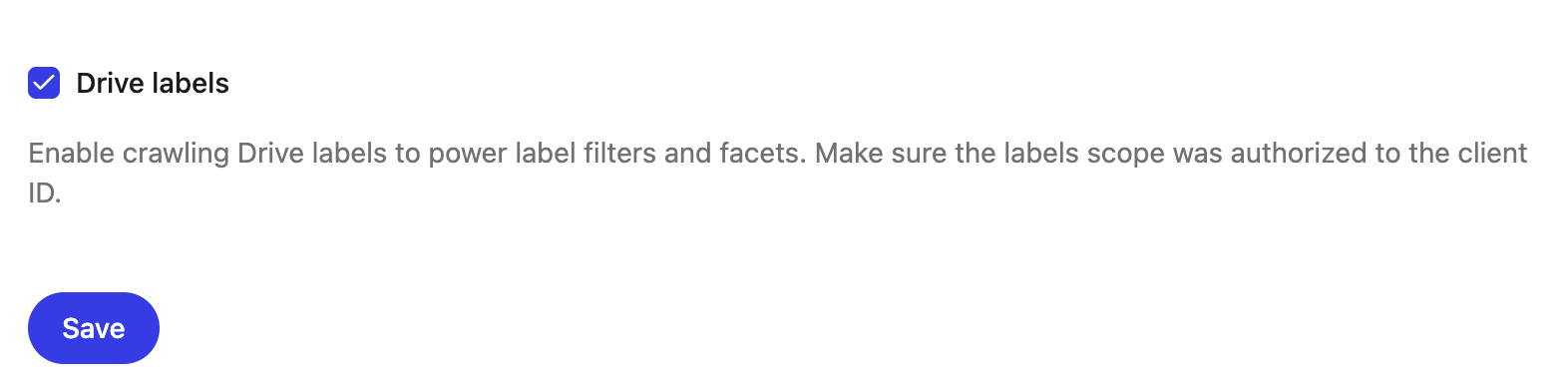
-
Click Save.
After you enable the Drive labels option, Glean runs a full crawl so documents get updated label metadata.
Step 2: Identify label selection choice IDs in Google Drive
Drive stores label choices as internal selection choice IDs. You must use these IDs, not the label display names, when you configure exclusions in Glean.
- Find the selection choice IDs for the label choices you want to exclude (for example,
Highly confidential). Selection choice IDs are short alphanumeric strings such as14062C758Bor2494F0CD7C. For the step-by-step retrieval method, see Retrieve label IDs from Google Drive. - Collect these selection choice IDs into a comma-separated list. You will use this list to configure the exclusion rules.
Step 3: Configure label-based exclusions in the connector
-
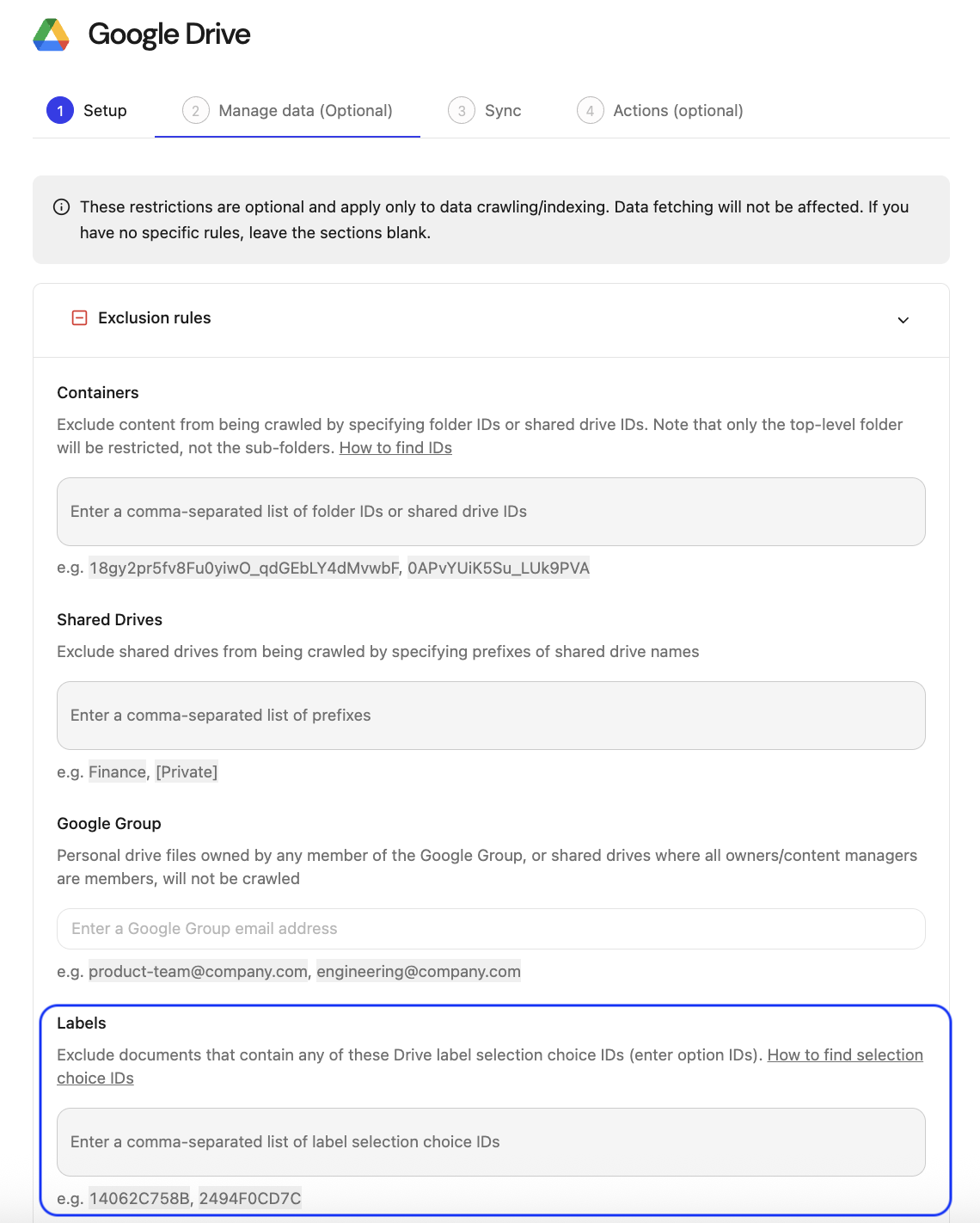
In the Glean admin console, go to Connectors → Google Drive → Manage data (Optional).
-
In the Exclusion rules section, scroll to Labels.
-
In the input named Enter a comma-separated list of label selection choice IDs, paste your list of IDs. For example:
14062C758B, 2494F0CD7C
-
Select Save to apply your changes.
From this point onward:
- Any Google Drive document that has any of these selection choice IDs in its labels is excluded from data crawling and indexing.
- The connector uses the same exclusion engine it applies for folders, shared drives, or Google Groups.
- These rules are optional and apply only to data crawling and indexing. Data fetching behavior does not change.
Exclusions take effect on the next full crawl of Google Drive. Applying a label to a file does not change the file's modified time, so incremental crawls may not re-fetch it. Changes to the exclusion list are applied as documents are crawled. A full crawl takes several days depending on your data volume. Matching documents are removed from the index as they are crawled.
Step 4: Validate the configuration
You can validate the setup with a small set of test documents. This step helps admins, solution architects, and security teams confirm that the configuration behaves as expected.
- In Google Drive, create test documents:
- At least one test file with a label choice that you configured as excluded.
- At least one similar test file that does not use an excluded label choice.
- Wait for the next crawl or trigger a crawl in the Glean admin console, depending on your environment and controls.
- In Glean:
- Search for unique text that appears in the redlisted test document.
- Search for unique text that appears in the non-redlisted test document.
You should observe the following:
- The non-redlisted document appears in indexed search results and related index-based features.
- The redlisted document does not appear in indexed search results or other features that use index-only Drive content.
If the redlisted document appears after the expected crawl and indexing time, use the troubleshooting steps below.