Google Drive Connector Pre-Setup Guide For Non-GCP Customers
Choose an authentication method
For supported AWS deployments, Workload Identity Federation (WIF) is available as an alternative to a long-lived Google Cloud service account key. WIF uses short-lived credentials.
Contact your Glean representative to confirm WIF availability and get setup guidance. If WIF is not supported for your deployment, follow the service account key setup.
Service account key setup
To use service account key authentication, create a key in a Google Cloud project. You can use an existing project you own or complete the following steps to create a project:
-
Go to the Manage resources page in the GCP console and click Create Project.
-
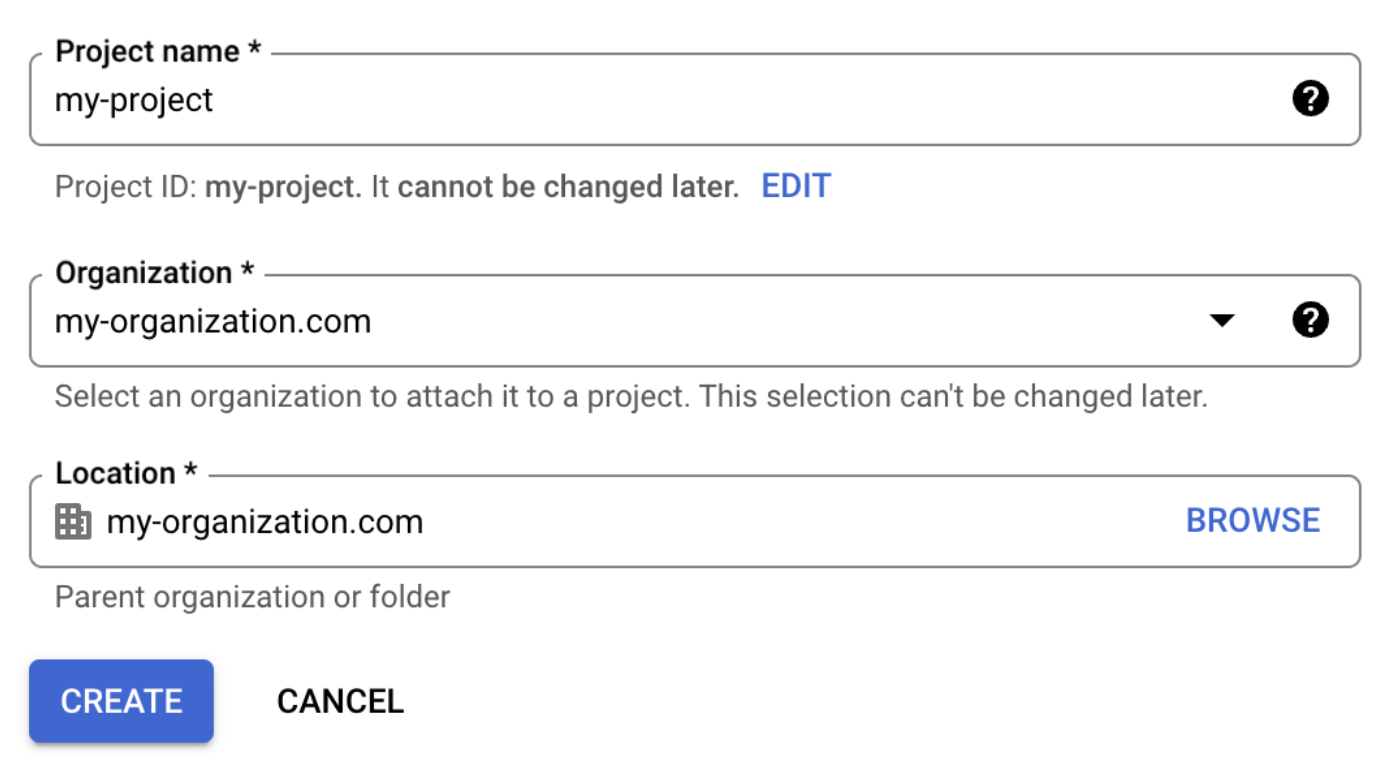
In the New Project window that appears, add any project name, organization, and location of your choosing.
-
Note the project ID (which is directly below the project name) as you will need it when enabling APIs in step 7.
-
Click Create.
-
Go to Billing in the GCP console.
-
Click Link a billing account to set up billing for this project.
- Ensure that the billing account has a corporate credit card attached to it as a "free trial billing tier" will not work.
- If you need to have another user set up the credit card, assign either Billing Account User or Billing Account Admin role for this user
-
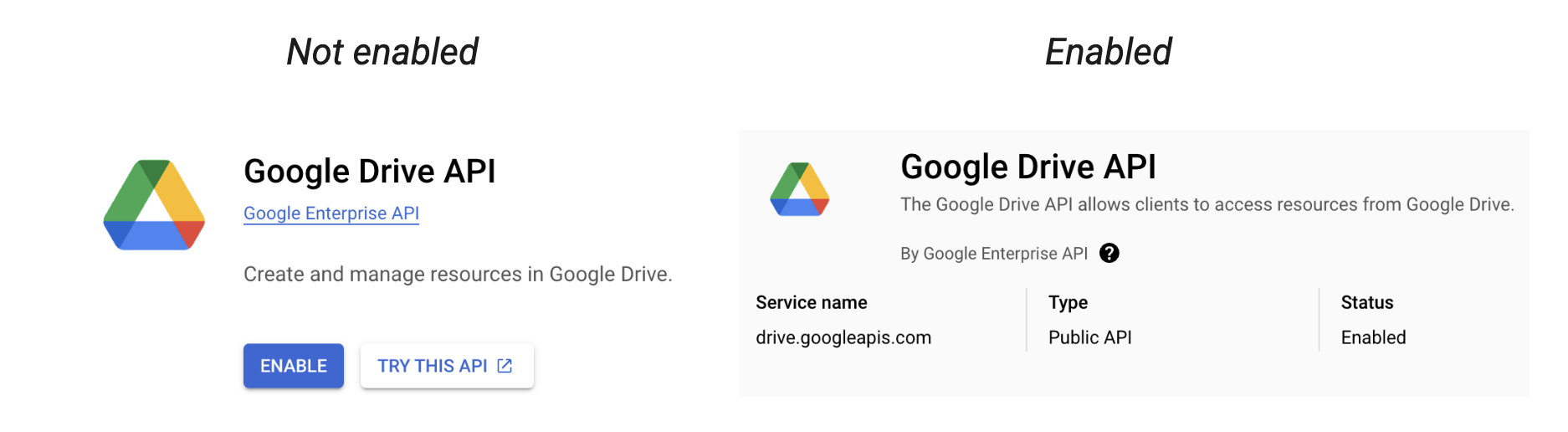
In the project you created or in your existing project, ensure the following APIs are enabled by going to the link (replacing PROJECT_ID with your project ID) and clicking Enable if not already enabled:
- Admin SDK API (admin.googleapis.com)
https://console.developers.google.com/apis/api/admin.googleapis.com/overview?project=[PROJECT_ID] - Cloud Resource Manager API (cloudresourcemanager.googleapis.com)
https://console.cloud.google.com/apis/api/cloudresourcemanager.googleapis.com/overview?project=[PROJECT_ID] - Service Usage API (serviceusage.googleapis.com)
https://console.developers.google.com/apis/api/serviceusage.googleapis.com/overview?project=[PROJECT_ID] - Drive API (drive.googleapis.com)
https://console.developers.google.com/apis/api/drive.googleapis.com/overview?project=[PROJECT_ID] - Docs API (docs.googleapis.com)
https://console.developers.google.com/apis/api/docs.googleapis.com/overview?project=[PROJECT_ID] - Sheets API (sheets.googleapis.com)
https://console.developers.google.com/apis/api/sheets.googleapis.com/overview?project=[PROJECT_ID] - Optional APIs for Gmail/Google Calendar integration:
- Gmail API (gmail.googleapis.com)
https://console.developers.google.com/apis/api/gmail.googleapis.com/overview?project=[PROJECT_ID] - Google Calendar API (calendar-json.googleapis.com)
https://console.developers.google.com/apis/api/calendar-json.googleapis.com/overview?project=[PROJECT_ID]
- Gmail API (gmail.googleapis.com)
-
Go to the Service Accounts page in the GCP console and click Select a Project.
-
Select your project and click Open.
-
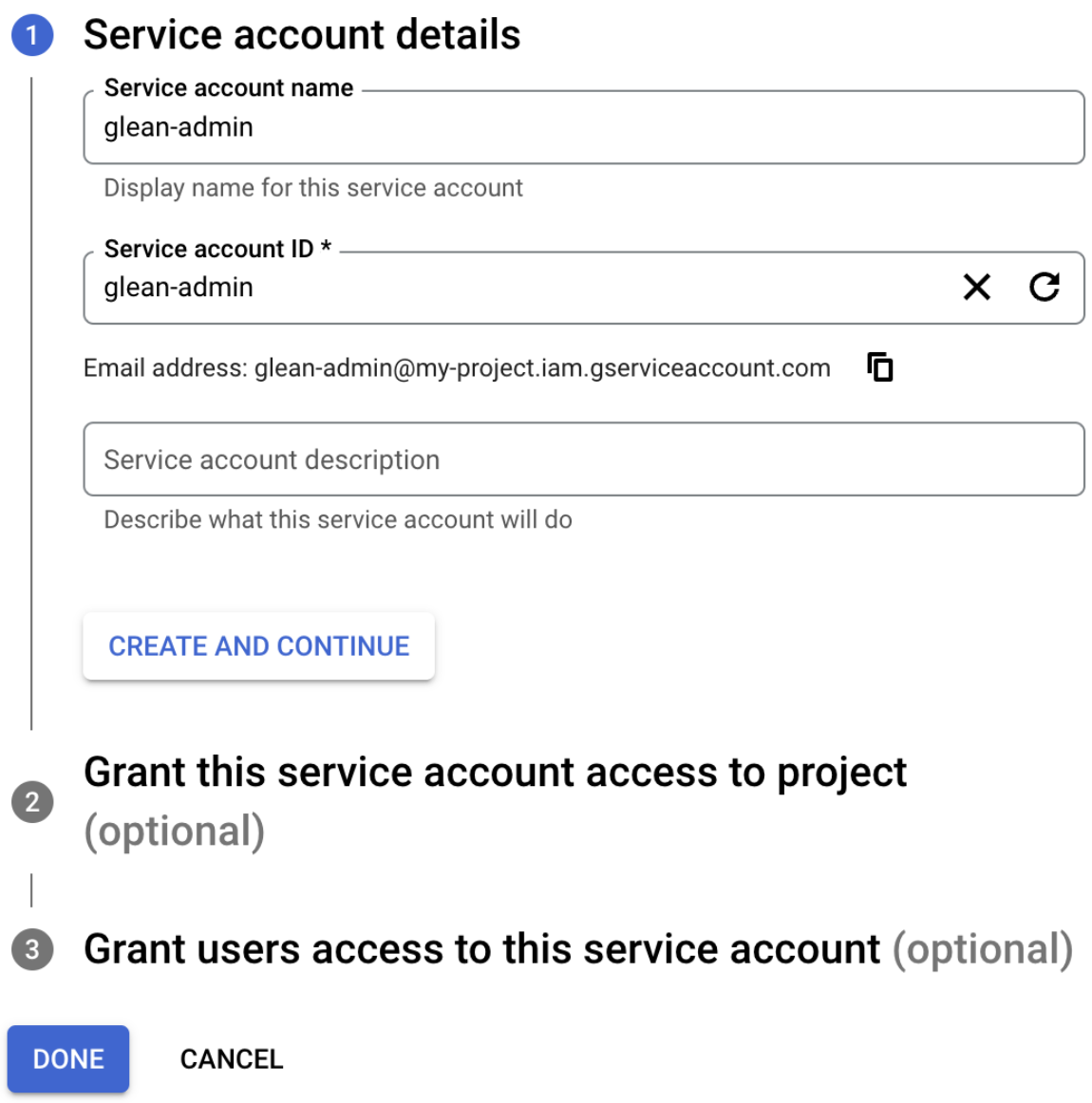
Click Create Service Account. Enter the service account name (glean-admin), ID (which should be automatically populated from the name), and description (optional), then click Create and Continue.
-
Skip Grant this service account access to project and Grant users access to this service account. Click Done.
-
Back on the Service Accounts page for your project, you should now be able to see the service account that was just created. Click the 3 dots below Tools and click Manage Keys.
-
Click Add Key → Create New Key. In the panel that appears, select the key type JSON then click Create.
-
A private JSON key will be saved to your computer.
-
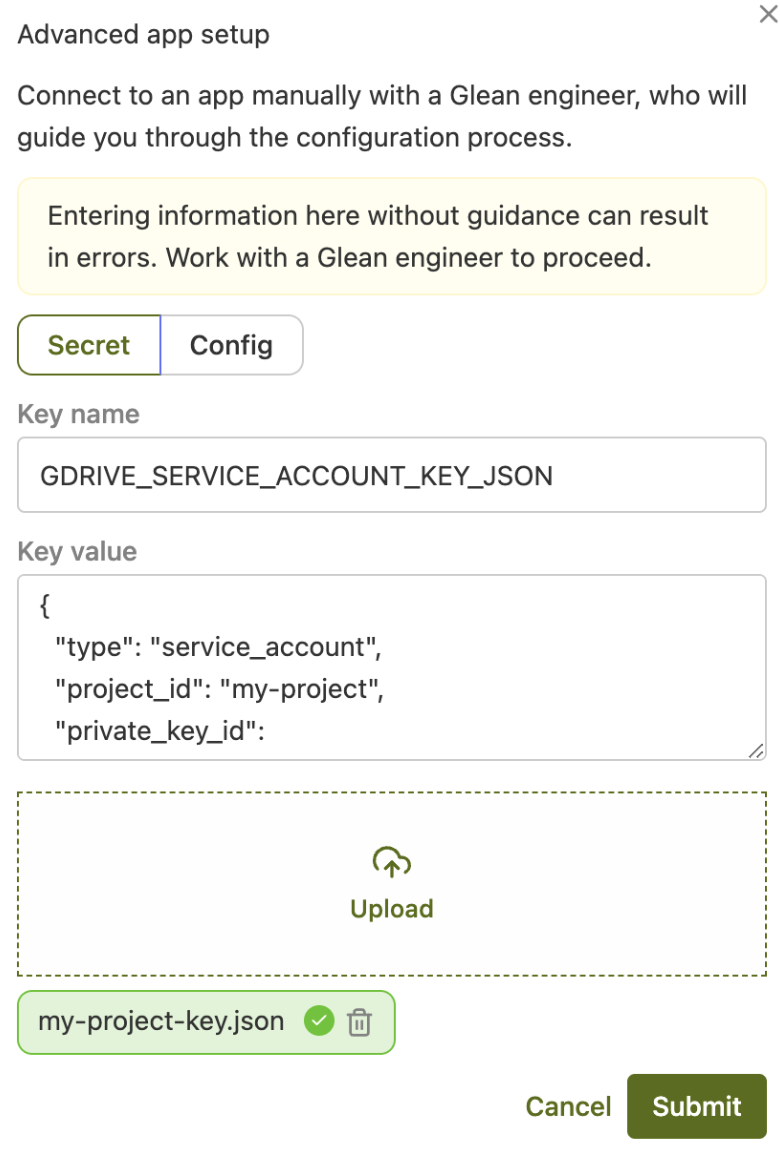
Go to the Advanced Settings page in Glean. Click Secret. Enter GDRIVE_SERVICE_ACCOUNT_KEY_JSON as the key name, and upload the JSON key which will automatically populate the key value. Click Submit. If you are unsure about this step, please ask your Glean representative for assistance.
-
Finally, go to the GDrive Setup page in Glean and go through all the connector steps as normal.
Note that this only needs to be done once, additional GDrive instances can be set up as normal from self-serve. If you’re setting up multiple GDrive instances, please request an increase to the API quota as the API quota is on a per-GCP-project basis and we’ll be sharing this quota across instances.
Connect to Google Drive
Required permissions for setup
The user setting up this connector must be a Google Super Admin.
Set up custom admin role (optional)
To use the Google Drive API, the Glean service account needs to impersonate a user with certain privileges via domain-wide delegation. This can be the Super Admin performing this setup, or a custom admin role can be created with the required privileges and assigned to a different Google Workspace user (this can be an existing user, or a new user created for this purpose).
If you would like to use the Super Admin account, simply enter the email of the Super Admin into the Directory admin email field in Glean. Otherwise, to create a custom admin role:
- Go to https://admin.google.com/ac/roles. Click Create new role. Name the role Glean. Click Continue.
- Select the following privileges:
- Organization Units → Read
- Users → Read
- Groups → Read
- Services → Drive and Docs → Settings
- Domain Settings
- Services → Data Classification → Manage Labels
- Reports
- Domain Management
- Click Continue, and then Create Role.
- You should be redirected to a page where you can assign users to the Glean role you just created. Click Assign members, and add a Google Workspace user. This user needs to have logged in at least once to the Google Workspace and accepted the Terms of Service. Click Assign role.
- Enter the email of the user from the previous step into the Directory admin email field in Glean.
Add API scopes
-
Go to the Domain-wide Delegation section in Google Admin Console. You’ll need to be signed in as an admin.
-
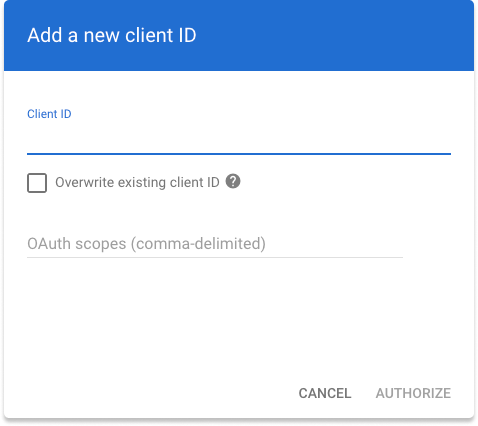
Click Add new and paste the 21-digit Unique ID from Glean into the Client ID field. You can find this in the setup instructions in your Glean Admin Console.
Note: if you have already connected Google Tools (Google Calendar and Gmail) with the same Client ID, you should instead click ‘Edit’ on the existing API client and then add the additional scopes below.
-
Copy and paste the following into the OAuth scopes (comma-delimited) field and then click Authorize:
-
(Optional) Also add the following to the list above if you would like to enable crawling Labels
Add additional Google Drive domains (optional)
Glean will automatically crawl all users and documents in the domain belonging to the directory admin email. If you would like to include additional domains from your Google Workspace account, follow these steps:
(Recommended) Fetch additional domains from your Google Workspace account.
- In the admin role you created, add the following privileges:
- Domain Settings
- Domain Management
- In the API client you created, add the following to the OAuth scopes (comma-delimited) field:
- Click Retrieve domains in Glean to fetch the domains in your Google Workspace account. You can then select the domains you want to include in Glean.
(Alternative) Manually add additional domains
Enter the domains you want to include into the text box in Glean, separated by commas, without any additional spaces.
For example: example.com,example.org.
Click Save in Glean.