Google Groups
Google Groups connector allows organizations to ingest and search Google Groups conversations within Glean. This connector leverages the Google Vault API to export and index all identified Google Group conversations, maintaining strict adherence to user permissions at query time. It operates in the customer’s Google Cloud environment, ensuring that data does not leave the customer's infrastructure and that only authorized users can access indexed content.
Supported Features and Limitations
This section summarizes the capabilities of the connector and any constraints users must be aware of.
- The connector captures and indexes conversations from all Google Groups present in the Google Workspace domain.
- It strictly enforces end-user permissions, users will only be able to view conversations in Glean that they have permission to access within Google Groups.
- All crawled data is contained within the customer's GCP project and no information leaves the customer’s environment.
Supported Objects/Entities
| Entity | Description |
|---|---|
| Google Groups | Mailing lists (groups) managed in Workspace |
| Google Groups Conversations | Message threads within a group |
Supported API Endpoints/Features
- Google Vault API for exporting Google Groups conversations.
- Google Groups Settings API to retrieve groups settings and permissions.
Limitations
- A Google Vault license is required to crawl Google Groups. This is already included for some Workspace editions like Business Plus, Enterprise, Enterprise Essentials (domain-verified only), all Education editions, G Suite Business.
- Export operations are subject to Google Vault’s organization-wide export quotas and may be shared with other Vault workflows.
- Data from deleted groups or conversations may not be indexed if no longer present in Vault or if Google Workspace retention rules have purged them.
Requirements
The connector requires specific technical, credential, and permission prerequisites to ensure secure and reliable operation.
Technical Requirements
- Google Workspace account with eligible editions.
- Customer must have access to create and manage service accounts within their GCP project.
- Google Vault must be enabled and configured for the organization.
Credential Requirements
- Service account with Google Apps Domain-wide Delegation enabled. Preferably, this must be the same service account used for Google Drive integration.
- The service account must be granted explicit OAuth scopes:
- https://www.googleapis.com/auth/ediscovery (Vault API)
- https://www.googleapis.com/auth/devstorage.read_only (Cloud Storage read)
- https://www.googleapis.com/auth/apps.groups.settings (for Groups Settings API)
- GSuite/GDrive Admin access is required to manage OAuth scopes and client delegation in the Admin Console.
Permission Requirements
- Service Account must be assigned the following roles within Google Vault:
- Manage Searches
- Manage Matters
- Manage Exports
- These roles enable the service account to create export requests, manage Matters (crawling containers), and download the exported data necessary for indexing in Glean.
Preliminary Source/System Setup
- Enable the Groups Settings API from the Google Admin Console Marketplace.
- Create or select a Matter in Google Vault to serve as the container for group exports. Store the Matter ID as it is required during connector configuration.
- Assign required roles to the service account and validate delegated access by testing an export/Matter operation.
Configuration and Setup Instructions
This section provides step-by-step instructions to install, authenticate, and validate the Google Groups connector within Glean.
Prerequisites
- Google Workspace with Vault licensed and enabled.
- GCP service account with domain-wide delegation and assigned Vault roles.
- Glean instance deployed and with appropriate admin access.
Authentication and Credentials
- In GCP, create or select a service account for Glean. Ensure this account is configured for domain-wide delegation and already used for any other Google connectors (e.g., Google Drive) if applicable.
- In the Google Admin Console, assign the following OAuth scopes to the service account:
- Enter the service account client ID and scopes at https://admin.google.com/ManageOauthClients.
- Confirm that the service account can access Vault APIs, create/search Matters, and manage Exports.
Step-by-Step Setup
Connect to Google Groups
To connect Google Groups to Glean, your company needs to be on a Google Workspace plan that includes Google Vault. Additionally, as a prerequisite, you will need to have already connected GDrive to Glean.
Connect Google Drive to Glean
For Glean to search through Google Groups content, you must have the Google Drive (GDrive) as a connected app on Glean. For more information, see Connect to Google Drive.
Enable the Vault API and Groups Settings API
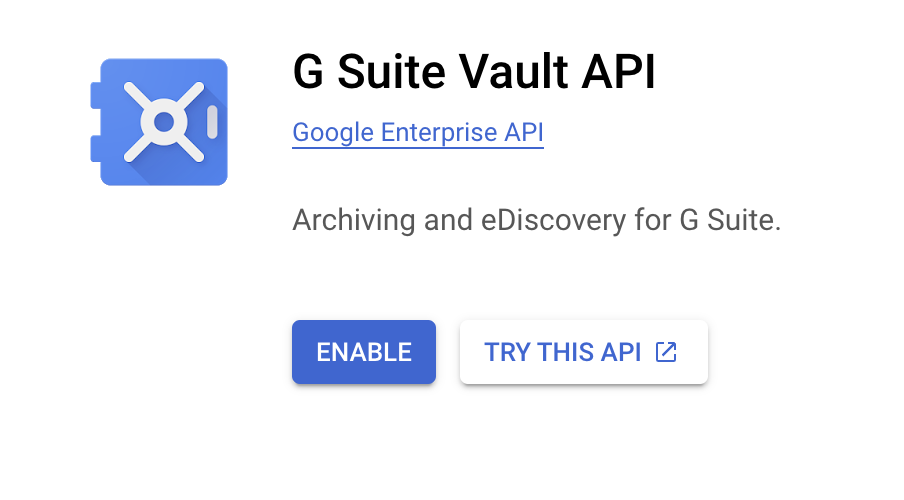
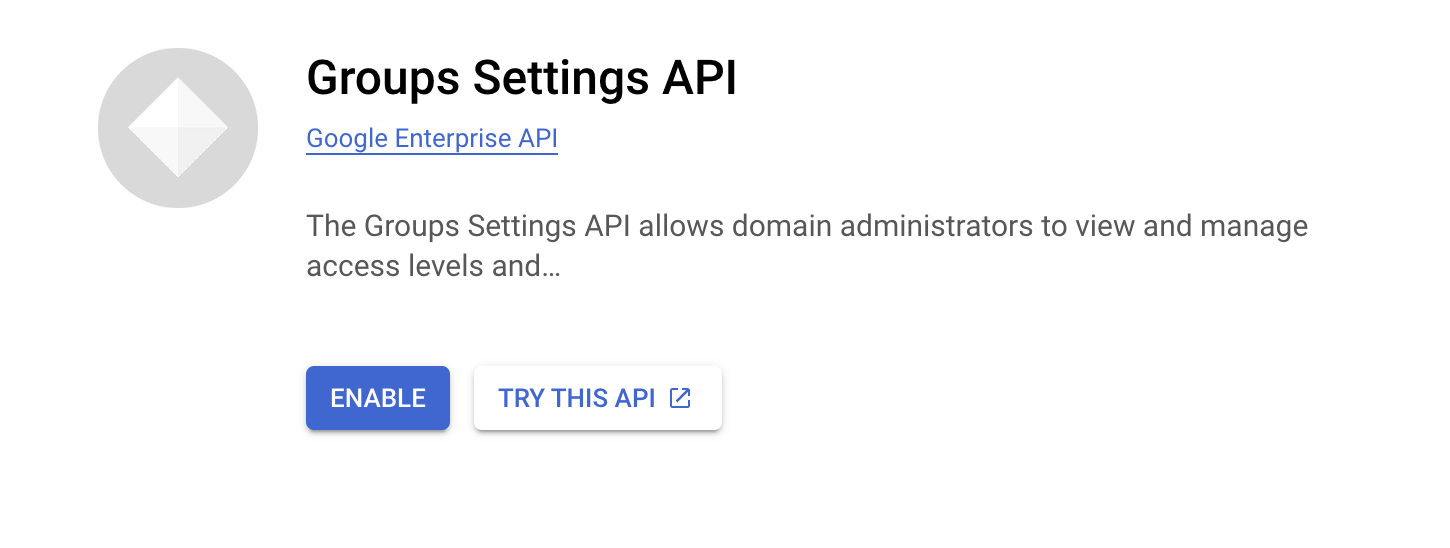
For Glean to index Google Groups conversations and respect group permissions, you must enable the following 2 APIs. As an admin, visit the two Google API pages and click Enable.
- GSuite Vault: used to gather Google Group conversations.
- Groups Settings: used to gather the settings for each Google Group.
Add API Scopes
To add API scopes, you must have a client created for your workspace. As GDrive is connected, you must have a client created already.
-
Sign in as an admin and go to the Google Admin Console to Manage OAuth Clients.
-
Select the Client ID used for the GDrive setup.
-
Click Edit on the existing API client and add the additional scopes as:
https://www.googleapis.com/auth/ediscovery,https://www.googleapis.com/auth/devstorage.read_only,https://www.googleapis.com/auth/apps.groups.settings.
Verify that the following scopes for the client is granted:
- https://www.googleapis.com/auth/ediscovery: allows the client to use Google Vault.
- https://www.googleapis.com/auth/devstorage.read_only: allows the client to access the Google Groups content from the generated Google Vault exports.
- https://www.googleapis.com/auth/apps.groups.settings: allows the client to read the enabled settings for a Google Group.
Grant Vault Role
You would have received a Directory Admin Email while the GDrive set up.
Confirm that user has the appropriate role to use Google Vault.
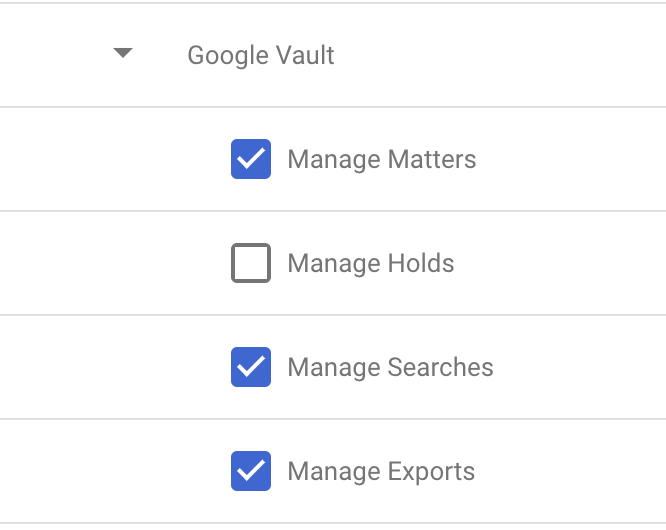
As an admin, go to the Admin Roles page and create or modify a role and grant that role the following privileges:
- Manage Matters
- Manage Searches
- Manage Exports
Create a Vault Matter instance
- Go to the Google Vault page,
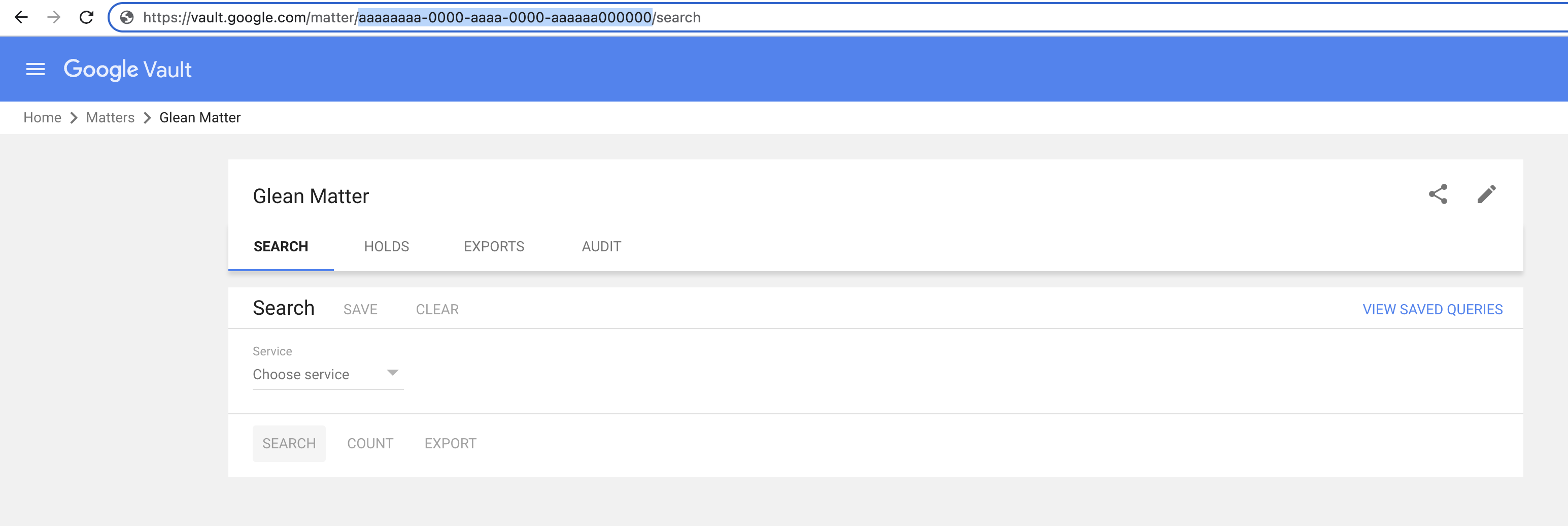
- Go to the "Matters" page, and create a Matter instance. Set the matter name to Glean Matter and click Create. This takes you the search page for the newly created matter.
- Note the matterId present in the URL and provide this to Glean.
- Share the newly created matter with the Directory Admin Email account by performing the following steps:
- Navigate to the Matters page. For example, https://vault.google.com/matter/matter-instance/search.
- Click on the Share this matter button near the top right near the pencil icon.
- Under Invite people, include the user account email used for GDrive setup. This must be the directory admin user.
Provide Client Information
Add the Matter ID and domain to connect Google Groups to Glean:
- Enter the newly created Matter ID into the Google Vault Matter ID input box.
- Enter the domain of the already connected GDrive instance into the Google Domain input box that is
glean.com.
The domain must match exactly to what is configured for the connected GDrive app on Glean. If you have multiple GDrive instances, provide the domain of the GDrive instance that you want to index Google Group conversations for.
- Click Save in Glean.
Additional notes:
- Ensure Vault API export quotas are monitored, as heavy use by multiple apps may lead to delays.
- All permissions are respected—users only see data they can access in Google Groups.
Permissions & Security
- Data and Metadata Ingested: Only messages (conversations) from Google Groups, accompanied by relevant metadata (sender, subject, timestamps, permissions).
- Permission Propagation Logic: Original system permissions are maintained; users only see conversations allowed by group membership and Google Groups' own sharing settings.
- Security & Compliance Notes: Authentication model leverages service accounts with tightly scoped permissions. All operations are performed within the customer’s GCP project to ensure data residency.
- Known Security Restrictions: Exports depend on Vault availability and licensing. Organization-wide quotas may affect export frequency.
- Data Privacy Implications: No group conversation content indexed in Glean is shown to unauthorized users. No data leaves the customer’s GCP account at any time.