Facets and filters
Use GitHub facets and filters to focus on the pull requests, issues, repositories, and code that matter to your task. This page shows how GitHub fields work in Search and how connector settings affect the content available to Search.
Start with Facets and filters for definitions and the difference between Search filters and connector controls.
GitHub Search filter reference
Search autocomplete and All filters show the fields and values available for the current result set. Availability depends on the GitHub content indexed for your organization.
The following GitHub fields support common Search workflows:
| Filter | What it narrows | Example value |
|---|---|---|
type | GitHub content type | Search can suggest commit, file, dir, issue, pr, pull, readme, repo, or repository |
repository | Repository | "example-org/main-app" |
author | Author identity | Select a Search autocomplete value |
assignee | Assigned identity | Select a Search autocomplete value |
label | Pull request label | bug |
status | State for the selected content type | For pull requests, Search can suggest open, closed, merged, or draft |
Search suggests supported type and status values as you build a GitHub query. Select a suggestion instead of guessing a connector-specific value.
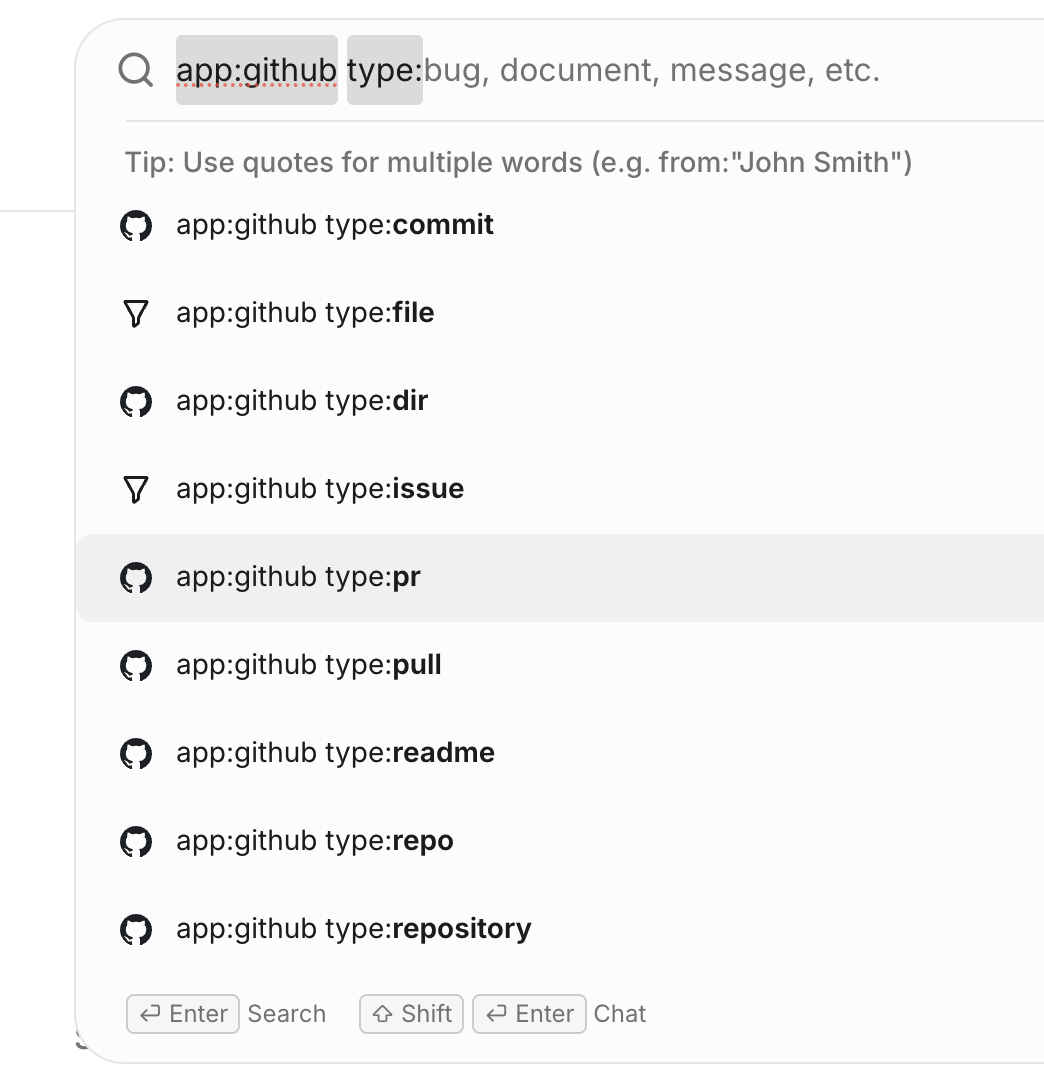
GitHub content types suggested in the Search bar
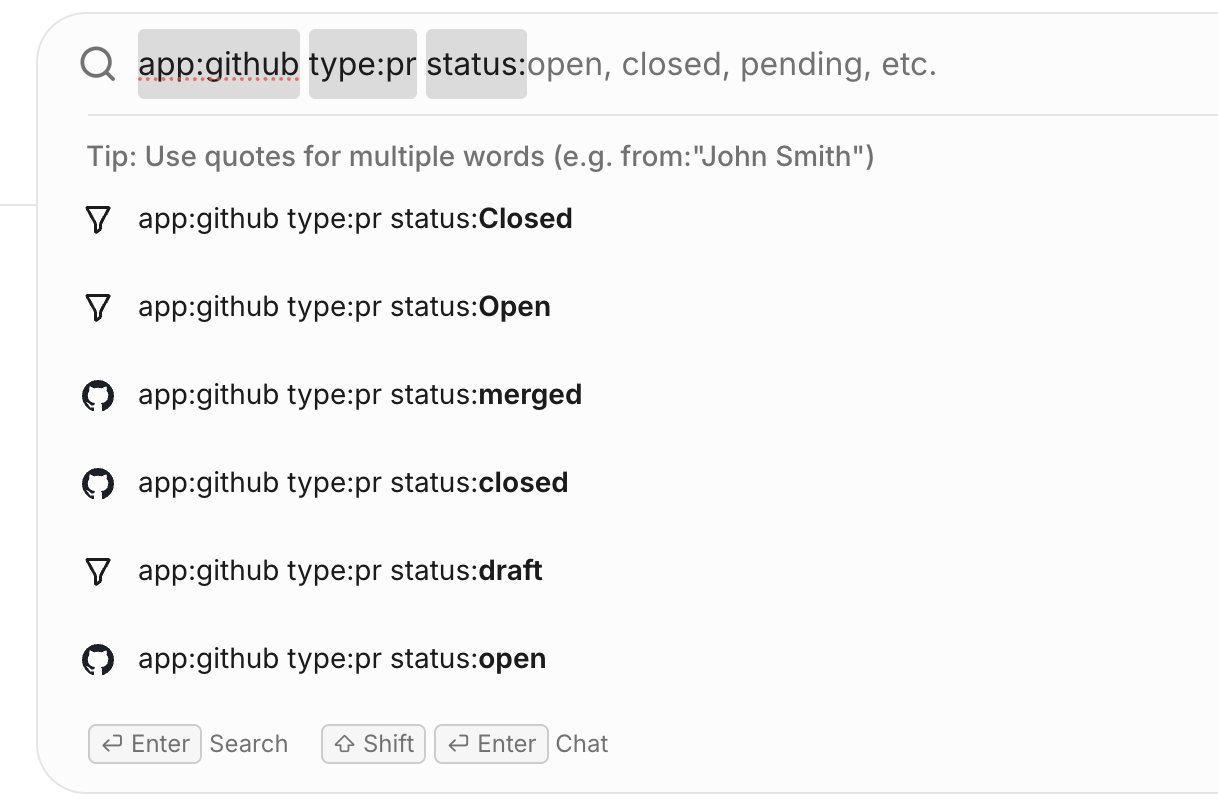
Pull request status values suggested in the Search bar
Code Search also supports repository, file path, and file extension filters. These fields do not guarantee that every GitHub property appears as a standard Search facet. See How code search works.
Combine these fields with common filters such as app and updated. For general Search syntax, see Build a query with Search operators.
Use GitHub filters in a workflow
Use Search filters when you are reviewing pull requests, triaging issues, investigating code, or finding activity in a repository. Filters narrow the current result set and do not change the GitHub connector's crawl scope.
Start with a query
Search for a symbol, error message, repository topic, pull request, or file name.
Limit the source
Add app:github or select GitHub as the source in Search.
Add GitHub filters
Open All filters, then add a content type, repository, author, assignee, label, or status.
Review and refine
Add one filter at a time and review the results after each change.
Glean enforces each user's GitHub permissions when returning results. A filter can narrow the content a user can access, but it cannot provide access to another repository or file.
Use these query patterns as starting points. Replace the repository, label, phrase, and time range with values from your GitHub environment.
Review open pull requests
app:github type:pr status:open
Triage recent bug pull requests in one repository
app:github type:pr repository:"example-org/main-app" label:bug status:open updated:past_month
Investigate security-related pull requests
"authentication timeout" app:github type:pr repository:"example-org/main-app" label:security -label:wontfix updated:past_90_days
This query requires the exact phrase, searches pull requests, limits results to one repository and the security label, excludes the wontfix label, and limits results to the past 90 days.
Configure GitHub connector controls
Connector controls define which GitHub content can enter the Glean index. They affect indexed scope for users and do not refine one Search query.
Set repository scope
GitHub Cloud connector admins can configure repository scope in Admin console → Connectors → GitHub → Manage Data:
- Repository inclusion limits crawling to the listed repositories
- Repository exclusion skips the listed repositories and crawls other eligible repositories
- An exclusion takes priority when the same repository matches both rules
- Only repositories granted to the GitHub App installation are eligible for crawling
See Crawling restrictions for configuration steps.
Select indexed content
The Manage Data tab provides these content controls:
| Control | Behavior |
|---|---|
| GitHub Pages | Crawl legacy gh-pages content when turned on. Repository lists can limit Pages crawling. |
| Wikis | Turn wiki crawling on or off. |
| Issues | Turn crawling for issues and issue comments on or off. |
| Pull request diffs | Turn crawling for pull request diff content on or off. |
| Code file types to index body | Select or add file extensions whose full file bodies Glean should index. |
| Code files to index body | Enter exact filenames whose full file bodies Glean should index. Matching is case-insensitive. |
Turn on Index Code File Body before using the code file extension and filename controls.
Indexed Search cannot return a repository or content type that the connector did not index.
Indexing-scope changes can take time to appear while Glean discovers, crawls, indexes, or removes the affected content.
Check missing GitHub filters or results
Start with the user's goal and determine whether the problem is a missing Search filter or missing indexed content:
- If a filter is missing, run a broad
app:githubquery and check All filters. Glean shows fields and values that apply to the matching results. - If an expected result is missing, remove Search filters and confirm that the user can open the content in GitHub.
- If a repository is still missing, an admin can check the GitHub App installation and the repository inclusion and exclusion settings.
- If file names appear but file contents do not, an admin can check Index Code File Body and the configured file extensions and filenames.
For connector setup and permission requirements, see GitHub Cloud setup.