Greenhouse unified setup
Use unified setup to make Greenhouse recruiting content searchable and optionally connect Greenhouse tools. Follow this guide when setup shows Set up indexing → Connect tools (optional) → Review setup.
Indexing uses Harvest v3 client credentials. Greenhouse's Model Context Protocol (MCP) server provides tools through a separate authorization for each user. See Tools overview.
Prerequisites
Before you start:
- Have permission to configure connectors in the Glean Admin console.
- Have a Greenhouse Site Admin account with access to API credential management and webhooks. The integration service user associated with your Harvest credentials must also have Site Admin authorization.
- Confirm that your Greenhouse account can issue the Harvest v3 client credentials requested by Glean. If Greenhouse directs you to a partner authorization flow instead, contact Glean Support before continuing.
- For MCP, have a Greenhouse Core, Plus, or Pro subscription with MCP Access available. A Greenhouse Site Admin must register the client and configure the allowed scopes. Allow authorization popups and redirects in your browser.
Greenhouse MCP is in open beta. Availability depends on your Greenhouse plan and configuration. See Set up Greenhouse MCP with supported AI tools.
Set up indexing
Indexing requires Harvest v3 credentials and webhooks, even if you plan to defer the crawl.
Start connector setup
- In the Glean Admin console, open Connectors, click Add connector, and select Greenhouse. Some workspaces use the earlier Add data source label.
- In Set up indexing, enter a Name that users can recognize in search results.
- Keep the form open while you prepare the credentials and webhooks.
Create Harvest v3 credentials
Use Harvest v3 credentials for indexing. These credentials are separate from the user authorization for Greenhouse MCP.
- Sign in to Greenhouse as a Site Admin. Open My Dashboard and copy the base URL into Glean's Greenhouse Base URL field. Keep only the HTTPS scheme and hostname, such as
https://yourdomain.greenhouse.io. Do not include a trailing slash or a path. - In Greenhouse, click the gear icon, go to Dev Center → API Credential Management, and click Create New API Credentials.
- Select Harvest V3 (OAuth) as the API type. Enter
Glean Harvest v3 Credentialsas the description, then click View and store credentials. - Store the Client ID and Client Secret securely. Enter them in the corresponding fields in Glean, then click I have stored the client credentials in Greenhouse.
- Under Manage Scopes, enable the required read scopes listed here and click Save.
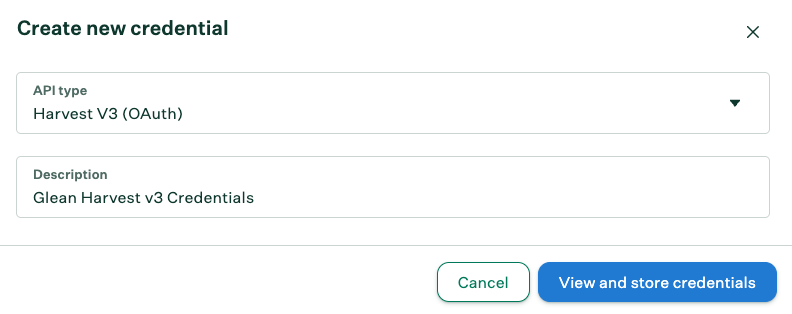
Select Harvest V3 (OAuth) when you create the indexing credentials.
Glean validates the following scopes for candidate and job indexing:
harvest:candidates:list
harvest:applications:list
harvest:application_stages:list
harvest:jobs:list
harvest:offices:list
harvest:job_hiring_managers:list
harvest:job_owners:list
harvest:notes:list
harvest:users:list
harvest:user_roles:list
harvest:user_job_permissions:list
Greenhouse creates an integration service user for the credentials. That user must have Site Admin authorization, not just the person who creates the credentials. Glean validates this authorization when you save the setup. If you cannot confirm the service user's role, contact your Greenhouse administrator before proceeding.
Create webhooks
Webhooks notify Glean about supported candidate and job changes. Use the same webhook secret in Greenhouse and Glean. Do not use the Harvest client secret as the webhook secret.
-
In Glean, keep the prefilled Webhook Secret or replace it with your own secret.
-
Click Show setup instructions. For the default connector instance, copy the displayed endpoint, which ends in
/instance/GREENHOUSE/event. For an additional Greenhouse instance, obtain its exact endpoint from Glean Support before creating webhooks. Do not reuse the default endpoint. -
In Greenhouse, go to Dev Center → Web Hooks → Web Hooks.
-
Create a webhook for each event in the list that follows. For each webhook, complete these fields:
Field Value Name this web hook A descriptive name, such as Glean Delete CandidateWhen The event to subscribe to Endpoint URL The Glean webhook endpoint for this connector instance Secret Key The exact value in Glean's Webhook Secret field Error recipient email An address your team monitors for webhook errors Deactivated No -
Click Create Web hook for each event. Resolve any registration errors before continuing.
Subscribe to these events:
- Candidate anonymized
- Candidate has been hired
- Candidate has been unhired
- Candidate has changed stage
- Candidate or Prospect rejected
- Candidate or Prospect unrejected
- Candidate or Prospect updated
- Delete Candidate
- Job Created
- Job Deleted
- Job Updated
Saving the connector validates that a webhook secret exists. It does not verify webhook registration or event delivery. After you start indexing, check that an approved test change in Greenhouse reaches the corresponding indexed content.
Save the indexing configuration
Return to Set up indexing in Glean and check the values:
| Field | What to enter |
|---|---|
| Name | A name users can recognize in search results |
| Greenhouse Base URL | Your Greenhouse HTTPS base URL, without a trailing slash or path |
| Webhook Secret | The secret you configured on the Greenhouse webhooks |
| Client ID | The Harvest v3 client ID |
| Client Secret | The Harvest v3 client secret |
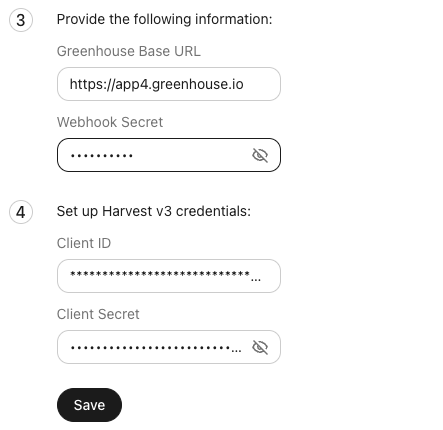
Greenhouse indexing fields for Harvest v3 credentials.
Click Save. Resolve any validation errors before continuing to Connect tools (optional).
Connect tools
In Connect tools (optional), register Glean's callback URL in Greenhouse before you authorize the connection. Do not enter your Harvest client credentials in this step.
Connecting discovers and deploys the available tools. On initial connection, tool audiences default to all users in Agents and Glean MCP Server. Chat defaults to all users if the connecting admin can manage the workspace, and to none otherwise. The indexing audience does not restrict these tool audiences. Each user must still authorize a Greenhouse account. For the controls available after connection, see Review tool access.
Register the MCP client
- In Glean, click Show setup instructions and copy the displayed Callback URL.
- In Greenhouse, open Dev Center → MCP Access → Clients and click Add client.
- Add a client named
Glean MCP. Use the callback URL from Glean as its redirect URL, then save the client.
If Greenhouse offers a preset for Glean, verify that its redirect URL pattern matches the callback shown in your Glean setup.
Review Greenhouse scopes
- In Greenhouse, open Dev Center → MCP Access.
- Enable only the data access and operations your users need. These scopes are separate from the Harvest indexing scopes.
- Save your selections.
Greenhouse applies read-only defaults until an admin saves a scope configuration. Saving an empty selection removes access to all Greenhouse data through MCP. Write-capable tools require the corresponding scopes.
Authorize your Greenhouse account
- Return to Glean and click Connect.
- Sign in to the intended Greenhouse account, review the requested access, and complete authorization.
- Wait for Glean to finish connecting and discovering tools before proceeding. Resolve any reported connection error and try again.

Click Connect to authorize your Greenhouse account for tools.
This authorization connects your account. Other users must authorize their own Greenhouse accounts before using the tools.
If you do not want to connect MCP, click Skip when available. This skips tool setup, not indexing. The Skip for now option in the review step, when available, controls whether the crawl starts.
Review setup and begin indexing
Check the indexing audience and crawl choice before you finish:
- Review the available user-access options. All users is the initial indexing-audience selection. Choose Test group only or None if appropriate and available in your workspace. This setting does not replace the connector's indexed-content permissions.
- Click Begin indexing to start the crawl. If Skip for now appears, you can use it to defer crawling without removing the indexing credentials.
- Open the connector's Tools tab to verify which MCP tools are connected and available. Review text about tools is not confirmation of a successful MCP connection, especially if you skipped that step.
Manage Greenhouse tools
- In Admin console → Connectors, open your Greenhouse connector and select Tools.
- Review the tools Glean discovered. The available tools depend on Greenhouse MCP and the allowed scopes.
- If tools are listed, click Advanced settings.
- In each available section (Chat, Agents, or Glean MCP Server), review which tools are on and set their access scope. Configure each section separately and turn off tools your organization does not need.
- Save your changes.
For Agents, the access scope controls which creators can add or configure tools in an agent. It is not an execution-access control for people running an existing shared agent. Greenhouse also limits each user's access through that user's permissions and the scopes configured in MCP Access. See Managing tool access.
Use Refresh to retrieve the available tools again, then review their settings. If an admin changes Greenhouse MCP scopes, users who already connected must disconnect and reconnect to apply the change.
Verify access
Test indexed search and tools separately.
Verify indexed search
- Check the connector's crawl status and resolve any reported errors.
- After the initial crawl completes, search for a known candidate or job that your test user can access. Confirm that a user without access cannot retrieve it.
- Check that a permitted test change in Greenhouse reaches the corresponding indexed content. Verify the webhook endpoint and secret if the change does not appear. A successful webhook response is not proof that indexing has finished.
Verify Greenhouse tools
- Choose a test user who has access to a Greenhouse read tool in Glean and the corresponding content in Greenhouse.
- Ask the user to request that operation in a chat or agent where the tool is on. When prompted, have the user authorize their own Greenhouse account.
- Confirm that Glean ran the tool and that its results match the user's Greenhouse permissions and the enabled scopes. Repeat with content the user cannot access.
Do not use a write tool merely to test connectivity. Indexing credentials do not authorize tools, and indexing exclusions, such as private candidates, do not define what Greenhouse returns through MCP.
Troubleshooting
Use these checks to isolate the failed part of setup.
| Problem | Check | Next action |
|---|---|---|
| Indexing setup fails to save | Client ID, client secret, required scopes, and integration service user's Site Admin authorization | Follow the validation error shown by Glean. Correct the credentials or authorization, then save again. |
| Base URL validation fails | HTTPS scheme, one Greenhouse hostname, no trailing slash or path | Copy the base URL from your Greenhouse session and remove everything after .io. |
| MCP authorization reports a redirect error | Client registration under MCP Access → Clients | Compare the allowed redirect pattern with Glean's displayed callback URL. Contact Glean Support if a matching registration still fails. |
| MCP connects to the wrong account | The Greenhouse session used during authorization | Disconnect MCP, sign out of Greenhouse, and reconnect with the intended account. |
| Expected MCP tools are missing | Greenhouse plan, enabled MCP scopes, user permissions, and Glean tool settings | Correct the applicable setting. Reconnect after a scope change, then refresh the tools in Glean. |
| Indexed content does not reflect a change | Crawl status, webhook registration, endpoint, and matching secret | Check both crawl progress and webhook configuration. Contact Glean Support if the change remains missing. |
If setup remains blocked, contact Glean Support. Do not include client secrets or webhook secrets in a support message.
See also
- Greenhouse overview: Check indexed content, permissions, and limitations.
- Configure MCP tools from a connector: Manage connected tools and their availability.
- Tools authentication troubleshooting: Resolve authorization failures and repeated connection prompts.