Greenhouse setup
Connector setup is performed primarily within the Glean admin console, with some tools in the Greenhouse admin UI. Most fields needed for secure API access are entered through Glean’s deployment interface, while credential controls remain with the Greenhouse site admin.
Prerequisites
- Greenhouse site admin account with privileges to manage API keys and webhooks.
- Glean Admin Console access.
- The user setting up this connector must be the Greenhouse Site Admin.
Step 1: Generate an API key
-
Sign in to Greenhouse and navigate to My Dashboard in the top left.
-
Copy the URL in the URL bar and save it for entering it into Glean.
While copying the URL, delete everything after the .io part. Expected format: https://YourDomain.greenhouse.io.
-
In Greenhouse, click the gear icon in the top right. It is located between the + and ? icons.
-
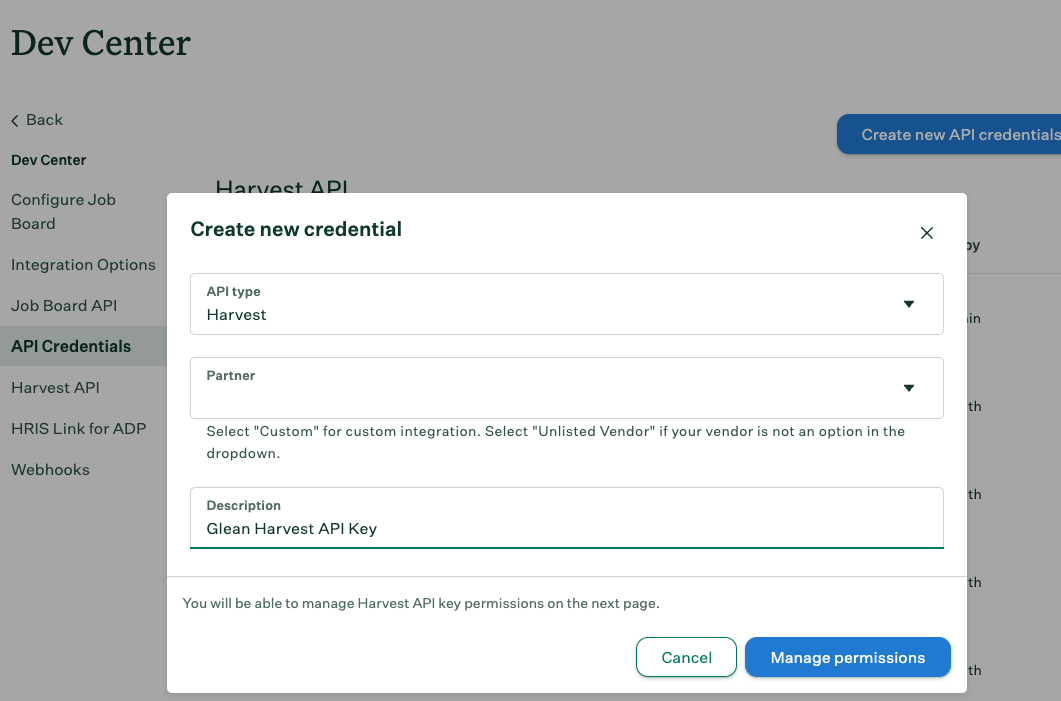
Navigate to Dev Center → API Credential Management and click Create New API Key.
- For API Type, select Harvest.
- For Partners, select Unlisted Vendor.
- For Description, enter
Glean Harvest API Keyand click Manage Permissions.
-
Copy the newly created API key and store it. When you have stored the key, navigate to Greenhouse, click I have stored the API Key.
-
Under Manage Permissions, check Select All and click Save.
Step 2: Create a webhook
-
In Dev Center, click Webhooks on the left.
-
Repeat steps 4-8 for the following event types:
- Candidate anonymized
- Candidate has been hired
- Candidate has been unhired
- Candidate has changed stage
- Candidate or Prospect rejected
- Candidate or Prospect unrejected
- Candidate or Prospect updated
- Delete Candidate
- Job Created
- Job Deleted
- Job Updated
-
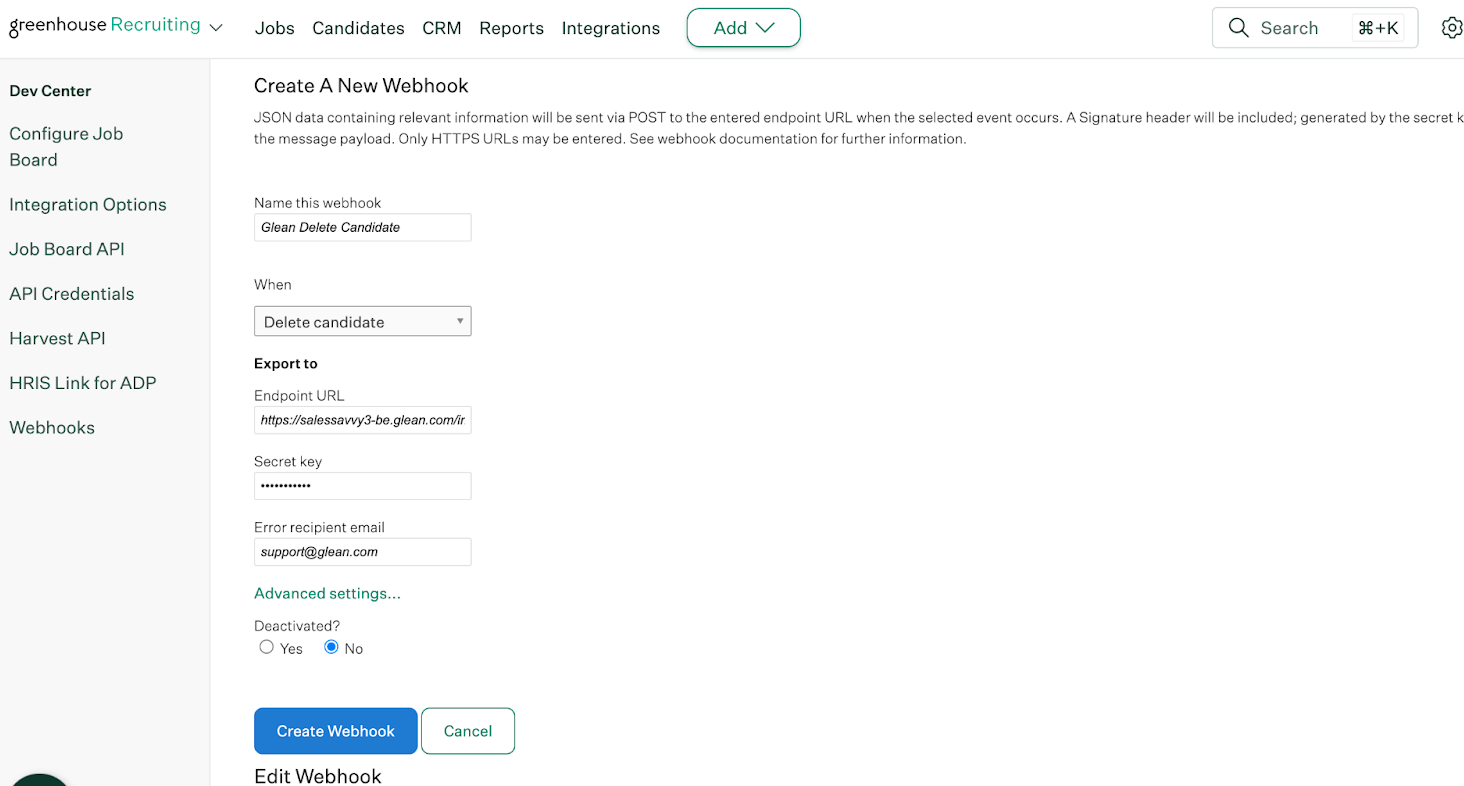
In the Name this webhook, enter Glean [Event Type]. For example to get the Delete Candidate webhook, enter Glean Delete Candidate. Under When, select the appropriate event type.
-
Enter the Endpoint URL. For example,
https://tenant_id-be.glean.com/instance/GREENHOUSE/event.Copy your full backend URL from app.glean.com/admin/about-glean under Server instance (QE), and replace https://tenant_id-be.glean.com with it.
-
In the Secret Key, enter the webhook secret from step 1.
-
In the Error recipient email field, specify the email address to receive the alerts.
-
Leave the Deactivated option as No.
-
Click Create Webhook.
Step 3: Connect Greenhouse and Glean
- As an admin, navigate to the Glean Admin console.
- Click Add connector and select Greenhouse.
- In the Setup tab, add the required information gathered from the previous sections:
- Connector name: keep the name such that the users understand that this connector is used for Glean.
- Greenhouse Base URL
- Harvest API Key
- Webhook Secret
- Click Save.
If you encounter any configuration issues or require further assistance, contact the Glean support team.