LumApps setup
Configure LumApps in Glean
You configure and set up the LumApps connector primarily within the Glean workspace settings. The process involves authorizing access, specifying configuration options, and validating the connection.
Prerequisites
- A LumApps instance with admin access. For more information, see LumApps Global administrator.
- LumApps API v1 enabled for your instance.
- (Optional) Platform logs API enabled for activity data.
- Be aware of your LumApps content and group permissions, as Glean will respect these settings exactly.
Step-by-step setup
Perform the following steps to connect LumApps connector to Glean:
Retrieving a temporary access token
-
Go to your LumApps homepage.
-
Right click and open Inspect Element for your browser and click the Console tab.
-
Enter the following command in the Console to retrieve a temporary access token:
var instance=window.location.pathname.split('/');instance=instance[1]=="a"?instance[3]:instance[1];fetch(window.location.origin+"/service/init?customerHost="+window.location.host+"&instanceSlug="+instance).then(response=>response.text()).then(data=>{const match=data.match(/USER_ACCESS_TOKEN\s*=\s*'(.+?)'/);console.log(match&&match[1]?match[1]:data);}).catch(error=>console.error('Error fetching data:',error));
This command returns a long string, which represents a temporary access token. This token is used to fetch information about your LumApps instance. Use this when a Bearer access token is required.
Finding site information
Glean requires information on which LumApps sites to crawl. Follow the steps to find the site information:
- In the terminal, execute the following command:
curl 'https://sites.lumapps.com/_ah/api/lumsites/v1/instance/list' -H "Authorization: Bearer <your_temporary_access_token>" | jq
-
If a 404 error is returned, your environment is not sites but something else (that is, the prefix in the domain name).
-
Go to LumApps documentation.
-
Go to the API server section, and substitute the different environment names until one succeeds. The environment names can be sites-us, sites-eu, csbx-us, or sites-ms for Microsoft customers.
-
Navigate to the homepage of your LumApps site homepage. The URL looks like
https://<site_name>.<your_company>.comand is the LumApps main production site which must be indexed. -
Enter the URL you got in step 4 in the Base URL input box.
The URL must not contain any slashes after .com and must be only the base URL prefixed by https:// and ending in .com.
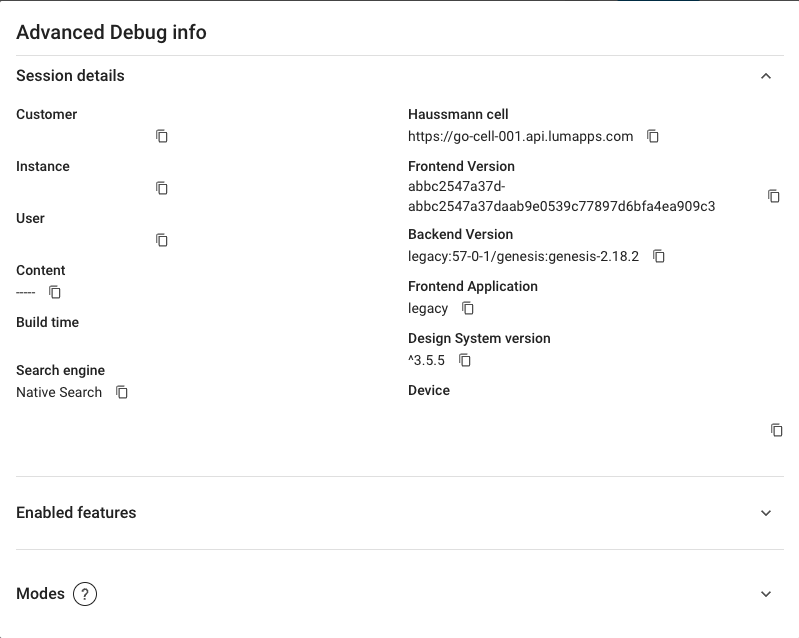
- On the LumApps homepage, use the
Ctrl + /shortcut and navigate to the Advanced Debug info menu.
To access the Advanced Debug info menu, you must be logged in as a global administrator.
- Copy and save the information like Customer ID, Instance IDs, User ID and Haussmann cell you see in the Advanced Debug info menu.
Creating an OAuth client for integration
Glean requires an OAuth application in LumApps to regularly refresh access tokens for the crawler. Glean follows the steps recommended by LumApps OAuth documentation.
- A global administrator can create an application by executing the following command. The Haussmann cell, Customer ID, temporary access token, and user ID are part of the arguments. An example of the haussmann cell is https://go-cell-001.api.lumapps.com
Ensure the allowedUserIds field includes the quotes around the user ID.
curl -X POST <Haussmann_cell>/v2/organizations/<customer_id>/applications \ -H "Content-Type: application/json" \ -H "Authorization: Bearer <your_temporary_access_token>" \ -d '{"name":"Glean Search","scopes":["all.read"],"allowedUserIds":["<user_id>"]}'
Command output:
{
  "allowedUserIds": [
    "<User ID>"
  ],
  "clientSecret": "<Client Secret>",
  "createdBy": "<User ID>",
  "id": "<Application ID>",
  "name": "Glean Search",
  "scopes": ["all.read"],
  "status": "live",
}
- Copy and save the application ID and client secret with global administrator permissions.
Connecting LumApps connector with Glean
- Go to the Glean Admin console -> Connectors.
- Click Add connector -> Select LumApps.
- In the Setup tab, add the following information gathered in the previous sections:
- Add the environment information in Environment input box.
- Enter the customer ID in the Customer ID input box.
- Enter the instance ID in the Instance IDs input box.
- Enter the user ID in the User ID input box.
- Enter the Haussmann cell information in Haussmann cell input box. This API host is used to refresh access tokens. It must be in the form
https://<customer_prefix>.api.lumapps.com.
- (Optional) Specify a greenlist of users who should have access to LumApps search results for testing before rolling out company-wide.
- (Optional) If you wish to power search within LumApps using Glean, refer to the Glean Embedded Search documentation for LumApps.
(Optional) Validating the setup
- In a terminal, execute the following command:
curl -X POST '<Haussmann_cell>/v1/content/list?lang=en&status=LIVE&instanceId=< id_of_production_site>&maxResults=1' -H "Authorization: Bearer <your_temporary_access_token>" | jq
-
Get the value of the URL field and visit the following URL in your browser: <your_base_URL><value_of_url_field>
-
If you get directed to a valid page in your LumApps instance, and the page matches the one returned by the API request in step 2, the setup is successful. If not, please contact the Glean engineer helping you with your deployment to figure out the issue.
Crawl configuration options
- You can specify a greenlist of users to restrict access to LumApps search results during testing.
- All content visible to the admin user is indexed and there are no redlist or custom object options at this time.
- Crawl frequency is managed automatically to keep data fresh and full crawls are performed regularly due to API limitations.
Permissions & security
Data and Metadata Ingested:
- Content pages, community pages, community posts.
- User and group information for permissions enforcement.
- (Optional) Activity data if Platform logs API is enabled
Permission Propagation Logic:
- Glean maps LumApps group and user permissions to enforce access controls at query time.
- Only users with access to content in LumApps will see it in Glean search results.
Security & Compliance Notes:
- OAuth 2.0 is used for secure authentication.
- Glean enforces LumApps permissions, ensuring data privacy and compliance with your internal policies.
- The connector does not support multi-instance scenarios or indexing of private pages not visible to the admin user.
If you have any issues or concerns, reach out to the Glean support team.