Real-time access for OneDrive and SharePoint
Glean can supplement indexed results from OneDrive and SharePoint with real-time results fetched directly from Microsoft 365. This ensures users can find recently created or updated content without waiting for a full crawl cycle.
How real-time access works
Real-time access retrieves content live from OneDrive and SharePoint when a query targets one of these sources. This applies to the following Glean surfaces:
Search
Any query that specifies app:onedrive or app:sharepoint, or search results explicitly filtered for OneDrive or SharePoint, can include real-time results alongside indexed results.
Glean Assistant and Glean Agents
When Glean or an agent is highly confident that a query is about OneDrive or SharePoint — for example, when the user mentions one of these sources or includes a link — it adds real-time search results from that source to the chat context.
Explicitly specifying app:onedrive or app:sharepoint in a Glean query or agent run also triggers real-time results.
Supported content
Real-time access supports the following content types from each source:
| Source | Supported content |
|---|---|
| OneDrive | Documents |
| SharePoint | Documents, site pages (classic and modern page libraries), lists |
Attachments and images within SharePoint lists and pages are not included in real-time results.
Enable real-time access
Enabling real-time access requires both administrator setup and end-user authentication:
- Configuring your Admin console and Azure portal
- Having end users authenticate
Configure the Admin console and Azure portal
A Glean admin must enable data fetching for each data source, and a Microsoft Global Admin must configure additional permissions in Azure.
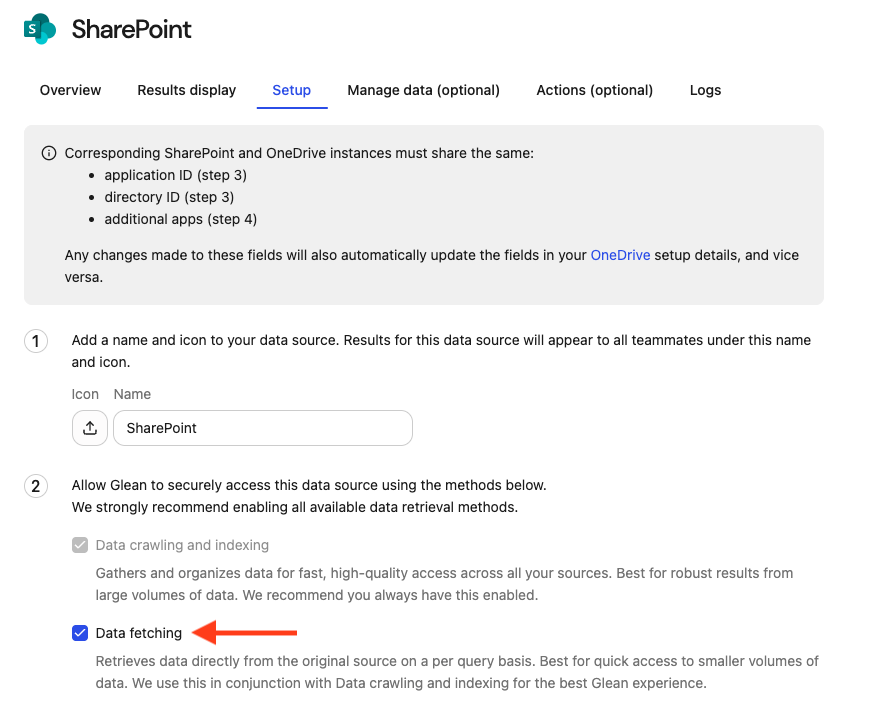
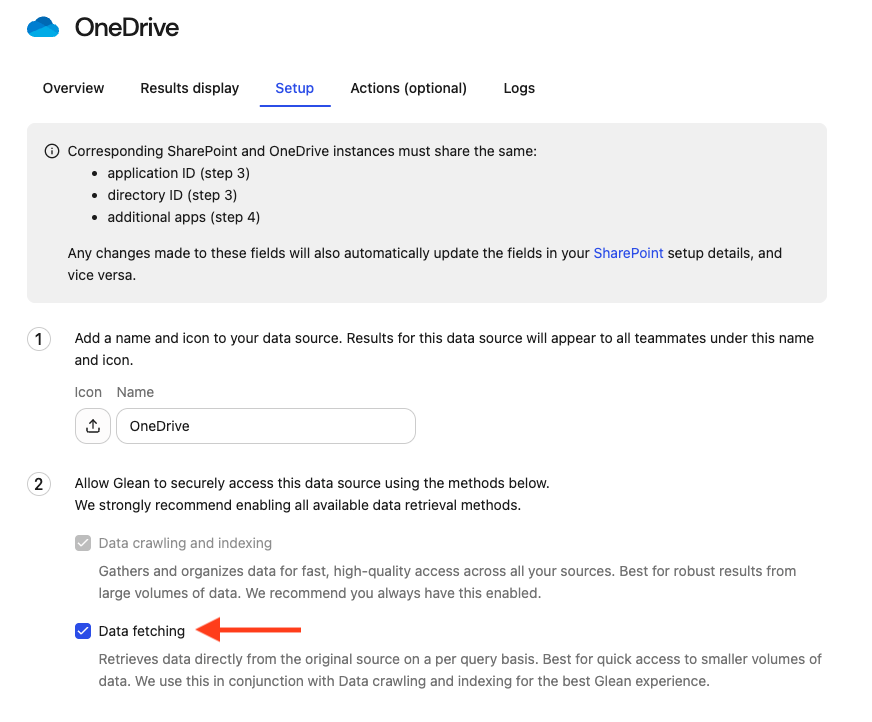
Enable data fetching in the Admin console
Enable data fetching for OneDrive and SharePoint separately:
- Navigate to Admin console → Data sources.
- Select OneDrive.
- Go to the Setup tab.
- Select the checkbox to enable data fetching.
- Repeat these steps for SharePoint.
Configure delegated permissions in Azure
A Microsoft Global Admin must add delegated permissions to your Glean application in Azure:
-
Sign in to the Azure portal.
-
Search and navigate to your Glean application.
-
In the left navigation, select Manage → API Permissions.
-
Select Add a permission, then select Microsoft Graph.
-
Choose Delegated permissions and add the following:
offline_accessUser.ReadFiles.ReadWrite.AllSites.Read.All
Grant Files.ReadWrite.All so we can access files from shared URLs. See Microsoft's Accessing shared driveItems documentation for details.
These delegated permissions are separate from the application permissions used for crawling. They enable per-user, on-demand access to content that may not yet be indexed.
Configure the OAuth redirect URL
Set up an OAuth redirect URL so Glean can complete the user authentication flow:
- In the Azure portal, navigate to your Glean application's Authentication → Platform configurations.
- Select Add a platform.
- Enter the tenant backend domain URL under Server instance (QE) for your deployment.
- Select Configure to save.
These instructions apply to the standard Azure Portal App Authentication experience, not the preview experience.
Authenticate end users
After the admin configuration is complete, each Glean user must authenticate with OneDrive and SharePoint to use real-time access:
- Proactively: Users navigate to Your Settings → Data sources and select OneDrive or SharePoint to authenticate.
- On demand: Glean prompts users to authenticate when a query includes a link to a document that Glean has not indexed yet.
Consider communicating to your organization that real-time access is available and encouraging users to authenticate.