Set up Miro
Connect Miro tools and board indexing in one setup flow. Use this guide when the Miro setup page shows Connect, Set up indexing, and Review setup.
The tools connection and indexing credentials are separate. The Connect step uses Miro's hosted Model Context Protocol (MCP) server and handles OAuth app registration for you. The Set up indexing step requires a custom Miro app and its credentials. Each person authorizes their own Miro account before using tools.
Feature availability after setup
Tools and indexed search use different credentials and become available at different points.
| Capability | When it becomes available | Permissions |
|---|---|---|
| Miro tools | After you finish setup, make tools available to the intended users, and each user authorizes their Miro account | The user's Miro permissions and Glean tool-access settings |
| Indexed board search | As Glean crawls and indexes supported board content | The indexing app's access and each user's Miro board permissions |
Authorizing the tools connection does not supply the credentials for indexing. This guide covers the complete tools-and-indexing setup, not a tools-only connection.
Prerequisites
Before you start, confirm your access in Glean and Miro:
- Have permission to add and configure connectors in the Glean Admin console.
- Use a Miro Enterprise plan for board indexing.
- Have the Miro Company Admin role for indexing. The account that creates the indexing app must also have Content Admin permissions. See Content Admin permissions for Company Admins.
You create the indexing app and obtain its credentials during Set up indexing. You don't need those credentials for the Connect step.
Step 1: Connect Miro
- In the Admin console, go to Connectors, click Add connector, then choose Miro.
- Enter a Name for the connector.
- Click Connect. Sign in to Miro and approve the requested access.
- Return to Glean and continue to Set up indexing after authorization succeeds.
The Connect step connects Miro's hosted MCP server. You don't create a separate custom OAuth app or paste indexing tokens into this step.
Step 2: Set up indexing
Create a custom app in Miro, then enter its credentials in Glean. This app supplies the access Glean needs to crawl boards and their permissions.
Create the indexing app
- Create a Miro developer team if you don't already have one. See Enterprise Developer teams.
- Create an app named
Gleanin the developer team. See Build your first Hello World app. - Turn on Expire user authorization token.
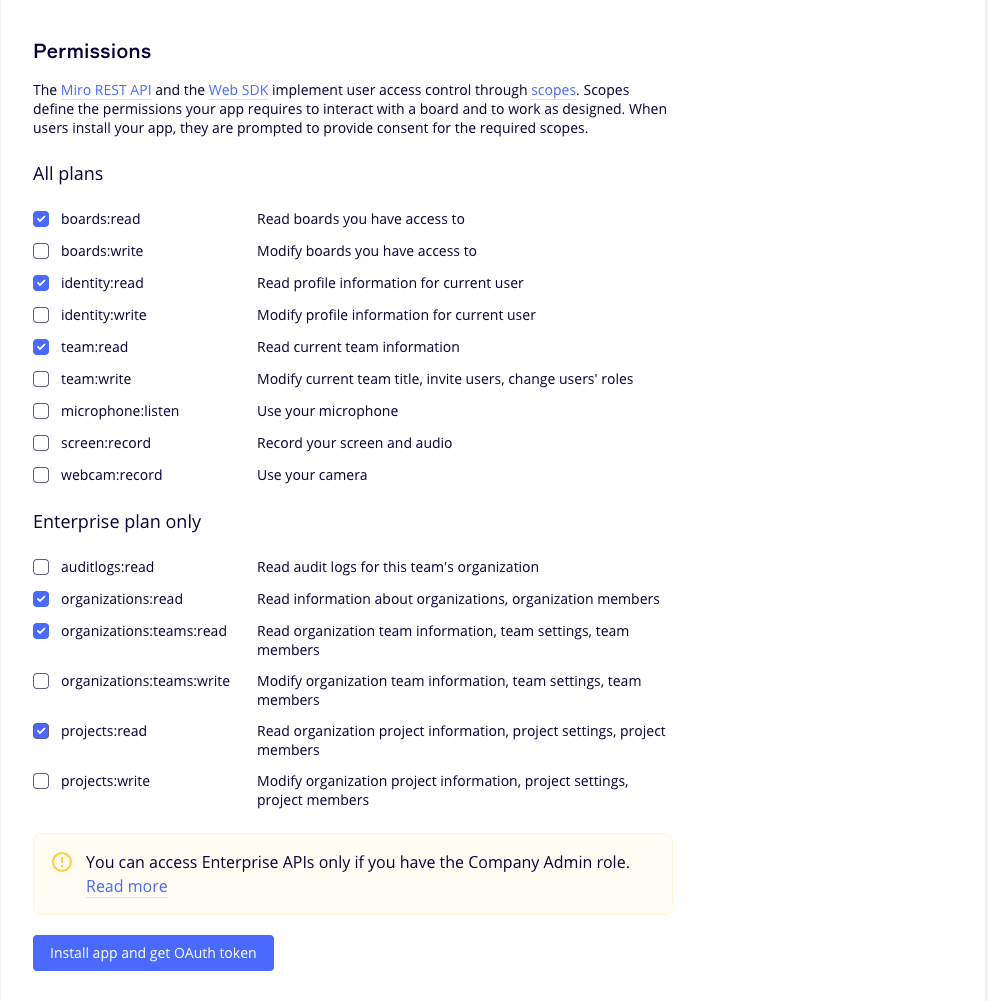
- In the app's Permissions, select the indexing scopes listed in the table.
The indexing app uses these read scopes. They are separate from the permissions requested when you connect Miro tools.
| Scope | Purpose |
|---|---|
boards:read | Read boards the app can access |
identity:read | Read the authorizing user's profile information |
team:read | Read team information |
organizations:read | Read organization and organization-member information |
organizations:teams:read | Read organization teams, their settings, and membership |
projects:read | Read project information, settings, and membership |
Authorize the indexing app
- Install the app in a Miro team whose boards you want to index. Repeat the installation for each team in scope. See Install the app.
- Complete the app's authorization flow to obtain its access token and refresh token. See Miro OAuth 2.0 authorization.
- Copy the app's client ID and client secret. Keep both tokens and the client credentials available for the Glean form.
- In Miro, go to Settings → Company Profile and copy the company ID from the URL.
For a URL in the form https://miro.com/app/settings/company/{company_id}/settings, copy only the company_id value, not the full URL.
Enter the indexing credentials
In Glean's Set up indexing step, enter the values from the custom app.
| Field | Value |
|---|---|
| Client ID | The indexing app's client ID |
| Client Secret | The indexing app's client secret |
| Access token | The access token from the indexing app's authorization |
| Refresh token | The refresh token from the same authorization |
| Company ID | Your Miro company ID |
Click Save, then continue to Review setup. The Miro authorization on the Connect step does not replace any of these values.
Step 3: Review setup
Review the tools connection and indexing configuration. Choose the intended User access, then click Begin indexing to start the initial crawl.
Glean access settings do not grant additional Miro permissions. Users can search only the indexed boards they can access in Miro. Search results appear as Glean processes the boards, so a successful setup does not mean all boards are immediately searchable.
Manage tools
After setup, open the Miro connector's Tools tab to review the tools available in your workspace. Each user connects their own Miro account before using tools, and Miro enforces that user's board permissions.
Read tools retrieve board information. Write tools change Miro content. Review tool access before making write tools available to users. The hosted server determines the available tools, so the list can change independently of the indexing app's read scopes.
Use the existing controls to manage tool availability:
- Managing individual tools: Turn specific tools on or off.
- Enabling tools for Chat and Agents: Choose where users can use tools.
- Tool visibility scoping: Limit who can use each tool.
After setup
- Monitor the initial crawl on the Miro connector page in the Admin console.
- Search for a board in a team where you installed the indexing app. Confirm that the results respect Miro access permissions.
- Test a read tool using an authorized Miro account before making tools available more broadly.
Troubleshooting
Use these checks to distinguish tools-connection issues from indexing issues.
| Issue | What to check |
|---|---|
| The Miro authorization window does not open | Allow pop-ups for Glean, then click Connect again. |
| Tools work, but boards do not appear in search | Complete Set up indexing and Review setup, then check crawl progress and the indexing app's team access. |
| Indexing credentials fail validation | Use the client credentials and tokens from the same custom app. Confirm the app creator has the required Miro admin roles and the app has the indexing scopes. |
| A board is missing from search | Confirm the app is installed in the board's team, the board contains supported content, and the searching user has access in Miro. |
See also
- Choose your Miro setup: Compare the new and previous setup paths.
- Miro overview: Check supported content, permissions, and indexing limitations.
- Miro's MCP Server: Read the vendor's MCP capabilities and access requirements.