Facets and filters
Use Salesforce facets and filters to focus on the accounts, opportunities, cases, contacts, and other records that matter to your task. This page shows how Salesforce fields work in Search and how connector settings affect the records available to Search.
Start with Facets and filters for definitions and the difference between Search filters and connector controls.
Salesforce Search filter reference
Salesforce Search includes built-in connector fields and eligible object fields that an admin exposes as facets. The available fields can therefore differ by object and connector configuration.
Search autocomplete and All filters show the fields and values available for the current result set:
| Filter | What it narrows | Example value | Availability |
|---|---|---|---|
type | Salesforce object type | opportunity, account, lead, contact, or case | Built in |
status | Record status | Select a Search autocomplete value | Depends on object and configuration |
stage | Opportunity stage | "negotiation" | Sales Cloud opportunities, when exposed |
owner | Record owner | me or a Search autocomplete value | Depends on object and configuration |
account | Associated account | "Acme Corporation" | Depends on object and configuration |
priority | Case priority | high | Service Cloud cases |
| Configured field name | Eligible standard or custom field exposed as a facet | Depends on the Salesforce field | Admin configured |
A field appears in Search only when the connector makes it available for the matching indexed records. Search facets are separate from the object query filters that admins use to limit indexed records.
Combine these fields with common filters such as app and updated. For general Search syntax, see Build a query with Search operators.
Use Salesforce filters in a workflow
Use Search filters when preparing for an account review, reviewing pipeline, or finding cases that need attention. Filters narrow the current result set. They do not change record access.
Start with a Salesforce query
Search for the account, opportunity, case, contact, or other Salesforce record you need.
Limit the source
Add app:salescloud or app:servicecloud, or select Salesforce as the
source in Search.
Add Salesforce filters
Open All filters, then add an object type, status, stage, owner, account, priority, or configured field.
Review and refine
Add one filter at a time and review the records after each change.
Use these query patterns as starting points. Replace field values with stages, accounts, and time periods from your Salesforce environment.
Review the opportunity pipeline
app:salescloud type:opportunity
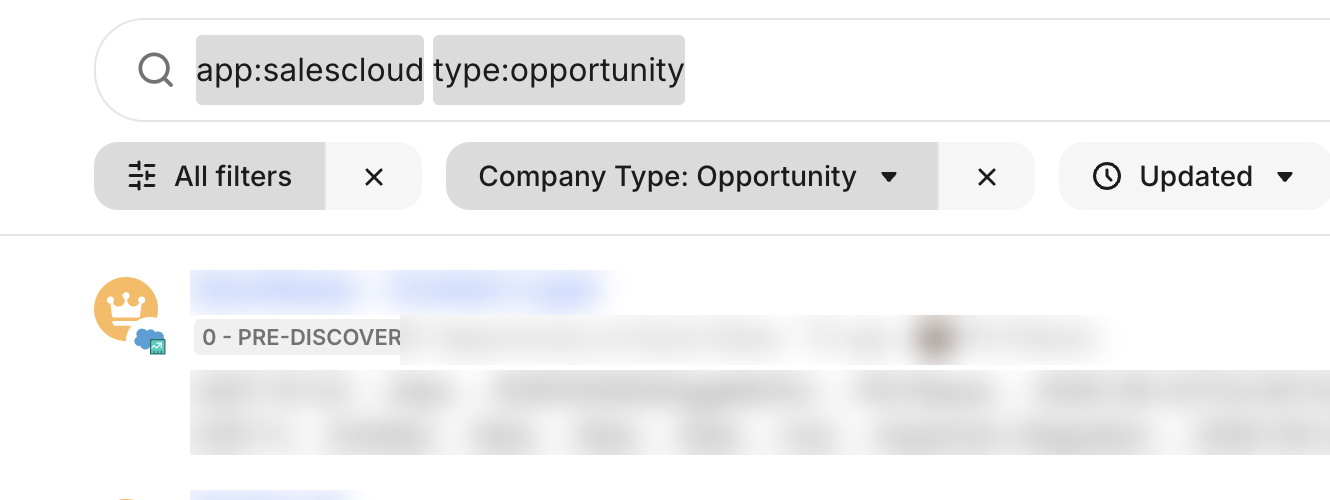
Salesforce opportunity results with source and content type filters
Review opportunities in negotiation
app:salescloud type:opportunity stage:"negotiation" updated:past_month
Find recent renewal opportunities for an account
"renewal" app:salescloud type:opportunity account:"Acme Corporation" -stage:"closed lost" updated:past_month
This query requires renewal, limits results to opportunities associated with the selected account, excludes only the closed lost stage, and limits results to records updated in the past month. Other closed stages can still match.
Configure Salesforce connector controls
Salesforce connector controls determine which fields become Search facets and which records enter the Glean index. They affect indexed content and do not refine one user's Search query.
Expose fields as Search facets
In the object setup, declare additional Salesforce fields as Indexable or Facets/filters:
- Indexable fields are full-text searchable in Glean
- Facets/filters fields appear as filterable properties in Search
The object setup offers these Salesforce field types as facet candidates:
| Salesforce field type | Facets and filters |
|---|---|
email | Supported |
picklist | Supported |
multipicklist | Supported |
string | Supported |
boolean | Supported |
combobox | Supported |
This list applies to the Facets/filters field selector, not to all built-in or connector-provided Search fields.
Limit indexed records
Add object query filters when Glean should index only records that match specific SOQL WHERE-clause conditions.
Open Salesforce object settings
In Admin console, go to Connectors → Salesforce → Objects.
Add a query filter
Add a new object or edit an existing object. Expand Advanced options, then select Add filter.
Define the condition
Select the Field name, Operator, and Value. The field list comes from the object's schema.
Save the object configuration
Save the configuration to apply the filter during crawling.
Use object query-filter operators
These operators apply to crawl-time object query filters, not to Search query syntax:
| Operator | Description |
|---|---|
= | Exact match |
!= | Excludes an exact match |
< | Values below a threshold |
> | Values above a threshold |
<= | Values at or below a threshold |
>= | Values at or above a threshold |
LIKE | Wildcard text matching using % |
NOT LIKE | Excludes wildcard matches |
IN | Matches any of multiple comma-separated values |
NOT IN | Excludes multiple comma-separated values |
INCLUDES | For multi-select picklists, matches records containing specified values |
EXCLUDES | For multi-select picklists, excludes records containing specified values |
Multiple query filters use AND logic. All conditions must match for Glean to index a record. Filters work with standard and custom Salesforce objects.
Configure query filters separately for each business object you want to restrict. Do not assume that filtering one object also restricts related objects.
Salesforce tools that make live SOQL calls on behalf of a user do not use these crawl-time filters. Object query filters apply only to indexed records.
Combine indexing controls
Salesforce provides three levels of indexing control:
- Object-level inclusion selects which objects to index
- Record-level query filters limit records within a configured object
- Field-level exclusion prevents Glean from indexing selected fields
These controls are separate from Search facets. See Salesforce inclusion and exclusion rules for configuration details.
Check missing Salesforce filters or results
Start with the user's goal and determine whether the problem is a missing Search filter or missing indexed content:
- If a filter is missing, run a broad Salesforce query and check All filters. An admin can then verify that the field type supports facets and that Facets/filters includes the field.
- If an expected record is missing, remove Search filters and confirm that the user can open the record in Salesforce.
- If the record is still missing, an admin can check object inclusion, record-level query filters, and field-level exclusions.
- If live Salesforce tool results differ from indexed Search results, check whether a crawl-time filter affects only the indexed path.
For connector setup and permission requirements, see Salesforce overview and Salesforce setup.