Seismic
The Seismic connector enables you to search published information in Seismic content profiles directly from Glean. By integrating Seismic with Glean, you can ensure that users only see content they are authorized to access, with permissions enforced down to the record level at query time. This connector is designed to help organizations surface relevant Seismic files while maintaining strict data privacy and access controls.
Supported Features and Limitations
The Seismic connector is focused on indexing and searching published content profiles within Seismic. It leverages Seismic’s Reporting API and enforces user-level permissions to ensure secure and relevant search results.
Supported Objects/Entities
| Object Type | Description |
|---|---|
| Content Profiles | Published information in Seismic content profiles |
| Library Documents | Documents within content profiles (library only) |
Key features
-
Content profiles: Indexes published content profiles and Library Documents.
-
Permission enforcement: Honors granular Seismic permissions, ensuring users only see content they are allowed to access.
-
Custom properties: Supports using Seismic custom properties to grant document access to specific groups in Glean, enabling precise access control.
-
Advanced crawling: Efficiently syncs new and updated items through incremental crawling.
-
Advanced configuration controls: The connector offers granular control over indexed content:
- File extensions (Greenlist): You can specify file types (e.g.,
pdf,docx,pptx) whose content Glean should fully index. - Folder inclusion (Greenlist): You can define specific Library Folder IDs that Glean should crawl exclusively.
- Folder exclusion (Redlist): You can define Library Folder IDs that Glean should explicitly exclude from crawling.
- File extensions (Greenlist): You can specify file types (e.g.,
Limitations
- Content scope: Only published content profiles and library documents are indexed. Workspace files and unpublished content are excluded.
- Embedded documents: Embedded documents (e.g., Google Slides reformatted as PowerPoints) are surfaced only as links; their content is not crawled.
- User visibility: Due to Seismic API constraints, all published content profile links are made available to all Seismic users in Glean. Users cannot view content in Seismic if they lack native access.
- Updates: The connector does not support webhooks; all updates are detected through scheduled crawls.
- Licensing: The Seismic Reporting API, which the connector leverages, may require a specific Seismic license.
Crawling Strategy
| Crawl type | Full Crawl | Incremental Crawl | People Data | Activity | Update Rate | Webhook | Notes |
|---|---|---|---|---|---|---|---|
| Content Profile | Yes | Yes | No | Yes | Scheduled | No | Only published content profiles. No webhooks and activity through API |
| Library Docs | Yes | Yes | No | No | Scheduled | No | Only library not workspace docs and incremental supported |
You can configure greenlist (include) or redlist (exclude) folders at the library level to control which folders are crawled.
Results Display
Search results from Seismic appear in Glean with document titles, metadata, and links to the original Seismic content. Embedded documents are shown as links, but their content is not indexed.
Requirements
To use the Seismic connector, you must meet certain technical, credential, and permission requirements. These ensure secure integration and proper enforcement of access controls.
Technical requirements
- API access: Your Seismic account must have the Reporting API enabled, which may require a specific Seismic license.
- Seismic permissions: You must have admin access in Seismic to register and configure OAuth2 applications.
- Glean access: You need administrative privileges in the Glean Admin Console.
Scope
-
The Seismic app must be granted the following OAuth scopes:
- seismic.user.view
- seismic.user.manage
- seismic.configuration.view
- seismic.configuration.manage
- seismic.reporting
- seismic.delivery
- seismic.library.view
- seismic.library.manage
- seismic.workspace.view
- seismic.workspace.manage
note
Do not use seismic.self.view or seismic.self.manage as these are insufficient for connector operation.
:::
- The authenticated user must have access to the content profiles you wish to index.
- The Reporting API must be enabled for your Seismic account.
Preliminary setup
- (Optional) Configure custom properties in Seismic to grant document access to specific groups in Glean.
Setup instructions
Follow these steps to configure and set up the Seismic connector in Glean. Most setup occurs in the Seismic admin console and the Glean admin interface.
- In Glean, you need to enter the client ID and secret when adding the Seismic connector.
- Complete the OAuth2 flow to authorize Glean to access your Seismic data.
Register a new Seismic app for crawl
To get the client ID and secret from your Seismic tenant for the Glean set up, run the following steps:
-
Create and register a new app at https://apps.seismic.com/ in the Seismic tenant. Name this app indicating that it is used for Glean integration.
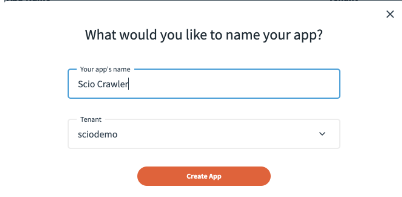
-
Setup the Authorization Code Flow
- Select OAuth2 - Authorization Code Flow in the Authentication tab.
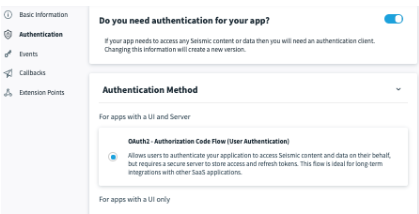
- On the OAuth2 Information page, add the redirect URL as the tenant URL:
- For example, https://yourtenant.seismic.com/.
- Client ID is generated automatically.
- Generate the client secret. The clieny secret is hidden initially, but you can show and copy the secret.
it.
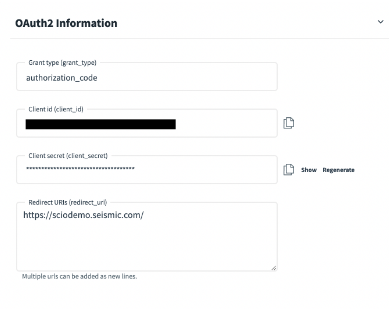
- In the scopes section, select the following scopes:
- seismic.user.view
- seismic.user.manage
- seismic.configuration.view
- seismic.configuration.manage
- seismic.reporting
- seismic.delivery
- seismic.library.view
- seismic.library.manage
- seismic.workspace.view
- seismic.workspace.manage.
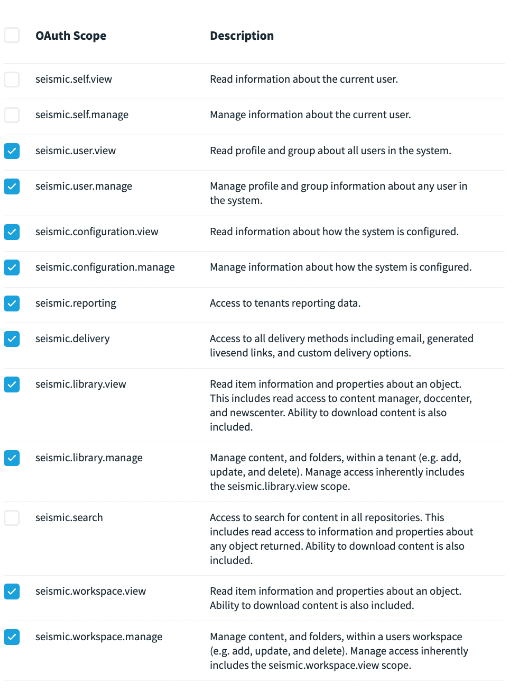
- Select OAuth2 - Authorization Code Flow in the Authentication tab.
-
With the information that you have gathered from the above steps:
- Enter the tenant name into the Tenant Name input box. Ensure to not include seismic.com.
For example, id the tenant name is
https://sciodemo.seismic.com, enter onlysciodemo. - Enter the client ID into the Client ID input box.
- Enter the client secret into the Client Secret input box.
- Enter the tenant name into the Tenant Name input box. Ensure to not include seismic.com.
For example, id the tenant name is
Get refresh and access token for the app
To get an access and a refresh token for the Glean set up, perform the following steps:
-
Go the Seismic documentation for instructions and executions of POST requests.
-
Run the URL given on Get the user's authorization to get an access code. Note that scopes must be separated by a space in the URL.
warning
Ensure you include all required scopes from the Permission Requirements section above when making the authorization request.
The scope field should be scope=seismic.reporting seismic.workspace.manage seismic.workspace.view seismic.library.manage seismic.library.view seismic.delivery seismic.configuration.manage seismic.configuration.view seismic.user.manage seismic.user.view offline_access. Missing scopes will cause the connector to fail during crawling.
:::
- You will be redirected and the URL will include the access code. For example: https://sciodemo.seismic.com/app?code=sciodemo_ABCDEF123&scope=seismic.reporting+offline_access&state=blank#/home.
-
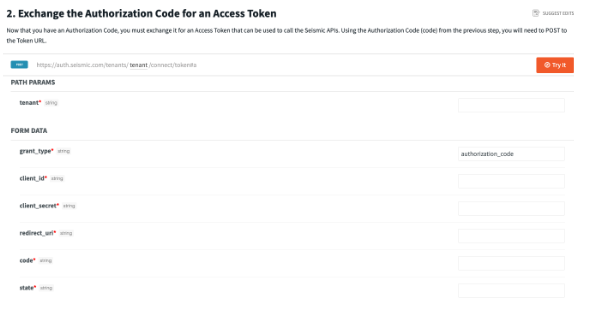
Exchange the authorization code for an access token
- Go to the Exchange the Authorization Code for an Access Token page.
- Enter the required information and click Try it.
- The response will have the access token and refresh token.
- Enter the access token into the Access Token input box.
- Enter the refresh token into the Refresh Token input box.
-
Click Save in Glean.
(Optional) Manage data
Once the initial connector setup is complete, use the following steps to control which content is indexed and how document access is managed in Glean.
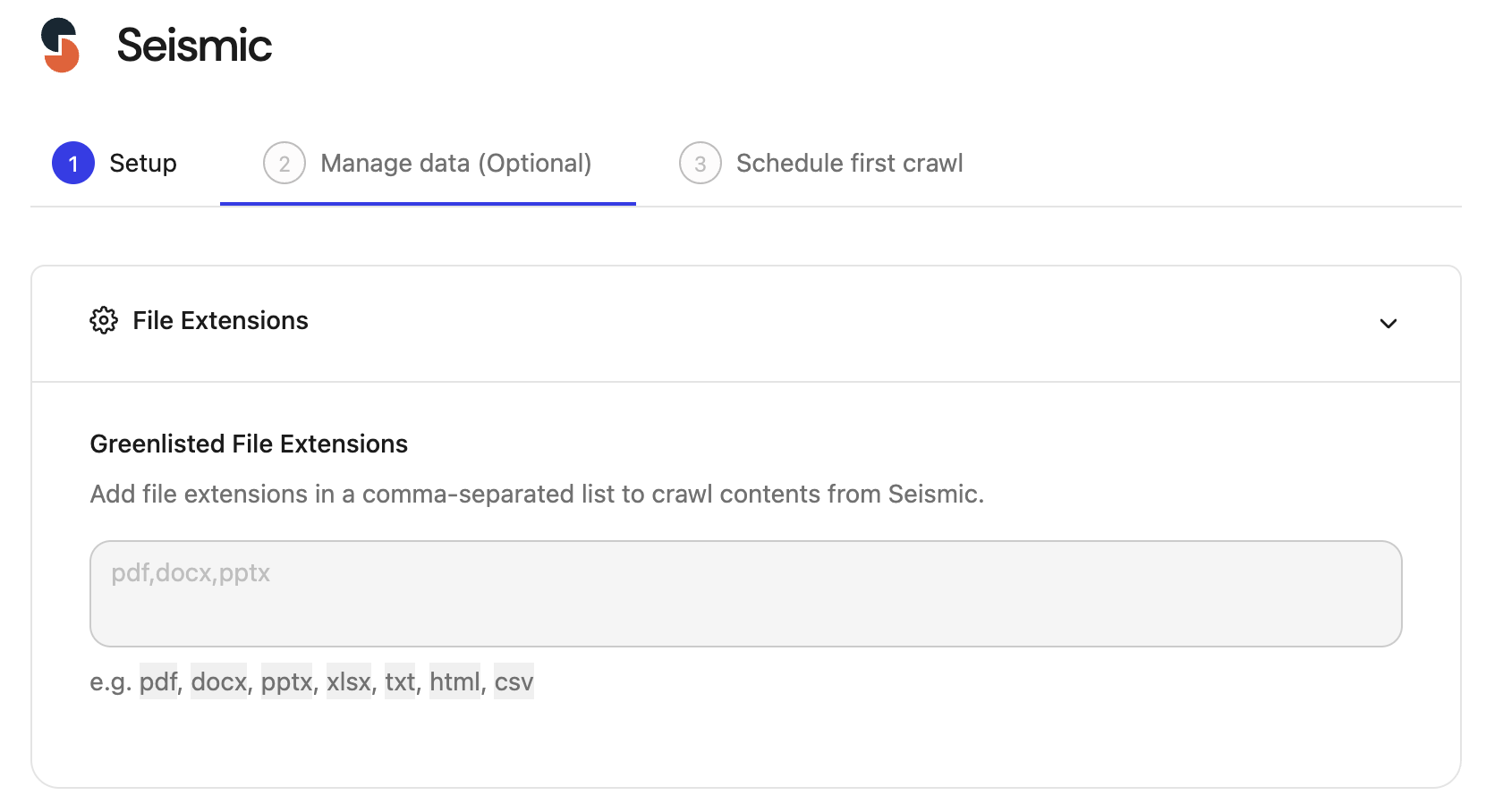
Configure content indexing by file extension
Specify which file types the connector should crawl for content. Only file extensions listed here will have their full content indexed.
-
In the Glean Admin console, navigate to the Seismic data source and go to the Manage data tab.
-
Expand the File Extensions section.
-
In the Greenlisted File Extensions field, add the desired file types as a comma-separated list (e.g.,
pdf, docx, pptx). -
To apply changes to existing documents, run a fresh crawl after updating the list.
Configure folder indexing by greenlisting and redlisting
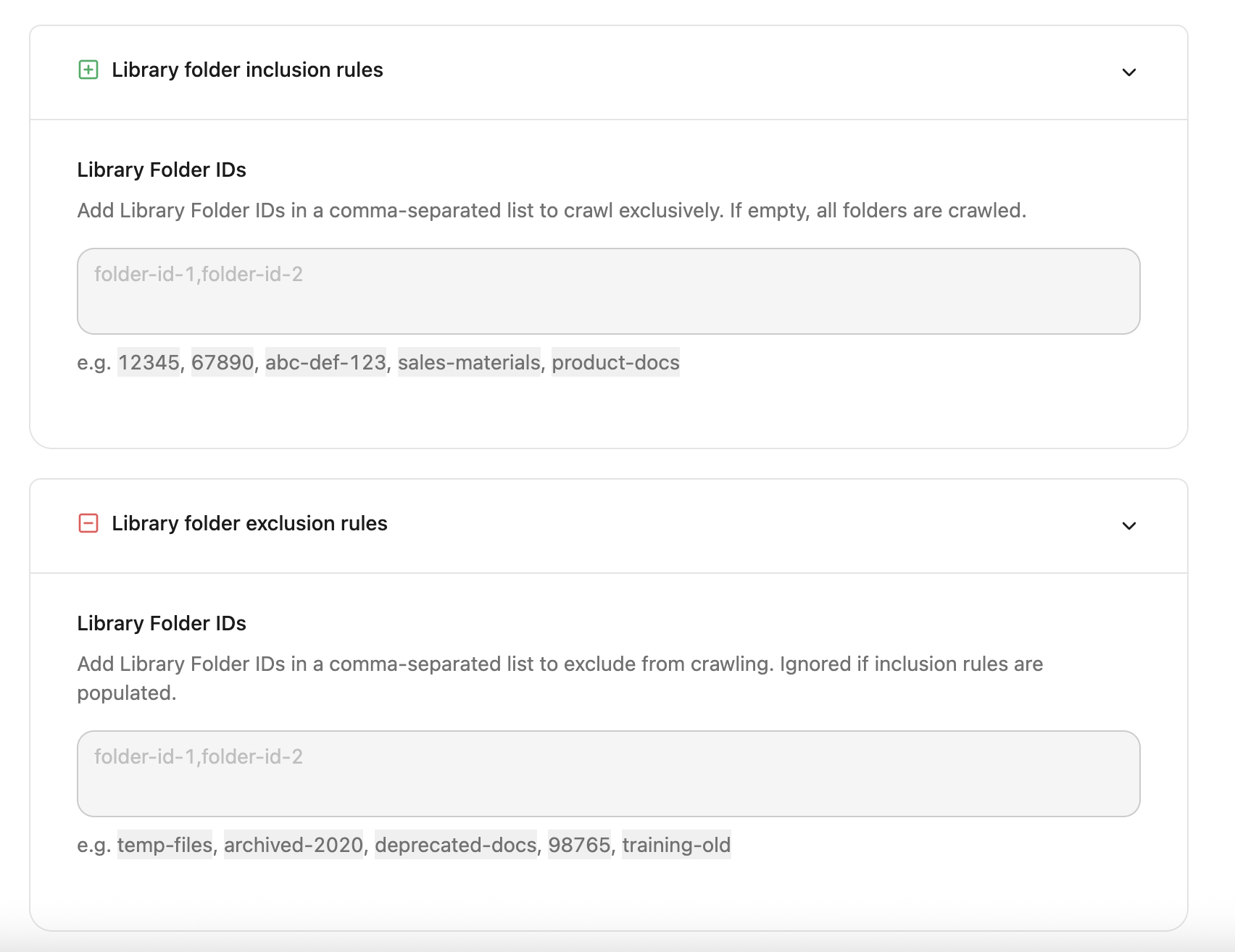
Restrict or permit crawling at the library folder level by using inclusion and exclusion rules.
-
Retrieve Folder IDs: Navigate to the folder in Seismic. The Folder ID is the segment immediately following
/LIST/in the browser URL.Example URL:
https://<domain>.seismic.com/app#/contentmanager/main/.../<FolderID>/LIST/title
Folder ID:<FolderID> -
Define inclusion (Greenlist):
- In the Library folder inclusion rules section, add the Folder IDs that Glean should crawl exclusively. If this list is left empty, all folders are crawled by default.
-
Define exclusion (Redlist):
- In the Library folder exclusion rules section, add the Folder IDs that Glean should explicitly exclude from crawling. (Note: Exclusion rules are ignored if inclusion rules are populated.)
Once you've made all the changes, click Save.
Grant document access via custom properties
You can map document access based on group membership by configuring a custom property in Seismic and assigning it to documents.
- In Seismic, navigate to the Custom Properties page:
https://<domain>.seismic.com/apps/adminsettings/system/CustomPropertiesV2. - Create a new custom property (e.g., "Glean Content Profile") with the following specifications:
- Type: Select Multi-select.
- Values: Add the exact names of the user groups (e.g., "G2 Delete Group," "APAC Sales") that will be granted access.
- Assign this custom property to the target documents either individually or via the bulk edit tool.
- In the property field (e.g., "Glean Content Profile"), select the groups that should have view access (e.g., "TSG 62," "Group CP 120").
Once the custom property setup and assignments are complete, reach out to your Account Executive team to enable this setting on the Glean deployment.
After the Account Executive confirms deployment, run a fresh crawl. Group members listed in the custom property will now be able to view these documents in Glean.
Permissions & Security
Data and Metadata Ingested:
- Published content profile documents, metadata (title, author, last modified), and links to embedded documents.
Permission Propagation Logic:
- Glean enforces Seismic permissions at query time. If Seismic’s API does not expose content profile membership, all published content profile links are made available to all Seismic users in Glean. However, users cannot view content in Seismic if they do not have access.
Security & Compliance Notes:
- OAuth2-based authentication.
- All data remains in your cloud environment.
- No webhooks. All updates are detected through scheduled crawls.
Known Security Restrictions:
- No support for multi-instance scenarios.
- All published content profile links are visible to all Seismic users in Glean due to API limitations.
Data Privacy Implications:
- The connector does not expose unpublished or workspace content.
- Users cannot access content in Seismic for which they do not have permission, even if it appears in Glean search.
If you have any issues or concerns, reah out to the Glean support team.