Set up real-time access for SharePoint
Glean can supplement indexed results from SharePoint with real-time results fetched directly from Microsoft 365. This ensures users can find recently created or updated content without waiting for a full crawl cycle.
How real-time access works
Real-time access retrieves content live from SharePoint when a query targets this source. This applies to the following Glean surfaces:
Search
Any query that specifies app:sharepoint, or search results explicitly filtered for SharePoint, can include real-time results alongside indexed results.
Assistant and agents
When Assistant or an agent is highly confident that a query is about SharePoint (for example, when the user mentions SharePoint or includes a link), it adds real-time search results from that source to the chat context.
Explicitly specifying app:sharepoint in a query or agent run also triggers real-time results. Assistant and agents can also scope real-time results to a specific SharePoint site, list, document library, or folder.
Supported content
Real-time access supports the following content types:
| Source | Supported content |
|---|---|
| SharePoint | Documents, site pages (classic and modern page libraries), lists |
Glean also supports native file access for Microsoft Excel (.xlsx) files stored in SharePoint. When native file access is available, Assistant and agents can read the original spreadsheet rather than extracted text, preserving formatting, formulas, and structure.
Attachments and images within SharePoint lists and pages are not included in real-time results.
Enable real-time access
If you authorized Microsoft 365 before enabling SharePoint real-time search, the Admin console displays a Reconnect prompt after you save your changes. This prompt occurs because the previously-granted token does not contain all the scopes required for SharePoint real-time access, such as Sites.Read.All.
To resolve this issue, complete the following steps:
- Click Reconnect in the Admin console.
- Complete the Microsoft sign-in flow to grant the additional scopes.
SharePoint real-time crawl or sync attempts fail with insufficient-scope errors until you grant these permissions.
The administrator steps in this section apply when SharePoint was connected to Glean through the previous setup, where real-time search is a separate option that an administrator enables. If SharePoint was connected through the new setup, real-time search is already enabled and there is no checkbox to select. End-user authentication is required on both paths, so continue at Authenticate end users.
Enabling real-time access requires both administrator setup and end-user authentication:
- Configuring your Admin console and Azure portal
- Having end users authenticate
Configure the Admin console and Azure portal
A Glean admin must enable data fetching for SharePoint, and a Microsoft Global Admin must configure additional permissions in Azure.
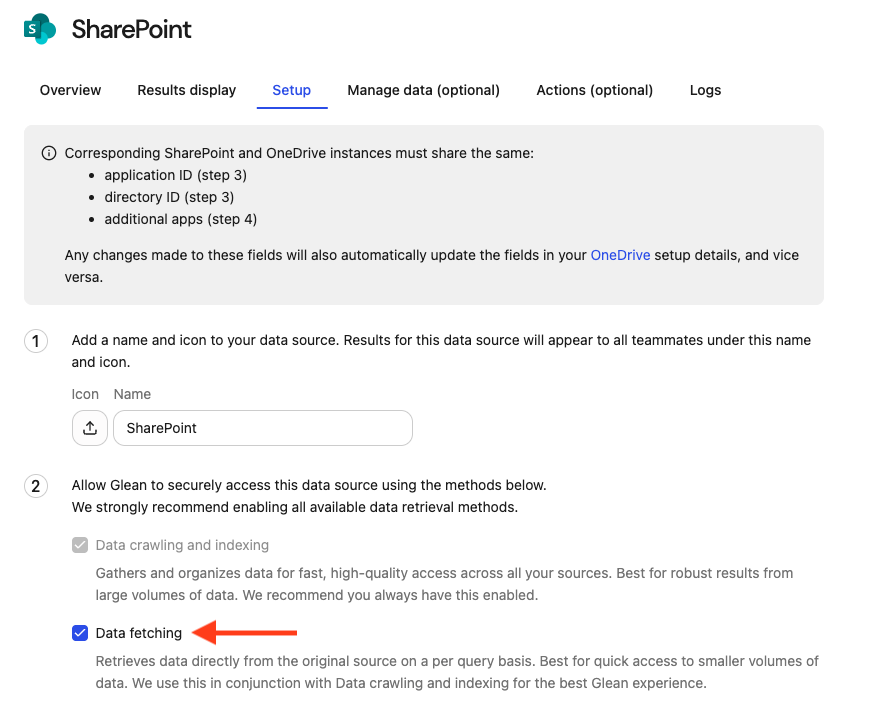
Enable data fetching in the Admin console
Enable data fetching for SharePoint:
- Navigate to Admin console > Connectors.
- Select SharePoint.
- Go to the Setup tab.
- Select the checkbox to enable data fetching.
Configure delegated permissions in Azure
A Microsoft Global Admin must add delegated permissions to your Glean application in Azure:
- Sign in to the Azure portal.
- Search and navigate to your Glean application.
- In the left navigation, select Manage > API Permissions.
- Select Add a permission, then select Microsoft Graph.
- Choose Delegated permissions and add the following:
offline_accessUser.ReadFiles.ReadWrite.AllSites.Read.All
Grant Files.ReadWrite.All so Glean can access files from shared URLs. See Microsoft's Accessing shared driveItems documentation for details.
These delegated permissions are separate from the application permissions used for crawling. They enable per-user, on-demand access to content that may not yet be indexed.
If you add these delegated permissions only after the original Microsoft 365 authorization, reconnect the shared Microsoft 365 app when prompted in the Admin console so the updated scope set is applied to the cached token.
Configure the OAuth redirect URL
Set up an OAuth redirect URL so Glean can complete the user authentication flow:
- In the Azure portal, navigate to your Glean application's Authentication > Platform configurations.
- Select Add a platform.
- Enter the tenant backend domain URL under Server instance (QE) for your deployment.
- Select Configure to save.
These instructions apply to the standard Azure Portal App Authentication experience, not the preview experience.
Authenticate end users
After the admin configuration is complete, each user must authenticate with SharePoint to use real-time access:
- Proactively: Users navigate to Your Settings > Connectors and select SharePoint to authenticate.
- On demand: Glean prompts users to authenticate when a query includes a link to a document that Glean has not indexed yet.
Consider communicating to your organization that real-time access is available and encouraging users to authenticate.
How crawl restrictions apply
Real-time access respects the same crawl restrictions that govern SharePoint indexing. Glean validates every real-time result against your configured restrictions before returning it to the user.
Site restrictions
Glean checks each real-time result against the site Inclusion and Exclusion rules configured in the Admin console:
- Inclusion rules: When site Inclusion rules are configured, only results from included sites appear in real-time results. Content from sites that aren't included is excluded.
- Exclusion rules: Content from excluded sites is excluded from real-time results.
These checks apply to both real-time search results and content that Assistant or agents fetch on demand. If Glean can't determine which site a result belongs to, that result is also excluded as a safety measure.
Search visibility (NoCrawl)
Real-time access also honors SharePoint's search visibility settings. SharePoint applies search visibility at the site level and the container level, where containers are lists, site pages, and document libraries. SharePoint has no item-level search visibility setting.
Because Glean serves real-time results under each user's own Microsoft 365 permissions, SharePoint's permission and search visibility rules apply automatically. If search visibility is turned off for a site or container, its items don't appear in that user's real-time results.
Search visibility is evaluated at request time, so it reflects the current state of SharePoint's search index rather than a cached snapshot.
Troubleshooting
Admin console shows a Reconnect prompt after enabling SharePoint real-time access
This is expected when SharePoint real-time access is enabled after the initial Microsoft 365 authorization. The existing OAuth token does not include the delegated scopes required for live SharePoint access, so Glean detects a scope mismatch and prompts you to reconnect.
To resolve:
- In the Admin console, go to the SharePoint connector.
- Confirm that real-time access is enabled.
- Click Reconnect and complete the Microsoft sign-in flow.
Once the app is reconnected, Glean can request the delegated scopes needed for SharePoint real-time access.
SharePoint real-time crawl or sync fails with insufficient-scope errors
If you see crawl or sync failures that reference insufficient permissions or missing scopes after enabling SharePoint real-time access, the connector's cached token likely does not include the delegated scopes required for that feature.
To resolve:
- In the Admin console, open the SharePoint connector and click Reconnect.
- Complete the Microsoft sign-in flow.
- In Azure, verify that the Glean application includes these delegated Microsoft Graph permissions:
offline_accessUser.ReadFiles.ReadWrite.AllSites.Read.All
- Retry the affected operation after reconnect completes.
If the error continues after reconnecting, re-check the app's API permissions and confirm you updated the same Microsoft 365 app registration that SharePoint inherits.
Expected content doesn't appear in real-time results
If a SharePoint item you expect to see isn't showing up in real-time results, a crawl restriction may be excluding it:
- Check site restrictions: In the Admin console, verify that the item's site isn't on the Exclusion list. If you're using Inclusion rules, confirm the site is included.
- Check search visibility: In SharePoint, verify that the library or list containing the item has search visibility enabled. Items in libraries or lists with search visibility turned off are excluded from real-time results.