Switch from secret to certificate authentication
Microsoft retired Azure ACS REST API client-secret authentication on April 2, 2026. SharePoint and OneDrive connector instances that previously used client-secret authentication must switch to certificate-based authentication. Instances still configured with a client secret can no longer update Site Groups, so SharePoint permissions in Glean become stale until you switch.
Step 1. Open your SharePoint connector in Glean
- Sign in to the Glean admin console.
- Navigate to Admin console → Connectors → SharePoint → Setup.
Step 2. Certificate-based authentication
- Generate a certificate and private key file pair, and upload the certificate to your Azure App registration:
- Sites.FullControl.All
- Sites.Selected
If your instance uses Sites.FullControl.All, complete the steps to Generate a Certificate and Private Key, Upload Certificate to Azure, and Fill out keys in the Microsoft 365 setup guide.
If your instance uses Sites.Selected, complete these steps to Generate a Certificate and Private Key, Upload Certificate to Azure, Fill out keys, Grant REST API permissions to individual apps, Install PnP PowerShell, Provision REST API permissions, and Provide the list of all sites to be crawled in the Sites.Selected setup guide.
- Upload your
certificate.crtfile under Replace Certificate File. - Upload your
privatekey.keyfile under Replace Private Key File. - Enter your Application (client) ID and Directory (tenant) ID from the Azure App registration if they are not already populated.
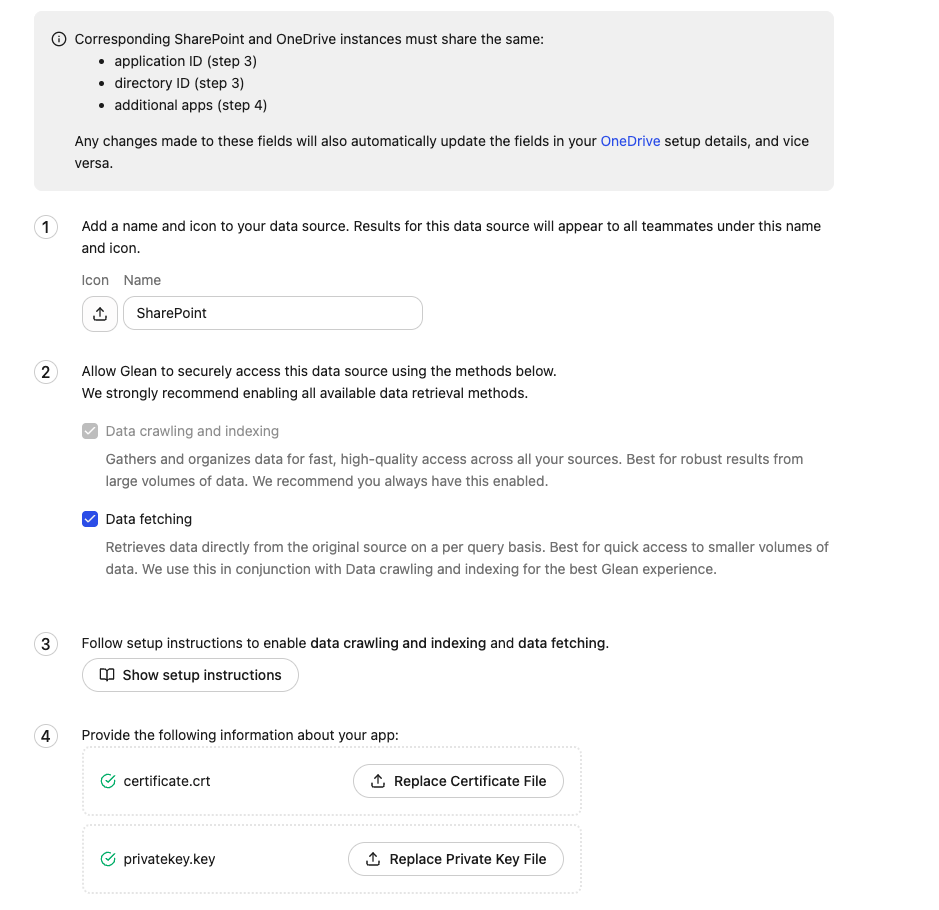
You can reuse your existing SharePoint app to complete this step. If you have multiple apps, please reuse the same certificate you generated for each app.
Step 3. Save and validate the connector
- Click Save to apply the new authentication configuration.
- After saving, monitor the connector status to confirm that crawling resumes successfully with certificate-based authentication.
- Verify that your SharePoint content continues to appear in Glean search results as expected.
If the connector fails to connect after switching, double-check the following:
- The
certificate.crtfile has been uploaded to your Azure App registration under Certificates & secrets. - The certificate and private key files are correctly formatted. See the Microsoft 365 setup guide for the expected file formats.
- The Application (client) ID and Directory (tenant) ID match the Azure App registration where the certificate was uploaded.
If issues persist, contact Glean Support for assistance.
SharePoint and OneDrive share the same underlying Azure App Registration and authentication configuration. Once you switch one connector, the other reflects the updated authentication method as well. Verify both connectors after switching.