Slack Real Time Search (Beta)
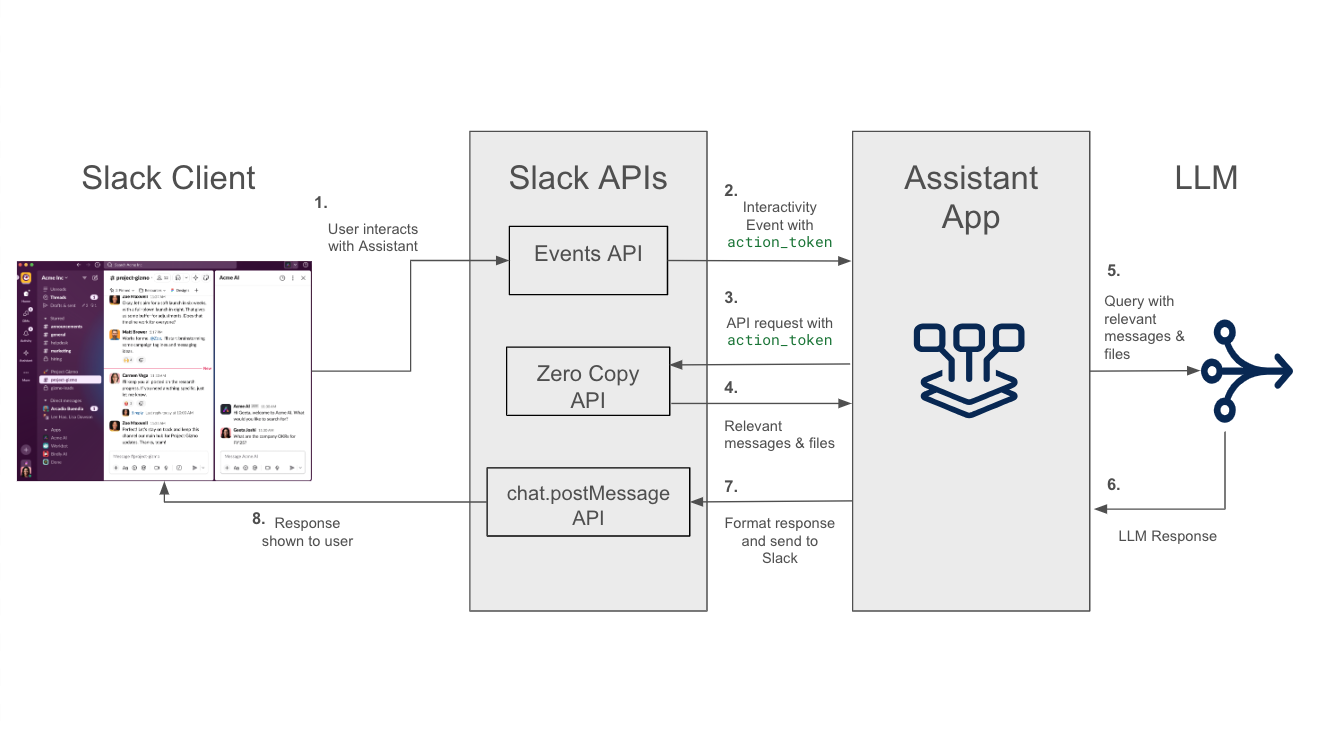
The Slack RTS connector integrates Glean with Slack workspaces and Slack Enterprise Grid organizations via Slack’s real-time search (RTS) APIs. This connector fetches Slack messages live at query time to ensure results are up to date and permission-aware.
Use this connector together with the Slack connector:
- Use Slack Real Time Search for live message retrieval at query time.
- Use Slack for engagement signals and proactive experiences.
- Glean is now an official Slack Marketplace app.
Before you start: Set up Slack for engagement signals and Glean in Slack.
Key capabilities
- Search: Queries Slack’s real-time search endpoint directly and returns message results to Glean in real time.
- Identity crawls: Periodic full and incremental identity crawls provide user, channel, and related metadata used by Gleanbot/actions and to enrich search responses.
- Enterprise Grid support: Organization-wide deployment across multiple workspaces.
- Central OAuth App: Uses a Glean-managed, centrally hosted Slack app listed in the Slack Marketplace.
- Gleanbot and Actions: Bot user for posting messages, receiving mentions, and handling slash commands.
- Webhooks: Real-time event handling for identity events and triggering Gleanbot.
Modes (Select during setup)
- Single Workspace: One datasource instance authorized for a single workspace. Recommended for customers with a single Slack workspace.
- Enterprise: One datasource instance authorized for the Slack Enterprise Grid organization; covers all workspaces. Recommended for enterprise customers with multiple workspaces and slack enterprise license.
Supported objects
- Public channels (messages and threads)
- Private channels (messages and threads, if authorized)
- Direct messages (DMs) and group DMs (if authorized)
- Channel and user metadata (for search enrichment and Gleanbot features)
Supported API endpoints
| API Endpoint | Purpose |
|---|---|
| assistant.search.context | Real-time search endpoint (RTS) |
| users.list | List users in a workspace |
| users.info | Fetch user details |
| conversations.list | List all channels (public, private, DMs, MPIMs) |
| conversations.members | List members of a channel |
| team.info | Fetch workspace/team metadata |
| auth.teams.list | List all workspaces accessible to the app |
Crawling strategy
Slack Real Time Search is a federated connector. It does not crawl or index Slack message content.
-
No content crawls: Glean never runs scheduled crawls for Slack messages. Message bodies are retrieved live from Slack at query time via the RTS API and processed in memory only. They are not written into an index in RTS‑only mode.
-
Identity crawls only: Glean runs full and incremental crawls for users, channels, workspaces, and memberships. This identity metadata is stored in Glean and used to enrich RTS results and power Glean in Slack and actions.
-
Webhooks for events: Slack event webhooks deliver real‑time updates (for example, membership changes and bot triggers). These events keep identity and Gleanbot up to date, but do not change the zero‑copy behavior for Slack message content.
Crawl types
| Crawl type | Full crawl | Incremental | Stores content? | Delivery mechanism | Notes |
|---|---|---|---|---|---|
| Identity | Yes | Yes | No | Scheduled API calls | Users, channels, workspaces, memberships |
| Content | No | No | No | N/A | No content crawls; Slack messages are federated only |
| Real‑time search | N/A | N/A | No | Per‑query RTS API calls | Live assistant.search.context calls on each query |
| Webhooks | No | No | No | Slack event webhooks | Identity updates and Glean in Slack / Gleanbot triggers |
Expected Admin crawl status for RTS
You may notice that the Slack RTS connector shows only a small number of records being "synced." That's expected. With RTS, Glean is not building a large, separate Slack index the way the legacy connector did. Instead, Glean crawls a limited set of identity and metadata (users, channels, and memberships) so it can used to enhance the results from Slack, then uses Slack's federated RTS API to search your live Slack data in real time.
In other words, a low document count in the RTS connector does not mean your Slack data is missing or that something is wrong with the integration.
After a successful RTS setup or migration, it is normal to see:
- A low "Items synced" count (often in the tens or hundreds, depending on the size of the Slack workspace). These items are identity and metadata objects, not messages.
- No docbuilder activity. Because RTS does not index Slack messages, there is no message-indexing docbuilder run. This is expected behavior.
- Identity crawl completion. The initial full identity crawl must complete at least once for Slack search, Glean in Slack, and ranking signals to work correctly. You can verify its progress in the Admin console under the datasource's crawl status.
Results display
Search results display individual Slack messages, including context (a few messages before and after the match, often within the same thread). When used with Glean, results may include additional context. If Slack’s AI Search is enabled, semantic search is supported for natural language queries.
Connect Slack to Glean
Review the following requirements before setting up your connector.
Requirements
- The user setting up this data source must be an admin on the organization's Slack instance, with the ability to install apps. For more information, see Find owners and admins.
- Slack workspace domain, e.g., if your Slack URL is
yourdomain.slack.com, the domain isyourdomain. - Slack workspace ID. Your Slack Workspace ID (starts with T...) and, for Enterprise Grid, your Enterprise ID (starts with E...).
Each user must individually authorize the app to access their private messages and DMs.
Decide your mode
You can select single workspace or Enterprise (org-level) based on your Slack plan and target scope.
- Slack Real Time Search (Single workspace)
- Slack Real Time Search Enterprise
If you already have a custom Glean Slack app
This section applies when you have an existing Slack or Slack Enterprise Grid connector and it was setup through a custom Slack app.
- If you do not have a custom app installed: Proceed directly to the Set up Slack Real Time Search steps to add your account details and authorize the connector.
- If you have an existing custom app: You must update its manifest file to migrate Glean in Slack and proactive use cases. Because both apps use identical names and slash commands (such as
/glean), updating the manifest ensures the new RTS connector can be configured without conflicting with your existing app.
For more information, see Slack Custom App Upgrade Guide.
Set up Slack Real Time Search
- In the Glean Admin console, go to Data sources.
- Select Slack Real Time Search for a single workspace, or Slack Real Time Search Enterprise for an Enterprise Grid (org-level) Slack.
- Click the Setup tab.
Retrieve IDs from Slack
- In a new web browser tab, sign in to your Slack workspace at app.slack.com/client, then collect the required domain and ID values based on your Slack account type.
For a Single Workspace
- Slack Domain: Click your workspace name (top-left). The domain is the text before
.slack.com(e.g., if the URL isacme.slack.com,acmeis your domain.) You need to enter this value in the Slack domain field in Glean. - Slack Team ID: Look at your browser’s address bar. The page URL should look like
https://app.slack.com/client/T12345678/.... The ID starting with T immediately following/client/is your Slack Team ID (e.g.,T12345678). You need to enter this value into the Slack team ID field in Glean.
For Slack Enterprise Grid
- Slack Enterprise Domain: Click your organization’s name (top-left). The domain is the text before
.enterprise.slack.com(for example, if the URL isacme.slack.com,acmeis your domain.) You need to enter this value in the Slack domain field in Glean. - Slack Enterprise ID: Look at your browser’s address bar. The page URL should look like
https://app.slack.com/client/E12345678/.... The ID starting with E immediately following/client/is your Enterprise ID (e.g.,E12345678). You need to enter this value into the Slack Enterprise ID field in Glean.
Configure search permissions
In the Search permissions section of Glean Admin console, admins can configure the following options:
- Search private channels: When selected, RTS searches private channels only for confirmed members of those channels. When not selected, private channel results are excluded from search.
- Search private messages: When selected, RTS searches DMs and group DMs the user participates in. When not selected, those results are excluded. If Search private messages is off, the RTS app does not request DM scopes and no DM or group-DM content appears in search results, even for authorized users.
Slack RTS always follows Slack's own access controls. Glean cannot override Slack permissions.
Use these settings to control access to private-channel and private-message content for your Slack RTS deployment, while still relying on Slack's permissions to determine what each individual user can see.
Enter Slack IDs in Glean
Enter your identifiers into the corresponding fields in the Glean setup page:
- For a Single Workspace: Enter your Slack domain and your Slack team ID (T-prefix).
- For Enterprise Grid: Enter your Slack Enterprise domain and your Enterprise ID (E-prefix).
Authorize Slack
- Click Authorize in Glean. You will be redirected to Slack to authorize the Glean Slack app. For Enterprise, perform an org-level install so the app is installed to all workspaces in the Grid.
- Complete the OAuth consent; tokens are stored in your Glean deployment.
RTS uses a centrally hosted Glean Slack app; you do not create a custom Slack app, do not configure your own event subscriptions, and do not generate app-level tokens. Webhooks are routed via the central Slack app and require no extra configuration once installed.
For Enterprise:
- Verify the app appears in the Organization-level app management section within Slack.
- Verify the Glean app is deployed to all workspaces where users require Glean in Slack (Gleanbot) and Slack Actions.
- Slack may show an optional “Request workspaces to grant this app access to” dropdown. Workspaces you select here control where the app is installed; if you limit it to a subset of workspaces, Glean in Slack will only be available in those workspaces.
If you must restrict the application to a single workspace within an Enterprise Grid organization, contact Glean Support to verify the supported configuration and identify potential limitations.
End‑user authorization
- Each user must authorize the Slack app to see permission‑aware Slack results (private channels, DMs, and group DMs).
- Until a user authorizes, RTS calls run without their user token and typically return only content from public channels.
- Glean uses the user’s OAuth token to make RTS calls on their behalf. Users may be prompted to re‑authorize if:
- The token is revoked in Slack.
- Scopes are changed.
- The app is reinstalled or moved.
- In Glean’s UI, admins can expect:
- An authorization prompt when a user first needs Slack results (for example, a modal on first search).
- A banner or inline notice if Slack is not authorized and RTS results cannot be shown.
- Non-dismissible authorization banner: End users will see a Slack authorization banner that cannot be dismissed until they have fully completed all required Slack authorizations. Because the Slack hybrid connector may require dual authorization (both the RTS Marketplace app and the native/custom app), the banner may continue to appear even after a user has authorized one of the two apps. The banner is removed only after all authorization steps are complete.
- No reauthorization needed: If a user has already authorized both the RTS Marketplace app and the custom app, no additional authorization is required for the hybrid connector.
Slack Admin App Approval
If your Slack workspace has Admin App Approval enabled, end users who attempt to authorize the Glean app may be blocked by a pending‑request gate instead of completing the OAuth flow directly. A Slack workspace admin must approve the Glean Marketplace app before end users can complete authorization:
- As a Slack admin, go to the Slack Admin → Manage Apps page and view the list of pending app requests. For more information, see the following Slack documentation:
- Single-workspace Slack plan: Manage app approval for your workspace
- Enterprise Grid organization: Manage apps in an Enterprise organization
- Locate the pending request for the Glean Marketplace app.
- Approve at least one user's request. Once approved, access typically propagates to other users in the workspace.
When do users see the Slack RTS authorization prompt?
You will be prompted to authorize when:
- Use Glean in Slack (for example, run
/gleanor mention@Glean) for the first time after RTS is enabled. - Run a search in Glean where Slack results would be shown (from the Home or Search page).
- Connect Slack Real Time Search from Your settings → Data sources → Slack Real Time Search.
Until you complete one‑time authorization, Slack RTS calls are made without user token and typically return only content from public channels.
Search experience
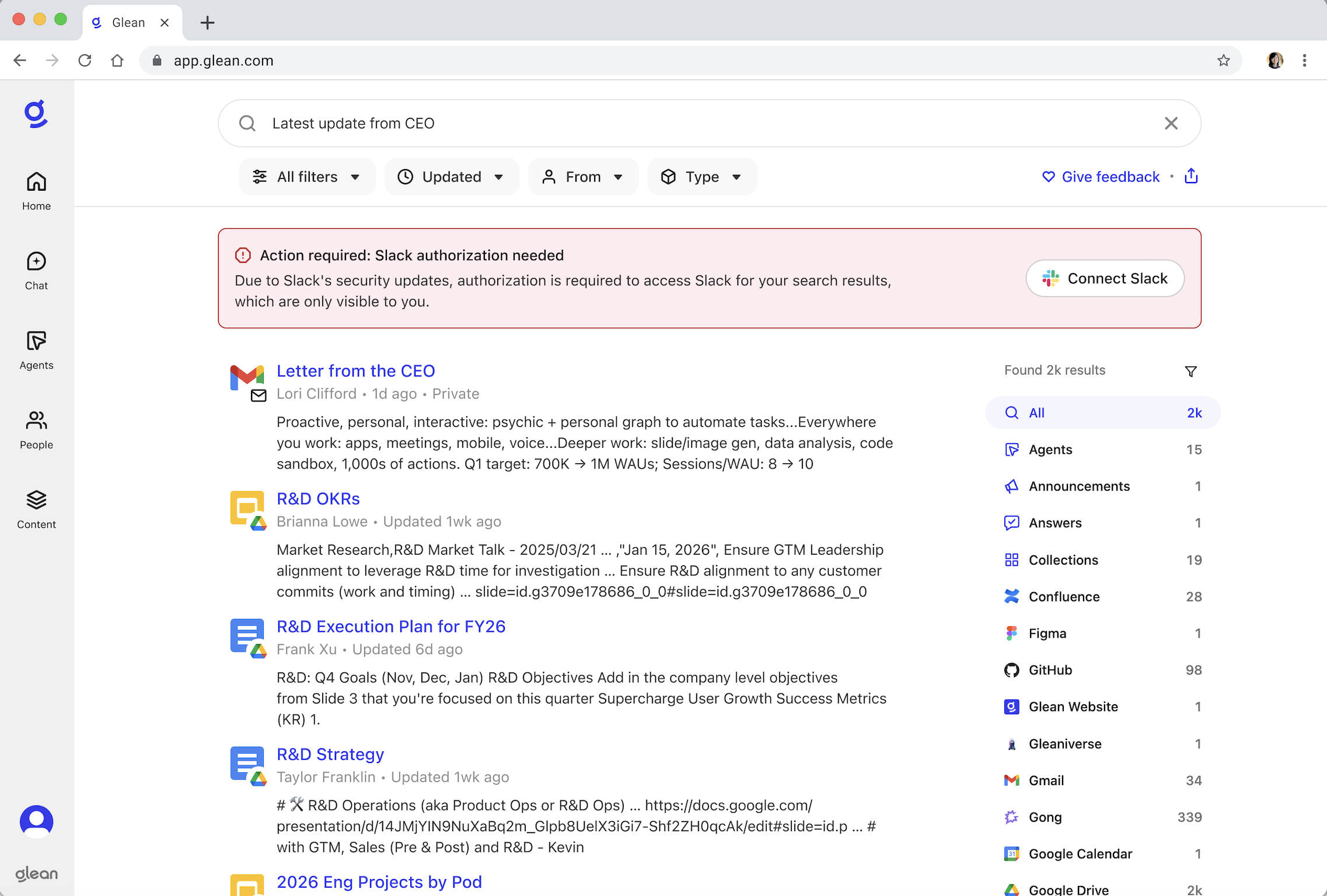
Home page experience
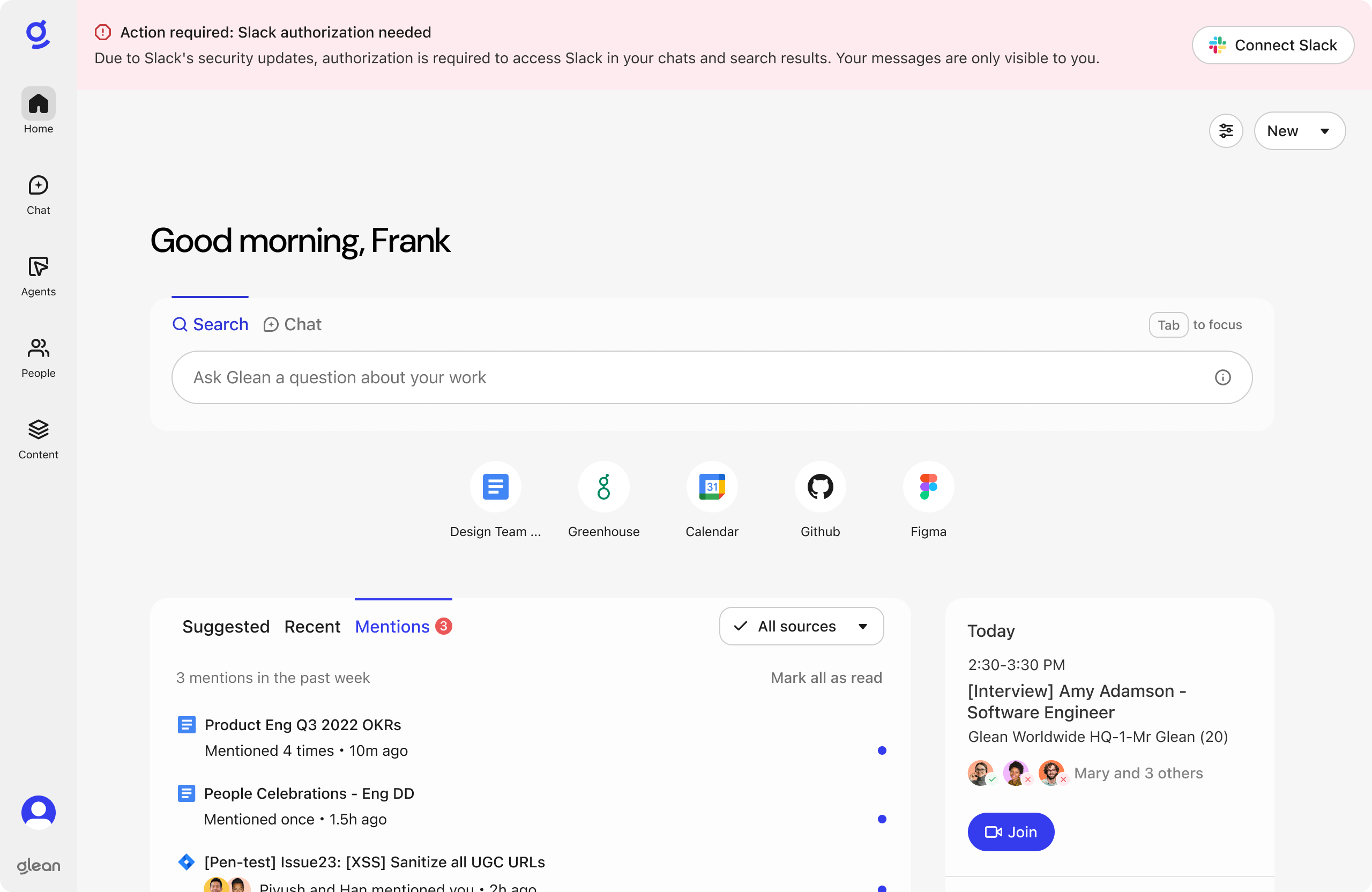
Slack channel
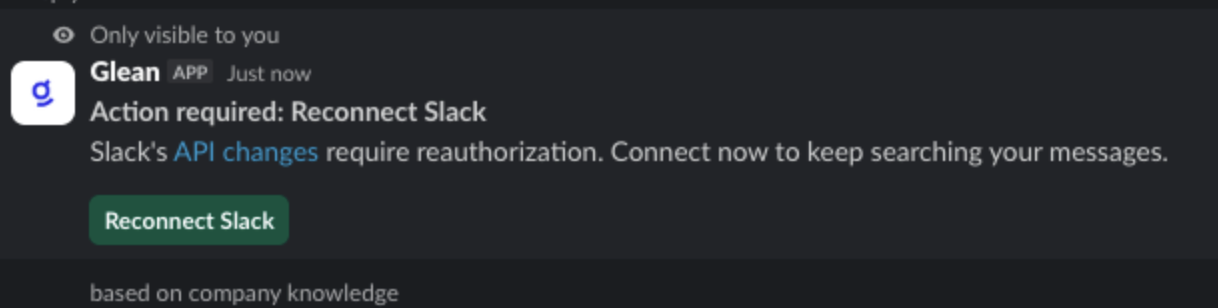
After you authorize Slack Real Time Search, you can confirm the connection in your Glean settings (Your settings → Data sources → Slack Real Time Search).
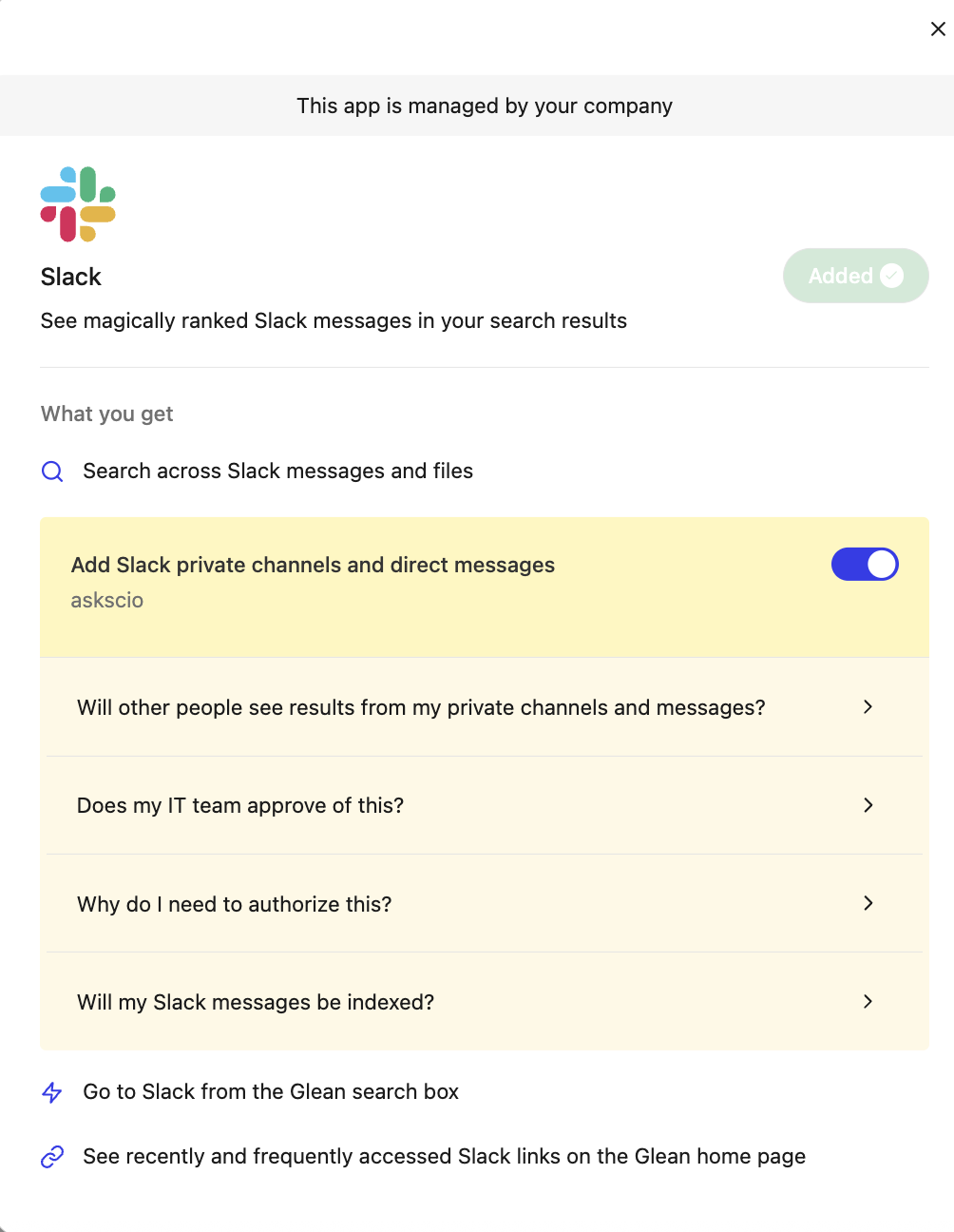
If you dismiss or miss this banner, you can authorize Slack later from your Glean settings:
- In Glean, go to Your settings → Data sources.
- Locate Slack Real Time Search.
- Click Connect or Re-authorize and complete the Slack sign-in flow.
Authentication and scopes
RTS uses the central Slack app. After the OAuth flow, user tokens are stored in your deployment and used for both identity crawls and federated search.
Scopes requested:
user:
  - channels:read
  - groups:read
  - im:read
  - mpim:read
  - search:read.files
  - search:read.im
  - search:read.mpim
  - search:read.private
  - search:read.public
  - team:read
  - users:read
  - users:read.email

bot:
  - app_mentions:read
  - assistant:write
  - channels:history
  - channels:read
  - chat:write
  - chat:write.public
  - commands
  - groups:history
  - groups:read
  - im:history
  - im:write
  - links:read
  - links:write
  - mpim:history
  - mpim:read
  - reactions:write
  - users:read
Webhooks and events
Webhooks are routed through the central Slack app to your deployment; routing is based on team_id or enterprise_id. No additional configuration is required after installation.
Event endpoints:
-
/datasources/slack/rts_events: Umbrella endpoint handling user and bot events (messages, channel membership changes, channel lifecycle events, etc.). -
/datasources/slack/rts_command: Slash commands (e.g.,/glean {query}). -
/datasources/slack/rts_interaction: Interactive components (buttons, modals).
Event types handled (selected):
-
Identity-related:
channel_created,channel_deleted,channel_left,channel_rename,channel_unarchive,group_deleted,group_left,member_joined_channel,member_left_channel,team_join -
Gleanbot-related:
app_home_opened,app_mention,assistant_thread_context_changed,assistant_thread_started,link_shared,message.channels,message.groups,messages.im,message.mpim,team_join
Search results, context, and semantics
-
Context Messages: Glean Search Page shows individual messages; in assistant, surrounding context (before/after the match) is included, typically within the same thread.
-
Keyword vs. Semantic Search: Slack defaults to keyword search. If Slack’s AI Search is enabled in the customer workspace, semantic search is supported and is typically triggered when a query is phrased as a natural language question (starts with “what/where/how…”, or ends with a question mark). This can be confirmed via
assistant.search.info.is_ai_search_enabled.
Gleanbot and actions
Gleanbot and actions require:
- Slack Real Time Search connector enabled and authorized.
- Slack connector enabled (for event webhooks and ranking signals).
- After setup, Glean runs a full identity crawl (users, channels, memberships) using the Slack RTS connector. That crawl must complete at least once for Slack search results, Glean in Slack, and ranking signals to be fully accurate.
- For more information, see Glean in Slack RTS and Slack actions.
Handling Slack RTS rate limits
Slack RTS adheres to Slack’s native tiered API rate limits. During periods of high activity, requests to Slack may be rate limited (HTTP 429). For more information, see Rate limits.
- If the primary Slack RTS request for a query is rate limited, the Slack results unit displays a Slack-specific error state. This notifies users that Slack search is temporarily unavailable, ensuring they understand the lack of Slack results is due to a rate limit rather than a lack of relevant data. Other, non-Slack results on the page remain unaffected and function normally.
- If a user is scrolling through Slack-only results and a subsequent request is rate limited while fetching additional messages, a notification banner appears at the bottom of the Slack results unit. This banner indicates that the rate limit was reached while loading more content.
This happens because of Slack’s API constraints and do not indicate any Glean service outage. No configuration changes are necessary; Slack results will resume automatically once Slack’s rate-limit reset window passes.
If rate limits consistently impact your workflows, collect example queries and timestamps and contact Slack Support or your Slack account team. Explain that Glean is calling Slack’s Real-Time Search API on your behalf and request a review of your workspace’s RTS rate limit quotas. Any decision to adjust limits is made solely by Slack; Glean cannot modify these platform quotas.
Known limitations
- Email-to-channel messages are not supported. Messages delivered to Slack channels via Slack's Email app (the "Email to channel" feature) are not indexed or surfaced by the Slack RTS connector. Only messages sent by users are returned in Glean Search, Glean, and Agents. Email-to-channel payloads are treated as attachments by Slack's API and are not included in RTS search results.
Security notes
-
OAuth tokens are stored on your Glean deployment.
-
RTS uses both user and bot scopes as listed above; these enable search, identity crawls, and Gleanbot features.
-
Slack Real Time Search is designed to comply with Slack’s RTS terms:
- RTS queries are executed live against Slack; message bodies are processed in memory and are not written into an index.
- Glean stores only what is needed to operate the connector securely, such as encrypted OAuth tokens and non‑content identity metadata (users, channels, workspace IDs).