Slack Enterprise Grid (Discovery API) App Upgrade Guide
Who this guide is for
Use this guide if:
- Your organization uses a Slack Enterprise Grid connector based on the Discovery API.
- You already have a custom Glean Slack app installed in your Enterprise Grid organization.
- You need to update that app and enable Slack Real‑Time Search (RTS) for Enterprise Grid.
Current vs new configuration
Current configuration
In the current setup:
- Your Enterprise Grid connector uses Slack’s Discovery API.
- Glean uses a custom Slack app installed in your Enterprise Grid organization.
- A central Slack app is also associated with your instance; the main difference is that your organization has added a custom app on top of that.
New configuration after the upgrade
After you complete this upgrade:
- Your existing custom Slack app is updated with a new manifest:
- The app name and bot display name change to Enterprise Graph.
- Slash commands (such as
/glean) are removed. - Interactivity is disabled.
- Additional bot scopes are granted:
channels:manage,channels:write.invites,groups:write,groups:write.invites,im:write,mpim:write.
- You authorize the Slack RTS app for Enterprise Grid via the
slackRtsEnterpriseself‑serve page. - The manifest used in self‑serve is specific to your deployment.
You continue to use the Enterprise Grid Discovery API connector, but RTS and the updated app manifest now control how Glean connects to Slack.
Upgrade window and temporary downtime
When you upgrade from the legacy Slack Enterprise Grid to Slack RTS, there is a short window where Glean in Slack may be partially unavailable:
- Backend processing: Internal configuration syncs typically take around 10 minutes.
- Channel invitations: Because Slack rate-limits how quickly bots can be invited to channels, upgrading a large number of channels takes longer.
- For most customers, the channel invitation process typically completes within an additional 20 minutes.
During this window, admins and users may notice:
- Inconsistent responses: Gleanbot may temporarily fail to respond or show intermittent behavior.
- Dual-app activity: You may see both the legacy app and the new RTS app responding to messages briefly as the transition completes.
- Broken Slack Tools: Interactive components from Glean or Agents may fail or show "broken" options in Slack share settings.
Note: This behavior is expected during the upgrade window and does not affect your data or long-term search functionality.
Important: Once you start the RTS upgrade, do not modify or uninstall your legacy Slack app. The legacy app is responsible for inviting the new RTS bot into your channels—a process that is rate-limited by Slack. Removing or changing the legacy app too early will interrupt this sync and may leave the new bot missing from your channels. Wait until Glean confirms the upgrade is complete before making any changes to the old app.
Before upgrading to Slack Real Time Search (RTS)
-
Confirm your current Slack connector type (Central App, Custom App, or Enterprise Grid) and follow the specific upgrade guide for that version. If your current setup is Slack Enterprise Grid (Discovery API), ensure you select the Slack Real Time Search Enterprise connector, not the single‑workspace version. Using the incorrect guide or connector type will result in setup failures.
-
Choose a low-traffic window (typically 30–60 minutes) for the upgrade. Notify your Slack admins that Gleanbot and Slack search results may be intermittently unavailable or show "dual-app" responses during this time.
-
Decide on a test group strategy (for example, IT/support or Slack-heavy teams) to validate performance before a full org-level rollout.
-
Ensure you have the necessary Slack Workspace Admin or Org Owner permissions. You will need the permissions to authorize the new RTS app and manage manifest changes.
Upgrade steps
1. Confirm your current configuration
-
In the Glean Admin Console, navigate to Connectors.
-
Search for your existing Slack connector and click Setup.
-
Review the configuration fields: If you see the following fields, you are using a Slack Enterprise Grid (Discovery API):
- Slack Enterprise domain (for example,
yourdomain.enterprise.slack.com) - Slack Enterprise ID (starts with
E) - App-Level Token
- Client ID
- Client secret
- Signing secret
note - Slack Enterprise domain (for example,
Enterprise customers without a custom Slack app will still see all of the fields above. The custom app fields (App-Level Token, Client ID, Client secret, Signing secret) may be blank. If those fields are empty in your existing connector configuration, they must be migrated manually. Contact Glean Support to coordinate this migration. :::
2. Update your existing custom Slack app manifest
Before you authorize Slack RTS Enterprise in Glean (step 4), you must finish updating the manifest of your existing custom Slack app. If you run the RTS Enterprise authorization flow before this manifest update is complete, Slack can create an extra app instance or surface confusing app not enabled or permission errors. Always complete this step and confirm it succeeds before you click Authorize in step 4.
- In Glean, on the Slack RTS setup page click Show setup instructions.
- Locate the section providing the Slack app manifest and copy the code block.
- In a new browser tab, go to the Slack app admin panel and open the existing custom Slack app that your Slack connector is currently using (typically named Glean).
- Navigate to App Manifest in the left sidebar.
- Paste the new manifest that you copied from Glean, overwriting the old one, and click Save Changes.
- Click Install App, then click Reinstall to Your Workspace.
- Click Allow to confirm the updated permission scopes.
- Once successful, go back to Glean Admin console.
This ensures the updated app does not conflict with other Glean Slack apps that use the same name and slash commands, and that it has the required bot scopes for Enterprise Grid RTS.
3. Set up Slack Real Time Search (RTS) Enterprise
After you update the custom app manifest in Step 2, complete this step to configure the Slack RTS Enterprise connector.
-
In Glean, go to Admin Console → Platform → Connectors → Add connector.
-
Select Slack Real Time Search Enterprise.
-
On the Setup tab, enter your Slack Enterprise Domain and Slack Enterprise ID. Make sure you are a Slack admin (with permissions to install and manage apps in your Enterprise Grid organization).
- Open Slack on the web at
https://app.slack.com/client. - Slack Enterprise Domain: Click your organization’s name (top-left). The domain is the text before
.enterprise.slack.com(for example, if the URL isacme.slack.com,acmeis your domain.) You need to enter this value in the Slack domain field in Glean. - Slack Enterprise ID: Look at your browser’s address bar. The page URL should look like
https://app.slack.com/client/E12345678/.... The ID starting with E immediately following/client/is your Enterprise ID (e.g.,E12345678). You need to enter this value into the Slack Enterprise ID field in Glean.
- Open Slack on the web at
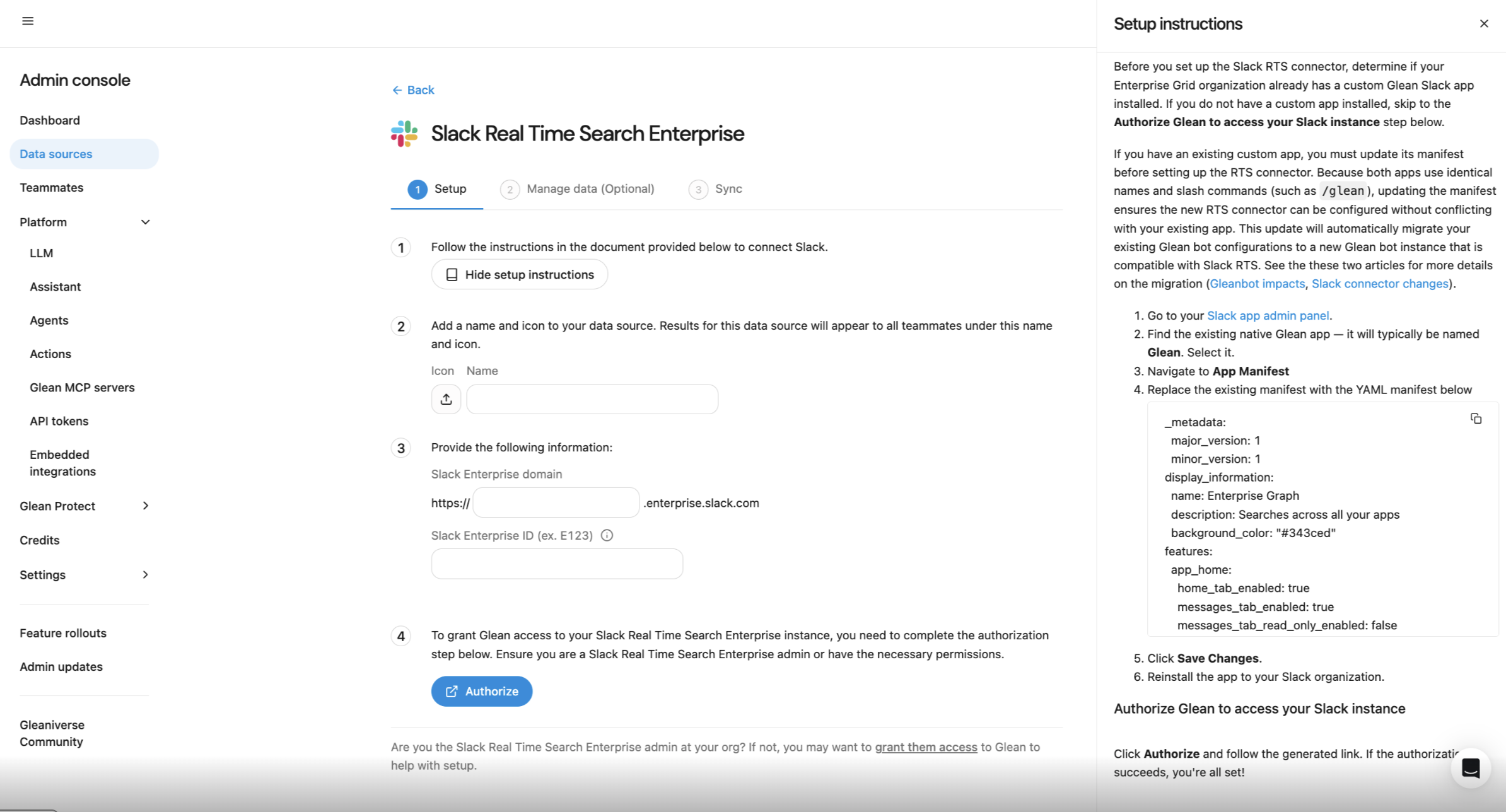
4. Authorize Glean to access your Slack Enterprise Grid instance
- In Glean, return to the Admin Console → Platform → Connectors and open the Slack RTS Enterprise connector you just added.
- On the Setup tab, click Authorize and follow the generated Slack link.
- Complete the authorization flow in Slack. This performs the OAuth flow using the updated manifest permissions from your custom app.
- After the authorization completes successfully, click Sync now on the Slack RTS Enterprise connector to start the initial message mapping.
- Click Save to store the configuration.
You can expect to see the Slack RTS connector show only a small number of records being "synced." For more information, see Expected Admin crawl status for RTS.
5. (Optional) Configure a test group
Roll out RTS safely by starting with a subset of users before expanding to the entire organization. After setting up the Slack RTS connector:
-
In Admin Console → Platform → Connectors → Slack Real Time Search → Overview navigate to the Settings section.
-
Under Visibility in Glean, select Visible to test group only.
-
Choose an existing test group or create a new test group. For more information, see Test groups for connectors.
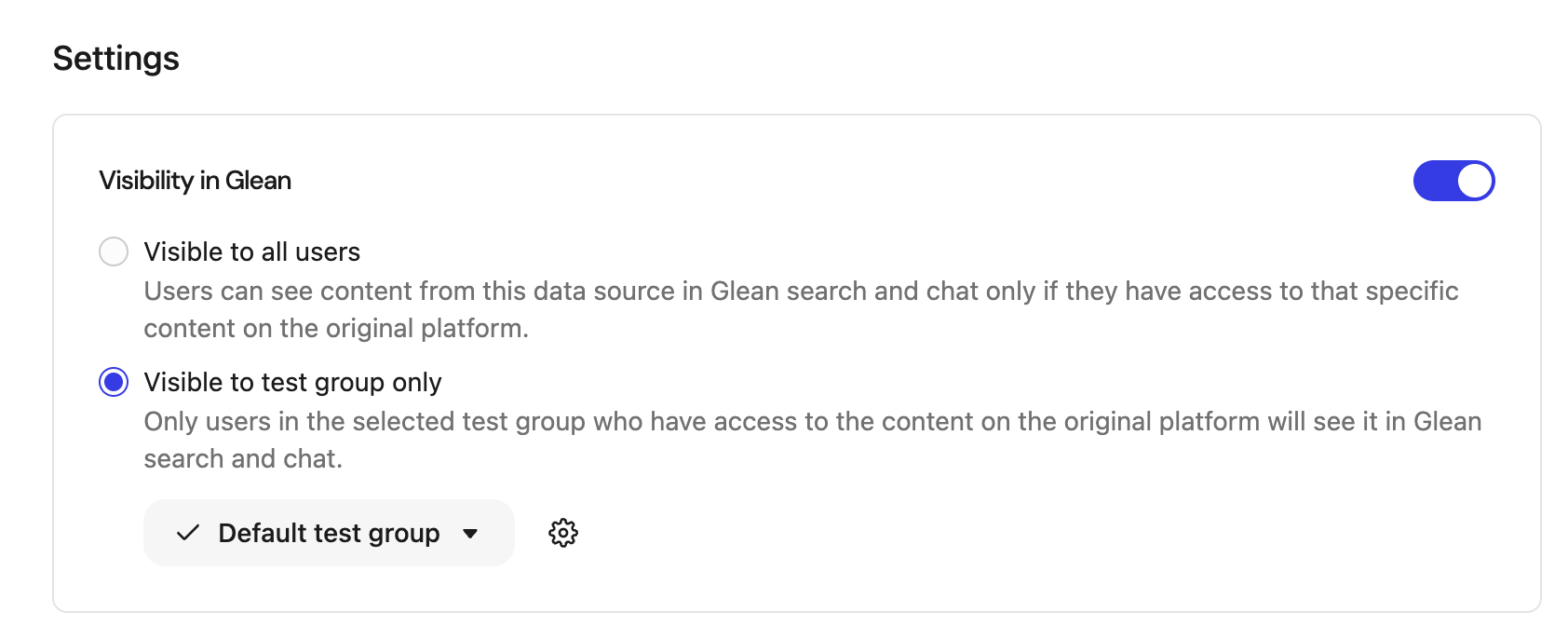
Common strategies include:
- Pilot cohort: IT, Support, or identified power users.
- Slack-heavy teams: Engineering or Customer Success.
Note on Visibility: Only users within the selected test group will see Slack RTS results.
- Each user must still perform a one-time Slack authorization (see end-user section).
- Once validated, you can switch visibility to Visible to all users.
Guidelines for test users
Ask your pilot users to:
- Use Glean for your normal Slack‑related searches and questions for 1–2 weeks.
- When something looks off, capture:
- The exact query you ran
- What you expected to see
- What you actually saw (screenshot if possible)
- Whether you were in Search, Assistant, or Gleanbot
6. End-user authorization
After you complete the steps above, each end-user must authorize the Slack app once to see permission‑aware Slack results (including private channels, DMs, and group DMs). Until a user authorizes, Slack Real Time Search is not used for that user’s Slack results.
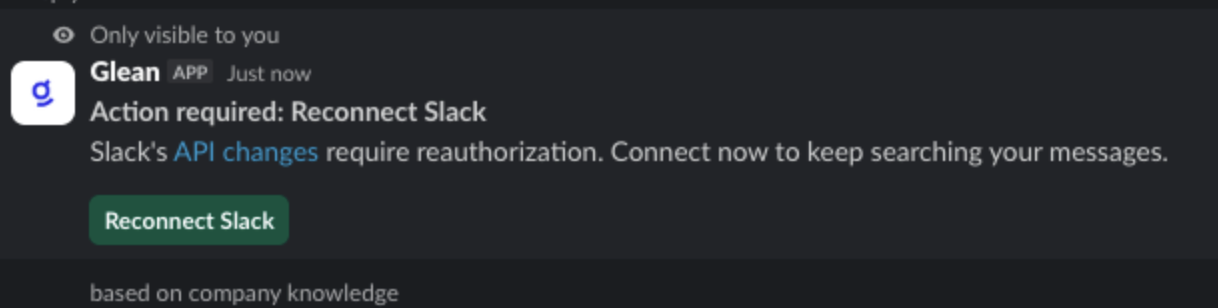
End users will see a Slack authorization banner on the Search, Home pages, and Slack channels to connect Slack Real Time Search.
Slack Admin App Approval
If your Slack workspace has Admin App Approval enabled, end users who attempt to authorize the Glean app may be blocked by a pending‑request gate instead of completing the OAuth flow directly. A Slack workspace or org admin must approve the Glean Marketplace app before end users can complete authorization:
- As a Slack admin, go to the Slack Admin → Manage Apps page and view the list of pending app requests. For more information, see Manage apps in an Enterprise organization.
- Locate the pending request for the Glean Marketplace app.
- Approve at least one user’s request. Once approved, access typically propagates to other users across workspaces.
When do users see the Slack RTS authorization prompt?
You will be prompted to authorize when:
- Use Glean in Slack (for example, run
/gleanor mention@Glean) for the first time after RTS is enabled. - Run a search in Glean where Slack results would be shown (from the Home or Search page).
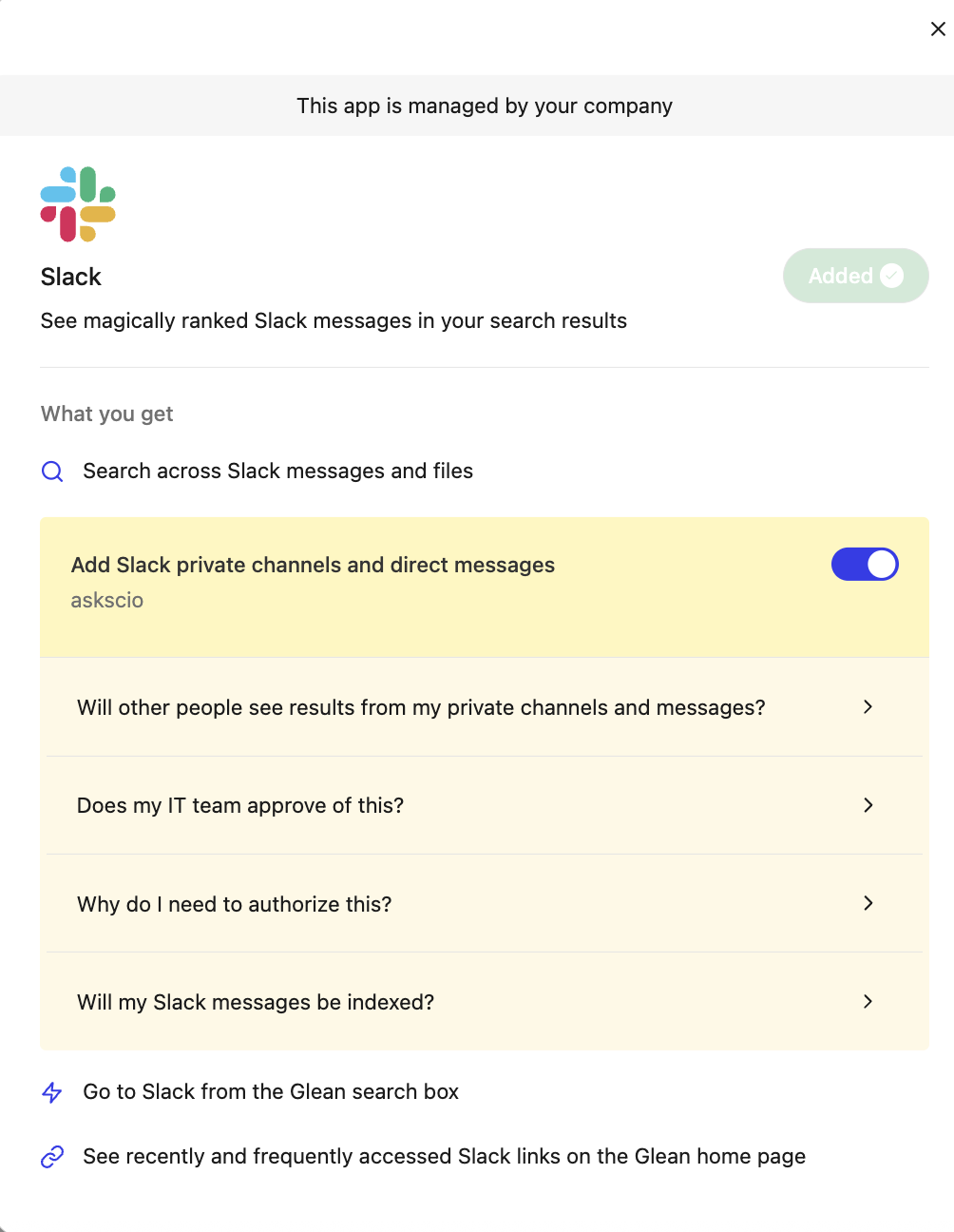
- Connect Slack Real Time Search from Your settings → Connectors → Slack Real Time Search.
- Home page experience
- Search experience
- Slack channel
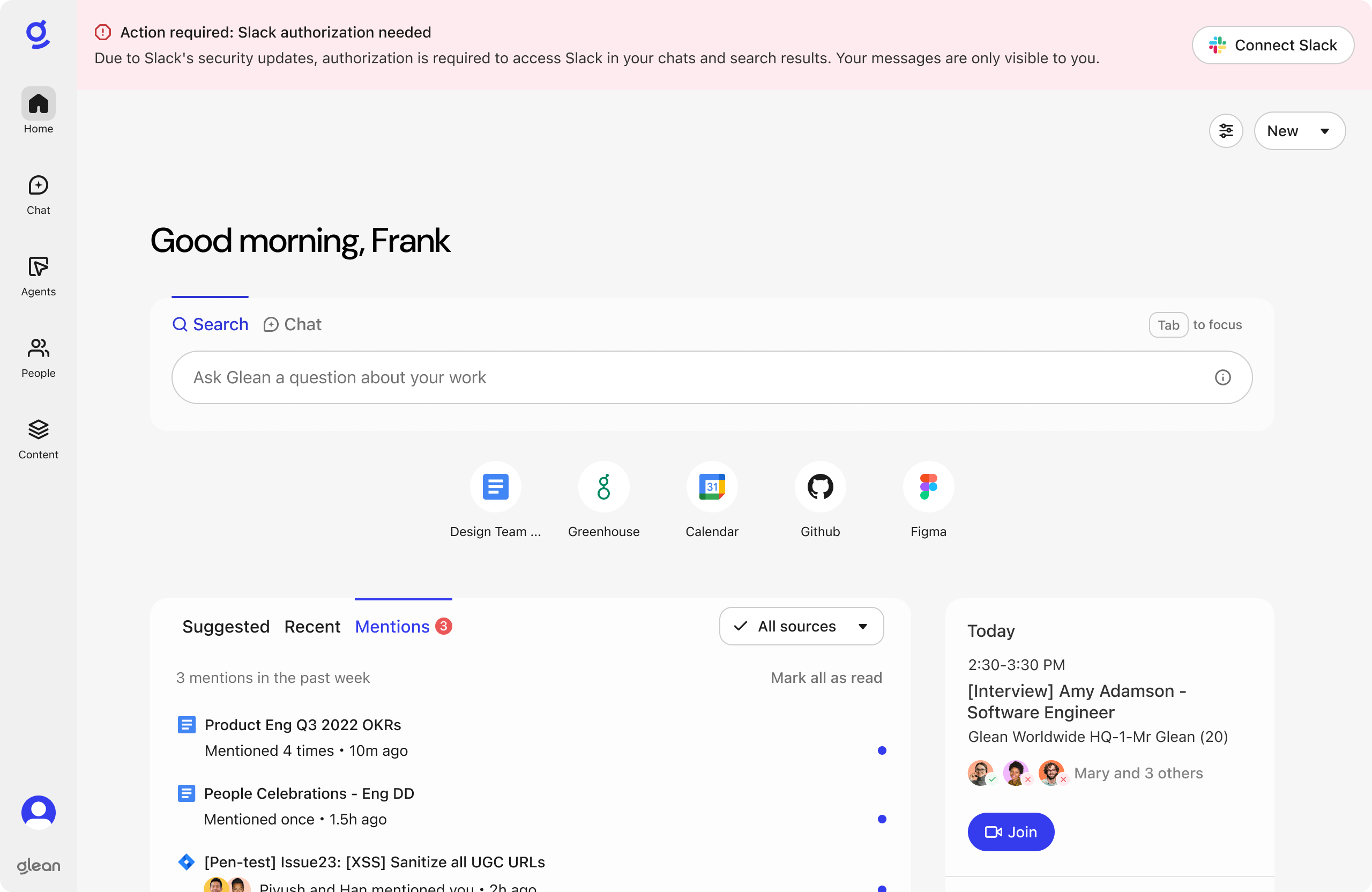
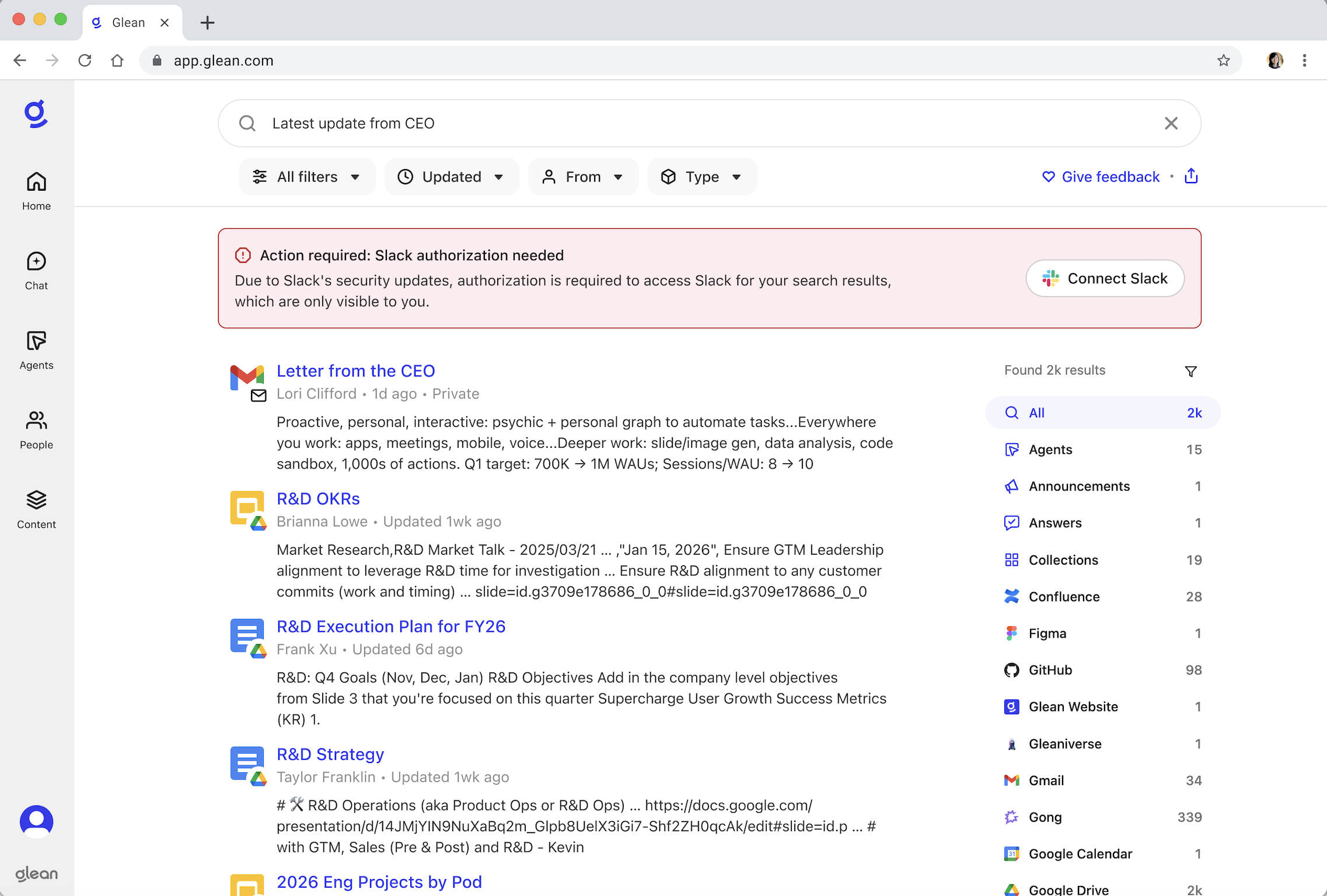
After you authorize Slack Real Time Search, you can confirm the connection in your Glean settings (Your settings → Connectors → Slack Real Time Search).
If you dismiss or miss this banner, you can authorize Slack later from your Glean settings:
- In Glean, go to Your settings → Connectors.
- Locate Slack Real Time Search.
- Click Connect or Re-authorize and complete the Slack sign-in flow.
After authorization, users will:
- See a dedicated Slack section in search results containing messages and threads.
- Receive Slack-sourced content within Assistant and Gleanbot responses.
- Note: Users can re-trigger authorization at any time via their Glean Settings page.
Minimizing channel noise from bot joins
To reduce visible channel-join noise during migration, you can temporarily turn off Slack’s join/leave messages. For details, see Slack connector changes: Gleanbot impacts and FAQ and Slack’s help article on managing join and leave messages.
Limitations and functionality differences
- Applies only to Enterprise Grid with an existing custom Glean app: This guide assumes your Enterprise Grid connector already uses a custom Glean Slack app. If your Enterprise Grid connector uses the Discovery API and does not have a custom Glean app, this flow is not supported in self‑serve, and Glean provides separate, one‑off documentation for those customers.
- No change to the underlying Discovery API connector: You are not asked to replace your existing Enterprise Grid Discovery API connector with a new Slack native connector. Only the custom app manifest and RTS Enterprise configuration are updated.
- Per‑deployment manifest: The manifest used in the RTS Enterprise self‑serve experience is specific to each deployment. Do not reuse a manifest from another customer or environment; always copy the manifest provided in your own RTS Enterprise setup page.
- There is no way to partially upgrade Glean in Slack. Once you complete the Slack RTS setup, the Gleanbot migration job runs for your entire workspace, even if Slack RTS search is only visible to a test group.
If you don't complete this upgrade
For Enterprise Grid customers who remain on the deprecated Discovery API connector without RTS Enterprise enabled:
- Slack results in Glean may become stale or incomplete as Discovery APIs are rate-limited and deprecated.
- There may be some degradation in the Glean in Slack (Gleanbot) and agents that use Slack tools experience.
We strongly recommend completing this upgrade to avoid losing Slack coverage in Glean.