Personal Access Token setup
Use this setup to configure PAT-based Tableau indexing. It supports Tableau content discovery in Glean but does not enable Tableau in Assistant. In deployments using the current Tableau setup flow, new connector instances use Connected App credentials; use this page for an existing PAT-based connector instance or when your deployment presents the PAT setup form. For Tableau PAT creation and expiration behavior, see Personal Access Tokens in the Tableau documentation.
Why use a Personal Access Token? Use this setup for PAT-based indexing and search when each user should authenticate to Tableau with their own PAT. This setup preserves per-user Tableau visibility but does not enable Tableau in Assistant.
Requirements
In addition to the shared Tableau indexing requirements, you need:
- An admin account with permission to create personal access tokens under My Account Settings → Personal Access Tokens.
- An admin PAT name and secret for the Tableau site.
- A personal Tableau PAT for each user who needs to see permission-aware Tableau results in Glean.
Create a Personal Access Token in Tableau
- Sign in to your Tableau instance and navigate to the homepage. Copy the full URL from your browser address bar. It should have this format:
https://<domain>/#/site/<site_content_URL>/home. If you're on the default site, leave the site content URL empty in Glean. - In Tableau, navigate to your profile icon in the top right and select My Account Settings.
- In the Settings tab, navigate to Personal Access Tokens.
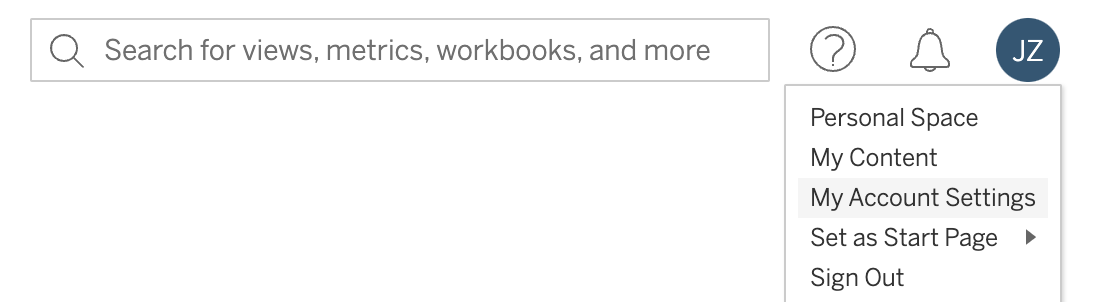
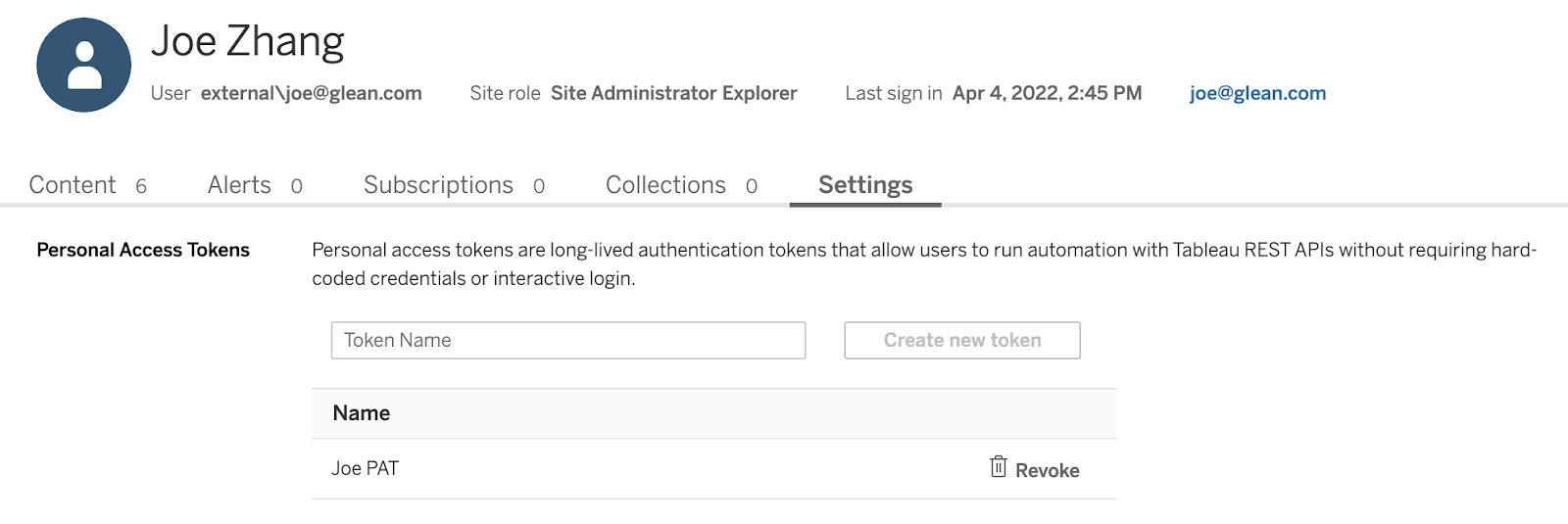
- Enter a Token name, select Create Token, and save the token secret. Tableau displays the secret only once.
Configure PAT indexing in Glean
- In the Admin console, navigate to Connectors, select Add connector, and choose Tableau.
- Enter a display name for the connector. Use a name that helps administrators identify the Tableau site, especially if you connect multiple sites.
- In the Set up indexing form, enter the following values:
- Site domain: the Tableau hostname, such as
abc.tableau.com, from the Tableau URL. Enter the domain without the protocol or site path. - Site content URL: the identifier in the
/site/<site_content_URL>/portion of the Tableau URL. Leave this field empty when connecting the default site. - Webhook base URL: pre-populated by Glean. Verify that the URL is correct; Tableau uses it to deliver workbook and data source change notifications to Glean.
- PAT name: the token name you created in Tableau. Enter the name associated with the PAT used for indexing.
- PAT secret: the token secret displayed by Tableau when you created the PAT. Tableau displays this value only once, so confirm that you saved it before entering it in Glean.
- Site domain: the Tableau hostname, such as
- Select Save in Glean to save the connector configuration.
- After the connector saves, follow Glean's Review setup step to begin indexing when prompted. The PAT-based setup does not include the Connect step for Tableau tools.
To connect additional Tableau sites, navigate to Connectors → Add connector and create a separate Tableau connector instance for each site. Contact the Glean engineer helping with your deployment if you need assistance.
Authenticate users to access Tableau search results in Glean
Each user who needs permission-aware Tableau results must connect their own Tableau PAT in Glean:
- Sign in to Glean and click on your profile in the upper right. Navigate to Your Settings in the profile dropdown menu.
- Under Your account on the left, navigate to Apps.
- Select the Tableau tab.
- Follow the onscreen instructions to provide the user's Personal Access Token information, then save those credentials to Glean.
- Users can remove their credentials at any time to turn off their Tableau access.
- If there are multiple Tableau instances, users must provide credentials for each instance individually on the same settings page.
If a user's PAT expires or is revoked, their Tableau results stop appearing until they reauthenticate. Tableau PAT expiration is controlled by the site's PAT settings; see Personal Access Tokens for details.