Microsoft Teams
This article provides documentation for the Microsoft Teams connector, covering its supported features, requirements, and configuration steps. You can use this connector to index and search conversations, files, and chat messages from Microsoft Teams using Glean.
Supported Features and Limitations
The Microsoft Teams connector ingests and synchronizes a range of Teams content and metadata to power enterprise search in Glean. Certain features and limitations are dictated by API availability, Microsoft permissions, and deployment choices.
Supported Objects/Entities
- Channel conversations (public and private channels)
- Files shared in channels (public and private)
- Chat messages (group chats, optionally private/direct messages/DMs — see Limitations)
- Tabs metadata
- Team and channel membership and settings
- Teams meeting transcripts (with additional setup; see below)
Attachments uploaded to Teams are crawled via the SharePoint connector; only metadata is indexed from Teams directly.
Supported API Endpoints/Features
Key Microsoft Graph API endpoints and permissions used include:
/teams/{id}/channels: Retrieve channels in a team (Channel.ReadBasic.All) and retrieve settings (ChannelSettings.Read.All)/teams/{id}/channels/{id}/messages: Fetch channel messages (ChannelMessage.Read.All)/teams/{id}/channels/{id}/members: List channel members (ChannelMember.Read.All)/teams/{id}/channels/{id}/tabs: Tab metadata (TeamsTab.Read.All)/teams/{id}/channels/{id}/fileFolders: File metadata in Teams channels (Files.Read.All)/chats: Chat messages (Chat.ReadBasic.All)/chat/{id}/members: Chat members (Chat.Read.All)/chat/{id}/messages: Chat messages (Chat.Read.All)/groups: List Teams groups (GroupMember.Read.All, Directory.Read.All)/users: List all users in the tenant (User.Read.All)/teams/{id}/members: List members in a team (TeamMember.Read.All)/users/{user_id}/teamwork/associatedTeams: List user's associated teams (Team.ReadBasic.All)
For Teams meeting transcripts (optional), these additional endpoints and permissions are required:
/me/calendars: Calendars (Calendars.Read)/me/calendar/calendarView: Calendar events/me/onlineMeetings: Online meetings (OnlineMeetings.Read.All)/me/onlineMeetings/{id}/transcripts: Meeting transcripts (OnlineMeetingTranscript.Read.All).
Limitations
- Attachments are not directly indexed from Teams; actual files must be accessed through the SharePoint connector.
- Teams sites (SharePoint-backed team sites) are not covered by this connector; associated file uploads are included via SharePoint.
- Optionally, private conversations (DMs) and group chats can be enabled, but are not indexed by default due to high volume and rate limiting. For full DM support, Glean Support intervention may be required.
- Webhooks are only available for up to 10,000 channels based on Microsoft subscription API limitations.
- Multi-tenant support (users in Teams hosted by external tenants) is not supported.
- Cross-tenant Teams content is not supported. Glean can only crawl Teams content that belongs to the Microsoft 365 tenant in which the connector is configured. Chats, channels, or meeting chats that are hosted/owned in another tenant — for example, a chat created by an external user or a meeting chat created from a meeting organized outside your tenant — may not be indexed.
- Meetings organized outside Outlook calendar may not be indexed; only Outlook-accessible meetings are included for transcripts. For example, meetings on Teams channels are not indexed.
- API rate limits may impact incremental syncs, especially in large deployments.
- Teams membership and content are restricted to the tenant in which the connector is configured.
Requirements
The following requirements must be met to configure the Microsoft Teams connector for Glean.
Technical Requirements
- Microsoft 365 tenant with Teams enabled.
- Access to Microsoft Graph API v1.0 (app registration capability).
- (Optional for transcripts) Administrator rights to approve transcript download billing.
Credential Requirements
- Application registration in Azure Active Directory with required Microsoft Graph API permissions granted by a Tenant administrator.
- OAuth2 credentials returned by Azure for authentication.
- Admin consent for protected and sensitive permissions (see below).
Permission Requirements
Admin consent must be granted for the following Microsoft Graph permissions:
Channel.ReadBasic.AllChannelMember.Read.AllChannelMessage.Read.AllChannelSettings.Read.AllChat.Read.AllChat.ReadBasic.All(Used only for private messages)Team.ReadBasic.AllTeamMember.Read.AllTeamSettings.Read.AllFiles.Read.AllTeamsTab.Read.AllDirectory.Read.All
(For meeting transcripts, also: Calendars.Read, OnlineMeetings.Read.All, OnlineMeetingTranscript.Read.All)
A Tenant administrator should request access to Microsoft’s protected APIs as needed. No paid APIs are required unless using metered APIs for transcript downloads.
Preliminary Source/System Setup
- Register a new application in Azure Active Directory.
- Assign and consent to required permissions.
- (Optional) For meeting transcripts: Enable metered Microsoft Graph APIs and monitor usage.
- (Optional) Control inclusion/exclusion by specifying which Teams/channels to crawl (greenlist functionality).
External References
- Microsoft Graph documentation for permissions and protected APIs.
- Microsoft Teams throttling and service limits documentation.
Configuration and Setup Instructions
Prerequisites
- The user setting up this data source must be the Global Admin.
Register and configure an app to crawl messages
-
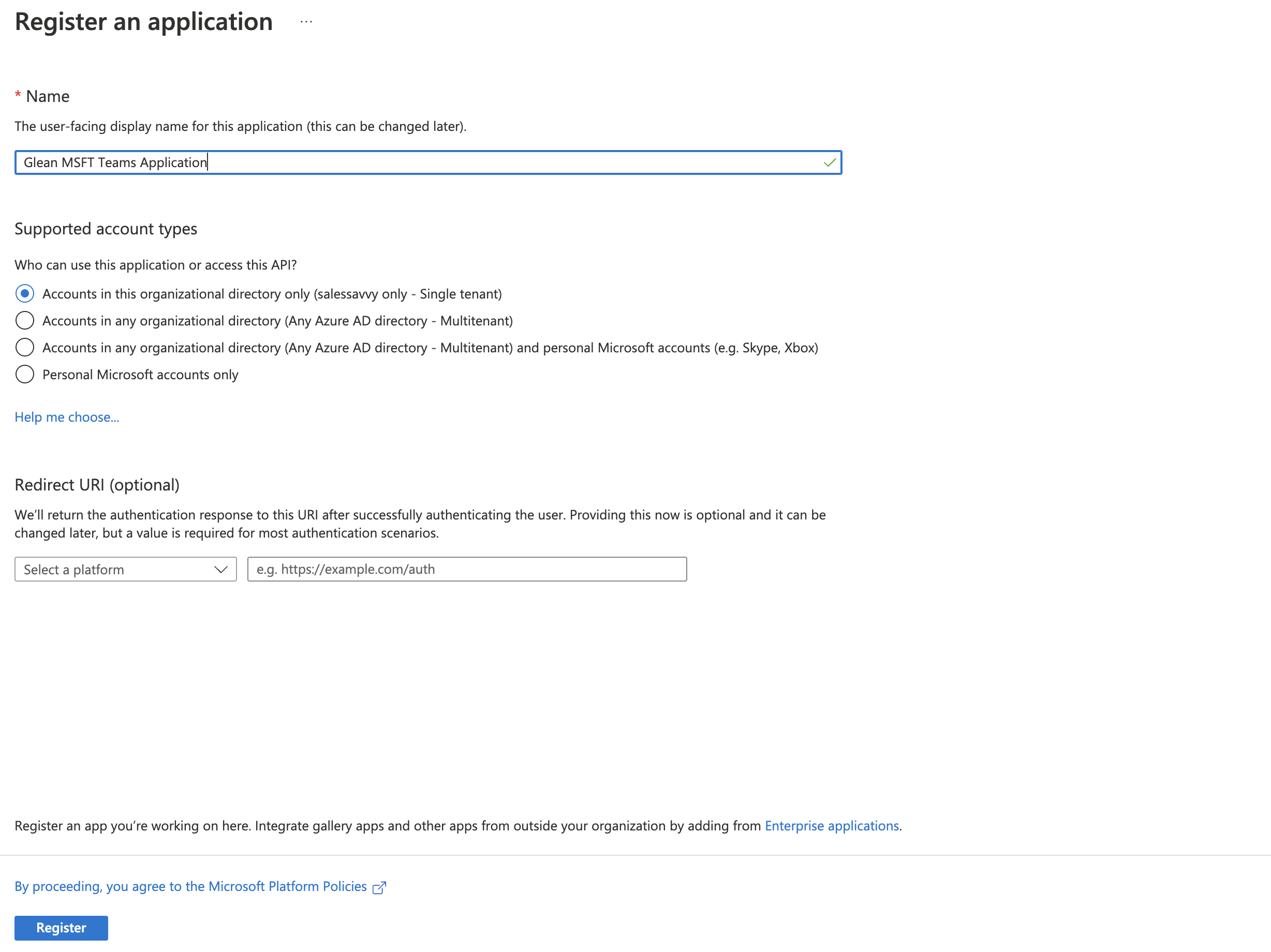
Sign into the Azure portal. Select Microsoft Entra ID, then Manage → App registrations → New registration.
-
On the Register an application page, register an app with the following:
Field Value Name Glean MSFT Teams App (for messages)Supported account types Accounts in this organizational directory only (Single tenant) Redirect URI (Leave this field blank) -
Click Register.
-
On the left side navigation on the overview page, click on Manage → API Permissions.
-
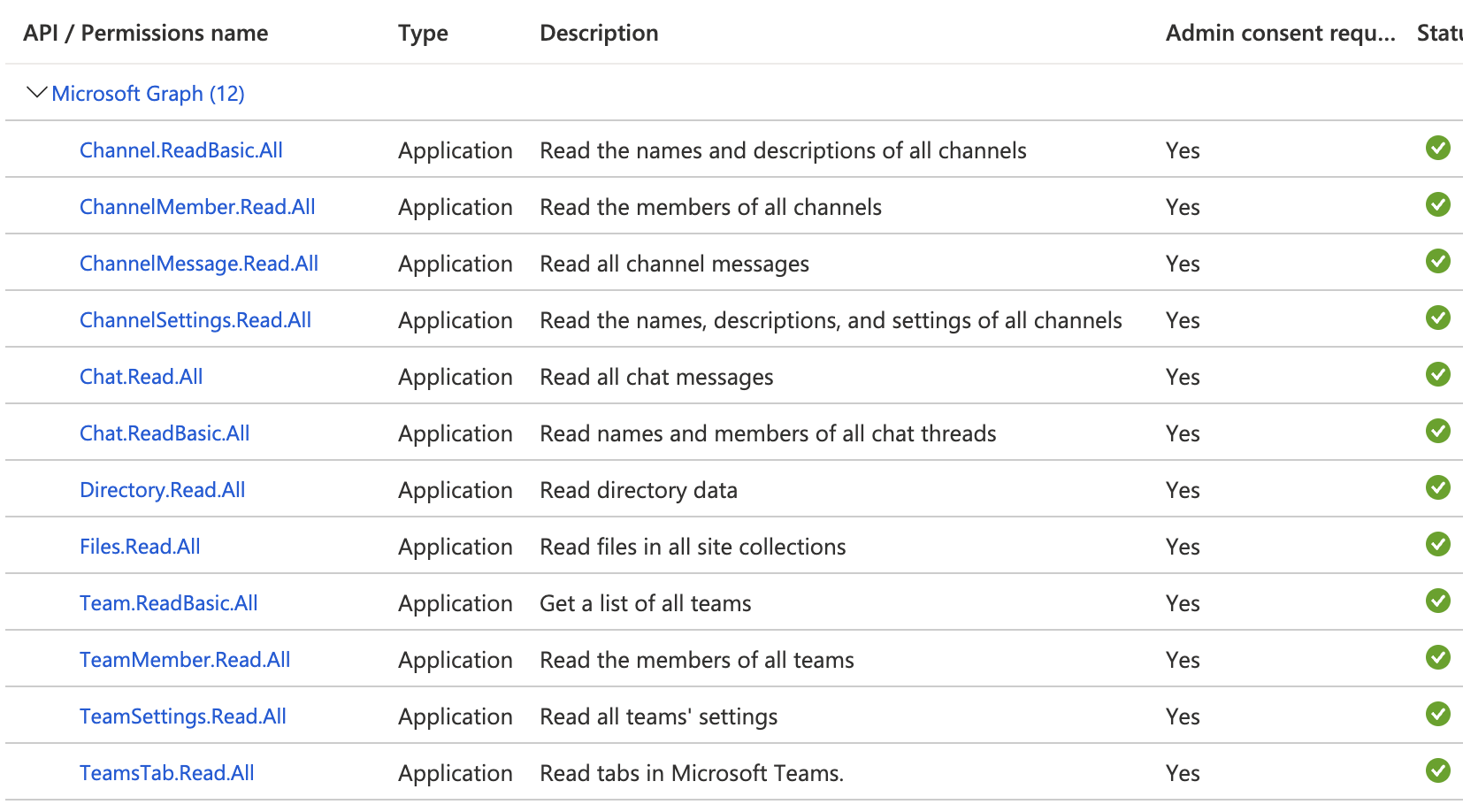
Click Add a permission and select Microsoft Graph. Choose Application permissions and add the following:
User.Read.AllGroupMember.Read.AllTeam.ReadBasic.AllTeamMember.Read.AllTeamSettings.Read.AllTeamsTab.Read.AllChannel.ReadBasic.AllChannelMember.Read.AllChannelMessage.Read.AllChannelSettings.Read.AllChat.Read.AllChat.ReadBasic.All(Used only for private messagesFiles.Read.All
-
After all permissions are added, click Grant admin consent for tenant. Ensure that you are signed into Azure as a Global, Application, or Cloud Application Administrator, otherwise the grant may fail.
-
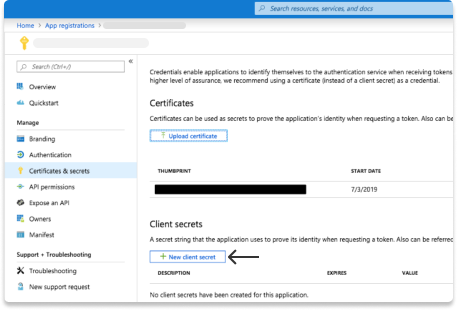
Navigate back to Microsoft Entra ID → Manage → App registrations and click on the app you created earlier. Then click on Manage → Certificates & secrets in the left sidebar.
-
Click on New client secret. Enter a description and select 24 months for expiry time, then click Add.
-
Under Client secrets, copy the Value (not the Secret ID) you generated and enter it in Glean as the Client secret. The Value will only be shown once. Enter the client secret into Glean.
-
Scroll to the top of the left sidebar and click Overview.
-
Copy the following content from the center Essentials panel and enter it in Glean:
- Application (client) ID
- Directory (tenant) ID