Populate content

To create an engaging first experience with Glean, populate the platform with content beyond what Glean crawls from your connectors:
- Announcements — promote updates on the home page
- Answers — provide authoritative responses to FAQs
- Go Links — create memorable shortcuts to common resources
- Projects — organize chats and content around a topic
- Document verification — mark trusted (or out-of-date) content
- Pinned results—push specific content to the top of search results
Open the populate content setup
In the Get the most out of Glean, select Help your teammates get answers easily.
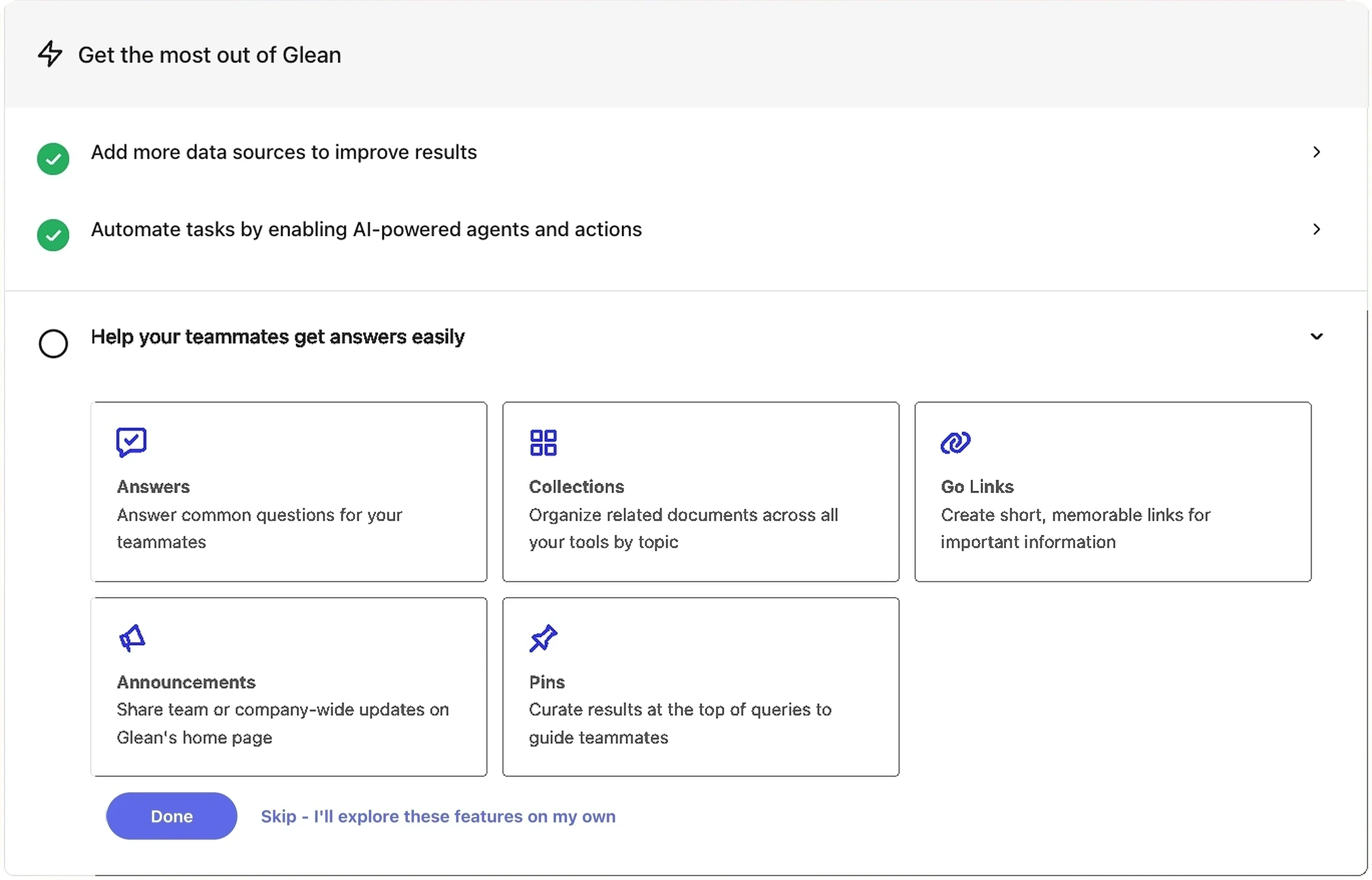
Help your teammates get answers easily
Announcements
Announcements promote updates on Glean's home page — useful for company-wide news or messages targeted to specific teams, and especially valuable if teammates use Glean as their new tab page.
To create one, navigate to Knowledge → Announcements and select New announcement. For audience targeting, scheduling, banners, and media, see How Announcements work.
Answers
Answers let your users provide authoritative responses to frequently asked questions, so the same Q&A doesn't get rewritten in chats and emails. They surface automatically in search results and via the Slackbot.
To create one, navigate to Knowledge → Answers and select New answer. See What are Answers? for the creation flow and How to write effective Answers for content guidance.
Aim for ten Answers covering questions teammates ask repeatedly. Ideas to get started:
- What is our work-from-home policy?
- What benefits are available to me?
- What is our time-off policy, and how do I request time off?
- What is our parental leave policy?
- What do I do if I (or a family member) is sick?
- How do I get a new laptop or office badge?
- How do I get access to Jira (or any other internal tool)?
- How do I book travel?
- When do we get paid?
- What are this year's company holidays?
Go Links
Go Links (go/...) are memorable shortcuts that redirect to frequently used sites, documents, or internal resources. Once a teammate hears or sees one, they can recall it without bookmarking.
To create one, navigate to Knowledge → Go Links and select New Go Link. See How Go Links work for setup details, and Create variable Go Links for parameterized shortcuts like go/dashboard/<customer>.
Aim for five Go Links to your most-visited resources. Examples:
| Go Link | Destination |
|---|---|
go/benefits | Company benefits portal |
go/help | IT help desk |
go/deals | Salesforce dashboard with current-quarter numbers |
go/sprint | Jira project for your engineering team |
go/dashboard/<customer> | Internal dashboard for <customer> (a variable Go Link) |
go/it/setup | Setup instructions for a new laptop |
go/it/wifi | Wi-Fi access details for employees |
go/pitch | Company sales presentation |
go/pto | New annual leave request |
go/git | Main internal Git repository |
go/allhands | Folder of recordings from previous all-hands |
go/docs | Documentation hub |
go/support | Agent view in Zendesk |
go/mail | |
go/cal | Work calendar |
go/roadmap | Company roadmap |
Projects
Projects help you organize chats and content in Glean so related work is easier to group, revisit, and share, giving teammates a single source of truth for a topic or initiative.
Projects are rolling out gradually and might not be enabled for every deployment. To create one, open Library from the left navigation, select the arrow next to Create Artifact, and choose Project. If Library is not visible, open More and select it. If Project isn't listed, see How projects work for rollout details.
Here are some examples of projects you can create:
| Project | Description |
|---|---|
| New employee onboarding | Resources and checklists a new employee needs in their first week |
| Life @ [Company] | Policy documents on benefits, time off, travel, and technology |
| Using Glean | Documents, Answers, and links to help teammates use Glean |
| Legal help desk | FAQs and documents related to legal matters |
| T&E hub | Documents, apps, and resources for booking travel and managing expenses |
| [Location] office | Information about a specific office (for example, Sydney) |
| [Team name] | Contacts, channels, and key docs owned by a specific team |
| [Initiative name] | Key resources related to a specific internal initiative |
Document verification
Document verification lets owners and moderators mark search results as Verified (green check) or Deprecated (red cross), so teammates can tell at a glance which sources are current and reliable.
To verify or deprecate a document, search for it, open the More options (⋮) menu on the search result, and select Verify or deprecate. See How verification works for the full flow and Which documents should I verify? for guidance on what to prioritize.
Verify the documents teammates rely on most — your employee handbook, travel and expense policy, IT setup guide, and similar canonical references.
Pinned results
Pinned results push specific content to the top of search results for specific keywords. Pinned results can be visible to Only me or to Teammates (everyone in your organization).
To create one, pin content directly from a search result. See How pinned results work.
Aim for at least two pinned results that promote launch-critical content. Examples:
- Pin the Employee Handbook for the keywords
handbookandonboarding. - Pin the Travel and Expense Policy for the keywords
travelandexpense. - Pin the Benefits Hub for the keywords
benefitsandinsurance.