Roll out Glean to your teammates
After you've explored Glean's features, follow this checklist to ensure a smooth rollout to your teammates.
Open the rollout checklist
In the Roll out Glean to your organization section, select Roll out Glean to your teammates.
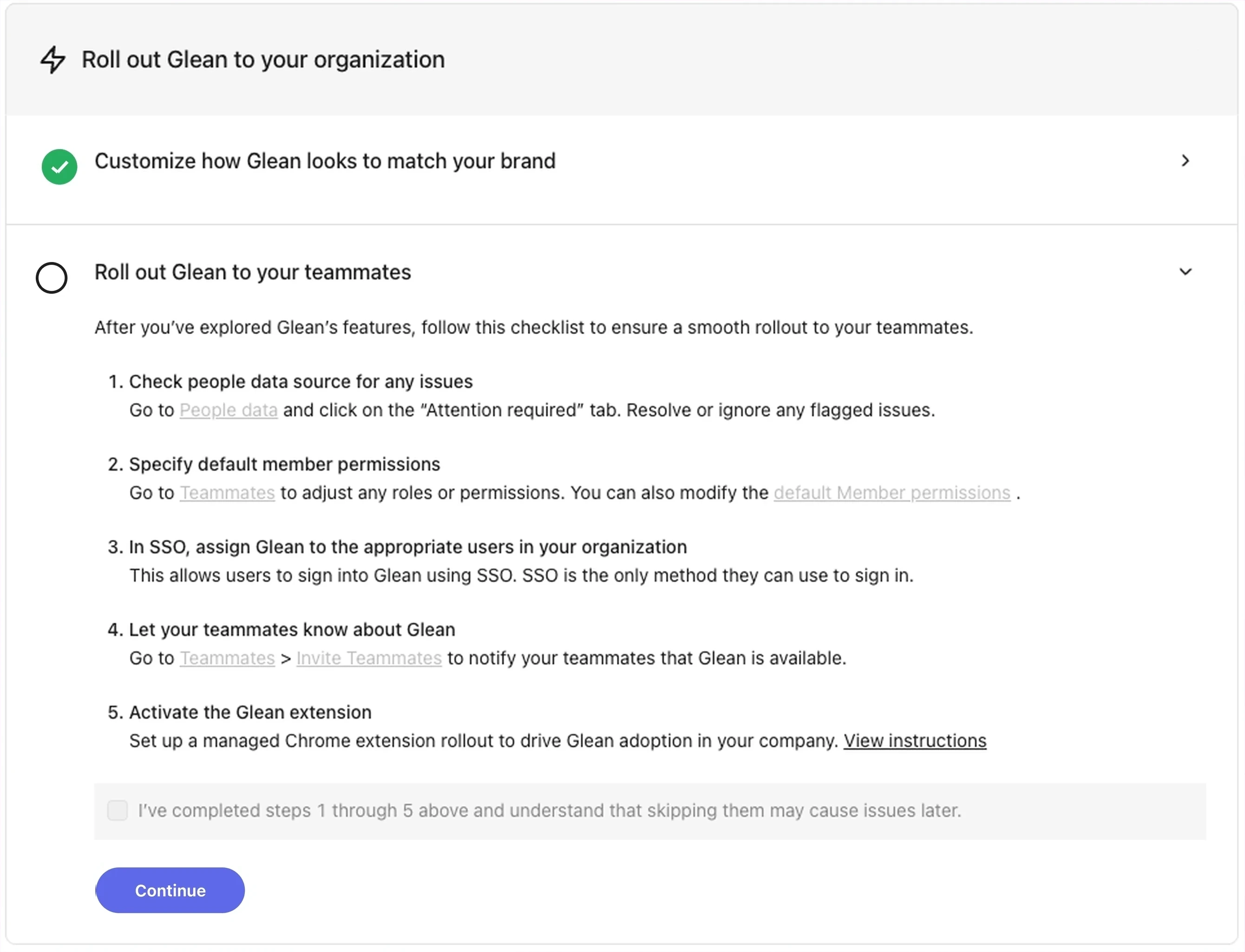
Roll out Glean to your teammates
Work through the five steps below in order. Once you've completed all five, select the confirmation checkbox and select Continue to finish workspace setup.
Check people connector for any issues
Go to Admin console → Users and permissions → People data and select the Attention required tab. Resolve or ignore any flagged issues.
The Attention required tab surfaces profiles with missing required fields such as department or manager. Address these issues now to prevent downstream problems with search relevance, the directory, and the org chart. See People data issues for resolution steps.
Specify default member permissions
Go to Admin console → Users and permissions → User roles to adjust roles and permissions for individual teammates. From the same page, you can also modify the default Member permissions that apply to everyone in your organization.
The Member role is the standard role for end users. Default Member permissions determine which Glean features — search, Assistant, agents, and so on — are available to your teammates out of the box. See Manage users and User roles for details.
In your SSO provider, assign Glean to the appropriate users in your organization
In your SSO provider (Okta, Microsoft Entra ID, Google Workspace, and so on), assign the Glean application to the users in your organization who should have access. This allows users to sign in to Glean using SSO. SSO is the only method they can use to sign in.
SSO is the only sign-in method available to your teammates once your workspace is live. Make sure every user who needs access is assigned to Glean in your identity provider before announcing the rollout.
For provider-specific guidance, see the Single sign-on (SSO) configuration docs.
Let your teammates know about Glean
Go to Admin console → Users and permissions → User roles and select Invite teammates to notify your teammates that Glean is available.
Glean sends an invitation email with a link to sign in. You can also announce the rollout through your usual internal channels — see Rollout strategy for email templates, kickoff session ideas, and communication best practices.
Activate the Glean extension
Drive Glean adoption by setting up a managed rollout of the Chrome extension. With the extension installed, the new tab page becomes the Glean home page, putting search and Glean Assistant in front of your users every time they open a tab.
For step-by-step instructions, see Browser extension deployment and Deploy the Glean apps.
Confirm completion
Select the checkbox I've completed steps 1 through 5 above and understand that skipping them may cause issues later, then select Continue. Your teammates can now sign in to Glean and start searching.