Wait for user input
Overview
Glean’s Wait for user input tool allows agents to pause execution at any point to collect information or confirmation directly from a user. This makes it possible to build workflows that incorporate real-time human interaction, unlocking new use cases that require critical gating or decision points.
This feature is designed for agent creators and users who need their automated workflows to depend on live or asynchronous human input. For now, it is only available to run manually in the Glean app. Agents using this tool cannot be scheduled, published to Slack, used through MCP, or Glean’s APIs.
Usage Example
The Wait for user input tool is invaluable in workflows where automation must be stopped for human input, such as:
-
A time off request agent that asks users for the dates they plan to be absent
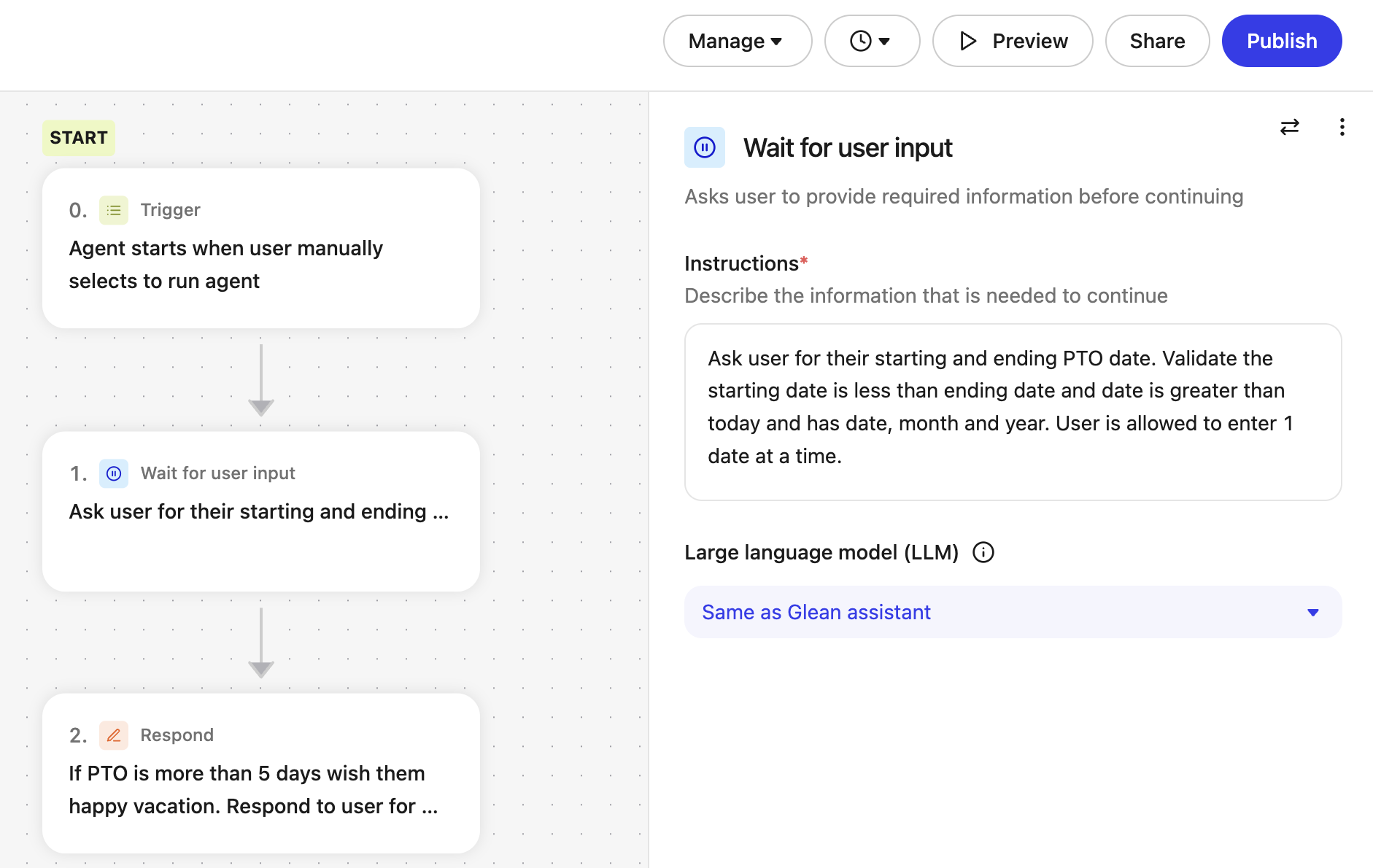
-
A sales coaching agent that extracts the name of an account executive from a transcript and asks the user to confirm that it has made the correct choice
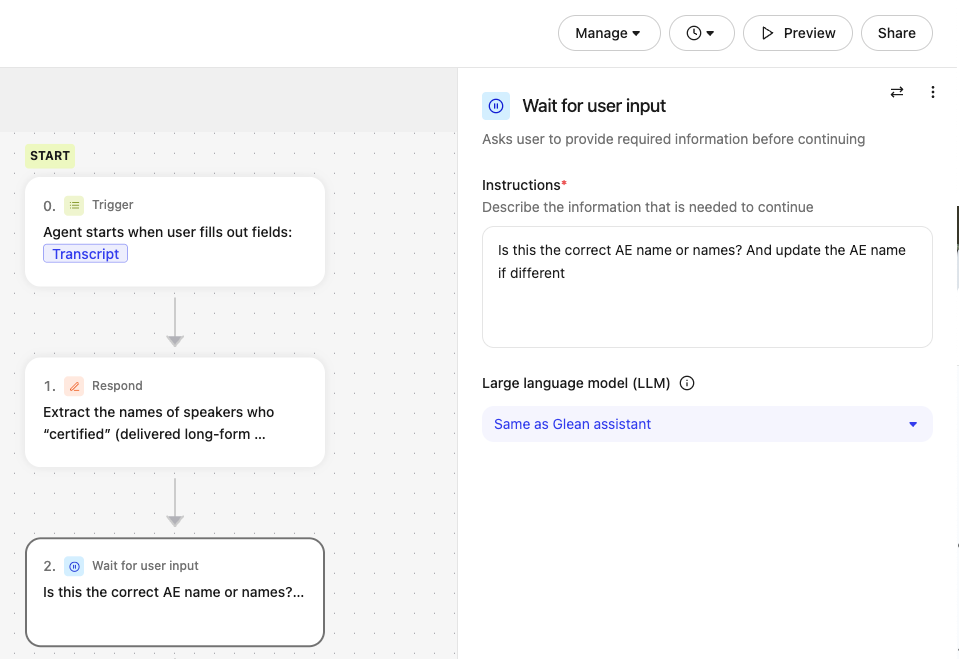
Configuration
The Wait for user input step can be inserted into any part of the agent graph. When configuring the Wait for user input step, you set a natural language goal that describes what the agent should ask the user. You can also specify whether the questions are optional or mandatory in the instructions.
Writing effective goals
The goal determines how the agent interacts with the user and when the step marks itself as complete. Keep these guidelines in mind:
- Keep the goal focused: A Wait for user input step works best when it collects one straightforward answer or a small set of closely related inputs, such as a start date and end date. Avoid goals that also try to handle branching decisions, unrelated follow-up questions, or decision logic about what should happen next.
- Be specific about what counts as a valid answer: For example, "Ask the user for their preferred start date in YYYY-MM-DD format" is clearer than "Get the date from the user."
- Use multiple Wait for user input steps when the conversation needs to happen in stages: If you need to gather unrelated information or ask different follow-up questions depending on the user's response, split that into separate Wait for user input steps.
Yes/no confirmation pattern
To ask the user a yes-or-no question and take different actions based on their reply:
- Add a Wait for user input step with a simple goal, such as "Ask the user whether they want to proceed. Accept yes or no."
- Immediately after, add a Branch step that evaluates the user's reply and routes to the appropriate path.
This two-step pattern keeps the Wait for user input goal simple and uses the Branch step for conditional logic, which is more reliable than embedding decision making in the goal itself.
How It Works
Agent Builder Experience
Use the Agent Builder to add a Wait for user input step anywhere in your flow and define exactly what the agent needs from the user.
-
Insert a Wait for user input step: Add it at the point where downstream steps depend on user input or a decision.
-
Write the goal: Describe in natural language what the agent should ask a user for, including constraints and examples the agent can validate against.
Prompt the user to enter their PTO start date and end date. Validate the following conditions:- The start date must be after today's date.- The end date must be after today's date.- The start date must be earlier than the end date. -
Configure input expectations: Specify the fields or information the agent must collect (e.g., date ranges, IDs, or approvals). The agent may ask clarifying questions until the inputs are valid.
When requesting or interpreting date inputs, ensure both dates explicitly include the day, month, and year, formatted as "YYYY-MM-DD" (e.g., "2025-09-10"). If a user refers to a date using relative qualifiers (such as "next Friday" or "the week of Thanksgiving"), convert these references into specific dates and clearly present them for user confirmation. For example, respond with: "Did you mean '2025-09-12' when you said 'next Friday'?" Always ask the user to confirm the interpreted date to avoid ambiguity.` -
Connect downstream usage: Map collected values to later steps (e.g., filling tool parameters, branching decisions, or guards). You may reference the input fields collected using a similar natural language you used in the Wait for user input step.
Downstream “Workday: Request Time Off” step Instructions: File a PTO request based on start date and end date. -
Test your agent: Run the agent in preview mode to ensure it works as intended, providing clear interactions that validate correctly.
Choose a memory setting
The Manage memory setting controls how much prior context a Wait for user input step accesses. Select an option based on your step's requirements:
- All previous steps (default): Select this when the step needs to reference data from multiple earlier steps, such as form fields or branching conditions.
- Only immediate previous step: Select this when the step receives a short reply (such as "yes" or "no") and earlier steps output large amounts of data (such as a Read document step). Excessive context can cause the agent to misinterpret brief responses or return generic errors. Restricting memory to the prior step ensures reliable parsing.
Start with the default setting. If the agent returns unexpected errors or fails to recognize valid input, switch the step to Only immediate previous step.
End User Experience
- When the flow reaches the Wait for user input step, execution pauses and the user is prompted for input (message or form), with follow-up clarifications as needed.
- Agents cannot be cancelled while they are waiting for user input.
- Conversation is continuous—all prompts and responses remain in the same chat thread for context.