Overview and concepts
What are tools?
Tools are primitives in Glean to help you interact with your applications in real time.
Instead of only finding information, Glean can complete tasks end to end such as creating tickets, updating records, sending messages, or running queries directly from a conversational request.
At a high level, a tool is a reusable operation that runs in an external app or data system. Behind the scenes, each tool knows what it needs and what it returns, so Glean can run it safely and reuse the results in a flow.
Glean uses tools to:
- Read data: fetch issues, run queries, or pull live data from an app.
- Write or update data: create or update records, pages, or documents.
- Orchestrate across apps: for example, draft an email and post a link in Slack or Teams.
Connectors vs tools
- Connectors index content so Glean can search it.
- Tools call apps and APIs directly to read live data or make changes.
You can use both together. For example, search Confluence via Glean’s index, then use a Confluence tool to create or update a page.
Where to use tools
Tools show up across several Glean experiences. You ask for an outcome and the assistant or agent decides which tools to run and in what order.
Glean
In the main Glean app, Glean uses tools while you chat. Typical tasks include:
- Export answers to Google Docs or Sheets.
- Send summary emails.
- Create or update Jira tickets.
- Run Snowflake queries and explain results.
- Send messages in Slack or Teams.
You stay in a single conversation and Glean chooses and runs the tools.
Workflow agents
Workflow agents are structured, reusable flows backed by tools. They are useful for repeatable processes, such as:
- Creating a follow-up Jira ticket and sharing the link.
- Drafting a project update in a Google Doc and posting the link in Jira.
- Pulling metrics from a data warehouse and routing them to the right channel.
End users see the agent as an option they can run. The individual tools remain hidden behind the flow.
Autonomous Agents
Autonomous Agents use tools in the background based on triggers or policies that you configure once. Examples include:
- Keeping records in sync between systems.
- Enforcing policies by updating fields or statuses.
- Running periodic checks and posting summaries.
Users do not call individual tools and auto agent uses tools automatically to keep systems up to date.
Some Glean tools require the corresponding admin setting to be enabled before they appear in the agent builder. For example, the Presentation Generation tool is available only when an admin has turned on Slide deck generation in the Admin console.
Glean in X
With Glean in X, for example, Slack, Teams, or the browser extension, tools are available wherever you work:
- Ask Glean in Slack or Teams to create a ticket, post a summary, or look up account details.
- Use the browser extension to update records or create content in place.
The experience is the same, you describe the outcome, and Glean calls the right tools.
Tool sources
Tools can come from three main sources:
- First-party tools (By Glean): Built and maintained by Glean.
- MCP tools (By connector): Tools exposed by apps that integrate with Glean through MCP, so you can call their APIs through Glean.
- Custom tools: Tools your organization defines in the Glean admin console for internal or niche workflows.
Many first-party tools are grouped by application, for example, Salesforce tools, Snowflake tools. These are bundles of related tools for a given app.
Admins enable and authenticate tools from these sources in the Glean admin console.
Tool behaviors and execution
This section focuses on how tools run and what they do, independent of where they show up or where they come from.
Read vs write
- Read (retrieval) tools: Fetch information from external apps, even if Glean has already indexed some of that data.
Examples: run a SQL query in Snowflake, fetch live metadata from Jira or Salesforce. - Write (operational) tools: Create, update, or post data in an external app.
Examples: create a Jira issue, update a Salesforce record, post a message in Slack or Teams.
Many flows follow a read → reason → write pattern: pull context with a read tool, let Glean decide what should happen next, then apply changes with a write tool.
Execution vs redirect
- Execution tools: Run inside Glean. Glean or the agent calls the external API and returns a result or confirmation in the same conversation.
- Redirect tools: Open a URL or page in the external app so you can finish the task there, for example, a Jira issue form or a Google Doc in the browser.
Both types respect your existing authentication and permissions.
Tool lifecycle and roles
Every tool follows a similar lifecycle, with different roles responsible for different parts:
-
Admins
- Enable and authenticate tools in the Glean admin console.
- Decide which apps expose tools and how each app is authenticated.
- Choose which write tools can run in-line versus always show a confirmation.
-
Builders of workflow agents
- Choose which tools each workflow agent can use.
- Define step instructions and how parameters are filled (fixed values, user input, or AI-inferred).
- Decide when to use explicit steps versus Plan and execute for a given flow.
Builders configure how tools are used inside workflow agents. They do not need to configure individual tools for Glean Assistant, Auto Agents, or Glean in X.
-
End users
- Ask Glean, a workflow agent, or an Auto Agent to complete tasks in natural language.
- Provide any missing inputs when prompted, for example, which account, which project, or date range.
- Review confirmations and results, often with links back to external systems.
End users never manage tool definitions directly. They interact with Glean decide which tools to call.
Security and governance for tools
Tools follow your existing security and connector model, and admins retain fine-grained control.
Permissions and app guarantees
- Tools use the same permissions and authentication you configure for each app.
- If your account cannot perform an operation in an app such as Jira, Salesforce, or Google Workspace, Glean cannot do it via a tool.
- Glean logs tool usage and aligns with your connector and security configuration, so tools automate what users already do in those apps, within the same access boundaries.
What admins control
In the Glean admin console and related security settings, admins can control:
- Which apps expose tools and how they are authenticated.
- Which first-party tools are enabled for the organization.
- Which write tools can run in-line versus always show a confirmation dialog.
- Which workflow agents can use which tools, often in partnership with builders and security teams.
This lets admins balance productivity and safety while giving users powerful, real-time tools across their apps.
Glean Protect and AI security
Tools work within the same AI safety framework as the rest of Glean:
- Prompt injection protection helps prevent malicious content from forcing agents to run unexpected or unsafe tools.
- Agent guardrails keeps tools within the scope admins and builders define like connectors, operations, destinations.
- Glean Protect policies and controls keep sensitive data within approved boundaries and ensure tools use only the permissions and content you allow.
Manage tool permissions
Glean uses tools to interact with your connected applications. A tool is a specific capability that allows Glean to retrieve information or perform operations on your behalf.
Your tool permission settings apply to Glean Assistant.
Tool permission levels
Configure one of two permission levels for each available write tool:
- Always allow: Glean executes the tool automatically without prompting you for confirmation.
- Needs approval: Glean requests your explicit permission every time before executing the tool.
The Glean administrator of your organization controls overall tool availability. If an administrator restricts or disables a tool, it becomes unavailable regardless of your personal permission settings.
View and configure your tools
Monitor and manage your connected applications and individual tool behaviors directly from Your settings.
| Section | Capabilities |
|---|---|
| Connectors | • View all integrated applications. • Manage app authentication and credentials. |
| Tool permissions | • Review available tools per application. • Modify individual tool permission levels. |
Configure permissions settings of write tools
-
Click on your profile picture and go to Your settings in Glean.
-
Go to the Connectors tab.
-
Select the connected app for which you want to change the tool permission.
-
Locate the specific write tool you want to modify.
-
Select either Always allow or Needs approval.
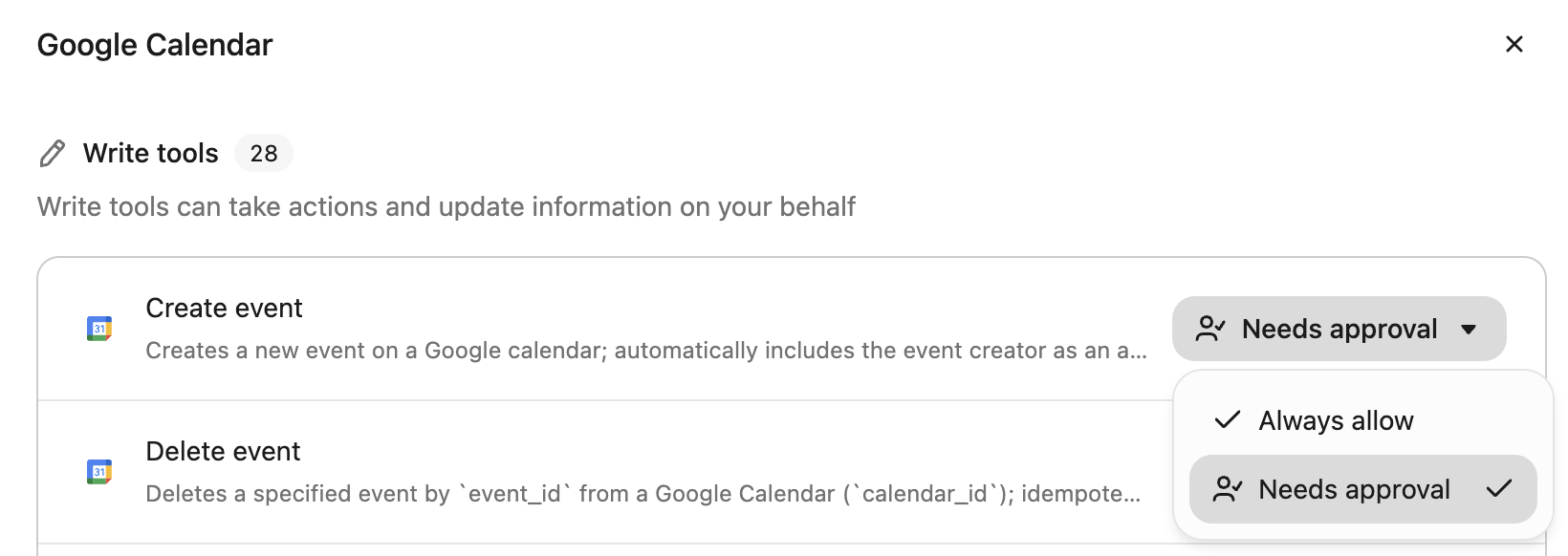
Your changes save automatically and take effect immediately. For more information on how data handling changes based on these settings, see Read vs. write tools.