Using the Glean Support Center
Glean has launched a new support experience. This guide walks you through how to sign in, interact with support, and manage your requests.
You must sign in to Gleaniverse to access the Support Center. Previous logins from Zendesk or the legacy support portal were not migrated. You will need to create a new Gleaniverse account if you have not already done so.
Signing in
Access the Glean Support Center through Gleaniverse. Your Gleaniverse login is used to authenticate you with the support system. Once signed in, your information is automatically passed to the ticketing portal so you do not need to enter a one-time passcode (OTP) or re-authenticate.
Conversations vs. tickets
The new support experience distinguishes between conversations and tickets. Understanding the difference helps you choose the right path for your request.
Conversations
Start a conversation to ask a question or get quick help from Glean's support assistant. Conversations are available to all users and are the best starting point for most requests. Think of a conversation as chatting with support — you are not filing a formal ticket.
Tickets
Create a support ticket for issues that require formal tracking, follow-up, or escalation. Ticket creation is available to designated support contacts as defined in the Glean Support Agreement. Tickets are best for bug reports, outages, and requests that need a documented resolution.
Not sure which to use? Start with a conversation. If the issue needs to be escalated, support can convert it into a ticket.
Starting a conversation
- Sign in to the Gleaniverse.
- Select Send us a message to begin a conversation with Glean's support assistant.
- Describe your question or issue. The assistant will help triage your request and connect you with the right resources.
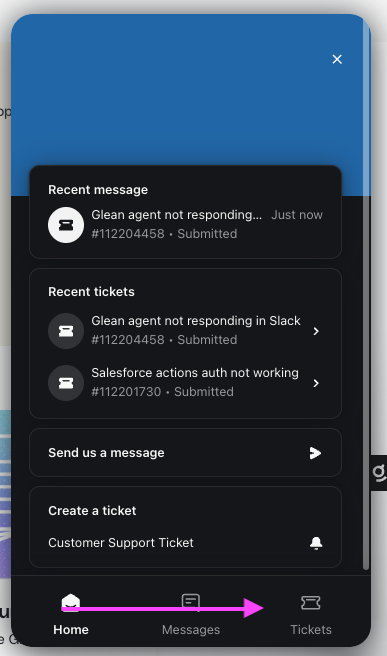
You can view your past conversations at any time by opening the support widget and selecting your conversation history.
Create a support ticket
If you are a Designated Support Contact and need to formally track an issue:
- Sign in to the Gleaniverse.
- Open the support widget in the bottom-right corner of the page.
- Select Create a ticket.
- Follow the prompts to describe your issue, select a priority level, and submit.
For guidance on what to include in your ticket, see Raising a Support Ticket.
View your ticket history
After you create your first ticket, a Tickets section appears in the support widget. This section lets you view the status and history of your support tickets.
The Tickets section only appears after you have created your first ticket. If you do not see it, you may not have submitted a ticket yet, or ticket creation may not be available for your account.
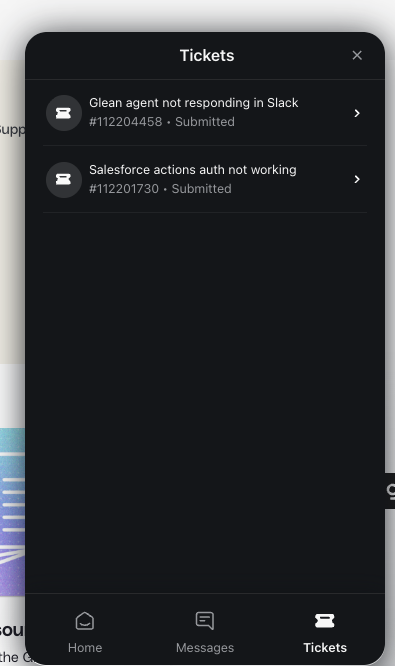
View all company tickets
If you are a Designated Support Contact, you can view all support tickets submitted by anyone in your company. To do this, open the support widget from Gleaniverse, look for the banner at the top of the Tickets section that reads Looking for your company's tickets? Go to customer portal and select it.
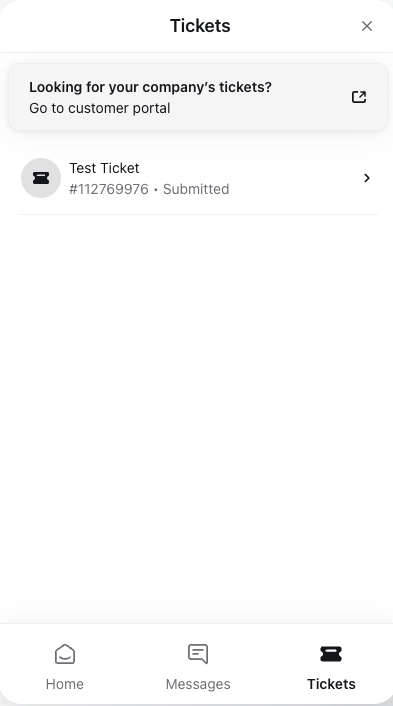
You must access the customer portal through the link inside the support widget. Do not bookmark or navigate directly to ticket.glean.com — the portal will not recognize your identity unless you go through the authenticated Gleaniverse path. Always start from Gleaniverse, open the support widget, go to Tickets, and then select Go to customer portal.