Glean Support Center
Glean has launched a new support experience. This guide walks you through how to sign in, interact with support, and manage your requests.
You must sign in to Gleaniverse to access the Support Center. Previous logins from the legacy support portal were not migrated. You will need to create a new Gleaniverse account if you have not already done so.
Sign in
Access the Glean Support Center through Gleaniverse. Your Gleaniverse login is used to authenticate you with the support system. Once signed in, your information is automatically passed to the ticketing portal so you do not need to enter a one-time passcode (OTP) or re-authenticate.
Find support
After you sign in, the Support Center page shows two entry points: Ask Query in the top navigation bar, and the support widget in the bottom-right corner of the page.
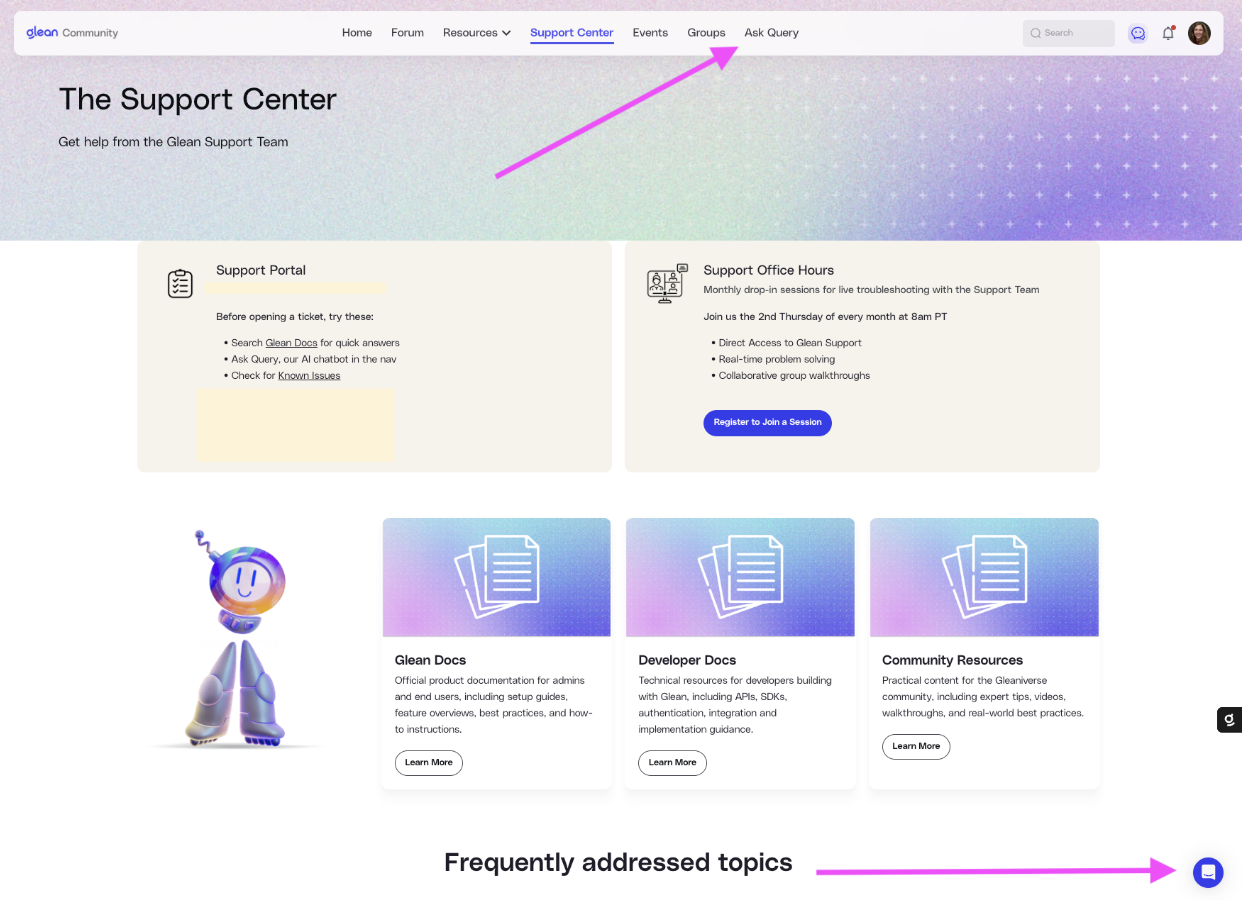
Before opening a ticket, try these self-service options:
- Search Glean Docs for quick answers.
- Select Ask Query in the navigation bar to chat with Glean's AI assistant.
- Check the Glean status page for known issues.
Conversations and tickets
The support experience distinguishes between conversations and tickets. Understanding the difference helps you choose the right path for your request.
Conversations
Ask a question or get quick help from Glean's support assistant. Available to all users and the best starting point for most requests.
Tickets
Formally track an issue that needs follow-up or escalation. Available to Designated Support Contacts, and best for bug reports and outages.
Not sure which to use? Start with a conversation. If the issue needs to be escalated, support can convert it into a ticket.
Feedback
Submit a feature request or product feedback on the Feedback and Ideas board in the Gleaniverse. You can also reach Glean Support by emailing help@glean.com — the AI assistant triages first and hands off to a human agent for Designated Support Contacts.