Tickets
Create a support ticket for issues that require formal tracking, follow-up, or escalation. Ticket creation is available to Designated Support Contacts as defined in the Glean Support Agreement. Tickets are best for bug reports, outages, and requests that need a documented resolution.
Please reach out to your Glean account team if you need to be set up as a Designated Support Contact.
Prerequisites
Before you create a ticket:
- Confirm that you qualify as a Designated Support Contact, as defined in the Glean Support Agreement.
- If you do not qualify, start a conversation with Support or ask your Glean Administrator to submit a ticket for you.
- Confirm that you can sign in to the Gleaniverse, where the Support Center widget is available.
- Have the details of your issue ready. See What to include for the full list.
What to include
A clear and complete ticket helps our support team resolve your issue faster. Include these details so we have the full context:
- Issue description — A clear, detailed explanation of the problem, including what you were attempting to do when the issue occurred and any steps to reproduce it.
- Error messages — The exact text or error code that was displayed.
- Timing information — The date and time when the issue occurred, along with your timezone, so support can correlate it with system logs.
- User impact — Whether the issue affects just your account or multiple users.
- Impacted users — The email addresses of the users affected by the issue.
- Document reference — For issues related to specific content, such as missing search results or permission problems, the relevant URL.
- Visual evidence — Screenshots or recordings that demonstrate the issue, when possible.
Priority levels
Choosing the right priority level helps our support team allocate resources and manage response times.
Accurate priority classification helps our support team triage and address all customer needs. Over-escalating priority levels can slow down resolution for genuinely critical issues.
Steps to create a ticket
If you are a Designated Support Contact and need to formally track an issue:
Open the support widget
Sign in to the Gleaniverse and select the support widget in the bottom-right corner of the page.
Select Create a ticket
Choose Create a ticket from the support widget home screen.
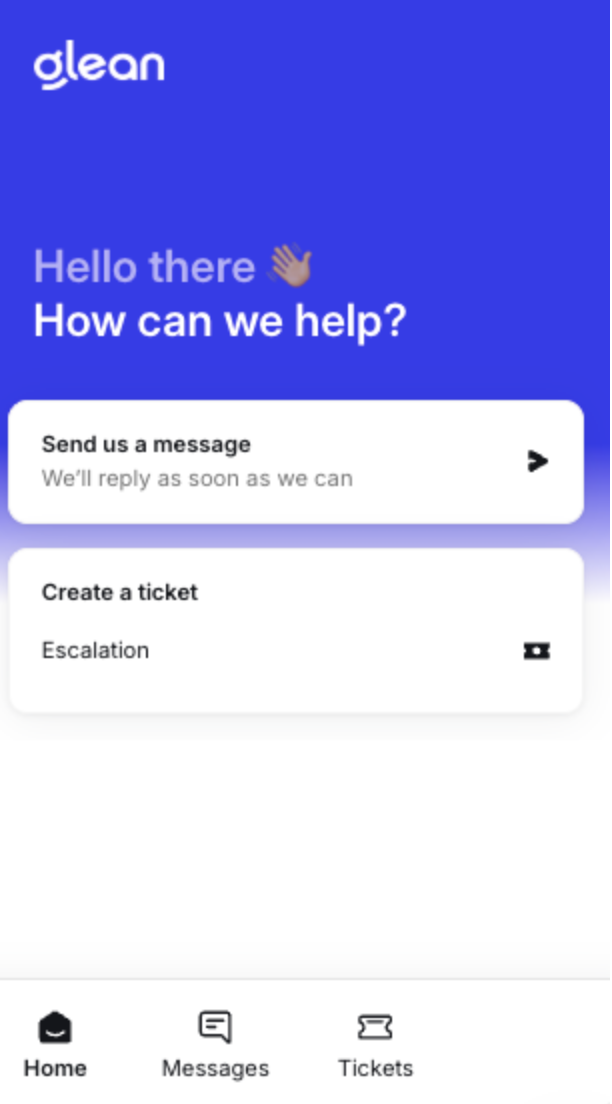
Fill out the ticket form
Follow the prompts to describe your issue, select a priority level, and submit.
View your ticket history
After you create your first ticket, a Tickets section appears in the support widget. This section lets you view the status and history of your support tickets.
The Tickets section only appears after you have created your first ticket. If you do not see it, you may not have submitted a ticket yet, or ticket creation may not be available for your account.
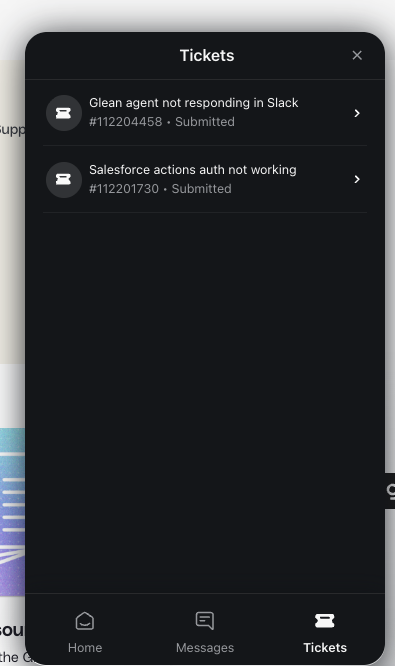
View all company conversations and tickets
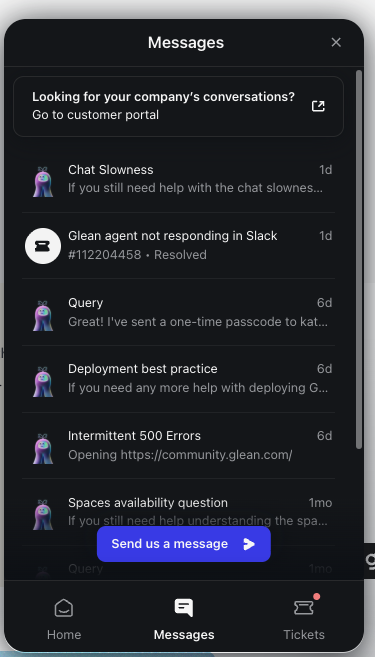
If you are a Designated Support Contact, you can view all support conversations and tickets submitted by anyone in your company through the customer portal.
To access the customer portal, open the support widget from Gleaniverse and look for the Go to customer portal banner. This banner appears at the top of both the Messages and Tickets sections of the support widget.
Once in the customer portal, use the dropdown at the top of the page to switch between Conversations and Tickets.
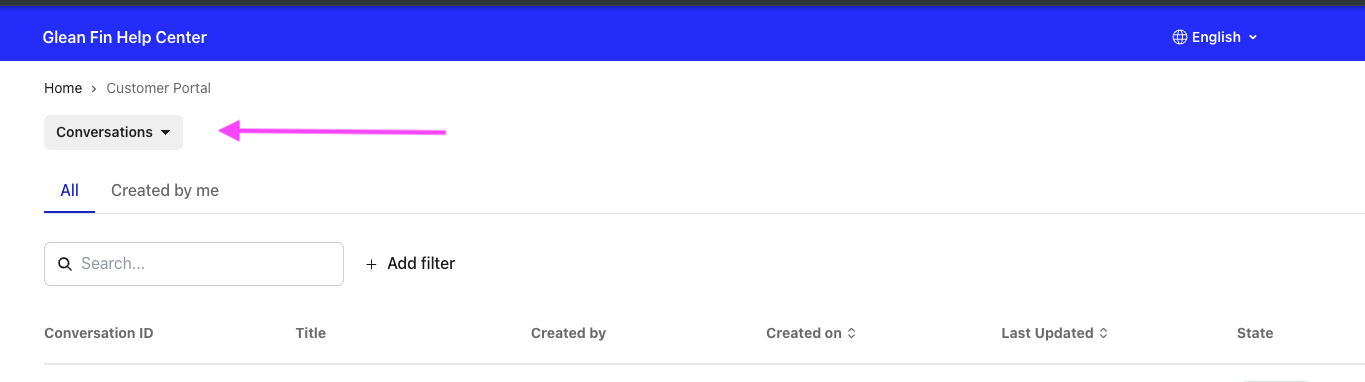
You must access the customer portal through the link inside the support widget. Don't bookmark or navigate directly to ticket.glean.com — the portal will not recognize your identity unless you go through the authenticated Gleaniverse path. Always start from Gleaniverse, open the support widget, and select Go to customer portal.