Pets
Pets are optional interactive companions that live on your Glean page. Each pet is tied to a Glean feature, so using that feature can unlock a new pet.
Pets follow your cursor when it's nearby and wander around on their own. Depending on your available features, a pet can also alert you when a chat response, agent run, or meeting needs your attention.
Before you start
Pets are part of Glean's delight features, which are turned on by default. If you don't see pets or can't unlock them, your admin may have turned off User delight features for your organization.
Unlock Orbit first

Orbit is the starter pet. You need to unlock Orbit before you can unlock any other pets.
To unlock Orbit, do either of these:
- Click the greeting on your Glean home page.
- Open Settings → Pets and select Orbit.
Actions you perform before unlocking Orbit don't count toward other pets. Unlock Orbit first, then go exploring.
Unlock more pets
After you unlock Orbit, use Glean normally to discover more pets. When one appears, choose Switch to use it immediately, or dismiss it and select it later in Settings → Pets.
| Pet | Unlock by |
|---|---|
 Cat Cat | Finish a chat |
 Duck Duck | Run an agent |
 Fish Fish | Share a chat |
 Frog Frog | Run a Deep Research prompt |
 Dachshund or Gleaner Dog Dachshund or Gleaner Dog | Create an artifact |
 Glippy Glippy | Search |
 Goldie Dog Goldie Dog | Visit your profile page |
 Sloth Sloth | Create an agent |
 Spooky Spooky | See an error page |
 Sprout Sprout | Share an artifact |
The dog can appear as Dachshund or Gleaner Dog, depending on your organization's branding and locale. Glippy is available only in Glean-branded experiences.
Manage your pets
Choose an active pet
Open Settings → Pets to see which pets you've collected.
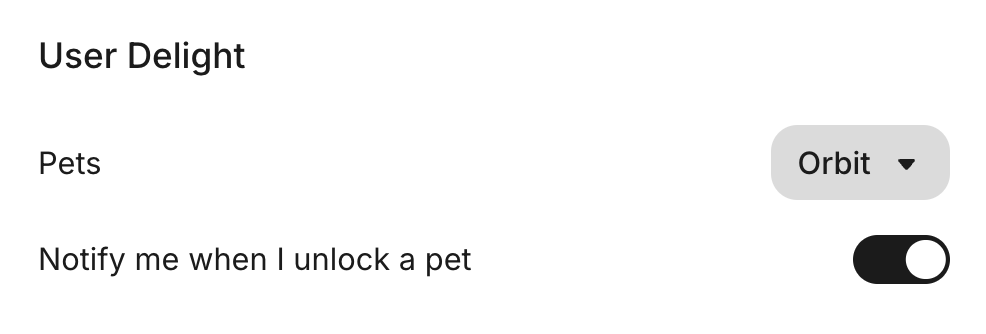
From there, you can:
- Select a pet to display it on your Glean page.
- Select No Pet to hide your active pet.
- Turn on Notify me when I unlock a pet to get an alert each time you find a new pet.
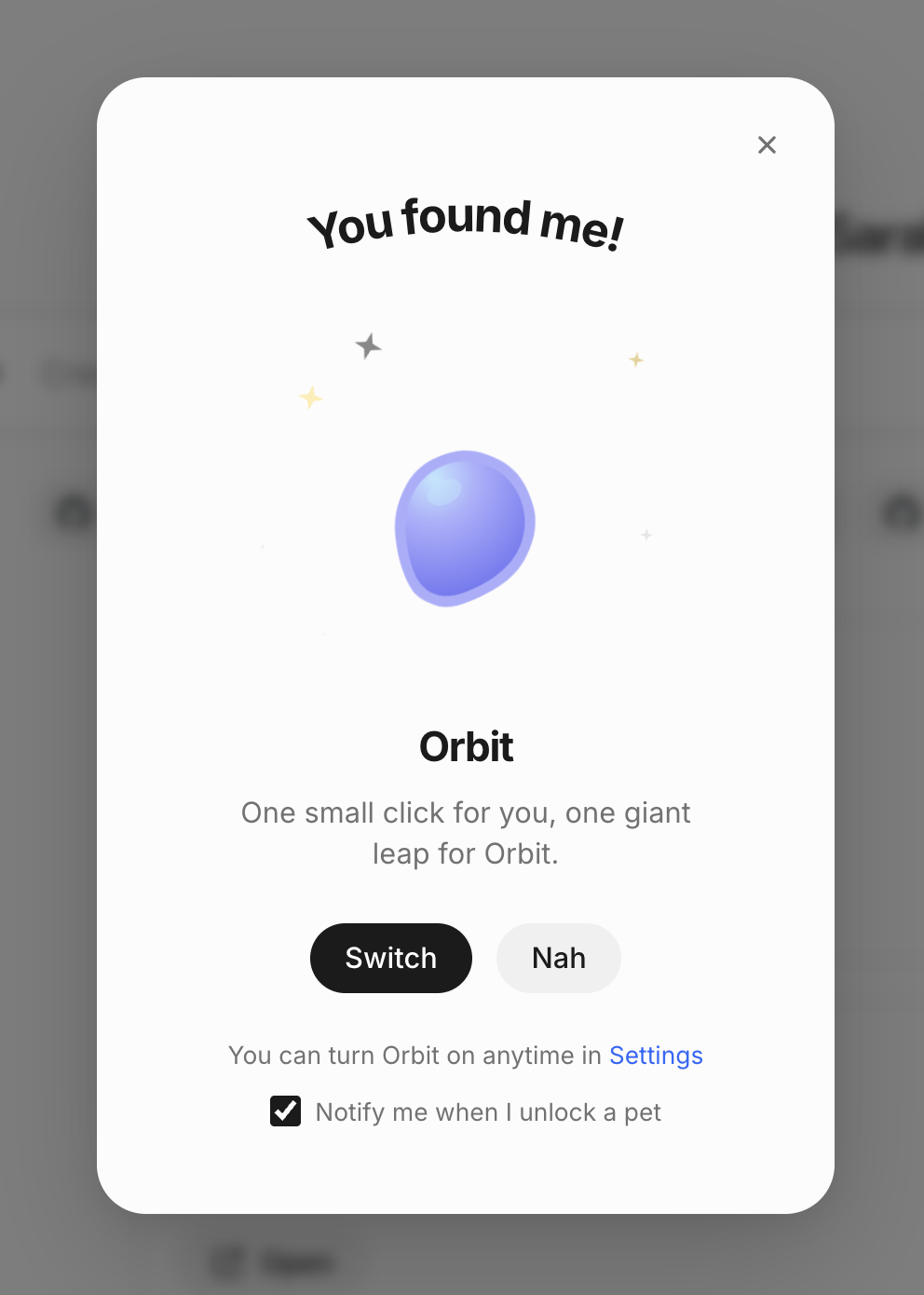
When you unlock a pet, select Switch to use it immediately. If you select Nah, you can turn it on later from Settings → Pets.
Pet settings
Click or hover over the pet, then click the gear icon to open Settings.
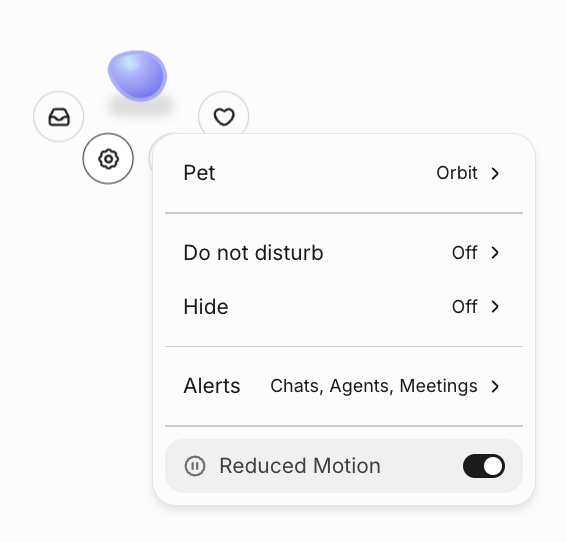
From there, you can:
- Switch out your active pet.
- Snooze alerts from your pet.
- Hide your pet for a set amount of time.
- Configure available alerts for chats, agent runs, and meetings.
- Configure Reduced Motion.
Enabling Reduced Motion keeps your pet in one spot. The pet stays visible but won't follow your cursor or pace around the page.
Turn off pets
To hide your own pet, open Settings → Pets and select No Pet. To turn off pets for everyone in your organization, an admin can open the Admin console, navigate to Settings → Appearance, and turn off User delight features.