Searching from the address bar
You will need the Glean Extension installed to use this feature.
Chrome
In Chrome, just type gl space or gl tab into the address bar, followed by your query in Glean.

If you also start typing "app.glean...", you can also tab to search directly in Glean from there.
Firefox
Go to app.glean.com and click into the address bar. Right click, and you'll see an option to Add "Glean" at the bottom of the menu.
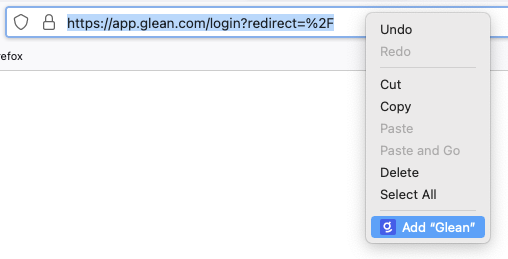
You can also click into the address bar, and click on the Glean icon in the bottom row of the menu (with the green plus button).

Then, navigate to the search section, under your Firefox Preferences (or just type about:preferences#search into the address bar). Double click on "Glean" in the list, and you'll be able to add your own keyword there.
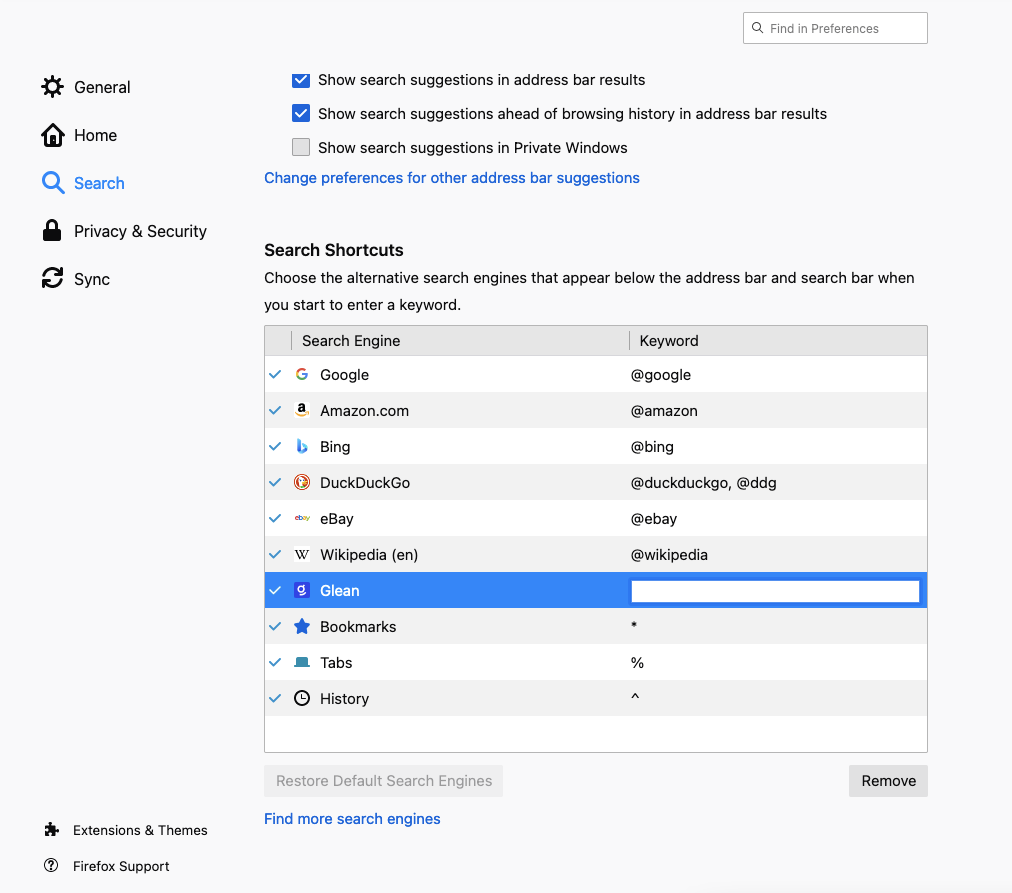
We recommend setting this up at @gl (short, easy to type).

You'll then be able to search directly with Glean from the address bar!
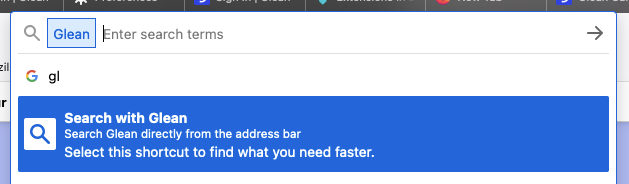
After opening a new window/Firefox tab, pressing the tab button will not focus on the Glean search box. Unfortunately, this is a known problem on the Firefox end. Please use F6 + Tab to focus on the Glean search box.