Configure browser notifications
Glean supports browser notifications for chat responses, ensuring employees are alerted when a reply is available and the Glean browser tab is not active. Notifications allow you to return directly to the relevant chat thread with a single click, and their content is limited to chat context awareness. This feature works within existing OS and browser security models.
Notifications are available for chat responses, including Deep Research reports, and for agent runs. Notifications are enabled at the individual level, and you can turn them off at any time.
Prerequisites
You need access to Glean in a supported browser and permission to change notification settings for your account.
Key benefits
- Increased productivity: You can continue working in other applications while awaiting responses.
- Timely updates: Notifications appear as soon as replies are ready, even for long-running queries.
- Seamless navigation: Each notification links directly back to the relevant chat.
Setup steps
Enabling browser notifications
To receive notifications, perform the following steps:
- In Glean, open Home page settings.
- Click Manage more settings.
- Click Preferences → Notifications and enable notifications.
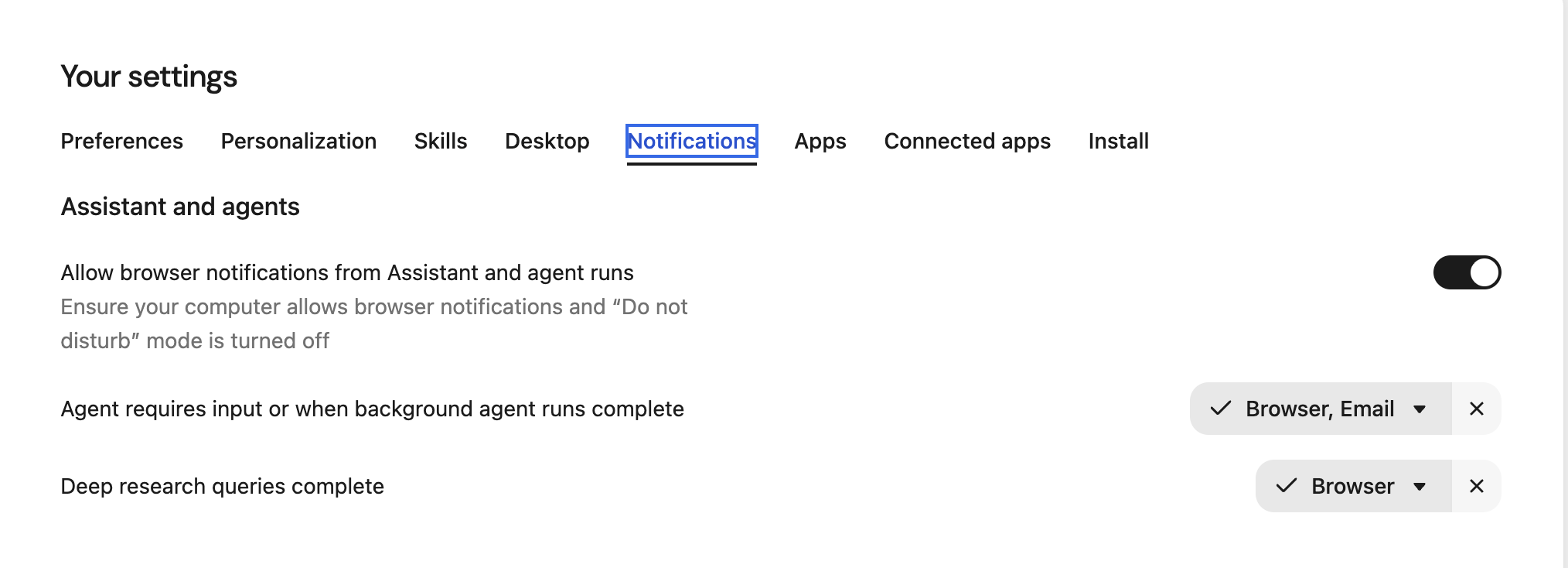
- Each user must enable notifications when they receive the alert in Glean.
- When prompted by your browser to allow notifications, select Allow to grant permission.
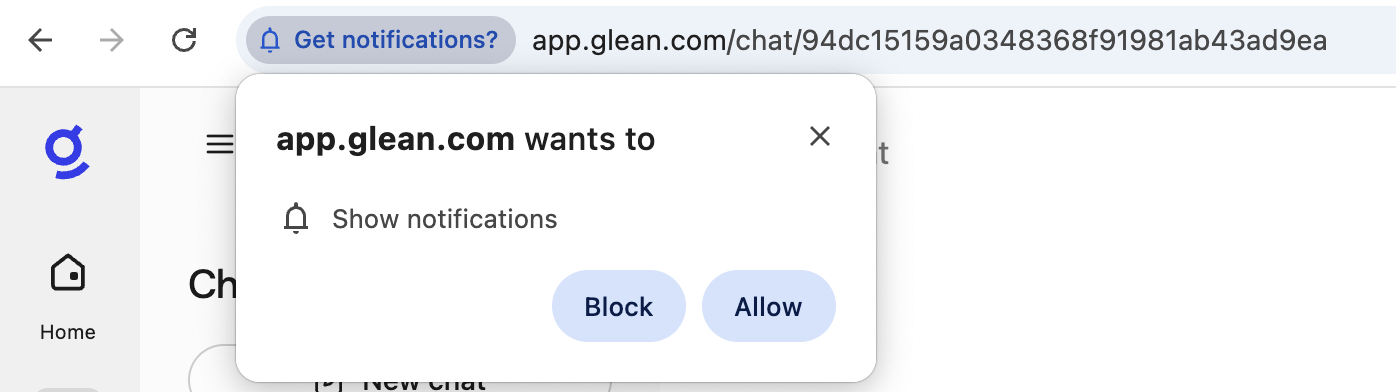

- Verify that notifications for the chosen browser are enabled at the operating system (OS) level.
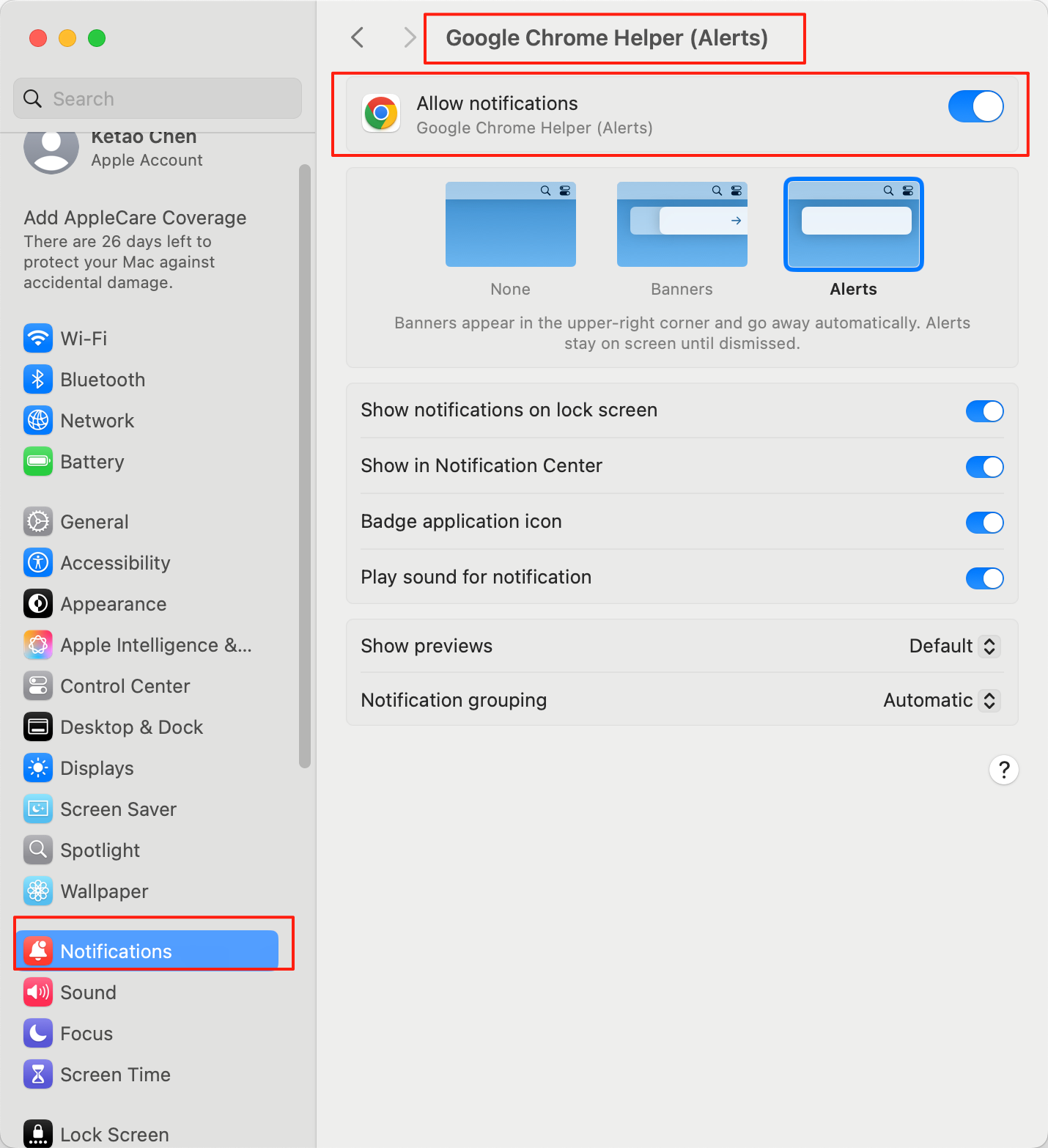
If you've enabled notifications in Glean settings, in your browser, and at the OS level, you'll see a notification when Glean's answer to your query is ready.
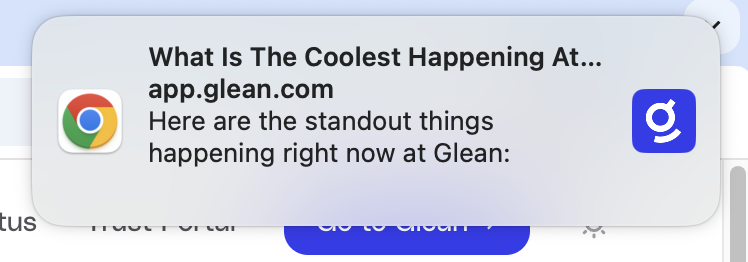
Do not disturb mode must be turned off.
Disabling browser notifications
To turn off notifications, perform the following steps:
- In Glean, open Home page settings.
- Click Manage more settings.
- Click Preferences → Notifications and turn off notifications.
Troubleshooting steps
If notifications are not appearing:
- Revisit Preferences in Glean settings to confirm the Notification setting is still enabled.
- Confirm that notifications are enabled in the browser.
- Verify that OS-level settings permit notifications for the browser.
- Ensure the Glean tab is not in focus. Notifications only appear when it is inactive.