Plan
When Glean receives a complex query, it can generate in Glean a visible, interactive plan before and during execution. This gives users transparency into what Glean is doing, why it's doing it, and how far along it is.
How it works
For queries that require multi-step reasoning, such as analyzing tickets across systems, building reports from multiple sources, or researching a topic in depth, Glean follows three stages:
Create a plan
Glean breaks the task into a numbered sequence of steps, displayed in Glean as a card. Each step includes a brief description of what Glean will do.
Execute the plan transparently
As Glean works through the task, the task list updates in real time so users can follow progress. Glean shows:
- Its current status
- Intermediate reasoning traces
- Tool invocations
This helps users understand what's happening and why.
Adapt as new information appears
If Glean uncovers new information during execution, it can revise the plan in real time by:
- Adding steps
- Removing steps
- Reordering steps
This allows Glean to stay flexible rather than following a rigid sequence.
Human-in-the-loop controls
Users can stop Glean at any time during plan execution and provide new direction. Glean can then generate a new plan or update the current one based on that feedback. This keeps users in control of more complex workflows, especially when a task needs additional guidance.
For ambiguous or under-specified tasks, Glean may also display clarifying questions before generating the plan. This helps scope the work before execution begins.
Task list states
The plan appears in Glean as a task list card with different states depending on progress.
During execution
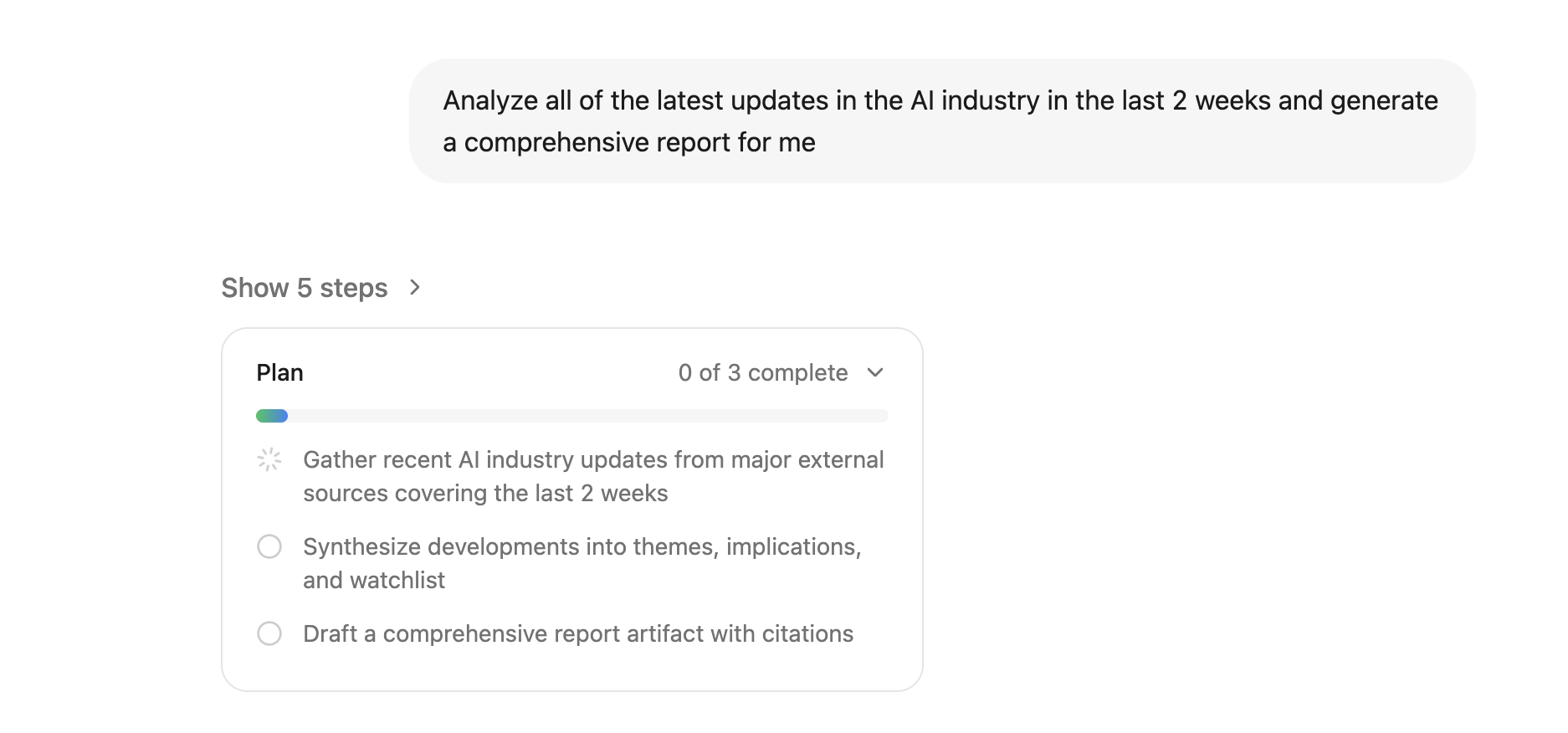
The task list shows live progress, including:
- Status indicators for each step: Pending, In Progress, or Done
- Multiple steps marked In Progress when work is happening in parallel
- An overall progress bar showing completion (for example, 3/5 tasks)
After completion
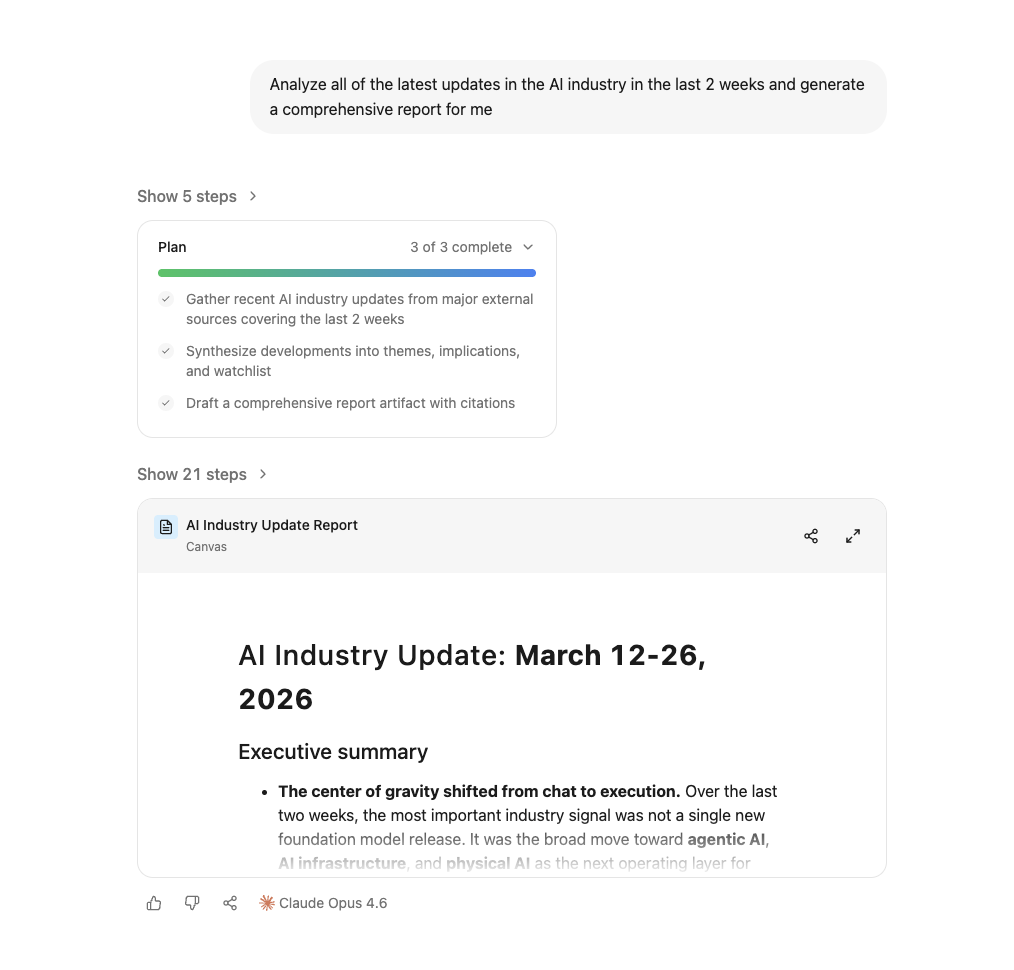
Once the task is finished, the task list collapses into a compact card showing:
- The title
- Number of completed tasks
Users can expand the card to review the status of each individual step.
When the plan is triggered
A plan is generated only when Glean determines that a query requires multi-step execution. Simple queries, such as "What's our PTO policy?", are answered directly without a plan. Glean decides when planning is appropriate based on the complexity and scope of the task.
Requirements
The plan feature is:
- Available in Thinking mode in Glean
- Available to all users on Glean Universal Key and Glean Hosted
Example
The image below illustrates a plan generated to analyze AI industry updates. The plan consists of three steps, with the first step shown as currently in progress.
This next image shows the final output after the plan has been completed: a report on AI industry updates from March 12-26, 2026.