Query Snowflake data in Glean Assistant
Glean lets you query Snowflake data in Assistant using natural language, direct SQL, and supported Cortex Agent workflows.
This gives you a governed, self-serve way to explore approved Snowflake data without leaving chat. Your organization controls which datasets, semantic views, and Cortex Agents are available in Glean, and all Snowflake queries from Assistant are read-only.
Key features
- Natural language queries: Ask questions in plain language to explore approved Snowflake data.
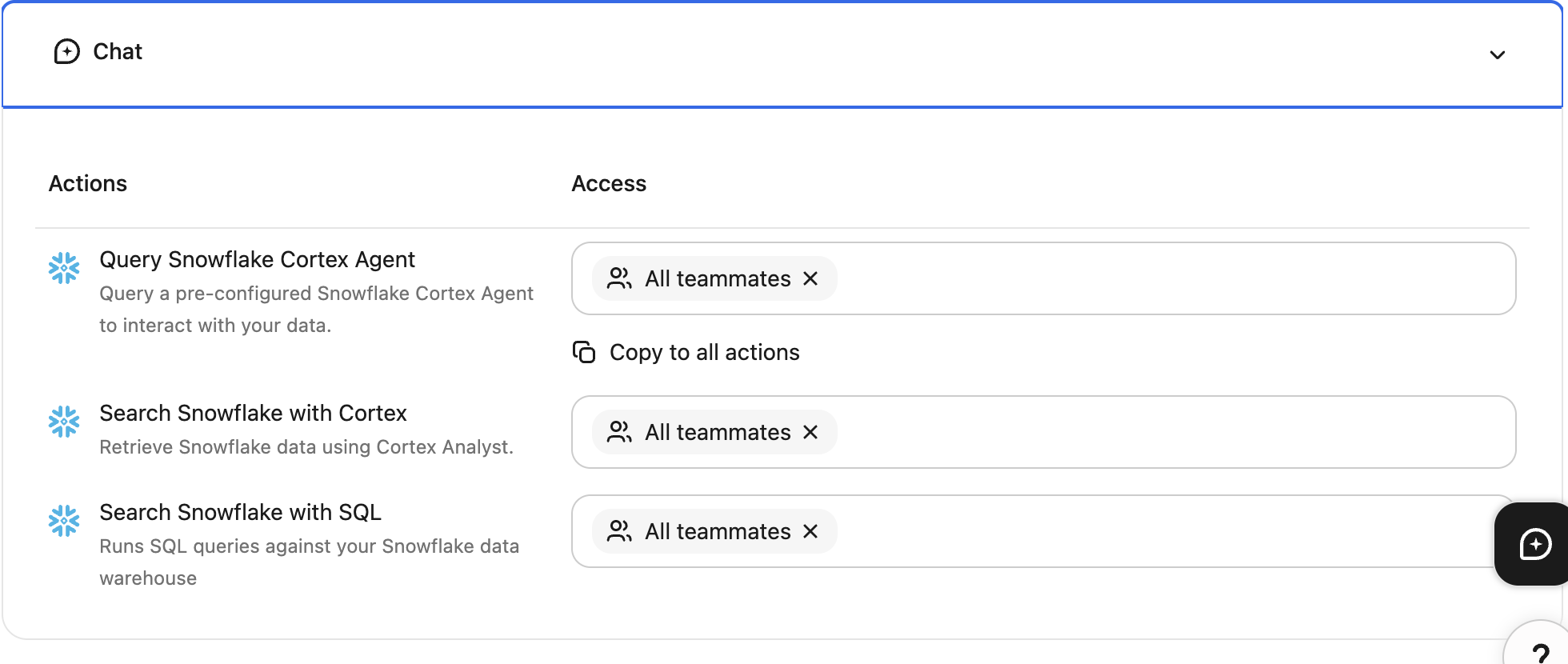
- Direct SQL execution: Run read-only SQL queries for precise ad hoc analysis when your admin has enable tools.
- Semantic view exploration: Use approved semantic views to ask business-friendly questions over modeled warehouse data.
- Cortex Agent-backed workflows: Use approved Cortex Agents when your organization has made them available in Glean.
- Interactive results: View results as tables and, when supported, as charts or dashboards.
- Transparent citations: See which Snowflake resource the response used and get clear feedback when a query needs adjustment.
Query Snowflake data in Assistant
Ask questions in natural language
Use this method for general data exploration. Assistant will interpret your intent and map it to the relevant Snowflake tables.
Example prompts:
- "What was our quarterly revenue by region?"
- "Show the top 10 customers by usage growth this month."
- "Which support queues had the highest ticket volume last week?"
Run SQL queries directly
If you have a specific query in mind or need advanced filtering, you can input SQL commands directly into the chat.
Example:
SQL
SELECT region, SUM(arr) AS total_arr
FROM sales_summary
GROUP BY region
ORDER BY total_arr DESC;
Tips for better results
To get the most accurate answers from Assistant, keep these best practices in mind:
- Be specific: Include the exact metric like "ARR", dimension ("Region"), and time range ("Q3") in your prompt.
- Mention datasets: If you know the specific view or table name for example
SALES_SUMMARY, mention it to help Assistant find the right data faster. - Refine and rephrase: If the first answer seems incomplete, try rephrasing your question or switching to SQL for more granular control.
- Check permissions: Your ability to query data depends on your Snowflake role. If a specific table is not appearing, verify with your admin that you have
SELECTaccess.