Ask questions and get answers in channels
Glean can detect questions in Slack channels and offer AI-generated answers drawn from your company's knowledge. Answers are personalized to you and respect your content permissions.
How it works
-
Ask a question in a channel where Glean is active, or mention
@Gleandirectly. -
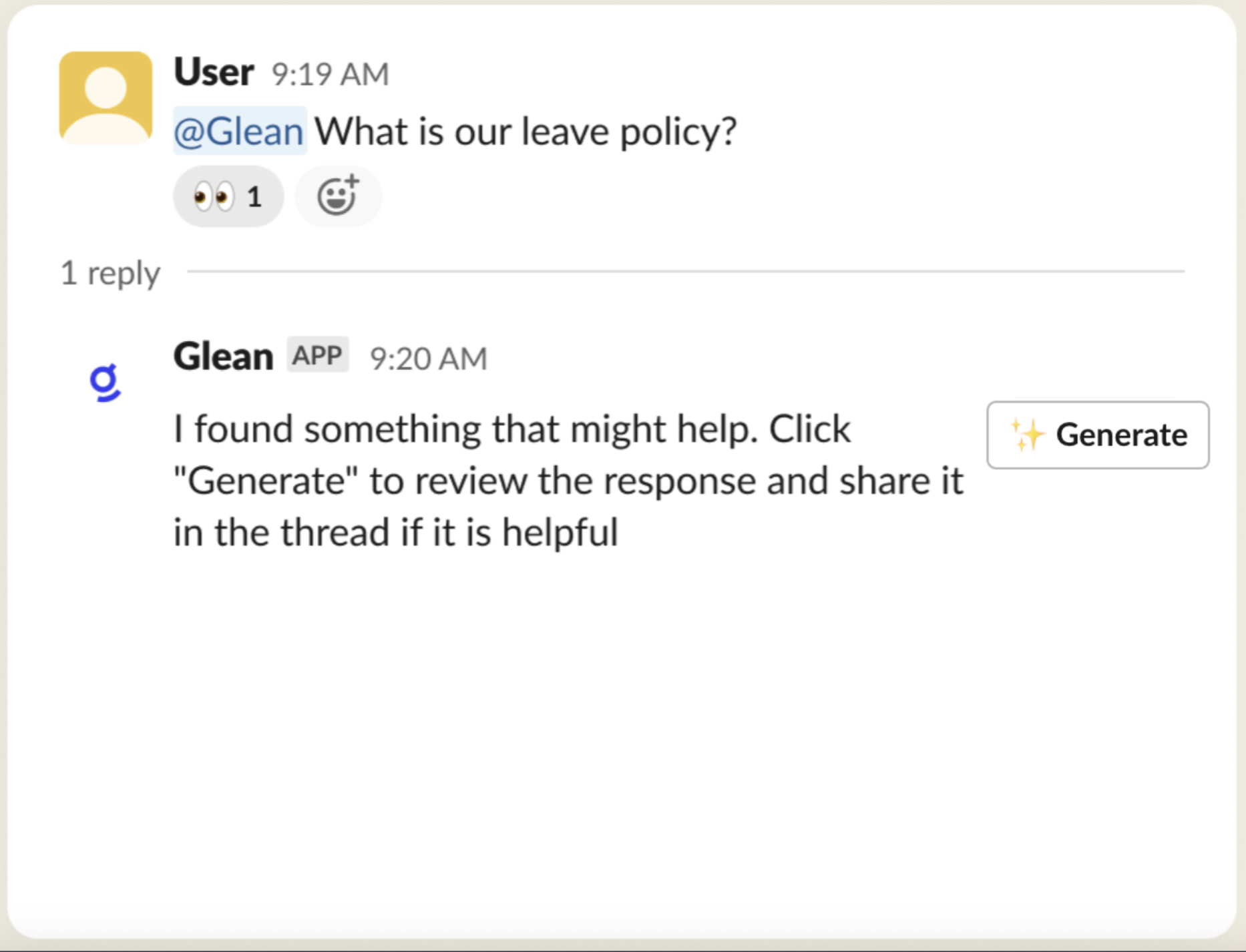
Glean detects the question and posts a prompt indicating that a response is available. Select View to see it.
-
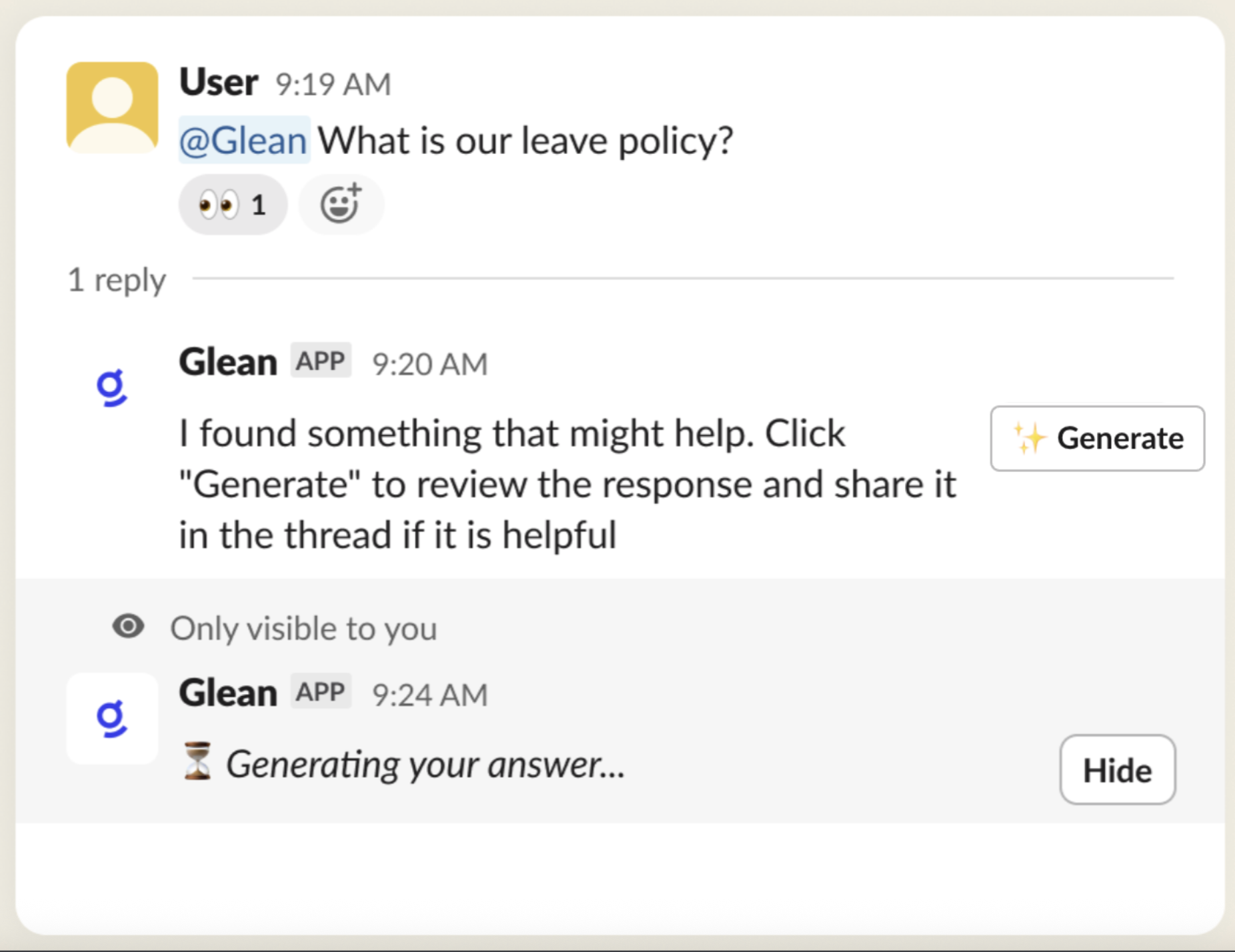
Generate the answer by selecting Generate. Glean displays a private message while it prepares the response.
-
Review the answer. By default, the response is private and visible only to you. It includes only content you are authorized to access. When Public Mode is enabled in the channel, replies are visible to all channel members.
Interact with responses
After Glean generates an answer, you can use the following controls:
- Feedback buttons — select the thumbs-up or thumbs-down icon to rate the response.
- Delete — select the trash icon to remove the response.
- View sources — open a modal to inspect the sources cited in the answer.
- Open in Glean — continue the conversation in the Glean web app for a richer experience.
Emoji reactions
Glean adds emoji reactions to the original message to communicate answer state and feedback status. Reactions appear only in channels where Glean is explicitly added.
| Emoji | Meaning |
|---|---|
| ⏳ Hourglass | Glean is processing the question |
| 👀 Eyes | A suggestion is available |
| ✅ Check mark | A suggestion has been shared in the channel |
| ⚠️ Warning | A suggestion was marked not helpful |
Emoji reactions are not added in DMs, proactive triggers, or generate answer / search my sources triggers.
Best practices for asking questions
Follow these guidelines to get the most accurate and helpful responses from Glean.
Key guidelines
- Be specific — frame your question with clear, precise details that provide necessary context.
- Use complete sentences — structure your questions as full, grammatically complete sentences.
- Focus on one topic — address one subject per question to ensure clear and targeted responses.
Example questions that work well
Technical queries
- 'Is Deploy Orchestrator failing with a 500 error supposed to be transient?'
- 'What is the minimum LTE bandwidth required for AB4 streaming on Respond?'
- 'Are click tracking URLs valid for multiple calls, or only the first one?'
Administrative questions
- 'What is our PTO policy?'
- 'How much of the relocation budget can be used for home workspace setup?'
- 'What is the meal reimbursement budget for late dinner at the office?'
Access and support
- 'Where should I request access to [product name]?'
- 'How do I request access to a loaner laptop?'
- 'Can I cancel my peer-review submissions?'
Questions that may not receive responses
Non-question statements
Messages that do not explicitly request information will not receive responses:
- 'Not sure this is the right channel to ask about GPT...'
- 'Discussion regarding topicality 🧵'
Contextually ambiguous questions
Questions that lack sufficient context for a meaningful response:
- 'Is that flag good enough to prevent irregularities?'
- 'Are these the final design drafts?'
- '@Sarah, can you provide more details about yesterday's issue?'
Opinion-based questions
Queries seeking subjective judgments rather than factual information:
- 'Which is the best programming language, Go or Python?'
Action requests
Questions that require human intervention or specific actions:
- '@sales-team, Can someone give a demo to a new prospect?'
Questions directed at specific individuals or teams using @ mentions are treated as action requests and will not receive automated responses.
Tips for rephrasing questions
- Add specific context to ambiguous questions.
- Rephrase action requests as information queries.
- Convert opinion requests into fact-based questions.
- Remove @ mentions when seeking general information.
Disable suggestions for your account
If you prefer not to receive suggested answers from Glean in Slack channels, you can turn off this feature for your account:
- Go to Glean Settings in the Glean web app.
- Find the Show suggestions for questions asked in Slack toggle.
- Turn the toggle off.
This setting applies only to your account and does not affect other users.