Use Glean in the Slack sidebar
After your admin installs the Glean app, you can use it in Slack to ask questions, search your company's knowledge, and run supported agents without opening the Glean web app.
From the Glean app, you can:
- Chat without leaving Slack: Interact with Glean directly within your workspace.
- Browse and run agents: Find specialized agents tailored to your tasks.
- Choose a response mode: Select Adaptive, Thinking, or Fast when those modes are available.
Before you begin
Users can open Glean and agents in Slack after an admin completes the following:
- Installs and approves the Glean app in the relevant workspace or organization.
- Makes Glean available to users in the sidebar.
For results from Slack content, an admin must set up and authorize the Slack connector and Slack Real Time Search (RTS). Each user may also need to authorize Slack RTS to receive permission-aware results from private channels and direct messages.
User roles
| Role | Key actions |
|---|---|
| Admins | Configure the Slack connectors, install and authorize the Glean app, and make it available to users. |
| Users | Open Glean from Slack's top bar, select a response mode or agent, and chat directly in Slack. |
How to use Glean in Slack
- In Slack's top bar, select Glean.
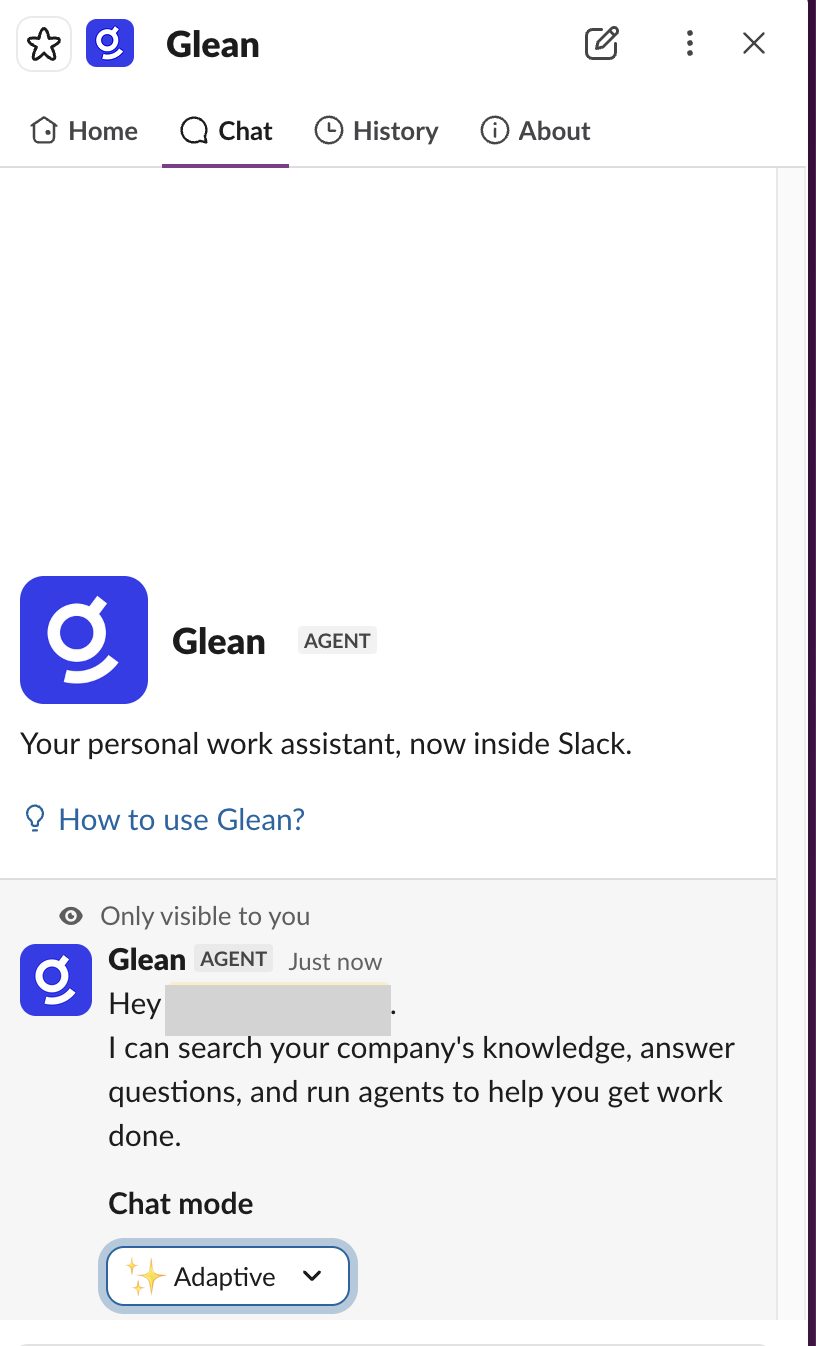
- In the Glean app, select the Chat tab.
- Start a conversation, choose a response mode, or find an agent.
If Glean is not visible in the top bar, look for it in Slack's Apps list. Availability depends on your workspace's Slack app policies and admin configuration.
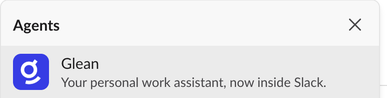
Chat with Glean in Slack
After your admin installs Glean, use the Glean app in Slack to ask questions, search your company's knowledge, and run supported agents. Your conversation stays in Slack, so you do not need to open the Glean web app.
Choose a response mode
Glean supports these response modes when they are available:
- Adaptive: Automatically chooses between Fast and Thinking based on your request.
- Fast: Returns a quicker response.
- Thinking: Spends more time reasoning through complex or multi-step questions.
If you change modes, your selection remains active for the rest of the conversation.
- Open Glean from Slack's top bar.
- Open the Chat tab.
- Click the Chat mode menu.
- Select Adaptive, Fast, or Thinking.
- Enter your question.
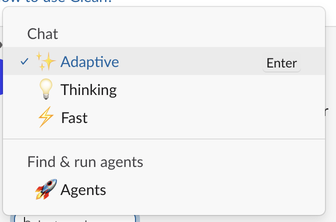
Run an agent in the Slack sidebar
Some agents that work in the Glean web app may not complete the same way in Slack. Agents can run read-only steps normally, but write tools that require an interactive approval step in the Glean web app do not complete from the Slack sidebar. The Wait for User Input step also does not complete in Slack. To use write tools in Slack, the tool must be eligible and configured to run without user confirmation. For Wait for User Input or interactive approval flows, run the agent in the Glean web app. For more information about interactive approval flows, see Human-in-the-loop confirmations for write tools.
You can run supported agents directly from the Glean app in Slack. Only agents with a Chat message trigger appear in Slack.
- Open Glean from Slack's top bar.
- Open the Chat tab.
- Click the Chat mode menu.
- Under Find & run agents, select Agents.
- Choose the agent you want to use, then click Run.
After you select Run, the agent activates and opens the conversation.
- Enter your request in the conversation. Depending on the agent, Glean may prompt you through supported Slack input flows, such as selecting an action. The Wait for User Input step and interactive approval flows are not completed in Slack; run those agents in the Glean web app.
The selected agent stays active for the entire chat session. To switch to a different agent or return to Glean chat, start a new chat.
Use case examples
| Department | Question | Outcome |
|---|---|---|
| IT Support | 'How do I get VPN access on a new laptop?' | Get immediate setup steps and ask follow-up questions in the same thread. |
| HR Support | 'Where can I find our leave policy?' | Access policy documents and summaries without leaving the Slack workspace. |
| Team Workflows | 'Help me triage these support tickets.' | Streamline internal operations and recurring workflows using team-specific agents. |
Sidebar vs. channel publishing
Running an agent from the Slack sidebar is different from publishing an agent to respond in Slack channels.
Use the sidebar when you want to:
- Chat in a 1:1 space where only you can see the messages and history.
- Chat directly with Glean or a selected agent.
- Choose between Adaptive, Thinking, and Fast modes when they are available.
- Run a supported agent in a DM-style Slack surface.
Use channel publishing when:
- An agent should respond in a shared Slack channel or thread that everyone in the conversation can see.
- You do not need sidebar-only features such as switching agents or chat modes.
- For more information, see Publish agents to Slack.