How to write effective answers
Answers surface at the top of search results when teammates ask common questions. Writing a few well-phrased answers reduces repeat questions and points people to the right docs, policies, and workflows.
1. Think of common questions you or your team get asked
These might be a category of questions (such as "Where is the handbook?"), questions related to a workflow, or questions that come up at certain times of the year.
Some examples to get you started 👇
- Where can I find...?
- What existing work has been done on...?
- What's our process for...?
- What's the policy for...?
- How do I configure...?
- How do I set up...?
- How do I troubleshoot...?
Pro tip ✨
If your team has a public Slack channel that others use to collaborate with or ask questions of your team, or a private Slack channel for questions among yourselves, look through that for ideas. Adding answers for those kinds of questions will save time for you and your users in the future!
2. Phrase your question completely
In the New answer modal, write your question in a complete sentence.
When others search for that question or keywords or queries that match the question, they'll see your answer at the top of their results.
Your question will also be used as a title for your answer.
3. Write your answer
You can add a link, text, or both to your answer. The way your answer looks in the text editor is exactly how others will see your answer at the top of their search results.
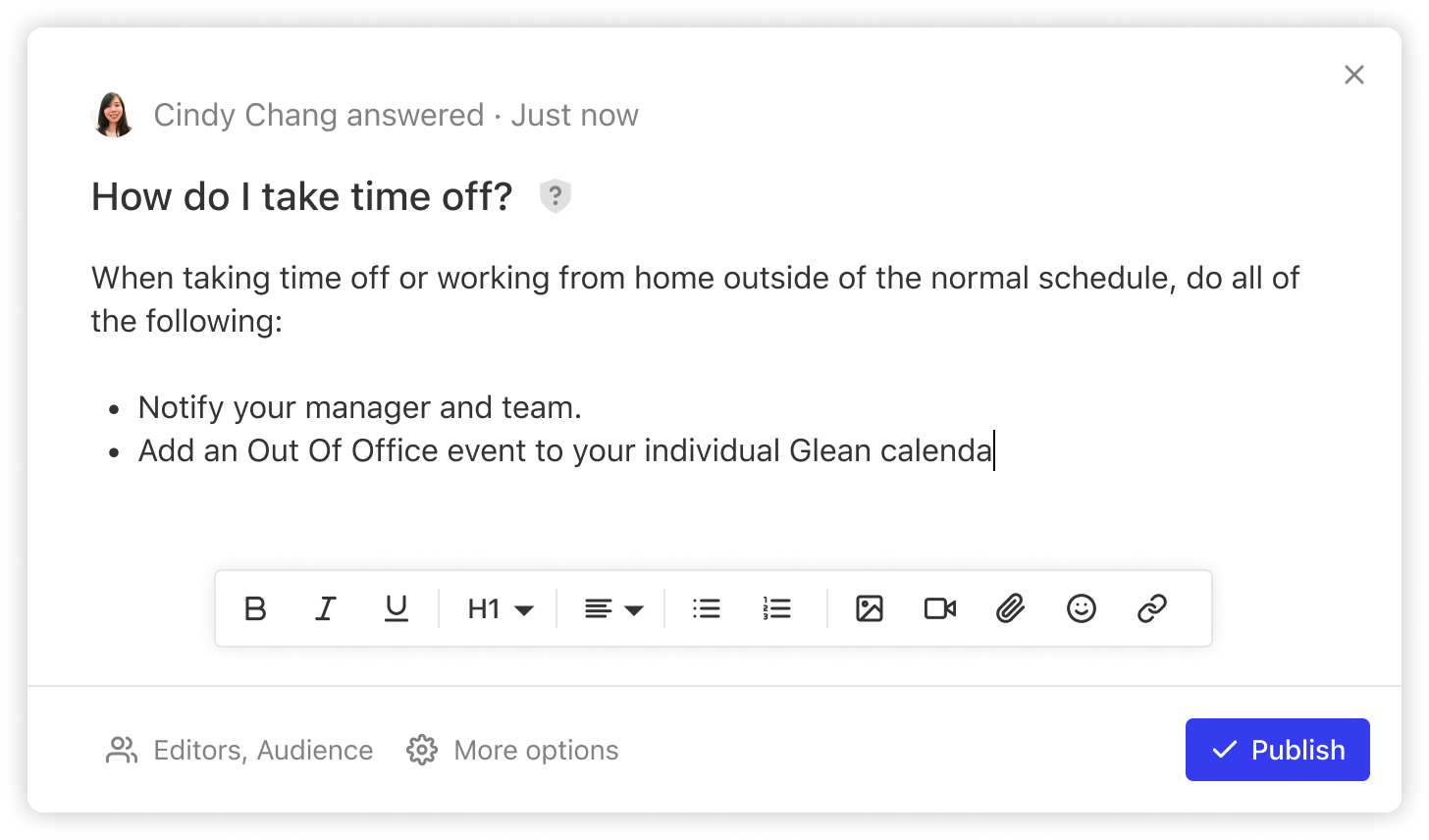
Save the answer when you're done. You can edit it from the search results or open Answers from Library or More, depending on your organization's navigation settings.
Other ways to create answers
Create answer from result
Use this if you've already searched for something and see a result you want to appear at the top for everyone when they search for the same thing.
Hover over the result, click the "more" menu with the three dots, and click Create answer.