How Pinned Results Work
What are pinned results?
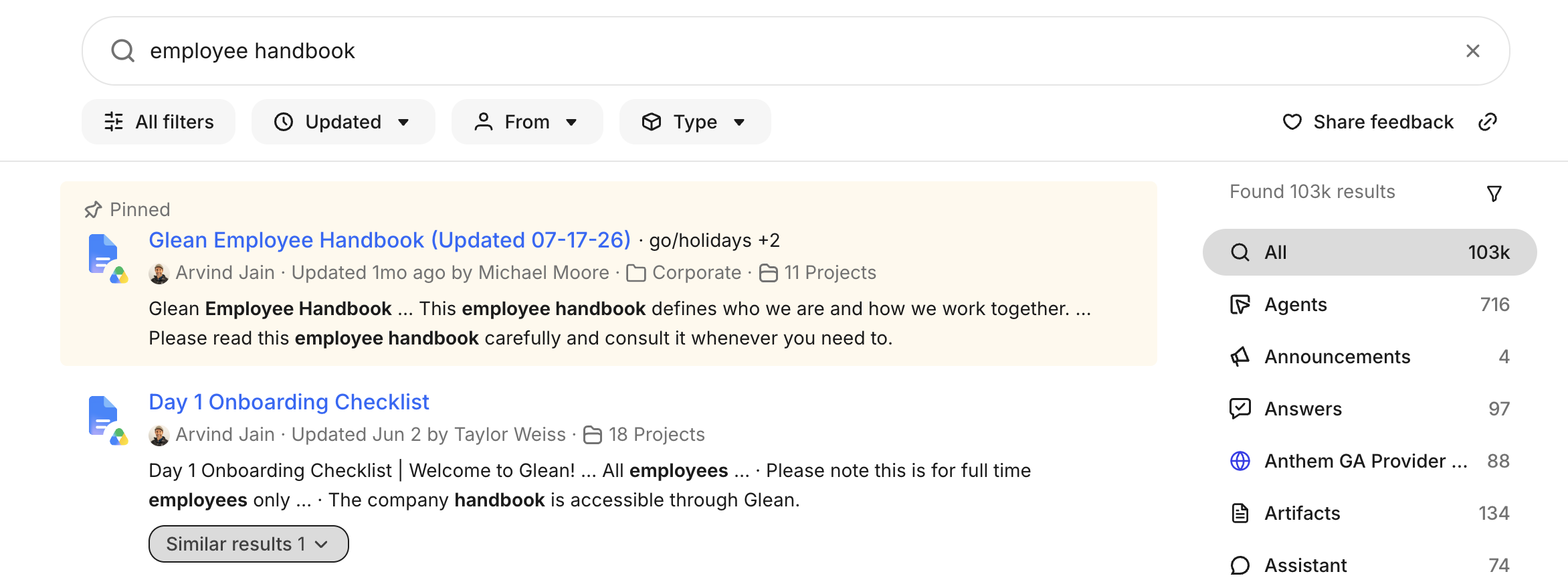
Pinned results are results that always appear at the top of a Search results page for a query and audience that you choose. Public pinned results appear for you and other users at your company, while private pinned results are only visible to you.
Create a pinned result
You can create a pinned result from the Search results page.
Create a pinned result from a search results page
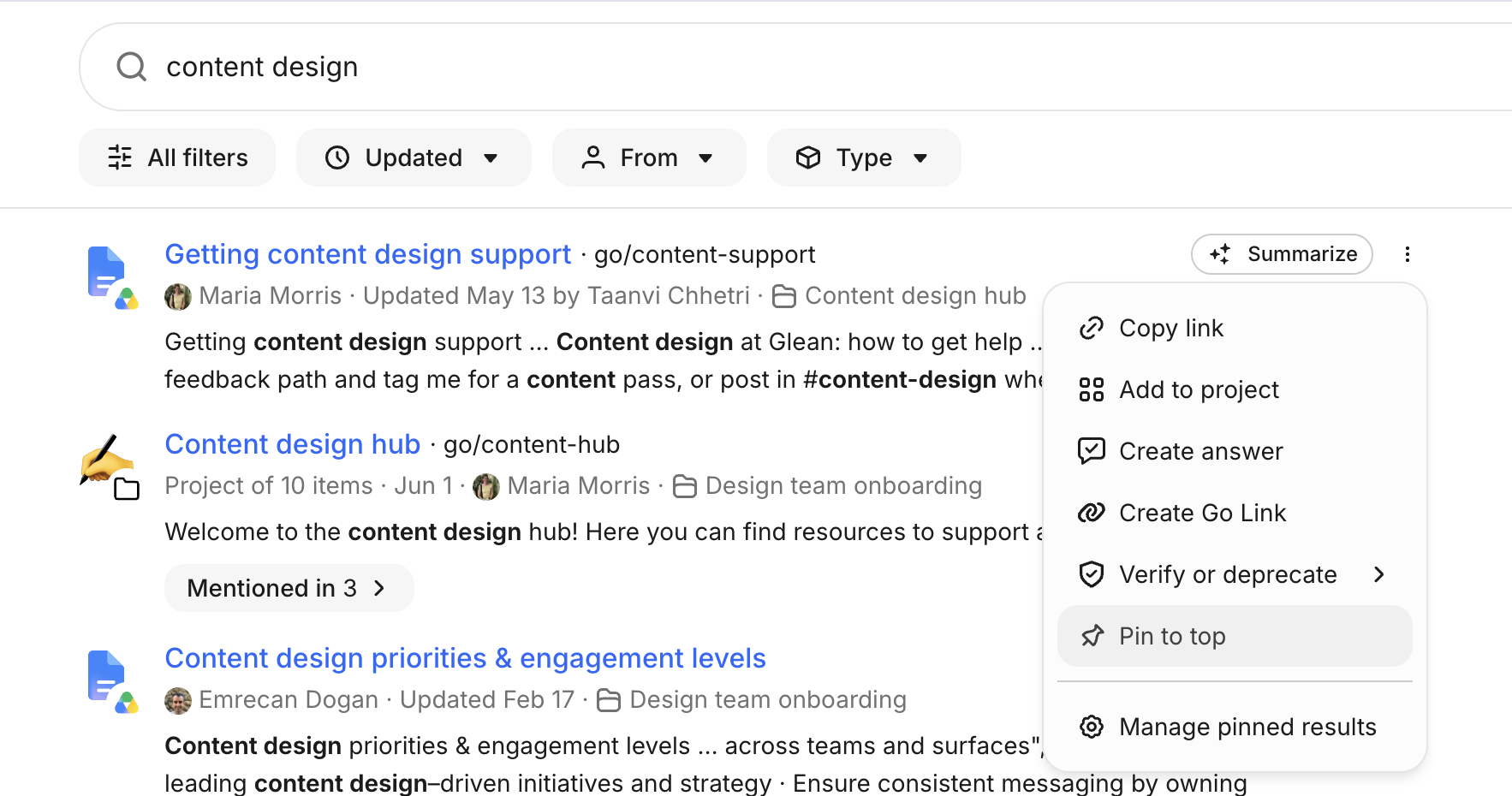
From the Search results page for a query, hover over the result you would like to pin and click on the pushpin icon.
Choose an audience for your pinned result
Once you've selected the result to pin, you'll be able to specify the audience it shows up for.
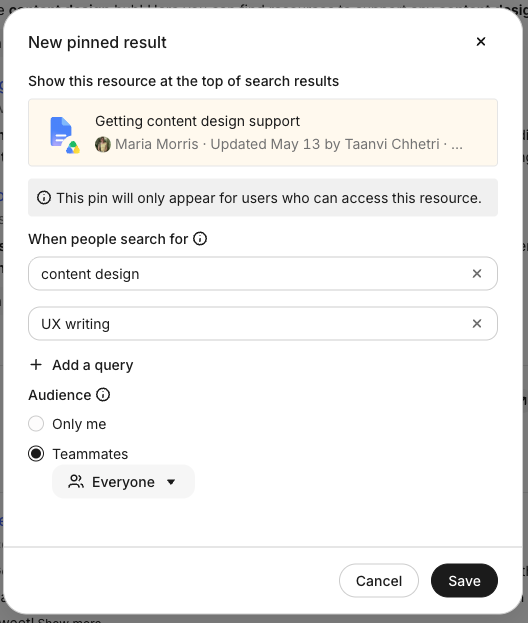
- Selecting "Only Me" will create a private pinned result that will only appear at the top of search results for you and nobody else.
- Selecting "Teammates" will create a public pinned result that appears for other users within your company. The audience dropdown allows you to choose which departments at your company see the pinned result; leaving it blank will have the pinned result appear for everyone at your organization.
If you don't see "Teammates" as an option, your organization's Glean admin has locked public pinned result creation. Contact them to get access.
View pinned results in search results
If a pinned result is visible to you for your query, you'll see it at the top of the search results. Each pinned result will have the name of the person who pinned the result, as well as the person who last edited it. Private pinned results will show that they are only visible to you.
Glean respects all source permissions for pinned items, so users will only see pinned results in search results when they have access to the underlying item.
View pinned results across your company
You can see all pinned results that you are in the audience for in the pinned results dashboard, including public and private pinned results. Admins and users with the pinned result moderator role will be able to see all public pinned results across the company as well.
Removing a pinned result
To remove a pinned result, click the more menu on the right hand side of the pinned result on the pinned results dashboard, select "Edit pinned result", then select "Delete pinned result" in the modal. This button may be disabled depending on the permissions set for pinned results by your Glean admin.