Use the Glean plug-in
The Glean plug-in brings your company knowledge, approved workflows, and tools into Cursor, Claude Code, and Codex. It discovers the Skills and tools available to you and runs them through Glean's governed gateway.
You can use the plug-in alongside a standard Glean MCP server connection. Glean uses the connection best suited to each request.
Choose your host
Set up in Cursor
Install the Glean plug-in directly from the Cursor Marketplace.
Set up in Claude Code
Install the plug-in for yourself or for everyone working in a repository.
Set up in Codex
Install the Codex plug-in and connect it to your Glean MCP server.
Troubleshoot the plug-in
Resolve installation, authentication, approval, and tool availability issues.
What you can do
Use the plug-in when a task needs company knowledge, an approved workflow, or an action in another application. For example:
- Investigate code, then create or update a Google Doc for a design review, customer escalation, or onboarding note
- Pull Salesforce context for an account or opportunity, combine it with internal documents and Slack discussions, then update your working materials
- Update rows or add tabs to a Google Sheet while working through a launch checklist, migration plan, or rollout plan
- Search Slack and Glean-indexed documents to understand prior decisions before editing code or drafting a pull request plan
- Invoke your organization's Skills without copying prompts and setup instructions between tools
The available tools depend on the applications your organization connected to Glean and your access to their content. Common systems include source repositories, Google Docs, Google Sheets, Google Drive, Slack, and Salesforce.
Supported hosts
- Cursor 3.8.11 or later
- Claude Code
- Codex
Prerequisites
Ask your Glean administrator to confirm:
- The Glean OAuth authorization server and Dynamic Client Registration are configured
- The tools and Skills you need are active and available to you
For organization-level requirements, see Glean plug-in for coding hosts.
Authenticate with Glean
Cursor and Claude Code connect to your Glean instance the first time you use the plug-in. Codex authentication occurs when you run codex mcp login glean during setup.
- Invoke
/glean_run, or ask the assistant to use Glean. - When prompted, enter your work email. The plug-in uses it to resolve your Glean instance and may find the instance automatically.
- Follow the sign-in link or OAuth prompt.
- Return to Cursor or Claude Code and continue your request.
Later sessions reuse your cached credentials until you need to authenticate again. If the plug-in can't resolve your Glean instance, enter the Glean server address your administrator provided. Don't guess the address.
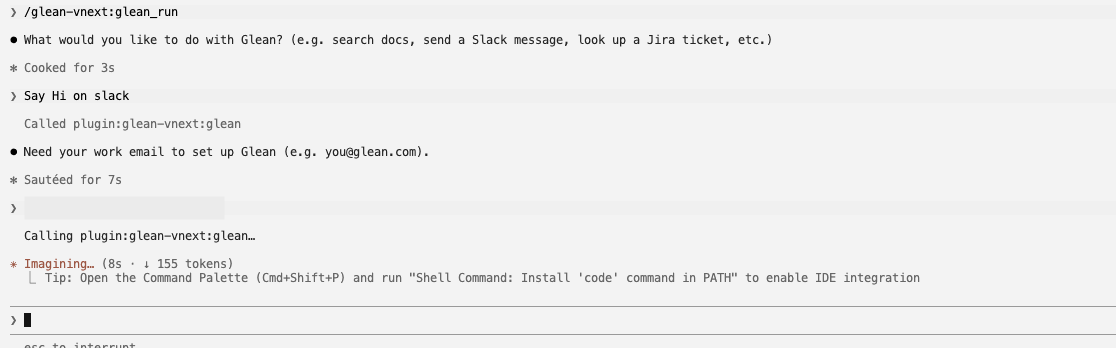
The plug-in requesting a work email on first use
Authorize an application
Some tools require authorization for the application they act on, such as Jira or Google Drive.
- Follow the authorization link from the plug-in. If you already authorized the application in Glean or a Glean agent, the plug-in doesn't ask again.
- Complete sign-in.
- Return to your host and click Done if prompted.

A tool requesting one-time authorization to an application
Verify your setup
Setup is working when:
- The Glean plug-in appears in your host's plug-in list
/glean_runis available in Cursor or Claude Code, or the bundled Glean Skills and MCP tools are available in a new Codex task- A Glean search completes successfully
- The host asks you to approve write actions before they run
Try this request:
Search for my company onboarding docs in Glean.
Use the plug-in
In Cursor and Claude Code, invoke /glean_run when you want Glean to discover a Skill or tool. In Codex, describe the task normally and ask Codex to use Glean.
/glean_run Find the latest project update in Slack for the Acme launch.
/glean_run Search Jira for open authentication bugs assigned to me.
/glean_run Summarize the most recent customer feedback about this feature.
/glean_run Summarize this module and create a Google Doc for the design review.
You can also ask in natural language and let the assistant decide when to use Glean. Invoking /glean_run is the most direct way to route a request through Glean in Cursor and Claude Code.
The plug-in may request additional authorization for a downstream application. Complete the authorization flow, then retry the request. The plug-in uses your existing Glean access, connector permissions, tool visibility, and Skills permissions. It doesn't grant access to content or tools you can't already access in Glean.
Understand how the plug-in works
In Cursor and Claude Code, the plug-in provides the /glean_run Skill. In Codex, it bundles Glean Skills and connects them to the configured Glean MCP tools. Each host discovers the relevant Skills and tools for a request, then runs the selected tool through Glean.
The plug-in uses two gateway tools:
find_skillsdiscovers eligible Skills and their tool dependenciesrun_toolruns a downstream tool using the schema returned byfind_skills
Don't guess tool names or parameters. The plug-in discovers the tool and reads its schema before it runs.
Permissions and approvals
The plug-in follows the permissions configured in Glean:
- Tool visibility determines whether a tool is available to you
- Connector permissions determine which content you can access
- Skills rollout and sharing settings determine which Skills are available
- Write tools may require confirmation before they run
Cursor and Codex use their native approval prompts for plug-in tool execution. Claude Code uses the plug-in's approval flow when confirmation is required.
Glean governs the write tools that run through the plug-in. It still asks you to confirm a write action when Claude Code runs in auto mode or with permissions bypassed.
To change the confirmation requirement for an application, go to Glean, open Your settings → Connectors, and select the application.
If a tool is unavailable, ask your administrator to confirm the tool, connector content, and associated Skill are available to you.