Setup
Configure a dedicated ServiceNow service account and authorize Glean to index the content you select.
Required permissions for setup
- The user setting up this connector must be a ServiceNow Admin.
Other prerequisites
-
Glean can index the following document types from ServiceNow:
- Knowledge Articles
- Service Catalog items
- ITSM incidents (
incidenttable) - APM Business Applications (
cmdb_ci_business_apptable) - SPM demands, epics, and projects (
dmn_demand,rm_epic,pm_projecttables) - News Articles (Content Publishing application)
- Portal Content (Content Publishing application)
- Quick Links (Employee Center application)
- External Links (Employee Center application)
Knowledge Articles and Service Catalog items are indexed as part of the standard setup. News Articles, Portal Content, Quick Links, and External Links are selected by default. In the final step, you can deselect any you don't want Glean to index. News Articles and Portal Content additionally require the ServiceNow Content Publishing application and the role and ACL setup described below. ITSM incidents, APM Business Applications, and SPM demands, epics, and projects are indexed only if you add the corresponding roles below.
To enable this, the ServiceNow admin creates a dedicated ServiceNow user with access to the document types you want to index.
-
All steps are to be done by a ServiceNow administrator. Note that the described steps are for the Tokyo release. If your instance is on a different ServiceNow release, the steps may differ slightly. If you have any questions, please contact Glean support.
-
Glean does not index submitted Service Catalog variable answers from Request Items (RITMs) or Catalog Tasks (SCTASKs). There is no connector setting to enable indexing of catalog form variable answers. Standard request and task fields such as number, short description, description, comments, and work notes are indexed.
-
Glean also supports additional configurations for custom ServiceNow URLs and custom Knowledge Article templates.
If applicable, please contact Glean support to set these up after completing the below steps.
-
Glean supports simple permissioning for ITSM, APM and SPM object types we support. Users with specific roles are granted access to all the documents. If you require a customized role, please reach out to Glean support.
1. Create a service account that Glean will use for fetching information from ServiceNow:
-
Navigate to Organization → Users and click New.
- Set User ID to
gleansearch. - Set Time zone to
GMT. This is required for new content updates to be picked up by Glean. - Set Email to a valid company email address on a domain registered with your Glean deployment. Glean uses this email during OAuth authorization. If the service account does not have an email address, or if the email domain is not recognized, authorization can fail.
- Leave the remaining fields as-is. Click Submit.
- Set User ID to
-
Click on the
gleansearchuser that was created. -
Click Roles → Edit... and add the following roles:
knowledge_adminuser_criteria_adminuser_admincatalog_admin- Only add the following role if it exists in your instance:
snc_internal - Add the following role if you want to index ITSM incidents as well:
itil - Add the following role if you want to index APM Business Applications:
sn_apm.apm_user - Add the following role if you want to index SPM documents (demands, projects and epics*):
it_demand_userit_project_userscrum_usersafe_scrum_user
- Add one of the following roles if you want to index News Articles or Portal Content from Content Publishing:
sn_cd.content_admin(provides full administrative access to Content Publishing)sn_cd.content_manager(provides management access to Content Publishing)
Before OAuth authorization, make sure the Glean service account does not have the
snc_read_onlyrole. Token creation requires write access to theoauth_credentialtable. If the account already has the role, remove it before authorizing.After OAuth completes successfully, assign the role to restrict the service account to read-only access during crawling.
Glean accesses only the following tables:
sys_usersys_user_has_rolesys_user_groupsys_user_grmemberuser_criteriakb_knowledgekb_knowledge_basekb_uc_can_read_mtomkb_uc_cannot_read_mtomkb_uc_can_contribute_mtomkb_uc_cannot_contribute_mtomkb_categorykb_usesc_cat_itemsc_cat_item_user_criteria_mtomsc_cat_item_user_criteria_no_mtomsc_categorysc_catalogsys_audit_delete (if provided access)incident (if enabled)cmdb_ci_business_app (if enabled)dmn_demand (if enabled)pm_project (if enabled)rm_epic (if enabled)sn_cd_audience (if enabled)sn_cd_news_article (if enabled)sn_cd_content_portal (if enabled)sn_cd_content_visibility (if enabled)sn_ex_sp_quick_link (if enabled)sn_ex_sp_quick_link_user_criteria_mtom (if enabled)sn_ex_sp_external_link (if enabled)sn_ex_sp_ext_link_user_criteria_mtom (if enabled)sn_ex_sp_ext_link_user_criteria_no_mtom (if enabled)
2. Provide access to sys_audit_delete table. This will help in faster updates to document permissions when identity data changes.
-
Create a new role:
read_access_sys_audit_delete:- Navigate to User Administration → Roles.
- Click on New and enter the name as
read_access_sys_audit_delete - Save.
-
Add an ACL rule that gives this role read access to the
sys_audit_deletetable:- Elevate role to security_admin to be able to create a new ACL.
- Navigate to System Security → Access Control (ACL).
- Click on New and enter the following details.
- Type:
record - Operation:
read - Name: Select the
sys_audit_deletetable - Add the new
read_access_sys_audit_deleterole under Requires role - Submit.
- Type:
-
Assign the new role
read_access_sys_audit_deletetogleansearchuser.
3. Configure ACLs for News Articles or Portal Content (Content Publishing):
This step is required only if you intend to index documents from the Content Publishing application. Access to these articles is controlled via audiences specified on each article. To enable Glean to access documents from the Content Publishing application, you need to create two new ACL rules:
-
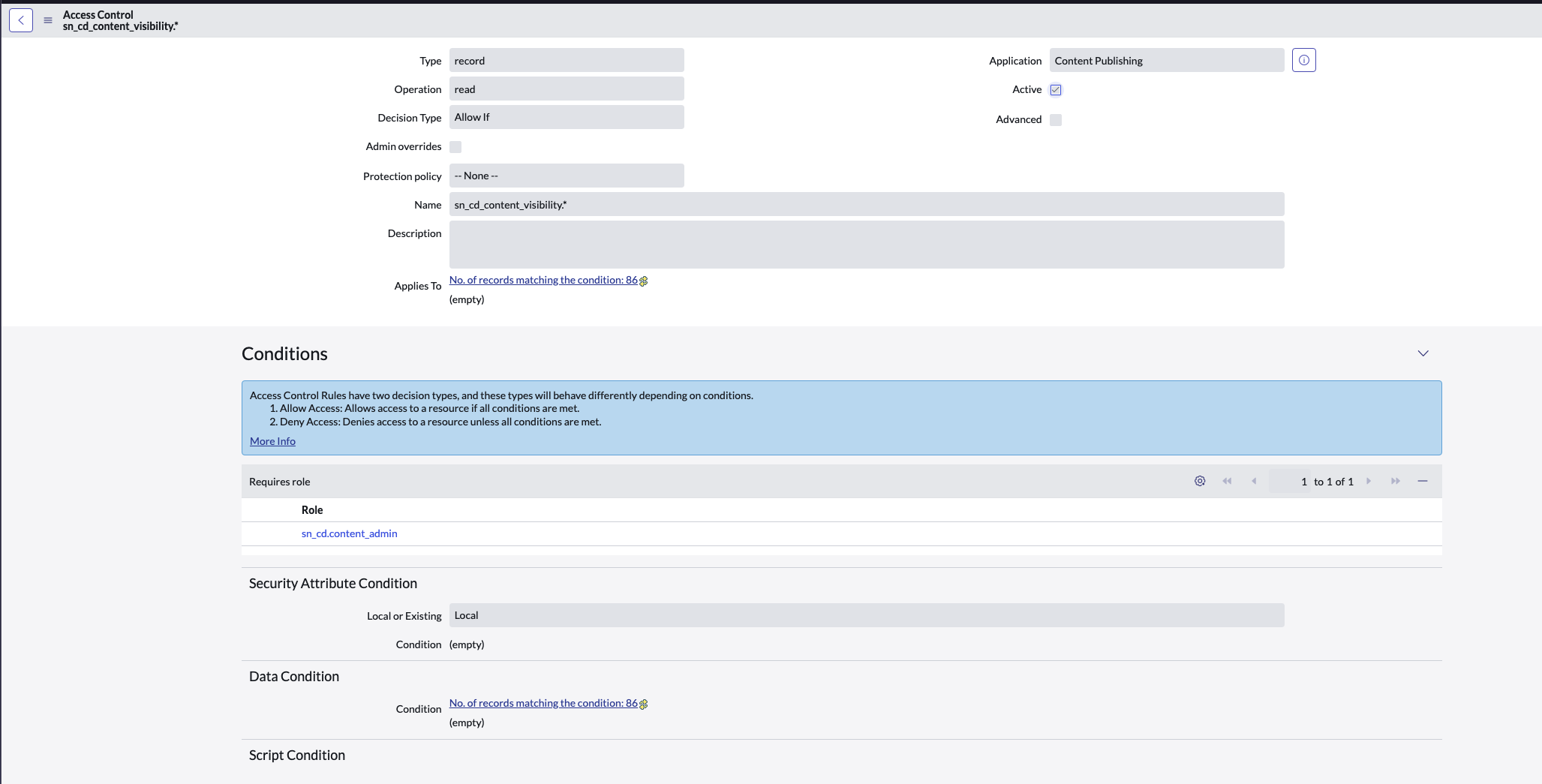
Create a Table ACL for the News Article table:
- Elevate your role to
security_adminto be able to create a new ACL. - Navigate to System Security → Access Control (ACL).
- Click on New and enter the following details:
- Type:
record - Operation:
read - Name: Select the
sn_cd_news_articletable - Under Requires role, add either:
- The existing
sn_cd.content_managerorsn_cd.content_adminrole that was assigned to the gleansearch user, OR - A new custom role created in the Content Publishing application (if you prefer to use a custom role instead of the built-in ones)
- The existing
- Submit.
- Type:
- Elevate your role to
-
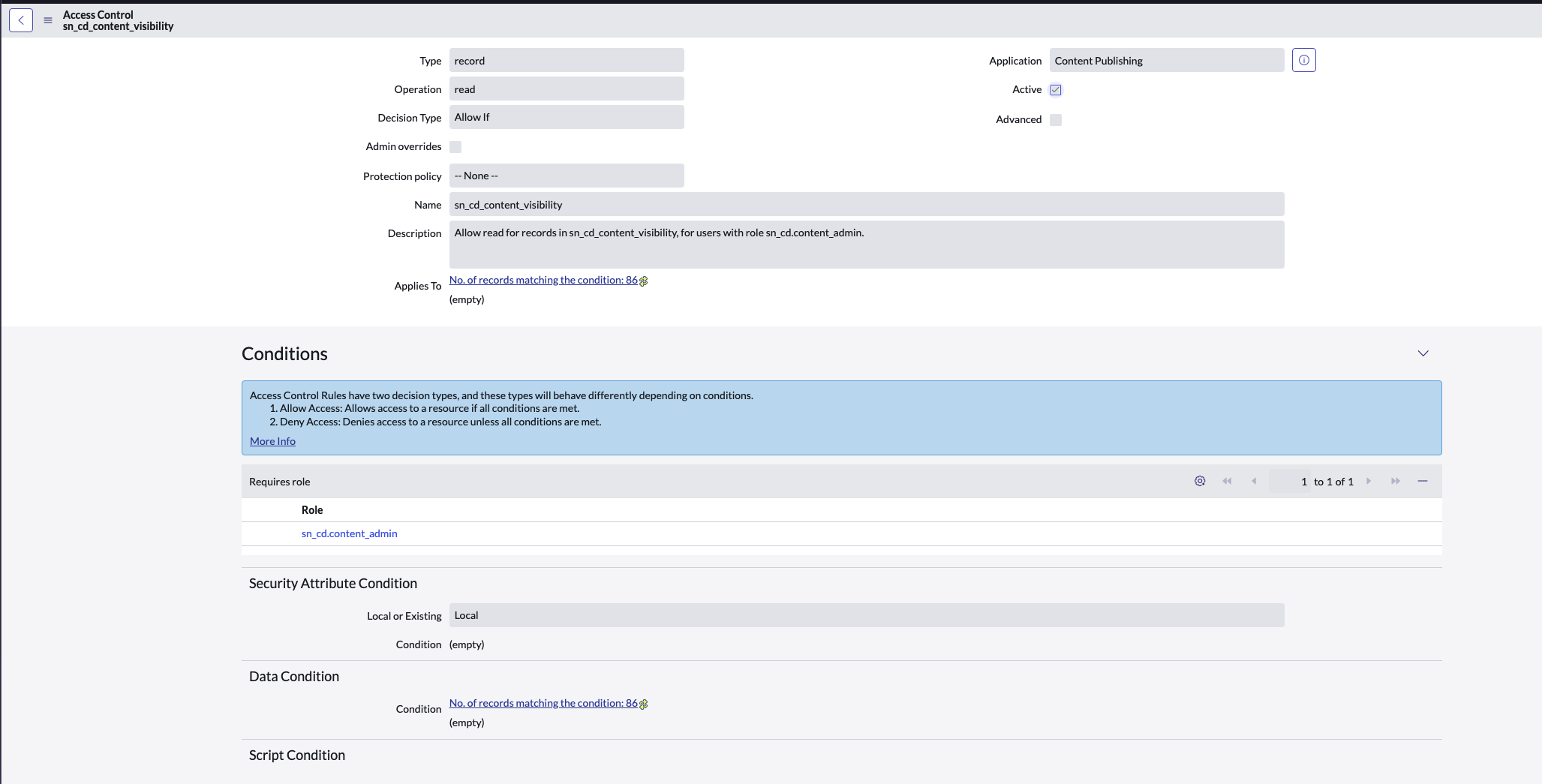
Create a Record ACL for News Article records:
- Elevate your role to
security_adminto be able to create a new ACL. - Navigate to System Security → Access Control (ACL).
- Click on New and enter the following details:
- Type:
record - Operation:
read - Name: Select
sn_cd_news_article.*(all fields) - Under Requires role, add the same role used in the table ACL above
- Submit.
- Type:
- Elevate your role to
You can choose to either use the existing sn_cd.content_manager or sn_cd.content_admin roles, or create a new custom role in the Content Publishing application. If creating a custom role, ensure it's assigned to the gleansearch user and used in both ACL configurations above.
4. Configure an OAuth application that will provide access tokens to Glean acting as the above user:
- Navigate to System OAuth → Application Registry and click New.
- Click Create an OAuth API endpoint for external clients.
- Set Name to
Glean Search OAuth. - Set Refresh Token Lifespan to
2,147,483,647. - Set Access Token Lifespan to
86,400. - Set Scope Restriction to Broadly scoped.
- Set Redirect URL to
https://<deployment-instance>-be.glean.com/instance/servicenow/oauth/verify_code, where<deployment-instance>is your instance's deployment environment identifier. - Leave the remaining fields as-is. Click Submit.
5. Validate system properties
-
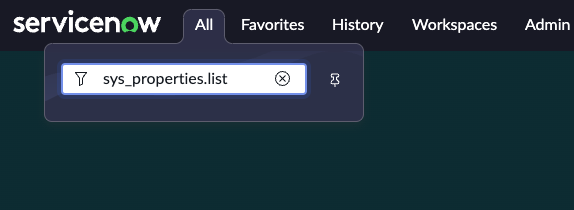
Navigate to the System Properties List (All → Enter sys_properties.list).
-
Identify and note the system property glide.knowman.apply_article_read_criteria and its value.

-
Identify and note the system property glide.knowman.block_access_with_no_user_criteria and its value.

-
Identify if you have Knowledge Article templates enabled and want to index template-based articles.
- Navigate to All → System Applications → All Available Applications → All
- Look for the plugin Knowledge Management Advanced (com.snc.knowledge_advanced) and check if it is enabled.
- You can learn more about knowledge article templates here.
6. Enter the connector details in Glean
In the Glean Admin console, enter all of the following information in the corresponding fields:
- Domain Name: Accepts domain or domain url. Note, the domain url should not include any http
prefixes, and should follow the format of
<domain>.service-now.com. It is preferred to enter the domain url - User ID:
gleansearch - OAuth Client ID: Client ID from the application in step 3.
- OAuth Client Secret: Client Secret from the application in step 3.
- Set the Apply article read criteria box to mirror the system property glide.knowman.apply_article_read_criteria.
- Set the Block access with no user criteria box to mirror the system property glide.knowman.block_access_with_no_user_criteria.
- If you have Knowledge Article templates enabled in your instance, check the Enable fetching template-based knowledge articles box.
- Under document types, review the selection. News Articles, Portal Content, Quick Links, and External Links are selected by default. Deselect any type you don't want Glean to index, or select only a custom subset. Click Save in Glean. You’re all set!
Enable or turn off crawling for an object
After setup, use the Objects tab to manage crawling for individual native and custom ServiceNow objects.
The Objects tab is available when custom-object support is enabled for your connector. Native objects show a three-dot menu only when native-object editing is also enabled, so the tab can be visible without native-object menus. Menus for configured custom objects don't depend on native-object editing.
- Go to Admin console → Connectors and open your ServiceNow connector.
- Open the Objects tab and find the configured object.
- Open the object's three-dot menu and select Enable crawl or Turn off crawl.
- Review the confirmation dialog, then click Enable crawl or Turn off crawl to apply the change.
- Confirm the updated Crawl status in the table.
The following table describes how each action affects crawling and indexed content:
| Action | Crawl status | Effect |
|---|---|---|
| Enable crawl | Enabled | Includes the object in crawls on its normal schedule without starting an immediate crawl. |
| Turn off crawl | Disabled | Excludes the object from future crawls while leaving other enabled objects unaffected. Previously indexed documents are removed through normal full-crawl cleanup rather than immediately. |
Changing an object's crawl status preserves its field mappings, filters, permissions configuration, and other settings. Neither action deletes source records from ServiceNow.
For native objects:
- The crawl status saved in the Objects tab takes precedence over the connector's previous crawl setting for that object.
- ServiceNow role and ACL requirements still apply when you enable crawling.
- Reset to defaults resets the object's configuration without changing whether crawling is enabled or turned off.
Configure Portal Content links
If you selected Portal Content for indexing, specify the portal path segment Glean uses to generate document links.
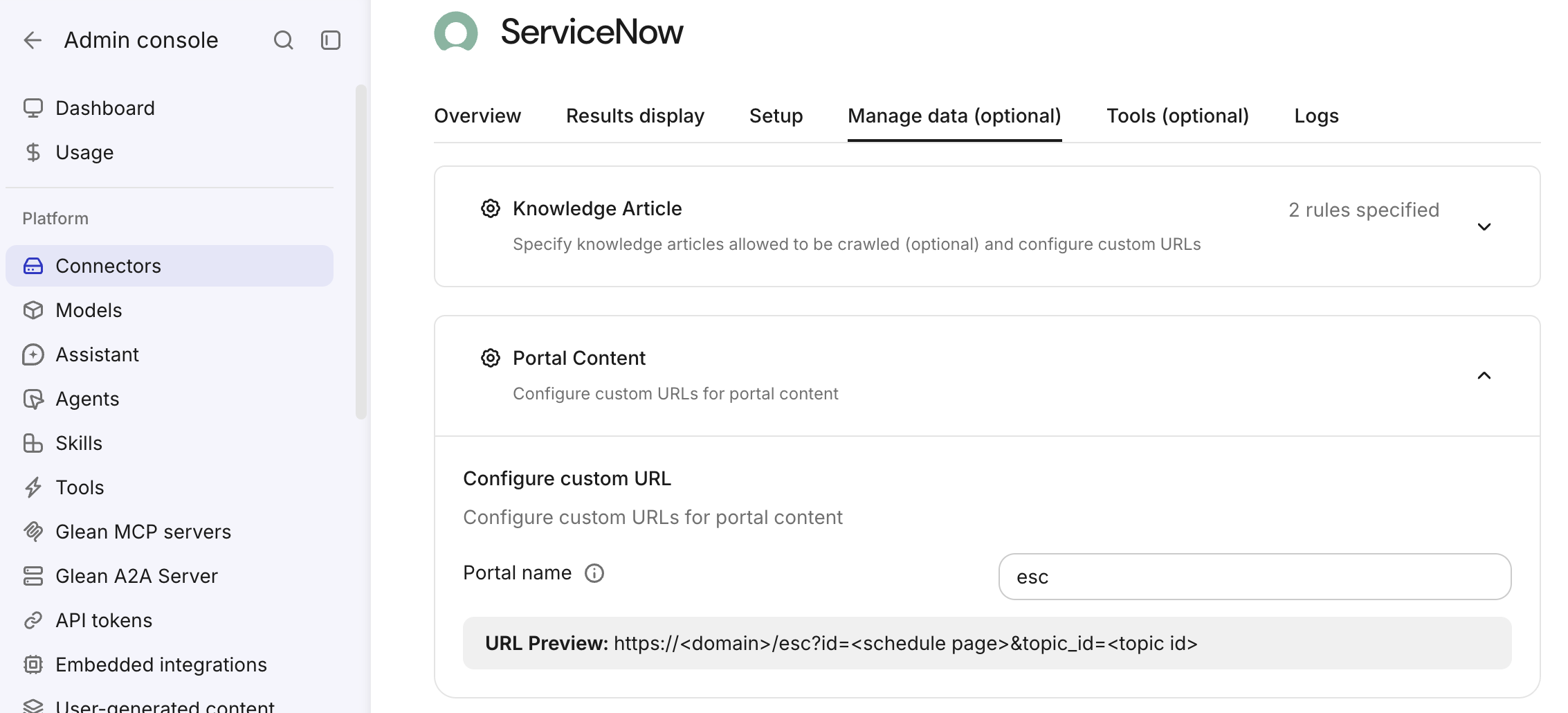
- In the Admin console, go to Connectors → ServiceNow.
- Select the Manage data (optional) tab and expand Portal Content.
- In Portal name, enter your ServiceNow portal path segment. For example, enter
escforhttps://example.service-now.com/esc. - Verify the URL preview, then click Save.
URL structure and scope
By default, Glean uses esc as the portal name. Glean uses this value in Portal Content links with the following format:
https://example.service-now.com/esc?id=form&table=sn_cd_content_portal&sys_id=<content-id>
The Portal name setting applies only to Portal Content links. It does not affect the content Glean indexes or the URL formats for Knowledge Articles and Service Catalog items. The connector uses one portal name for all Portal Content links.
Configure taxonomy Topic page links
If Glean indexes ServiceNow taxonomy Topic pages for this connector, set the Employee Center portal path that Glean uses in result links. The connector must have read access to the ServiceNow topic table. The Topic pages section accepts changes only when Glean indexes taxonomy Topic pages for the connector.
- In the Admin console, go to Connectors → ServiceNow.
- Select the Manage data (optional) tab and expand Topic pages.
- In Portal name, enter the path segment after your ServiceNow domain. For example, enter
hubforhttps://example.service-now.com/hub. - Check the URL preview, then click Save.
By default, Glean uses esc as the portal name. After you save a different portal name, Glean rebuilds existing Topic page links during a content crawl.
Understand Topic page URL structure
When ServiceNow provides a template page ID for a Topic, Glean generates links with this format:
https://example.service-now.com/<portal-name>?id=<topic-page-id>&topic_id=<topic-id>
When a Topic doesn't have a template page ID, Glean uses the form page:
https://example.service-now.com/<portal-name>?id=form&table=topic&sys_id=<topic-id>
The Portal name setting changes taxonomy Topic page links only. It doesn't turn Topic page indexing on or off, change ServiceNow page IDs, or change permissions.