

Beta: This page contains beta features and may change.
Administrator checklist
To ensure a successful transition, complete the following:- ☐ Enable Slack Real Time Search in Glean via Admin Console
- ☐ (Optional) Select a test group to pilot the feature
- ☐ Verify performance by using Glean for Slack-related queries for 1–2 weeks
Enable Slack Real Time Search
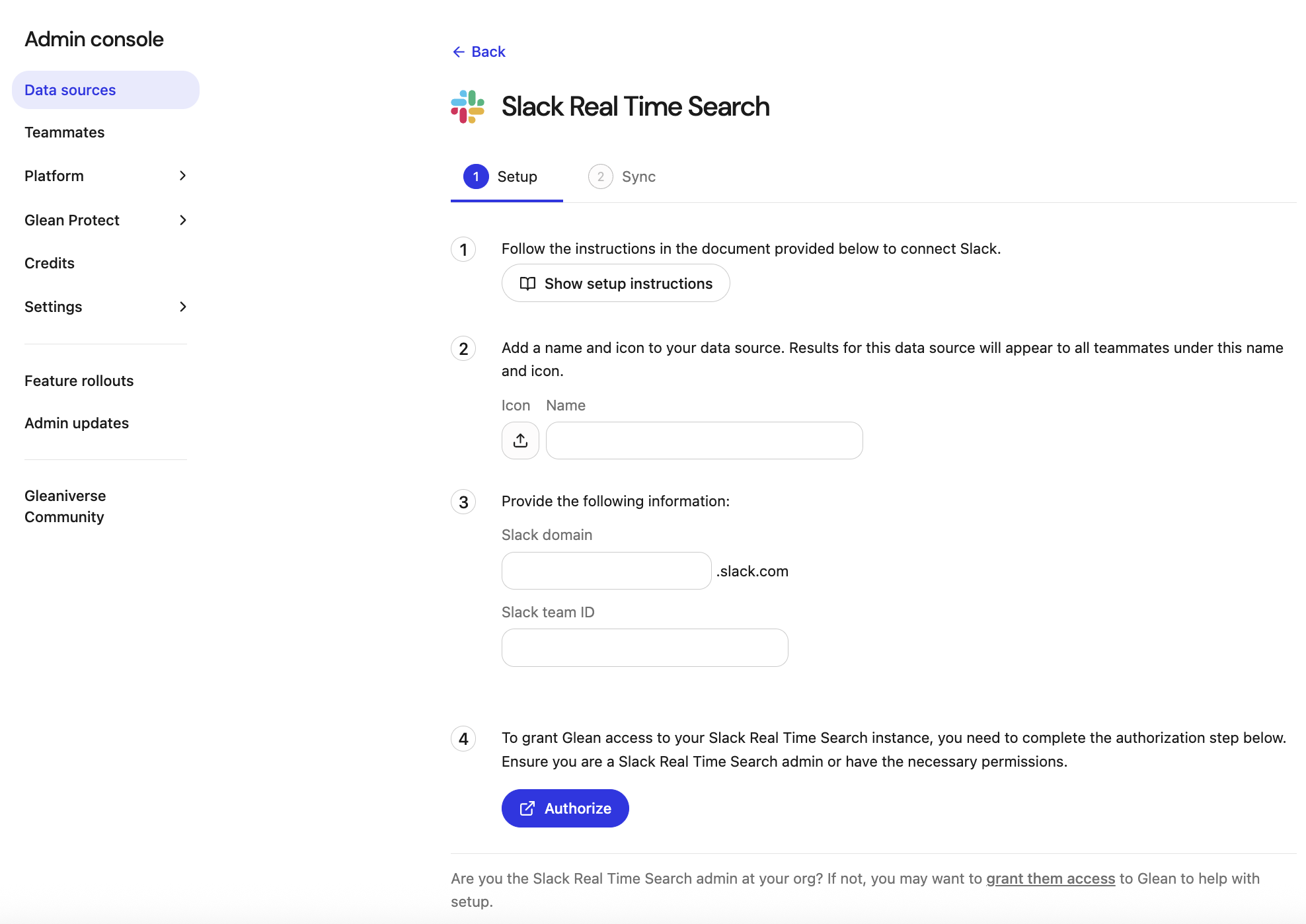
- Navigate to Admin Console > Data sources > Add data source.
- Search for and select Slack Real Time Search.
-
In the Setup tab, enter the following credentials:
-
Slack domain: Your workspace domain (e.g.,
yourdomainfromyourdomain.slack.com). -
Slack team ID: The unique ID found in your browser URL (e.g.,
T123...fromapp.slack.com/client/T123...). -
For more information, see Connect Slack to Glean.
Ensure that you have Slack Admin privileges (required to install marketplace apps).
-
Slack domain: Your workspace domain (e.g.,
- Click Authorize and follow the prompts to install the Slack Real Time Search marketplace app.
- Save the data source.
(Optional) Configure a test group
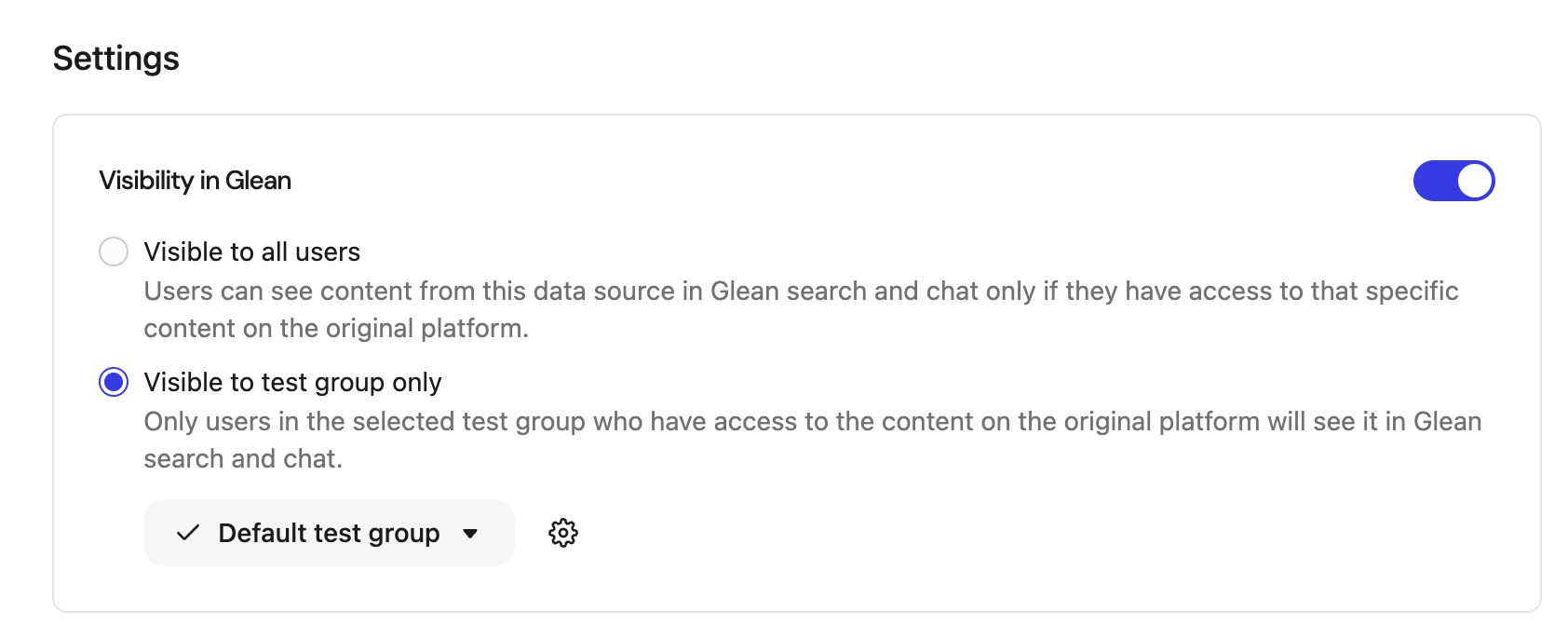
Roll out RTS safely by starting with a subset of users before expanding to the entire organization. After setting up the Slack RTS connector:- In Admin Console > Data sources > Slack Real Time Search > Overview navigate to the Settings section.
- Under Visibility in Glean, select Visible to test group only.
-
Choose an existing test group or create a new test group. For more information, see Test groups for data sources.
- Pilot cohort: IT, Support, or identified power users.
- Slack-heavy teams: Engineering or Customer Success.
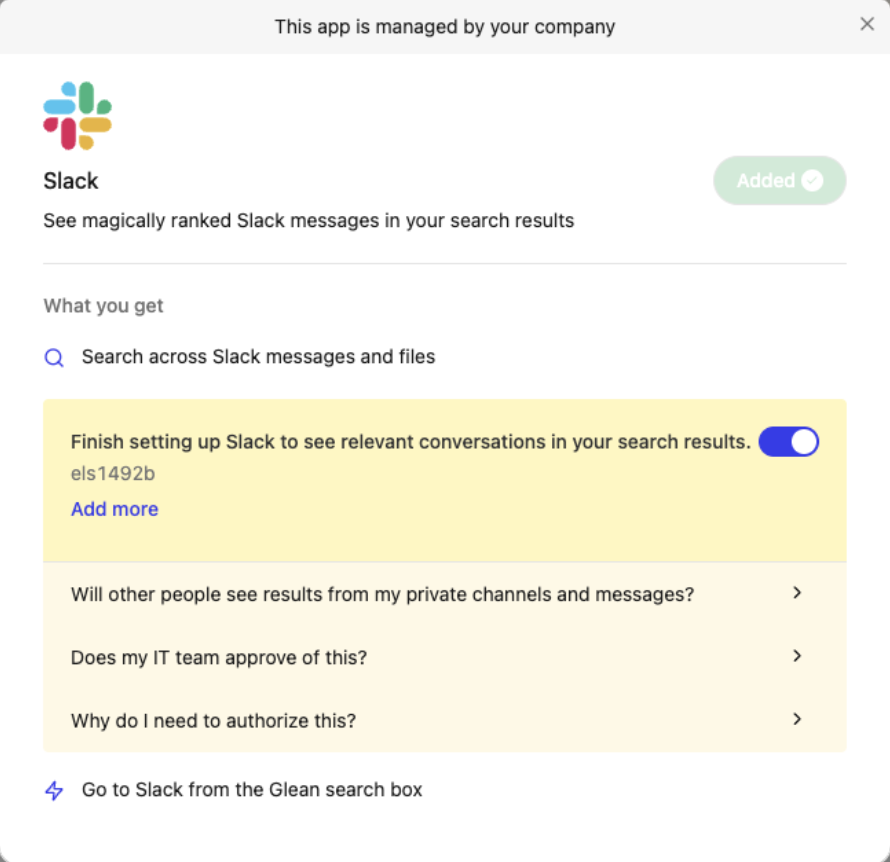
- Each user must still perform a one-time Slack authorization (see end-user section).
- Once validated, you can switch visibility to Visible to all users.
Guidelines for test users
Ask your pilot users to:- Use Glean for your normal Slack‑related searches and questions for 1–2 weeks.
- When something looks off, capture:
- The exact query you ran
- What you expected to see
- What you actually saw (screenshot if possible)
- Whether you were in Search, Assistant, or Gleanbot
End-user experience
Users in the active test group will see a Slack authorization banner on the Search and Home pages to connect Slack Real Time Search.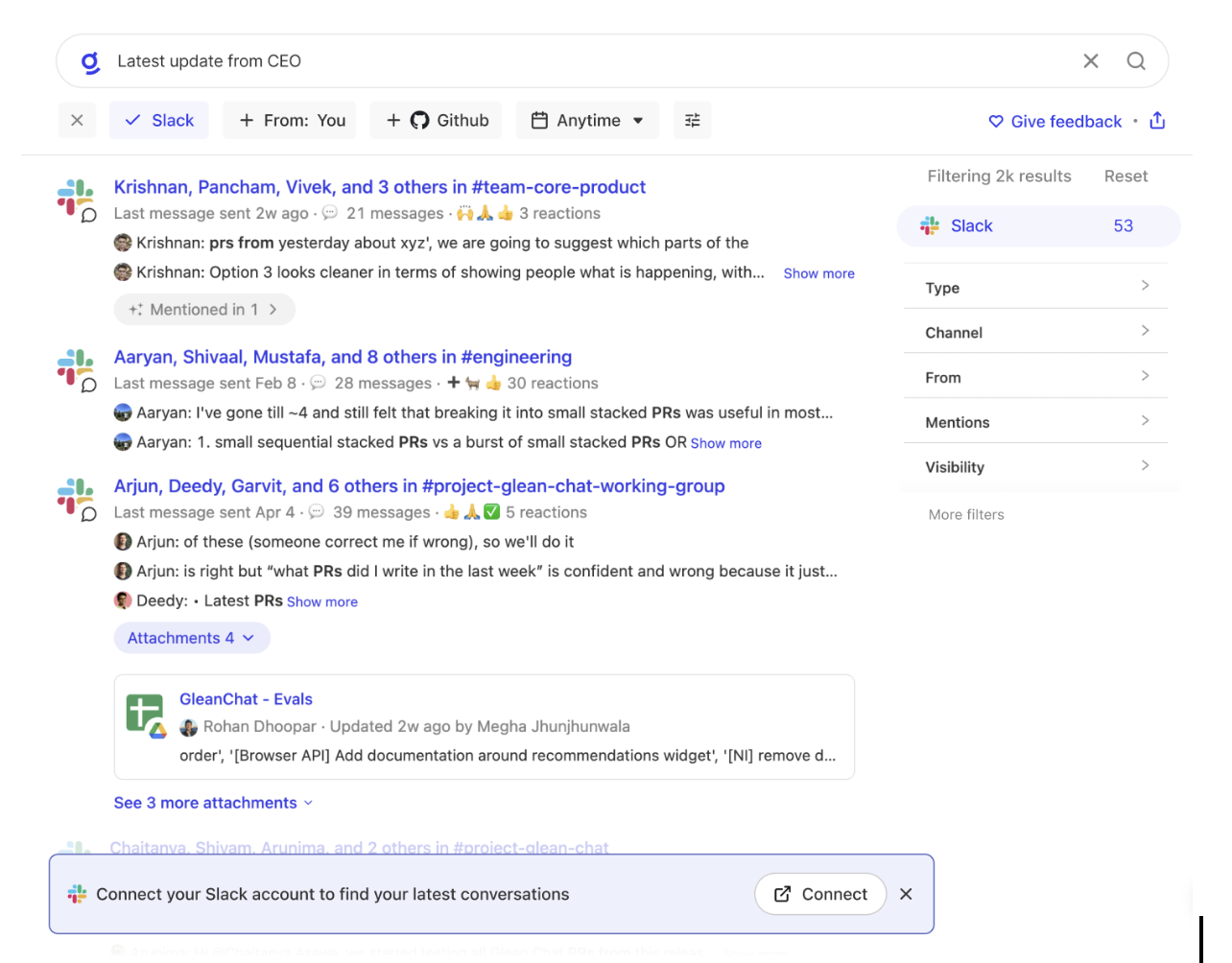
- See a dedicated Slack section in search results containing messages and threads.
- Receive Slack-sourced content within Assistant and Gleanbot responses.
- Note: Users can re-trigger authorization at any time via their Glean Settings page.