

Configure exclusion and inclusion rules
These configurations are optional. If you have no specific rules, leave the sections blank.
- In the Glean Admin console, go to Data sources.
- Search your Slack (Slack, Slack Entreprise, Slack Real Time Search or Slack Real Time Search Enterprise) data source.
-
Open the Manage data (optional) tab.
You will see two sections:
- Inclusion rules
- Exclusion rules
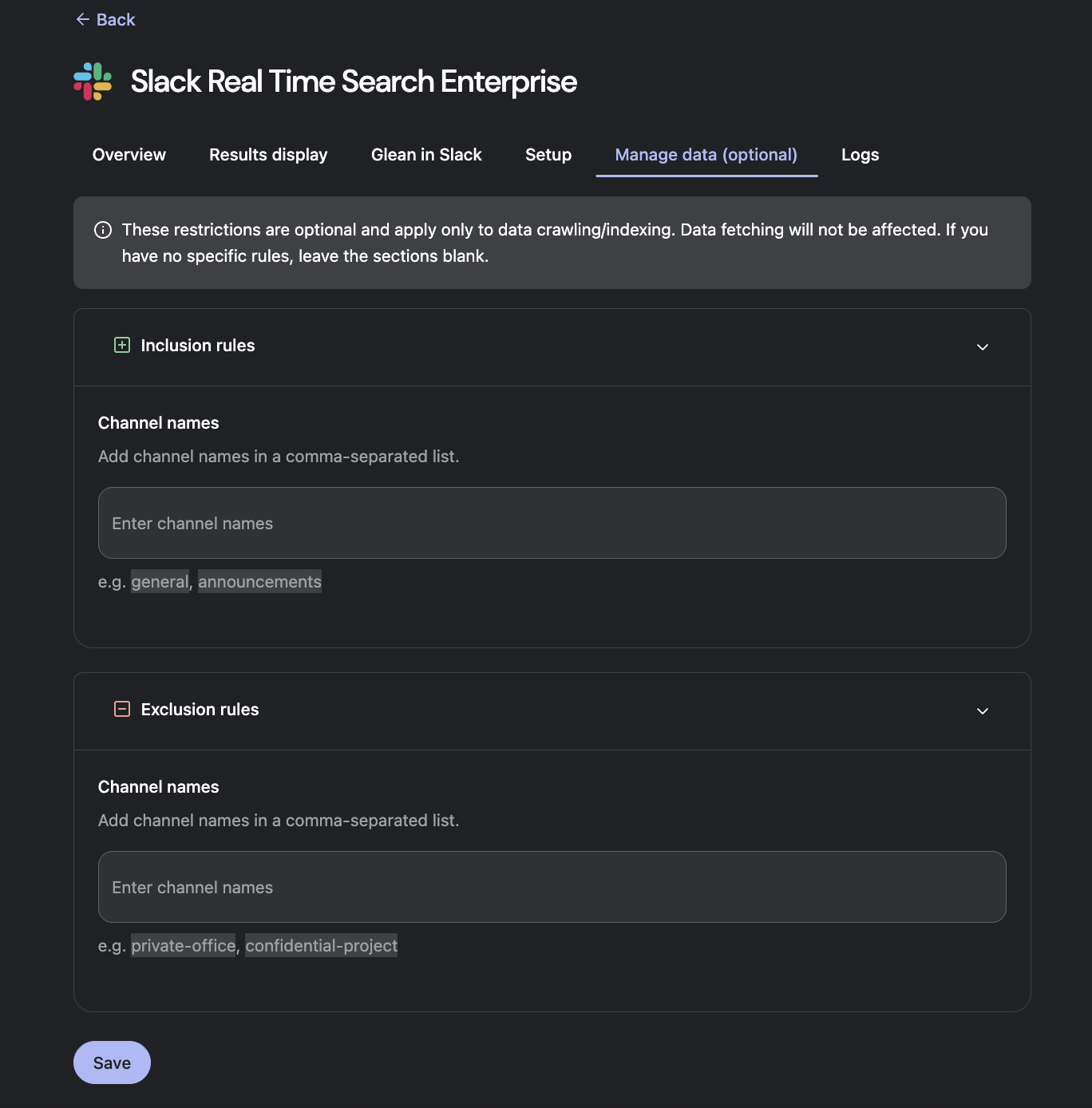
Inclusion rules (Greenlisting)
Inclusion rules act as a greenlist. They explicitly tell Glean which channels it should crawl and index. Use inclusion rules when you want Glean to index a small, controlled set of channels (for example, only public “announcement” or “internal-docs” channels).- In Inclusion rules > Channel names, enter one or more Slack channel names as a comma-separated list (e.g.,
general, announcements). Do not include the#prefix.
- If you add inclusion rules, Glean only crawls the channels listed here (subject to workspace permissions).
- If you leave inclusion rules blank, Glean can crawl any eligible channels that are visible to the Slack app, unless they are explicitly excluded by exclusion rules.
Exclusion rules (Redlisting)
Exclusion rules act as a redlist. They explicitly tell Glean which channels not to crawl. Use exclusion rules when you want to keep specific channels out of Glean (for example, HR, legal, or highly sensitive incident channels).- In Exclusion rules > Channel names, enter one or more Slack channel names as a comma‑separated list (e.g.,
private-office, confidential-project). Do not include the#prefix.
- Channels listed in exclusion rules are not crawled or indexed by Glean.
- Messages in those channels will not appear in search results or Assistant answers, even if users have permission to see them in Slack.
Use inclusion and exclusion rules together
You can configure both inclusion and exclusion rules at the same time. When both rule types are configured, exclusion rules take precedence.- Inclusion rules define the overall set of channels Glean is allowed to crawl.
- Exclusion rules further narrow that set by removing specific channels from indexing.
- Inclusion rules:
general, eng-announcements, product-updates - Exclusion rules:
product-updates
- Glean crawls
generalandeng-announcements. - Glean does not crawl
product-updates.