Self-serve beta features and managed rollouts
You can self‑serve access to beta features and managed rollouts of new features from the Glean admin console.
All beta and managed rollout features start disabled by default. Admins must explicitly enable them before anyone in the organization can use them.
Beta features and managed rollouts are available only to eligible customers, for example, enterprise and strategic customers when features are made available to them.
Concepts and lifecycle
Beta features
Beta features are early versions of features that are still under development. They are made available to selected customers for testing and feedback before a general release (GA).
Use beta features when you:
- Want to try a beta feature with a subset of users in your organization before it launches to everyone.
- Want to submit product feedback for an enrolled beta feature.
Beta features have an associated sunset or GA date; after that date, the beta ends and behavior is determined by the owning product team, for example, moving to managed rollout or GA.
Managed rollouts
Managed rollouts are newly launched features where organizations can control the timing and user access for the rollout within their own organization and are available only in select deployments. This allows for a phased deployment, enabling admins to manage the impact of new features on their users.
Use managed rollouts when you:
- Need to control the rollout timing of a newly launched feature within your organization.
- Need to review feature status, upcoming timelines, links to documentation, and how the feature is currently configured for your organization.
Managed rollouts typically have an auto‑enable/forced GA date. Until that date, admins can choose whether the feature is enabled and who can access it. At forced GA, the feature’s controls may be removed and the feature is enabled more broadly, depending on the design of that rollout.
Lifecycle stages
Individual features may differ slightly, but many follow a lifecycle similar to:
-
Beta
- Feature is available to select customers who explicitly enroll.
- Access is limited to configured users/groups.
- Feedback is collected to decide on general availability.
-
(Optional) Managed rollout
- Feature is considered production‑ready and is available but under admin control.
- Access is limited to configured users/groups and admins choose when to turn it on and who can access it within the organization during the managed period.
- There is typically a future auto‑enable/forced GA date.
-
General availability (GA)
- Feature is production ready.
- In many cases, it becomes available more broadly and some admin controls may be simplified or removed.
- Most deployments will go directly from Beta (or internal testing) to GA without a separate managed rollout phase.
-
Managed sunset (where applicable)
- For some capabilities, there may be a controlled sunset period where admins can still manage exposure, for example, turning a legacy behavior off/on before the behavior is permanently upgraded or removed.
Feature rollouts in the Admin Console
The Admin Console includes What's new → Feature rollouts for beta features and managed rollouts available to your organization. From here, you can:
- Discover eligible beta features and features available for managed rollouts.
- Opt in or out of these features.
- Choose who gets access to these features.
- See related timelines and key dates such as GA, auto‑enable, or sunset.
- Share feedback through the feedback links.
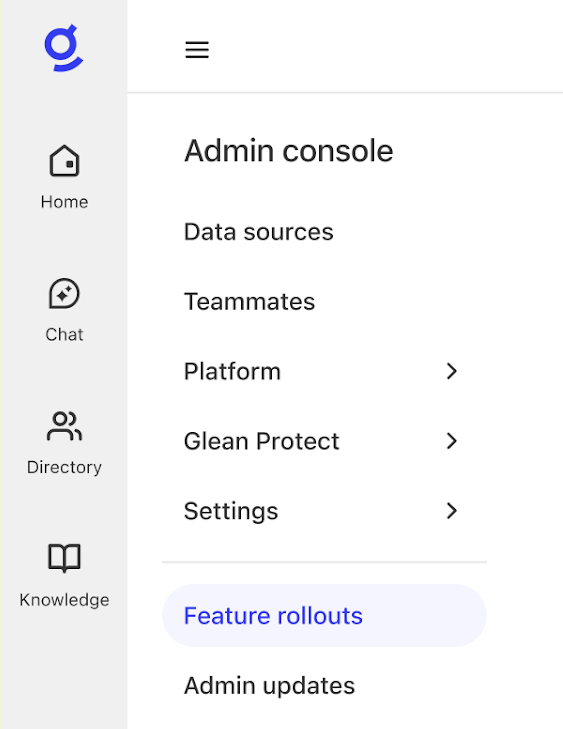
Depending on your eligibility and what is currently available, you may see one or two tabs:
- Managed rollout: Lists newly launched features where you can control rollout timing and who gets access. If no managed rollouts are available, the Beta features tab appears by default.
- Beta features: Lists private or public beta features you can enroll in and manage.
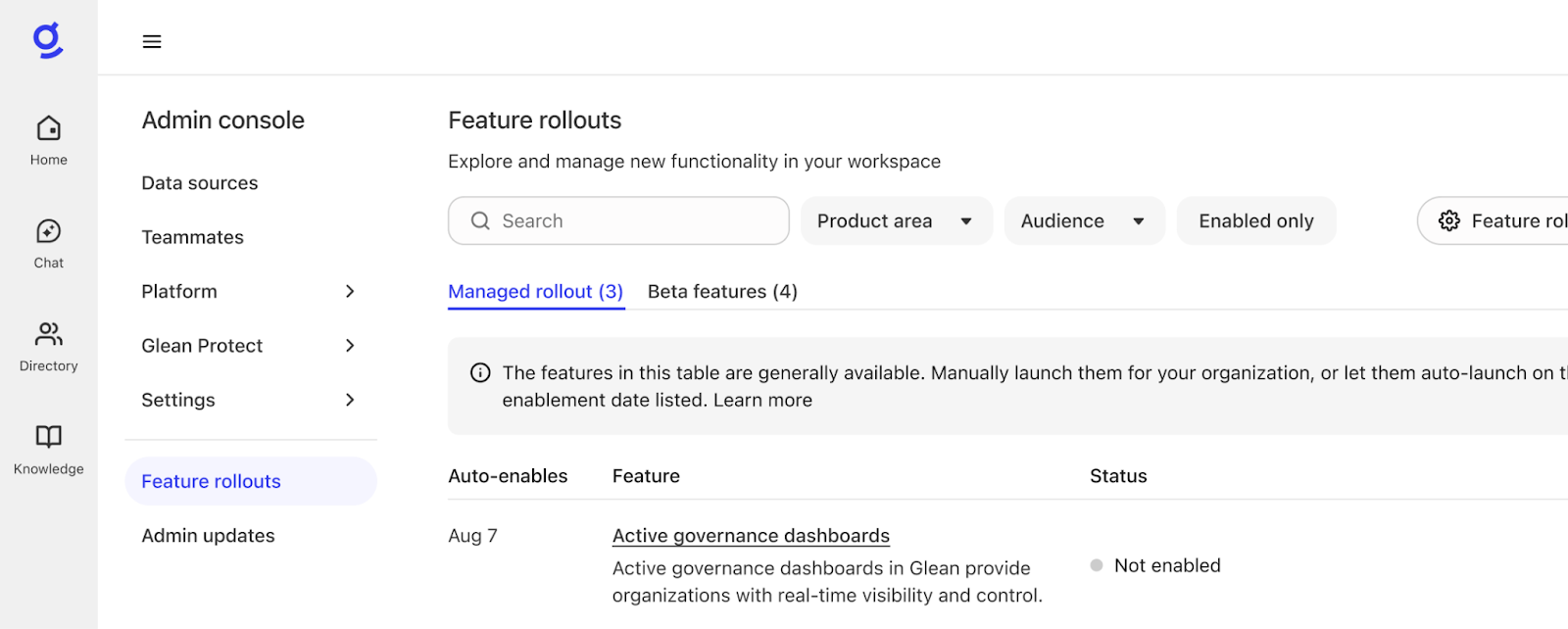
Each feature card typically shows:
- Name of the feature.
- A plain‑language description/use case.
- Current status (for example, not enabled, enabled for admins, or enabled for all).
- An estimated automatic enablement or change date.
End‑users who receive access to a beta feature will see an in‑product Beta label on that feature while the beta is active.
Newly launched items are marked New and appear at the top of the list for 14 days. The list also prioritizes items you are enrolled in and those with the nearest upcoming change date.
Enablement options
Both beta features and managed rollouts share a common set of enrollment options that control who in your organization can use the feature during the beta or managed period.
When you configure user access, you will typically see three choices:
-
Admins only
- Only admins and often super admins can use the feature.
- Use this option to evaluate configuration and impact before exposing any end‑users.
-
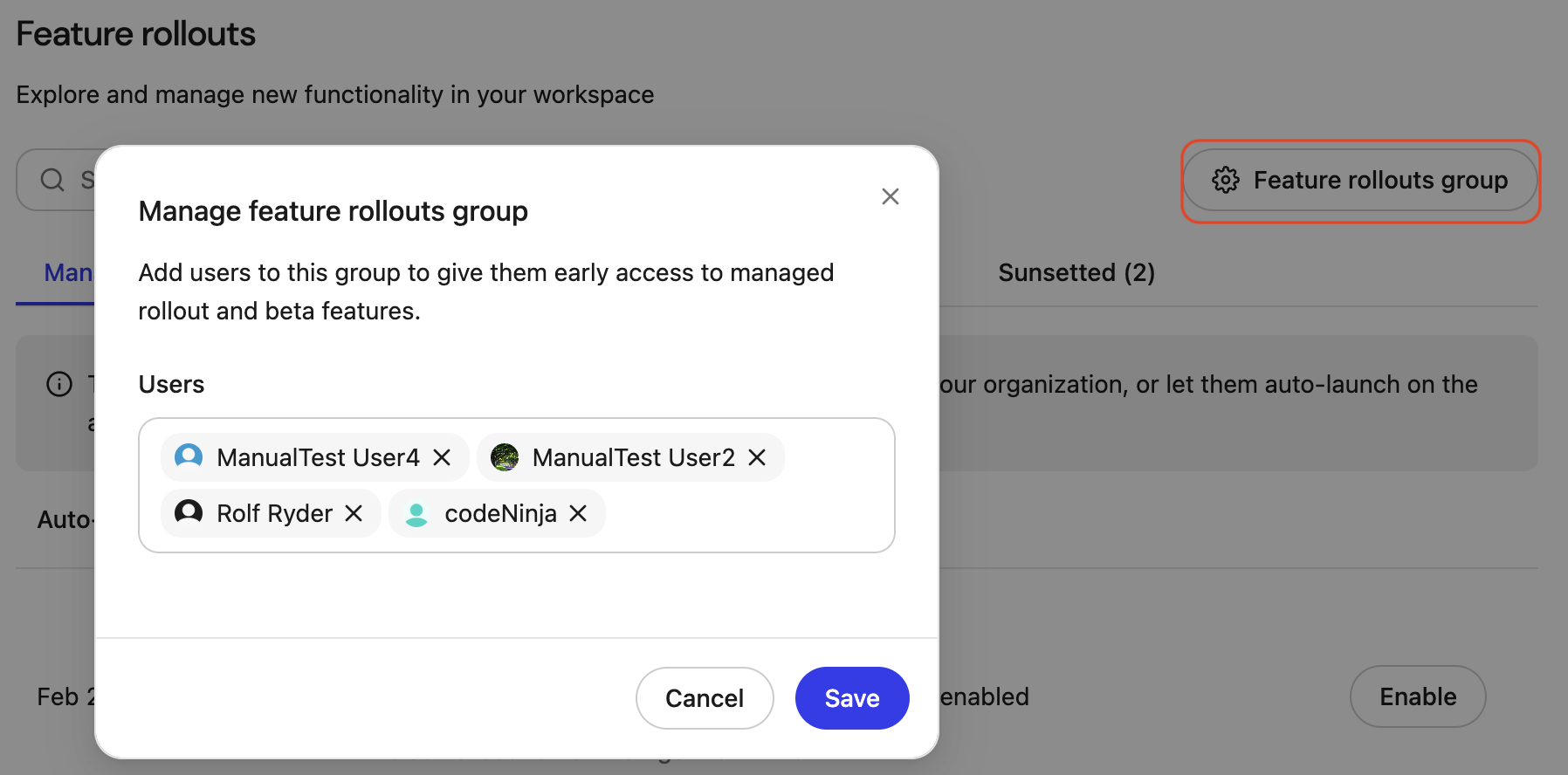
Feature rollout group
- A shared test group (the “feature rollout group”) that can be used across all beta and managed rollout features.
- Recommended for controlled pilots where you can maintain a curated group of users who regularly test new features.
- Adding or removing users from the feature rollout group affects access for all features that use this option.
-
All users
- The feature is enabled for all users in your organization during the beta or managed rollout period.
- This is appropriate once you are confident in the feature and ready for broad exposure.
Even when you select All users, access still respects any role‑based permissions or feature‑specific gating. For example, a feature may still be limited to users in particular roles or with specific in‑product permissions, even if you choose All users in the rollout controls.
In the Admin console, these options may appear with labels such as:
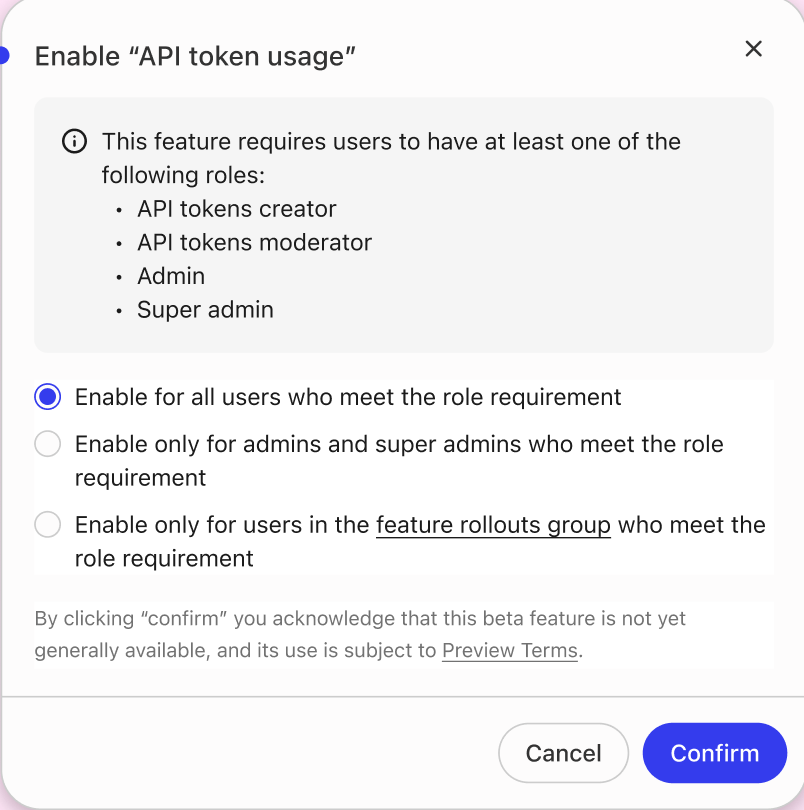
Enable a beta feature or managed rollout
Use the following steps to enable a beta or managed rollout.
Prerequisites
Before you manage beta features or managed rollouts:
- Ensure you have Admin or Super Admin access to the Glean admin console.
- Confirm that your organization is eligible for the corresponding beta or managed rollout, for example, enterprise and strategic customers where applicable.
Steps
All eligible beta and managed rollout features start disabled by default.
-
Open the Admin Console.
-
Go to What's new → Feature rollouts.
You will see the Managed rollout and/or Beta features tab depending on your eligibility organization. -
Choose the appropriate tab:
- Beta features to enroll in a beta feature.
- Managed rollout to turn on a managed rollout feature during its managed period.
-
From the list of features, select a feature card to review its:
- Summary and description.
- Current status.
- Timeline and key dates (beta end, GA, auto‑enable, or sunset).

-
Enable the feature:
- For beta features, click Enable to opt in.
- For managed rollout features, click Enable to enable the feature during the managed rollout period.
-
Configure user access using the enablement options:
-
Choose Enable only for admins to restrict usage to admins/super admins.
-
Choose Enable for Feature rollouts group to pilot with a controlled test group.
-
Choose Enable for all users when you are ready for broad exposure across your organization.
- Click Feature rollouts group option to adjust the feature rollout group option or verify which admins or users are included.
-
-
Click Confirm.
- The feature card updates to reflect opt‑in/enrollment status, participants, and relevant dates.
- For betas, end‑users who receive access will see a Beta label in product where the feature appears.
- For managed rollouts, the card will show that the feature is turned on and who currently has access.

Manage user access during a rollout
After a feature is enabled, you can change who has access at any time before the beta or managed rollout ends.
To manage access:
- Open Admin Console > What's new > Feature rollouts.
- Go to the relevant tab (Beta features or Managed rollout).
- Go to the feature card you previously configured and click the kebab menu and select Manage Users.
- Under Manage Users settings, choose a different enrollment option (Admins only, Feature group users, All users) as needed.
- If you use the Test group users option, add or remove users from the rollout group to adjust who participates.
- Click Confirm to save your changes.
Changes take effect shortly after saving and are reflected in the status of the feature card and participant list.
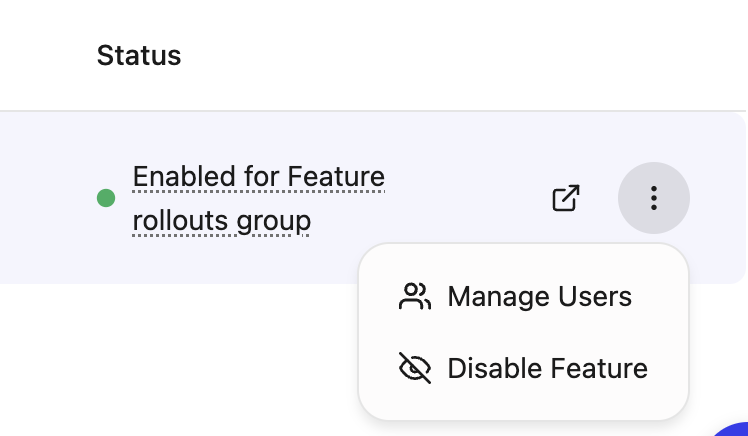
Disable a beta feature or a managed rollout
You can disable a beta or a managed rollout at any time during the beta or managed period, up until the GA or forced GA date of the feature.
Disable a beta feature
Disabling removes access for all users previously configured for that beta feature in your organization.
- Open Admin Console > What's new > Feature rollouts.
- Go to the Beta features tab.
- From the list of enabled beta features, select the feature you want to disable.
- Click the kebab menu --> Disable Feature.
- Click Confirm.
After disabling, the feature card updates to show that your organization is no longer enrolled, and end‑users lose access to the beta feature.
Disable a managed rollout feature
For managed rollouts, you can disable the feature off at any time during the managed period, before it reaches its forced GA or auto‑enable date.
Turning it off disables the feature for all users in your organization, regardless of previous enrollment settings.
To disable a managed rollout feature:
- Open Admin Console > What's new > Feature rollouts.
- Go to the Managed rollout tab.
- From the list of rollouts, select the rollout you want to manage.
- Click the kebab menu --> Disable Feature.
- Click Confirm.
The feature card updates to show that the feature is turned off, and users lose access accordingly.
Configuration options
The rollout controls on each feature card typically include several configuration options. The table below summarizes what they control and how to think about them.
| Setting | What it controls | Default | Recommended | Impact/Risks |
|---|---|---|---|---|
| Opt‑in status | Whether your organization is enrolled (Beta) or has the feature turned on (Managed Rollout). | Off | Enroll/turn on only when ready to test or roll out. | Changes functionality for selected users; can usually be turned off before GA or forced enablement. |
| User access | Who can use the feature in your org during the Beta or Managed Rollout period. | Off for all | Start with Admins only or a rollout group, then expand. | The All users option still respects any feature‑specific role or permission gates. |
| Estimated dates | For beta features: sunset or GA timing. For managed rollouts: auto‑enable/forced GA timing. | N/A | Use dates to plan change management. | At forced GA, some controls may be removed and the feature enabled more broadly. |
| Feedback link (Betas) | Sends product feedback to the owning team. | N/A | Encourage frequent feedback from pilot users. | Helps determine GA readiness and identify changes before broader rollout. |
Monitor and verify
After you make changes, you can verify that rollout settings and user experience match your expectations.
In the Admin Console:
- Check the feature card for current status (for example, Enrolled, Turned on, or Not enabled).
- Confirm the list of participants or access settings (Admins only, Test group users, All users).
- Review the next relevant date (such as general launch, sunset, or auto‑enablement) to understand upcoming changes.
In the product UI:
- For beta features, verify that users in scope see the Beta label on that feature while the beta is active.
- Confirm that only the intended users (for example, admins or members of the test group) see and can use the feature.
After you save changes, the Admin Console reflects updated status and access. If needed, revisit the feature card to confirm settings took effect as expected.