LibreChat
This guide is for administrators to configure LibreChat to connect to your company's Glean MCP server.
Prerequisites
- Glean OAuth authorization server enabled (Admin Console → Users & permissions → Third-party access (OAuth))
- MCP server enabled (Admin Console → Platform → MCP)
- LibreChat instance with MCP server support enabled
Add Glean MCP Server to LibreChat
Open your LibreChat configuration
Navigate to your LibreChat deployment and locate the librechat.yaml configuration file.
Add the Glean MCP server configuration
Add the following configuration to the mcpServers section of your librechat.yaml file:
mcpServers:
  glean_[server-name]:
    type: streamable-http
    url: https://{your-backend-domain}/mcp/[server-name]
    serverInstructions: true
    timeout: 60000
    requiresOAuth: true
    oauth:
      authorization_url: "https://{your-backend-domain}/oauth/authorize"
      token_url: "https://{your-backend-domain}/oauth/token"
      scope: ""
      redirect_uri: "http://localhost:3080/api/mcp/glean_[server-name]/oauth/callback"
Replace the following placeholders:
{your-backend-domain}: Your Glean backend domain. Find it at app.glean.com/admin/about-glean under Server instance (QE). It typically follows the patterncompany-be.glean.com, but may be different if your organization uses a custom domain.[server-name]: The name of your MCP server as configured in Glean (for example,default)
For more details on MCP server configuration options, see the LibreChat MCP Servers documentation.
Restart LibreChat
After saving the configuration file, restart your LibreChat instance to apply the changes. Initialization happens at startup, and the app must be restarted for changes to take effect.
Authenticate with Glean OAuth
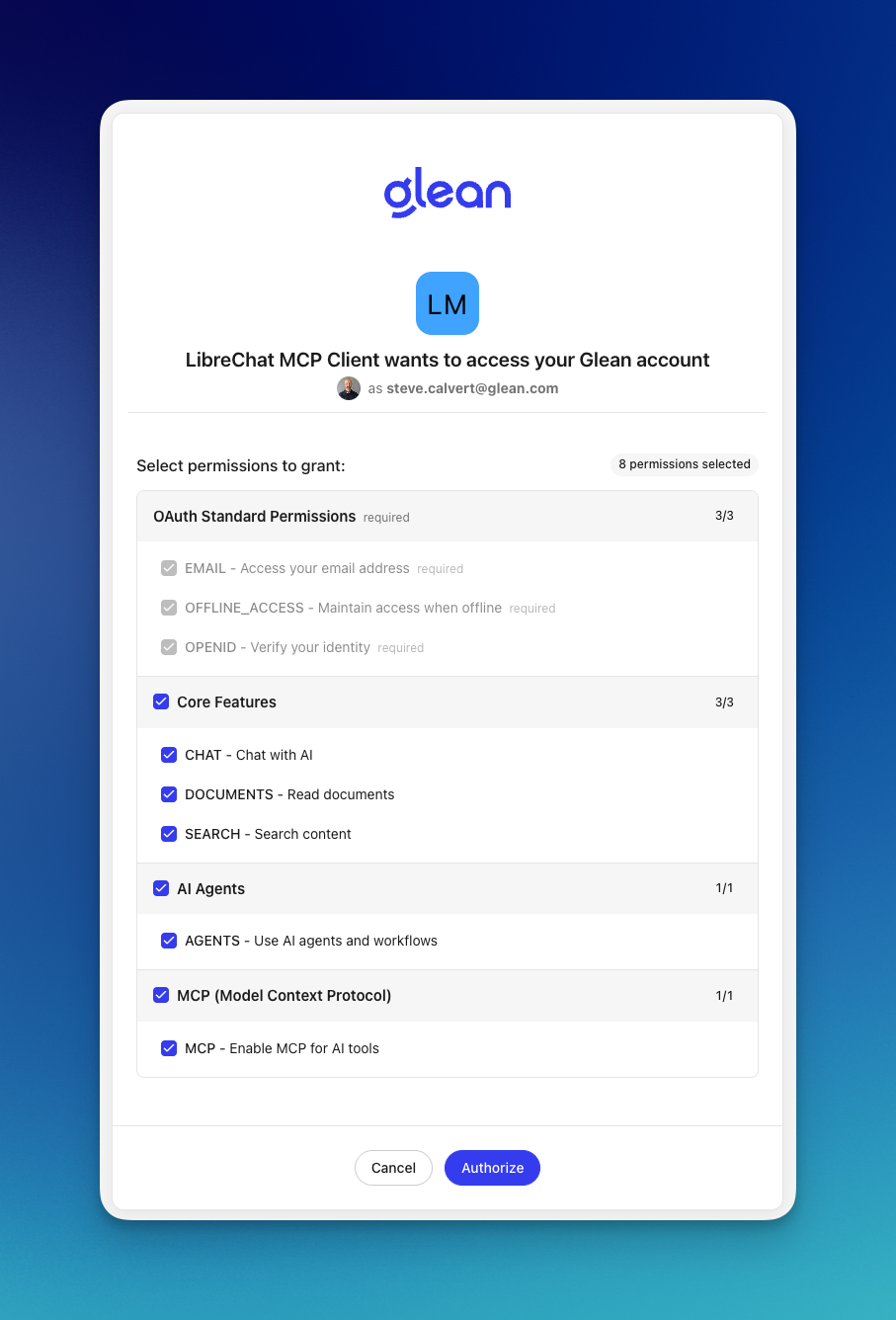
When users first interact with the Glean MCP server, they will be prompted to complete the OAuth sign-in flow.
Validate tools
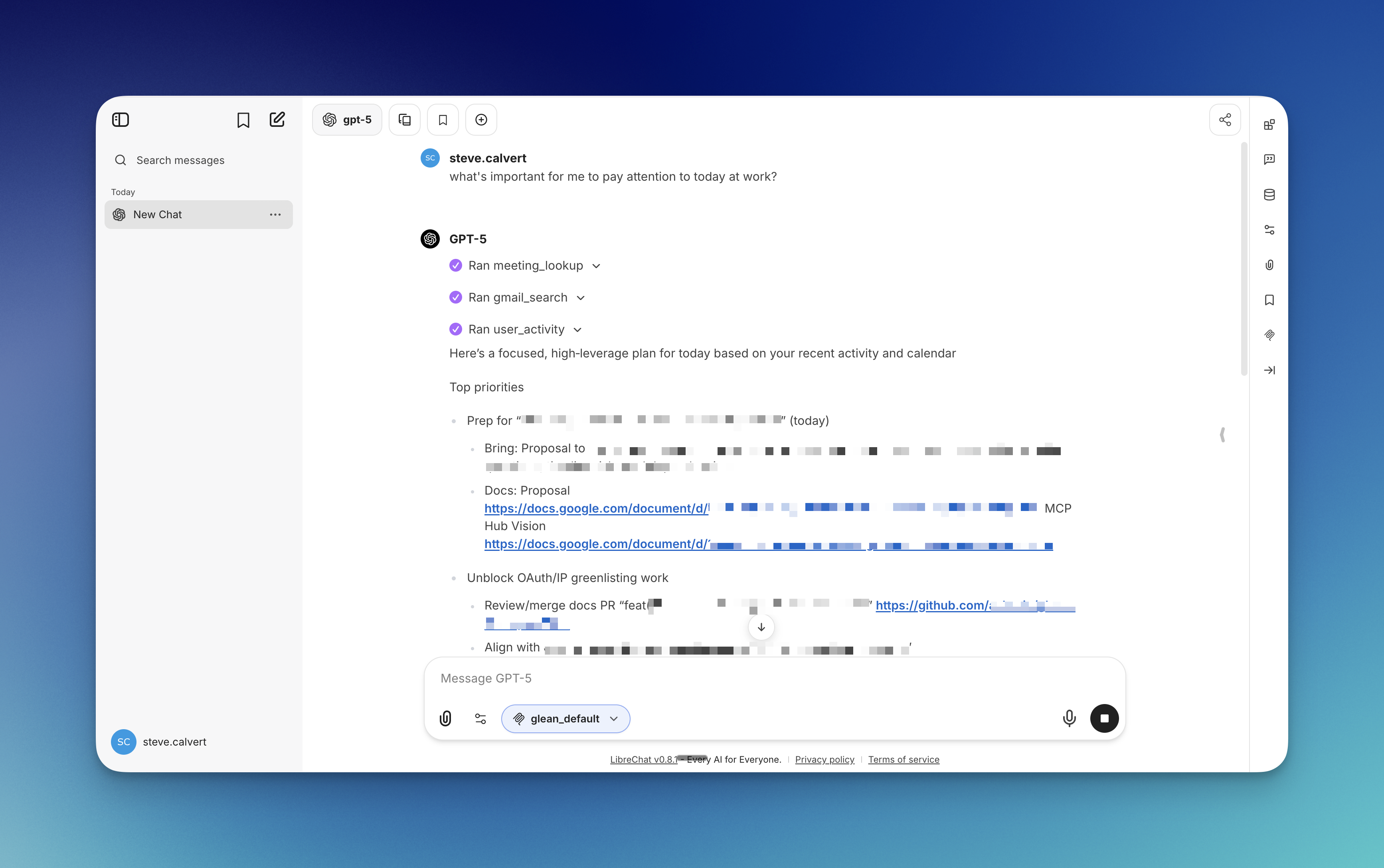
Run a quick search to confirm connectivity and verify the available tools.
Configuration Options
| Option | Description | Default |
|---|---|---|
type | Transport type. Use streamable-http for Glean MCP server. | Required |
url | The Glean MCP server endpoint URL. | Required |
serverInstructions | Whether to fetch and display server-provided instructions. | true |
timeout | Request timeout in milliseconds. | 60000 |
requiresOAuth | Enable OAuth authentication flow. | true |
oauth.authorization_url | Glean OAuth authorization endpoint. | Required |
oauth.token_url | Glean OAuth token endpoint. | Required |
oauth.scope | OAuth scopes (leave empty for default Glean scopes). | "" |
oauth.redirect_uri | OAuth callback URL for your LibreChat instance. | Required |
The redirect_uri must match the URL where your LibreChat instance is hosted. For local development, use http://localhost:3080/api/mcp/glean_[server-name]/oauth/callback. For production deployments, replace localhost:3080 with your actual LibreChat domain.
Troubleshooting
Connection Issues
If users report connection failures:
- Verify the MCP server URL is correct and uses the proper instance name
- Ensure OAuth endpoints are correctly configured
- Check that the
redirect_urimatches your LibreChat deployment URL - Verify that users have active Glean accounts with appropriate permissions
OAuth Errors
If authentication fails:
- Confirm the Glean OAuth authorization server is enabled in Admin Console
- Verify the
authorization_urlandtoken_urluse the correct instance name - Check that the redirect URI is properly configured and accessible
Tool Availability
If tools aren't appearing in LibreChat:
- Confirm the MCP server is enabled in Admin Console
- Verify tools are enabled on the specific server configuration
- Check the LibreChat logs for any MCP connection errors
- Restart LibreChat to refresh the connection
- For generic auth/network issues, see Troubleshooting MCP Connectivity
See also
- End-user configuration - How users configure their own connection to Glean MCP server