Microsoft Copilot Studio
This guide is for administrators to configure Microsoft Copilot Studio to connect to your company's Glean MCP server.
Prerequisites
- Glean OAuth authorization server enabled (Admin Console → Users & permissions → Third-party access (OAuth))
- Glean MCP server enabled (Admin Console → Platform → Glean MCP servers)
- Microsoft Copilot Studio access with System Customizer or System Administrator role
- Generative Orchestration enabled in your Copilot Studio environment
Add Glean MCP Server to Copilot Studio
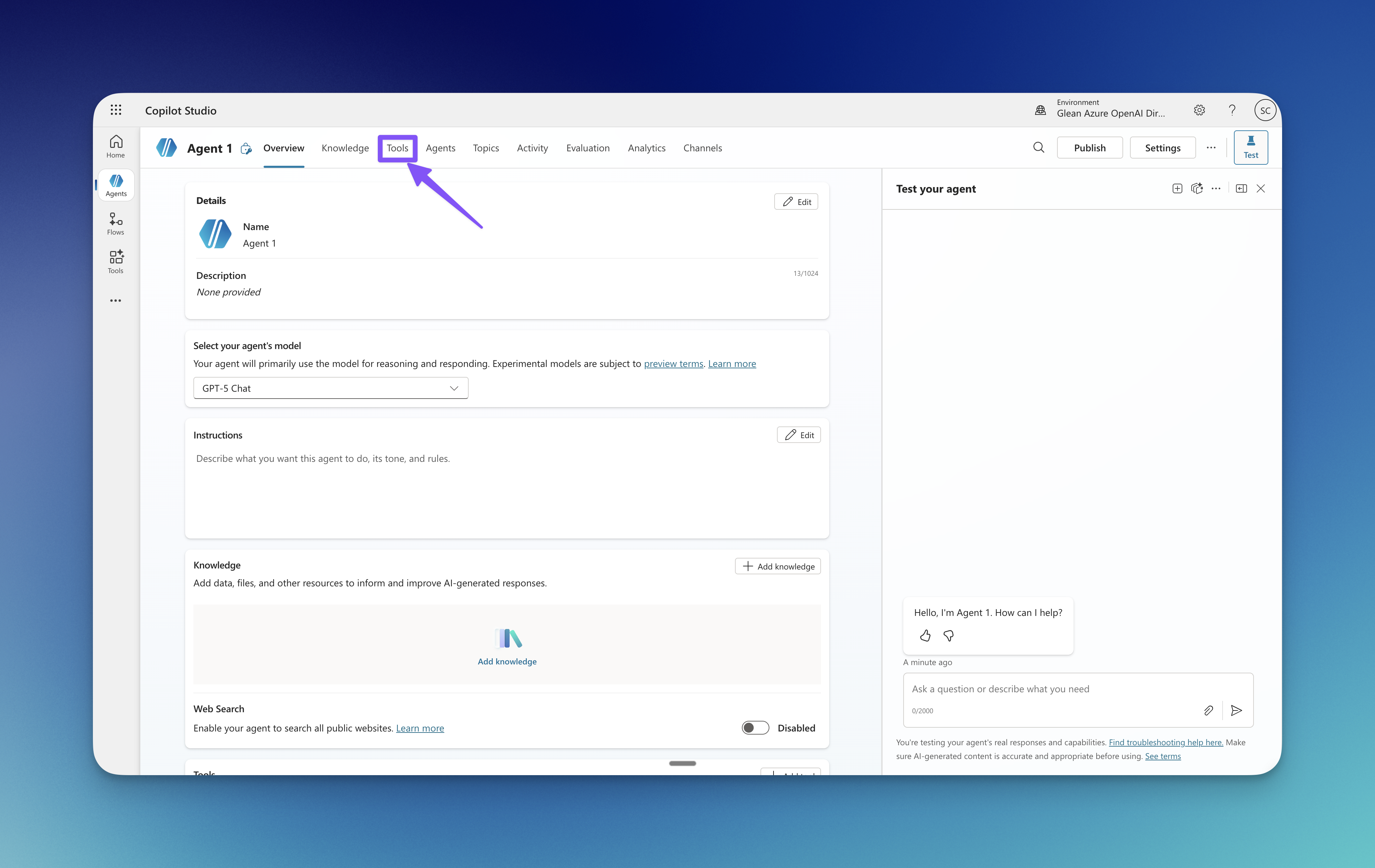
Navigate to Tools page
In Copilot Studio, go to your agent and select Tools from the left navigation.
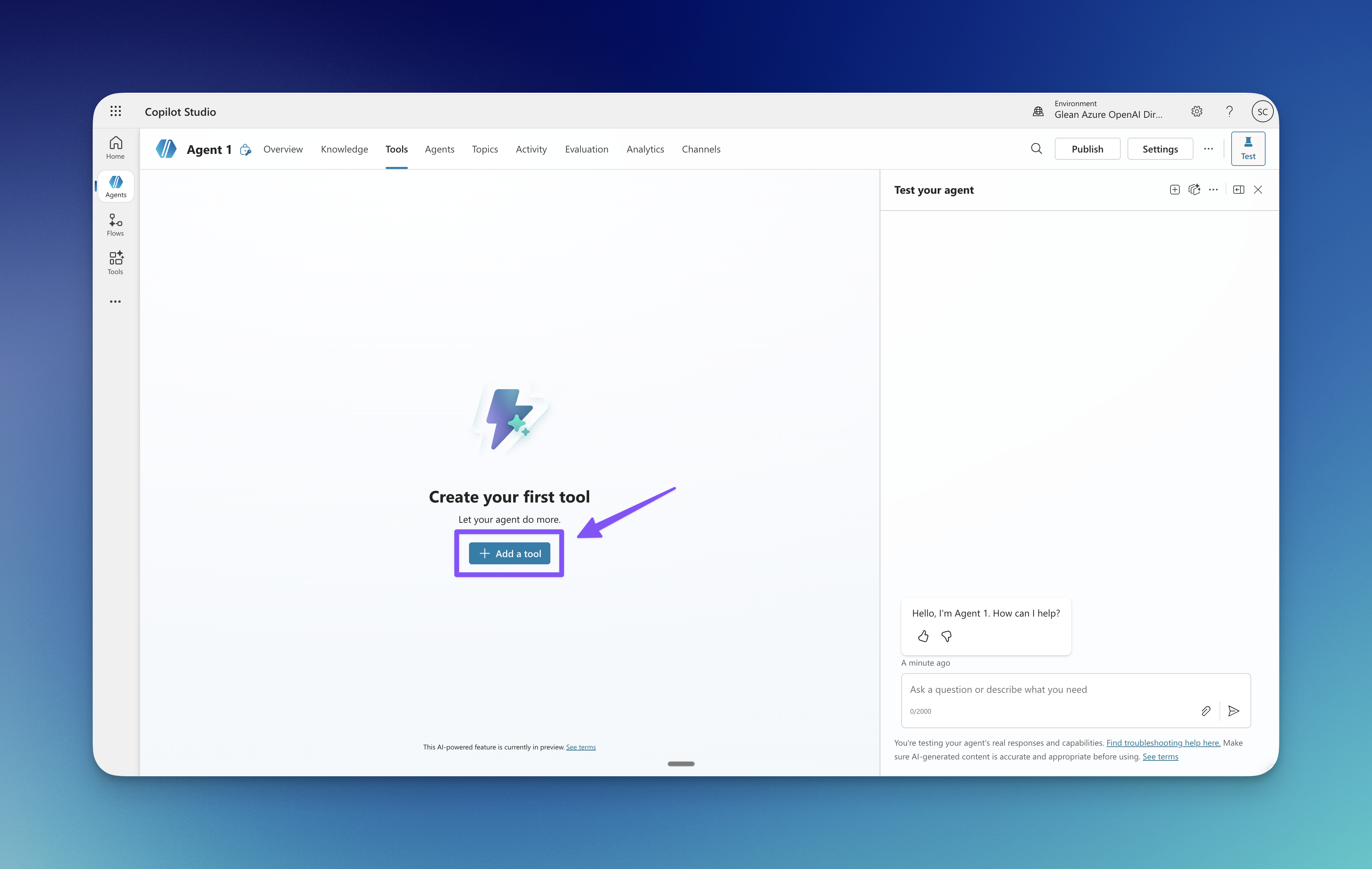
Add a new MCP tool
Click Add a tool, then select the Model Context Protocol filter tab.
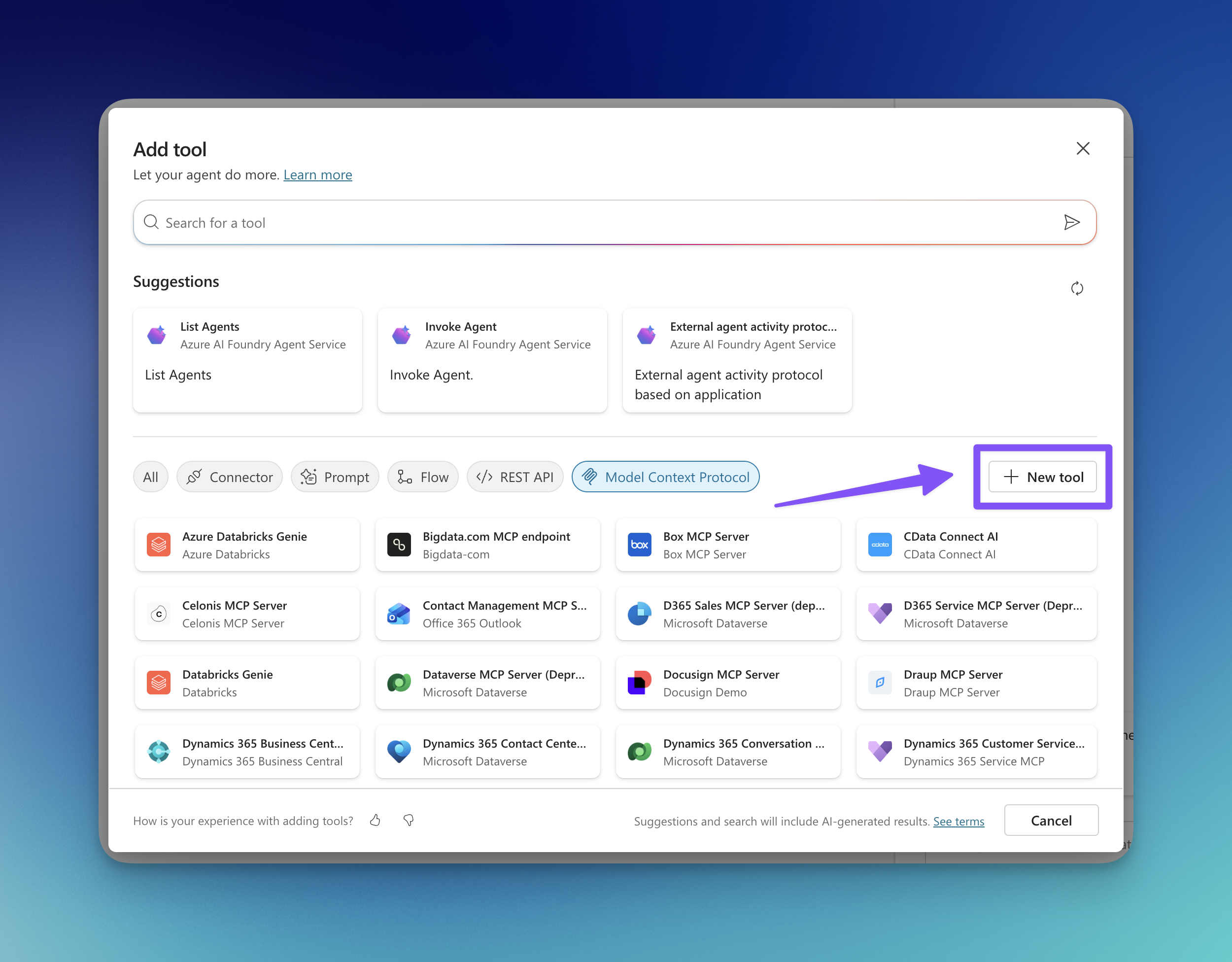
Click New tool to add a new MCP server, then select Glean from the list.
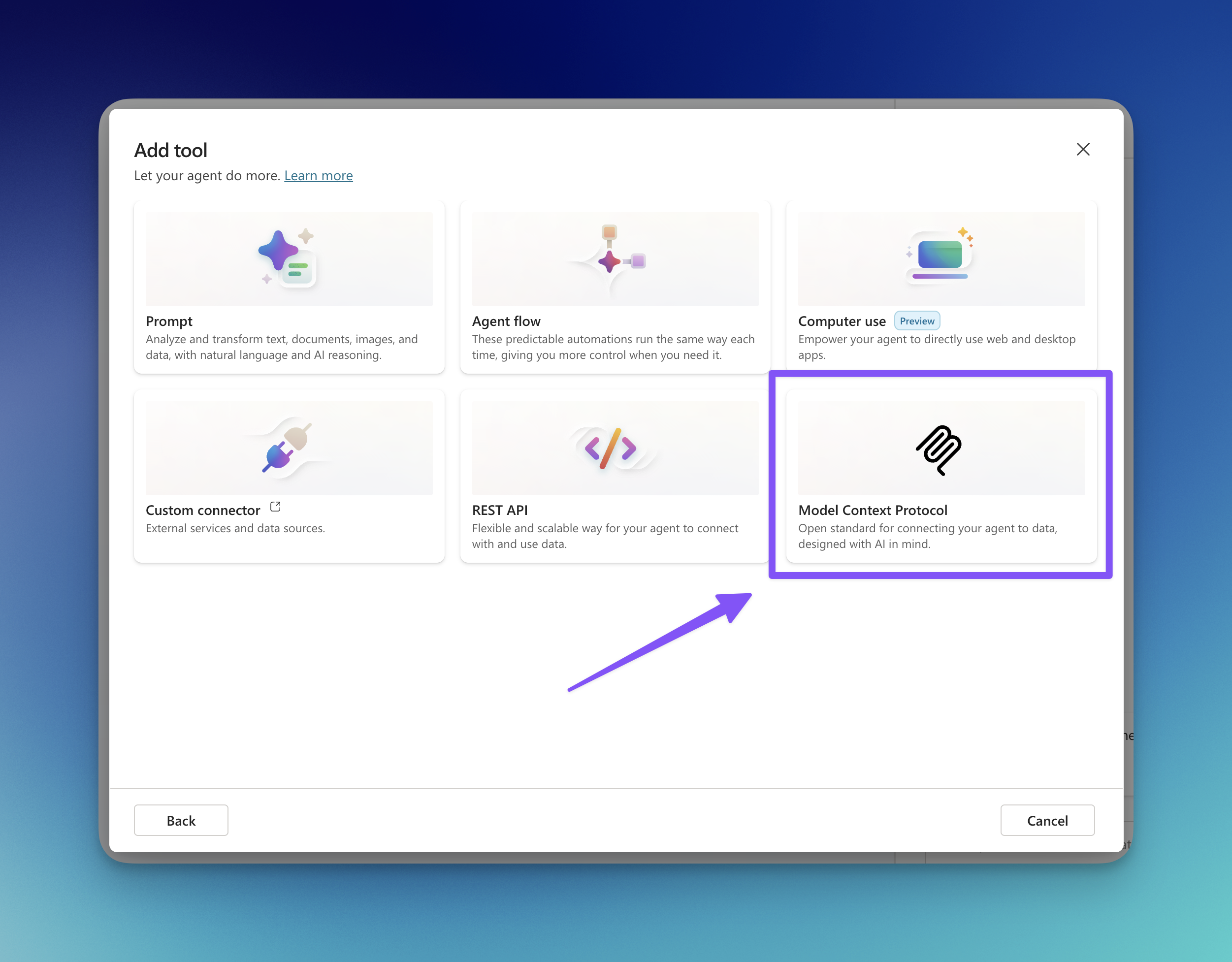
Configure the MCP server
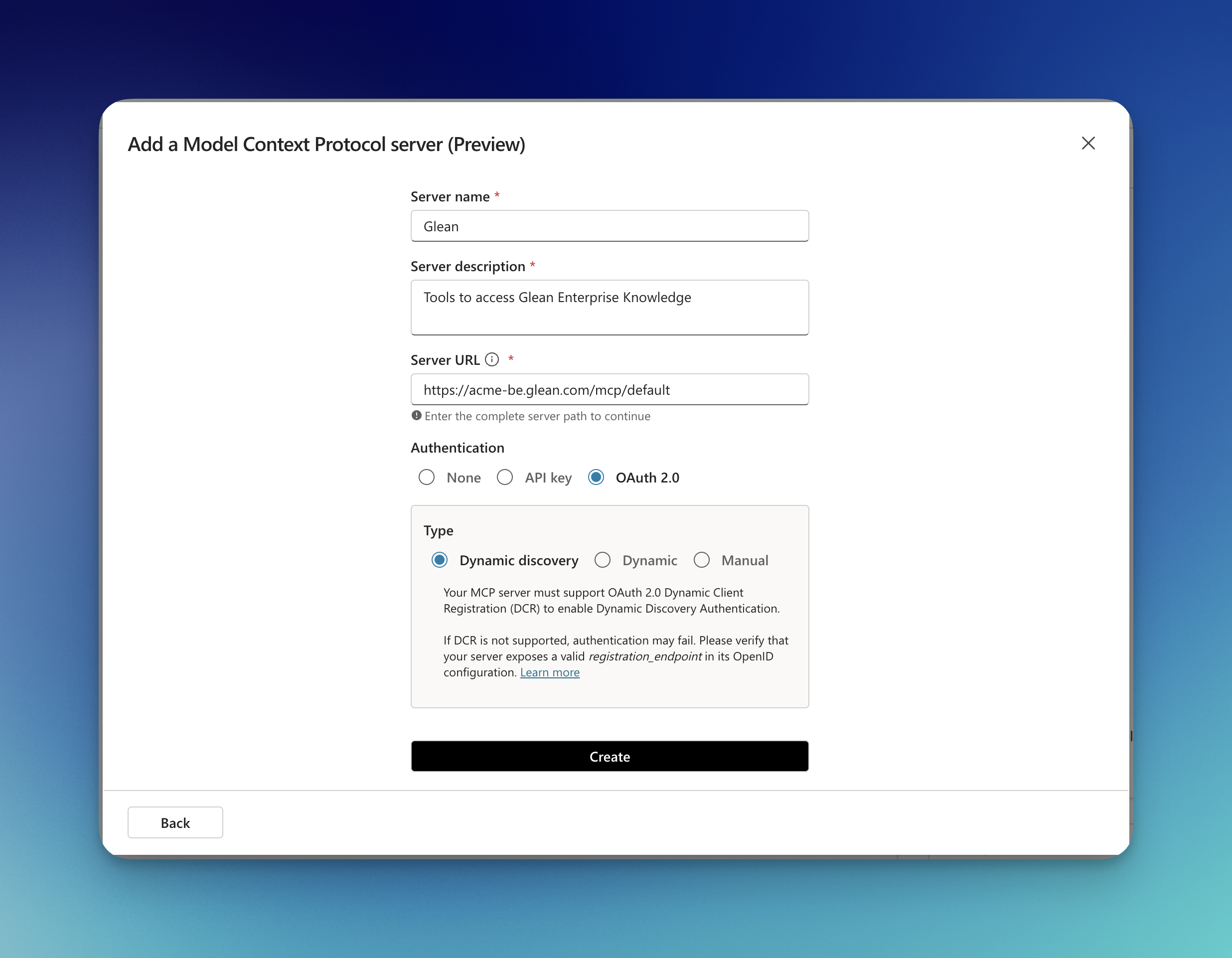
Enter the following details:
- Server name: Glean
- Server description: Provides tools to work with Glean Enterprise Knowledge
- Server URL:
https://{your-backend-domain}/mcp/[server-name]- Find your backend domain at app.glean.com/admin/about-glean under Server instance (QE). It typically follows the pattern
company-be.glean.com, but may be different if your organization uses a custom domain. Replace[server-name]with the MCP server name configured in your Glean Admin Console.
- Find your backend domain at app.glean.com/admin/about-glean under Server instance (QE). It typically follows the pattern
- Authentication: Select OAuth 2.0 and choose a type:
- Dynamic discovery (recommended): Automatically discovers OAuth endpoints from the server
- Dynamic: Discovers some settings, requires manual token URL
- Manual: All OAuth settings configured manually
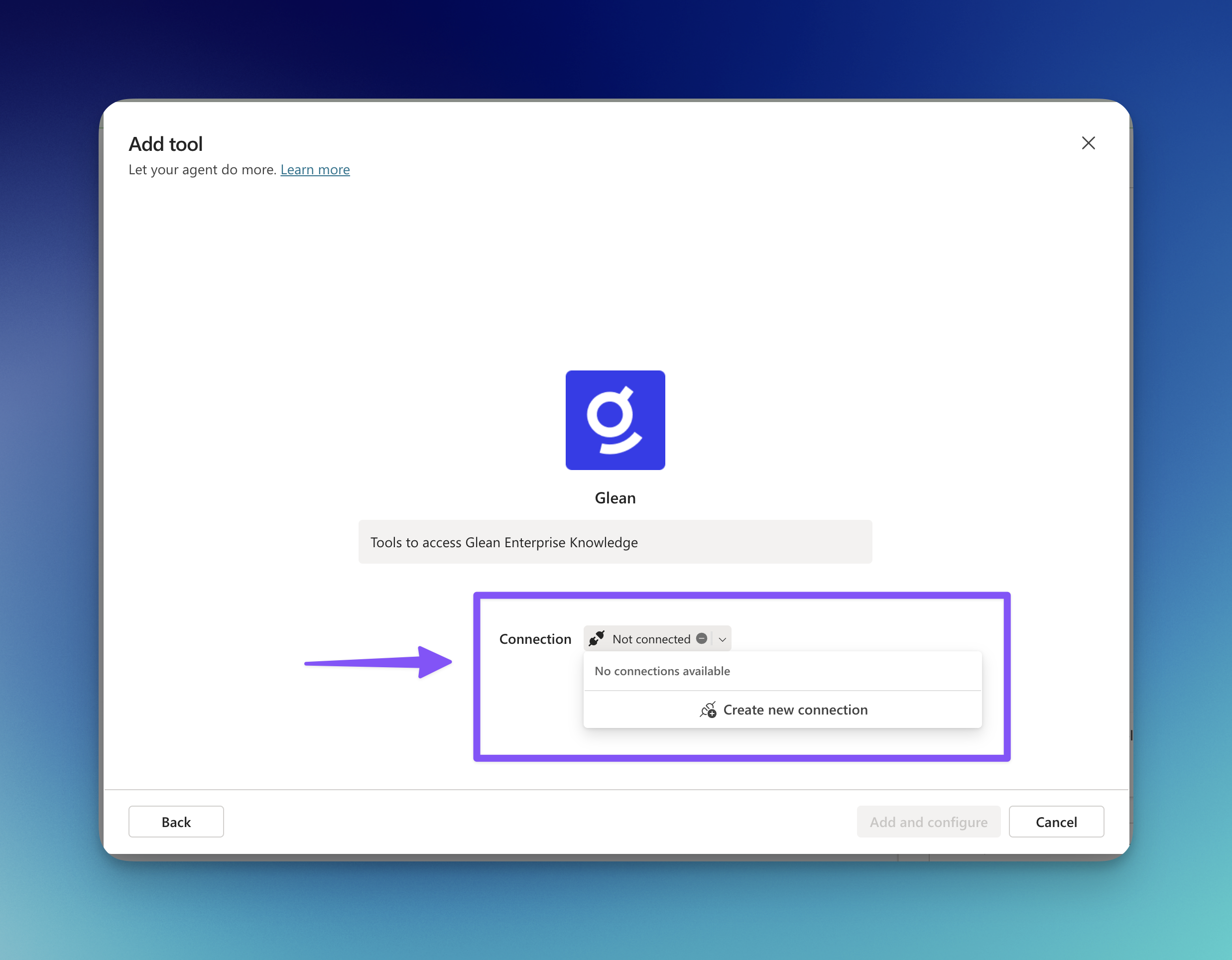
Create a new connection
In the Add tool dialog, click the Connection dropdown and select Create new connection.
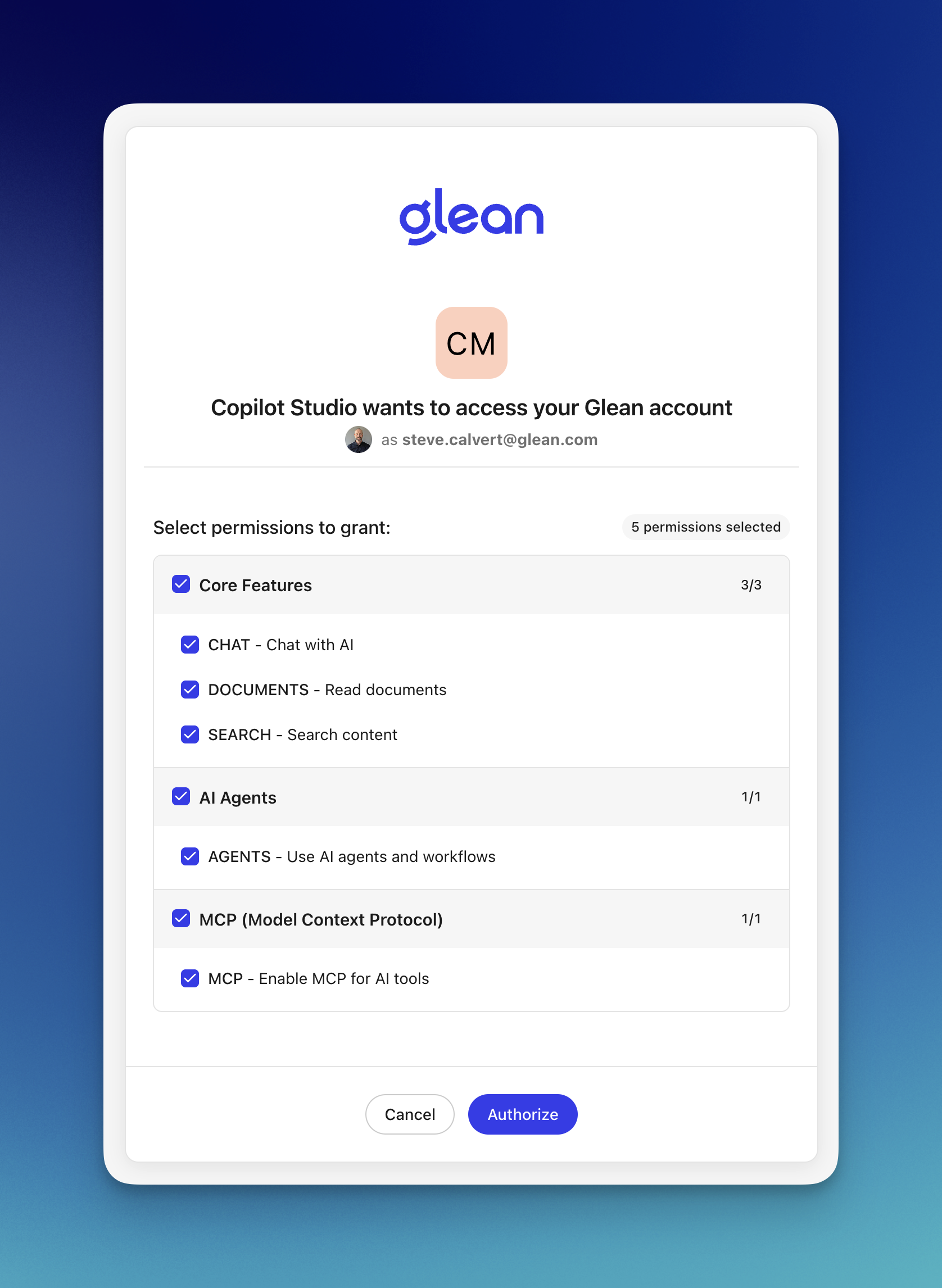
This triggers the OAuth flow. Sign in with your Glean credentials and authorize the connection on the Glean OAuth page.
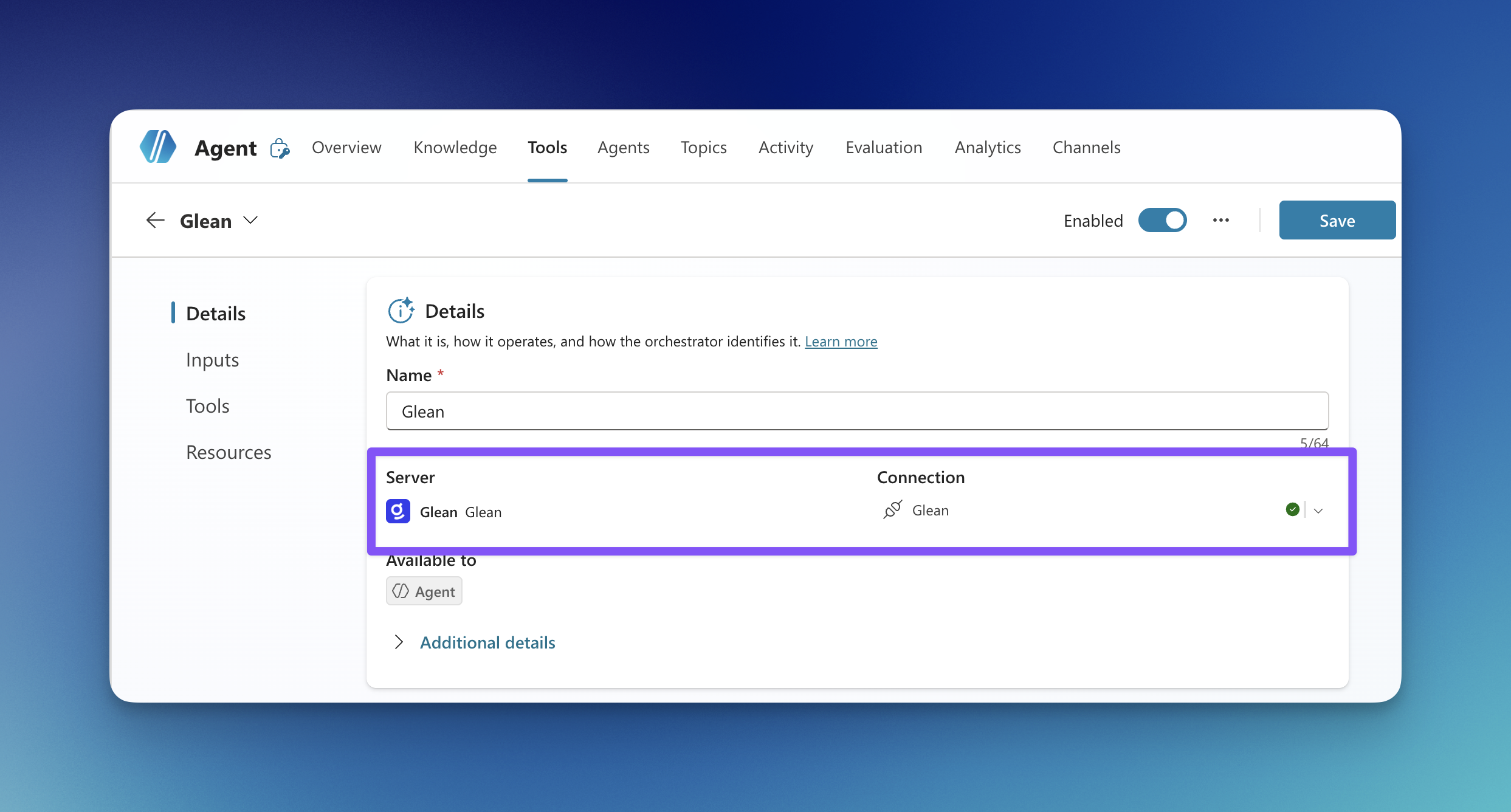
Once authenticated, the connection shows as connected with a green checkmark. Click Add and configure to complete setup.
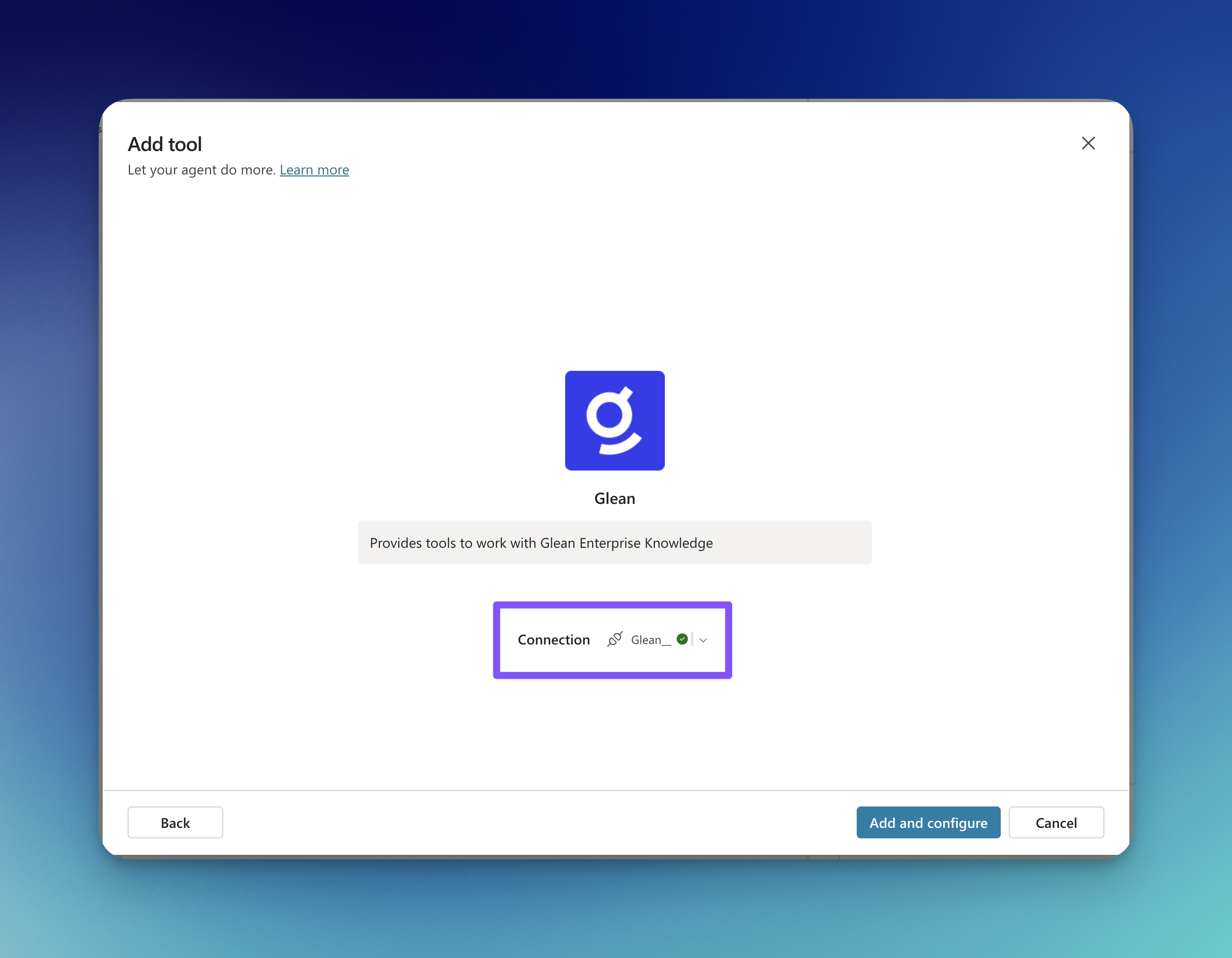
The Glean tool configuration page displays with the server connected.
Validate tools
Test the connection by asking your agent a question that requires Glean data. Verify the available tools are working correctly.
Authorization Options
Copilot Studio supports multiple OAuth 2.0 configuration types:
| Type | Description | Recommended For |
|---|---|---|
| Dynamic discovery | Automatically discovers OAuth endpoints from the server | Most deployments (recommended) |
| Dynamic | Discovers some settings, requires manual token URL | Custom configurations |
| Manual | All OAuth settings configured manually | Advanced/custom setups |
Use Dynamic discovery when possible. It simplifies configuration by automatically retrieving OAuth endpoints from your Glean instance.
Copilot Studio MCP Constraints
- Transport: Streamable HTTP (SSE transport is deprecated after August 2025)
- Generative Orchestration required: MCP tools require Generative Orchestration to be enabled
- Endpoint format:
https://{your-backend-domain}/mcp/[server-name] - Authorization: OAuth 2.0 with PKCE support
References:
- Microsoft Copilot Studio MCP documentation: https://learn.microsoft.com/en-us/microsoft-copilot-studio/mcp-add-existing-server-to-agent
- MCP General Availability announcement: https://www.microsoft.com/en-us/microsoft-copilot/blog/copilot-studio/model-context-protocol-mcp-is-now-generally-available-in-microsoft-copilot-studio/
Troubleshooting
OAuth authorization failures
If OAuth authorization fails:
- Verify the Authorization URL and Token URL are correct for your Glean instance
- Ensure the Glean OAuth authorization server is enabled in Admin Console
- Check that the user has an active Glean account with appropriate permissions
- Try using Manual configuration if Dynamic Discovery is not working
Missing or unavailable tools
If MCP tools aren't appearing in your agent:
- Confirm Generative Orchestration is enabled in your Copilot Studio environment
- Verify the MCP server is enabled in Glean Admin Console
- Check that tools are enabled on the specific server configuration
- Ensure the Server URL format is correct
Connection errors
If you encounter connection errors:
- Verify the Server URL includes both your instance name and server name
- Check firewall settings allow connections from Microsoft to your Glean instance
- Ensure the MCP server is properly configured and running
- For generic auth/network issues, see Troubleshooting MCP Connectivity
Use Glean Tools in Copilot Studio
Once the Glean MCP server is configured, users can interact with Glean data through your Copilot Studio agent. The agent will automatically use Glean tools when relevant queries are made.
The specific tools available depend on your Glean MCP server configuration. Common tools include search, chat, and read_document capabilities.
See also
- End-user configuration - How individual users self-configure their own connection to Glean MCP server