- An agent HITL (human‑in‑the‑loop) step requires your input or approval, you get both an email and a browser notification if enabled.
- A Deep Research query completes in the background, you get a browser notification if enabled.
Notification types
Notifications support two main types.| Type | What it is | Examples |
|---|---|---|
| Action required | Notifications that need your input or approval before the task can continue. | Approve a write action; answer a HITL prompt; re‑authenticate an expired integration. |
| Informational | Status updates that do not require action. | Deep Research report is ready. |
Managing your notification preferences
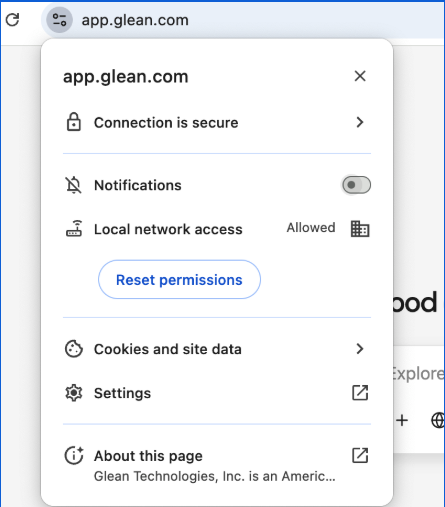
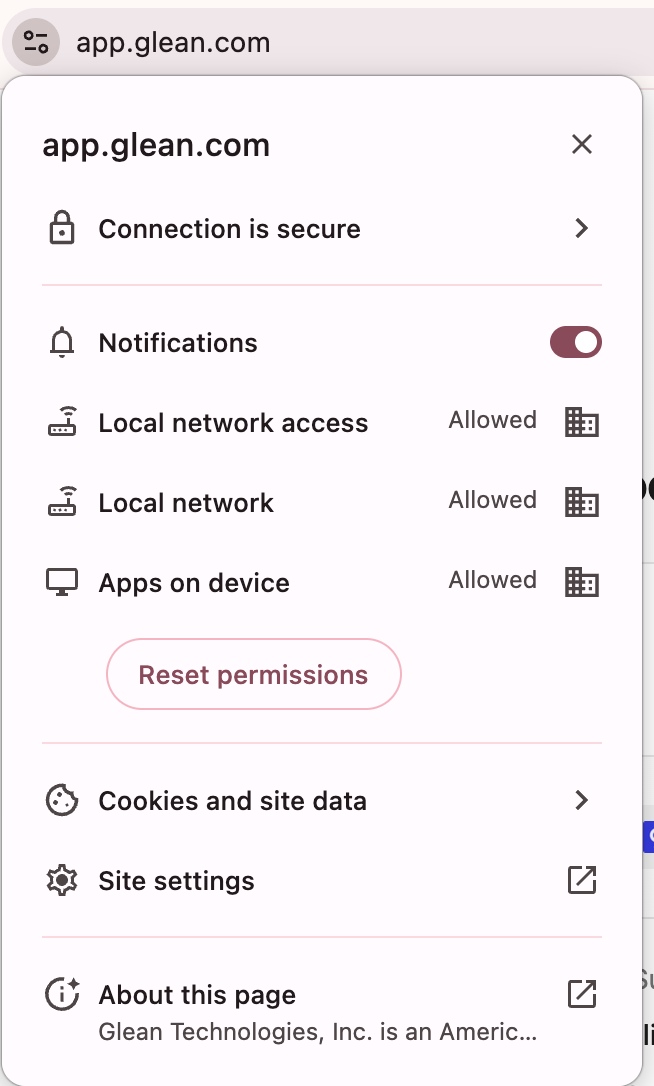
Turn on browser/desktop notifications
To turn on the browser notifications for Glean, follow these steps:-
pen your browser settings for your Glean URL,
app.glean.com. -
Toggle on the Notifications option to receieve notifications from Glean app.
Turn off browser/desktop notifications
If you previously allowed notifications and want to stop them:- Open your browser settings for your Glean URL,
app.glean.com. - Set Notifications to Block or Ask, as you prefer.
Email notifications for agents that need your input
In some workspaces, Glean can also send email notifications when an agent needs your input or approval, for example, to confirm a write action or provide missing information. The email links back to Glean so you can review the request and unblock the run. These emails are controlled at the workspace / admin configuration level.Turn on email and browser notifications for assistant and agents:
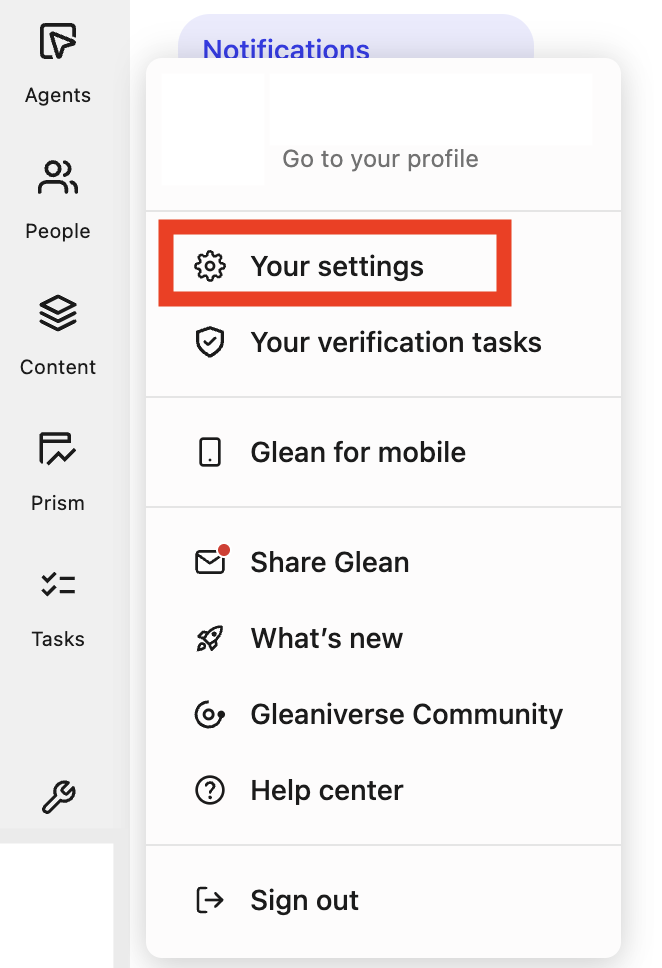
- Go to your profile on Glean app.
-
Click Your settings.
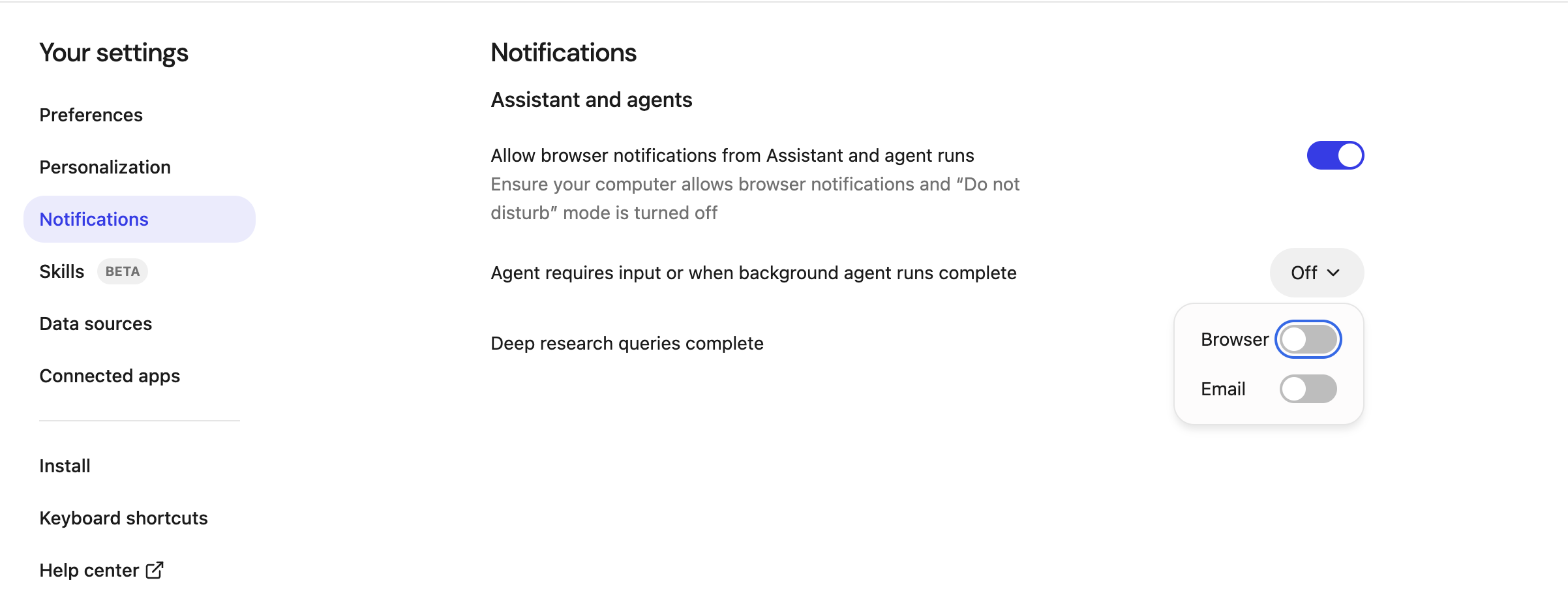
- Click Notifications.
-
Toggle on the options if you want to receive email and browser notifications.
Email notifications are not supported for Deep Research.
Troubleshooting
I do not see Notifications in the left navigation
I do not see Notifications in the left navigation
I'm not getting browser notifications
I'm not getting browser notifications
- Confirm you chose Allow in both the Glean prompt and your browser’s permission dialog.
- In your OS settings, ensure notifications are allowed for your browser.
- You’ll still see notifications inside Glean when you open the Notifications panel even if browser alerts are off.