Glean Agents in Microsoft Teams
Glean Agents within Microsoft Teams integrate the comprehensive capabilities of Glean's specialized agents like encompassing IT, HR, Support, and any bespoke agent directly into the Teams chat sidebar. By embedding these agents within existing collaborative environments, Glean mitigates context-switching and facilitates expedited responses, tools, and automation.
Administrators enable Microsoft Teams within the Glean Admin Console, creating a Teams application and assigning an agent to it. You can locate the new Glean application in Teams, pin it, and start conversations; no further configuration is necessary. All agent-specific tools, prompts, and contextual information are immediately accessible within the conversation.
Key features
- Direct message (DM) access to Glean so that you never leave Teams to get help or execute tasks.
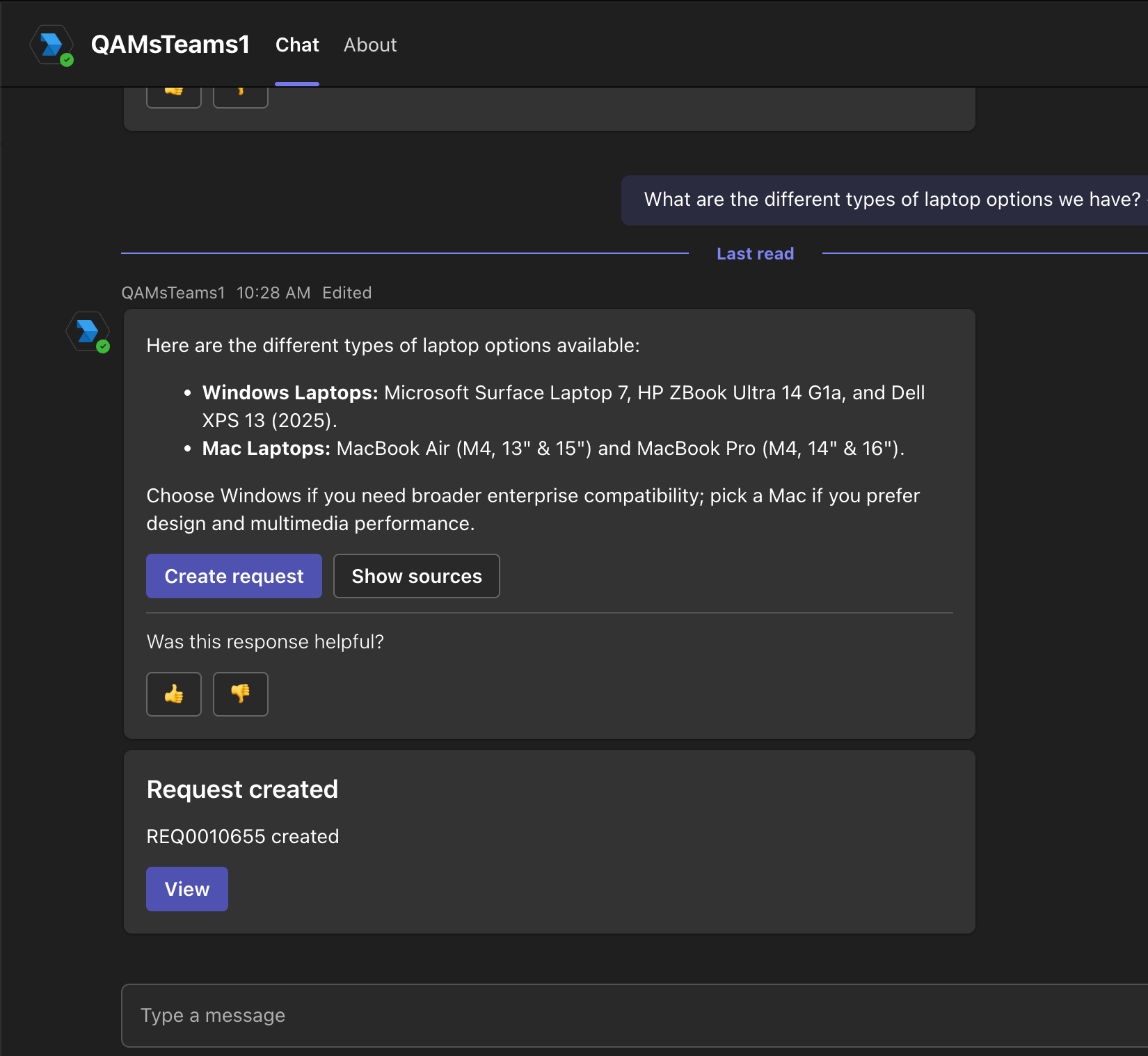
- Tool execution inside chat like, open a ServiceNow ticket, create JIRA ticket, comment on a ServiceNow ticket without launching separate tools.
- A consistent chat experience as the same prompts, source citations, and feedback controls from Glean on the web, are now native to Teams.
- Ability to pin each installed agent in the Teams sidebar for one-click access and persistent conversations.
- Ability to handle high volume tasks like IT tickets, HR requests, approvals by cutting turnaround time and reducing load on human teams.
Setup instructions
Follow these instructions to set up a Glean agent in your Microsoft Teams:
Prerequisites
- Admin access to Glean.
- Glean set up on Microsoft Teams connector.
- Glean added to MS Teams. For more information, see Glean in Microsoft Teams: admin-guide.
- Glean agent built and tested with end users.
Microsoft Team console setup
The following steps must be performed through the Teams Admin Console:
- Add the Glean app to MS Teams and name this app that is intuitive for end users regarding the agent they are using, for example Glean msteams. For more information on adding the Glean app, see Glean in Microsoft Teams: admin-guide
- Deploy the Glean app to your organization or for specific users through the Teams Admin Console. For more information for deploying the Glean app, see Deploy to your organization or specific users using Teams admin console.
Glean Admin console setup
The following steps must be performed through the Glean Admin Console:
Prerequisite
- Ensure that Glean is already set up.
For more information, see Glean in Microsoft Teams: admin-guide.
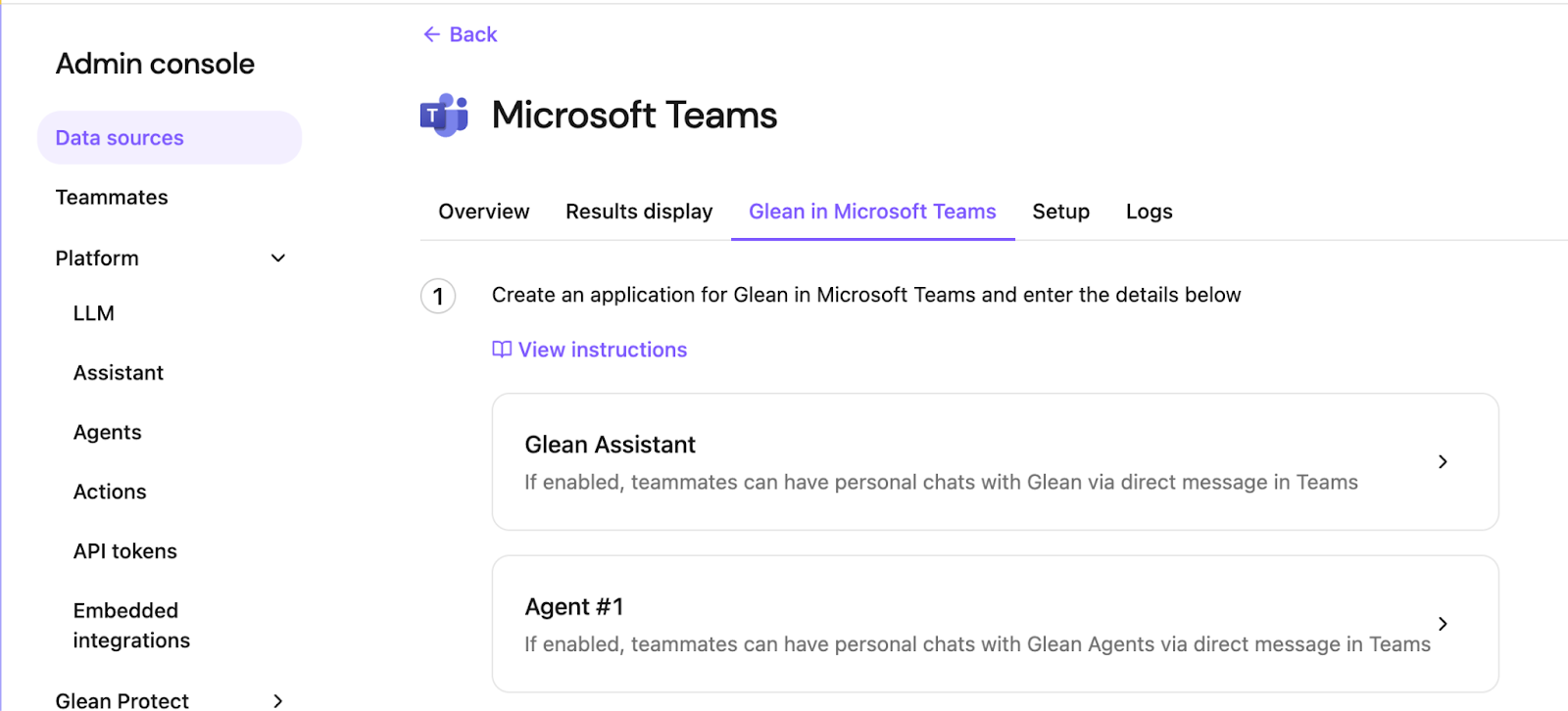
Steps
-
In the Glean Admin Console, go to the Connectors tab.
-
Search for Microsoft teams and proceed to Glean in Microsoft Teams tab.
-
Click Add agent. You can add a maximum of 3 agents apart from the assistant to MS teams.
-
Select the Agent you want to deploy in MS Teams with the agent picker. All the user messages are routed to the selected Agent and the response to the users and tools are generated by the selected agent.
For example, if Agent#1 is assignedSNOW Tools Agent, an IT Agent which is built on Glean Agents platform with certain tools like create tickets, comment on a ticket and so on, then all the user interactions with the Agent#1 in MS Teams are withSNOW Tools Agent. -
Click Save.
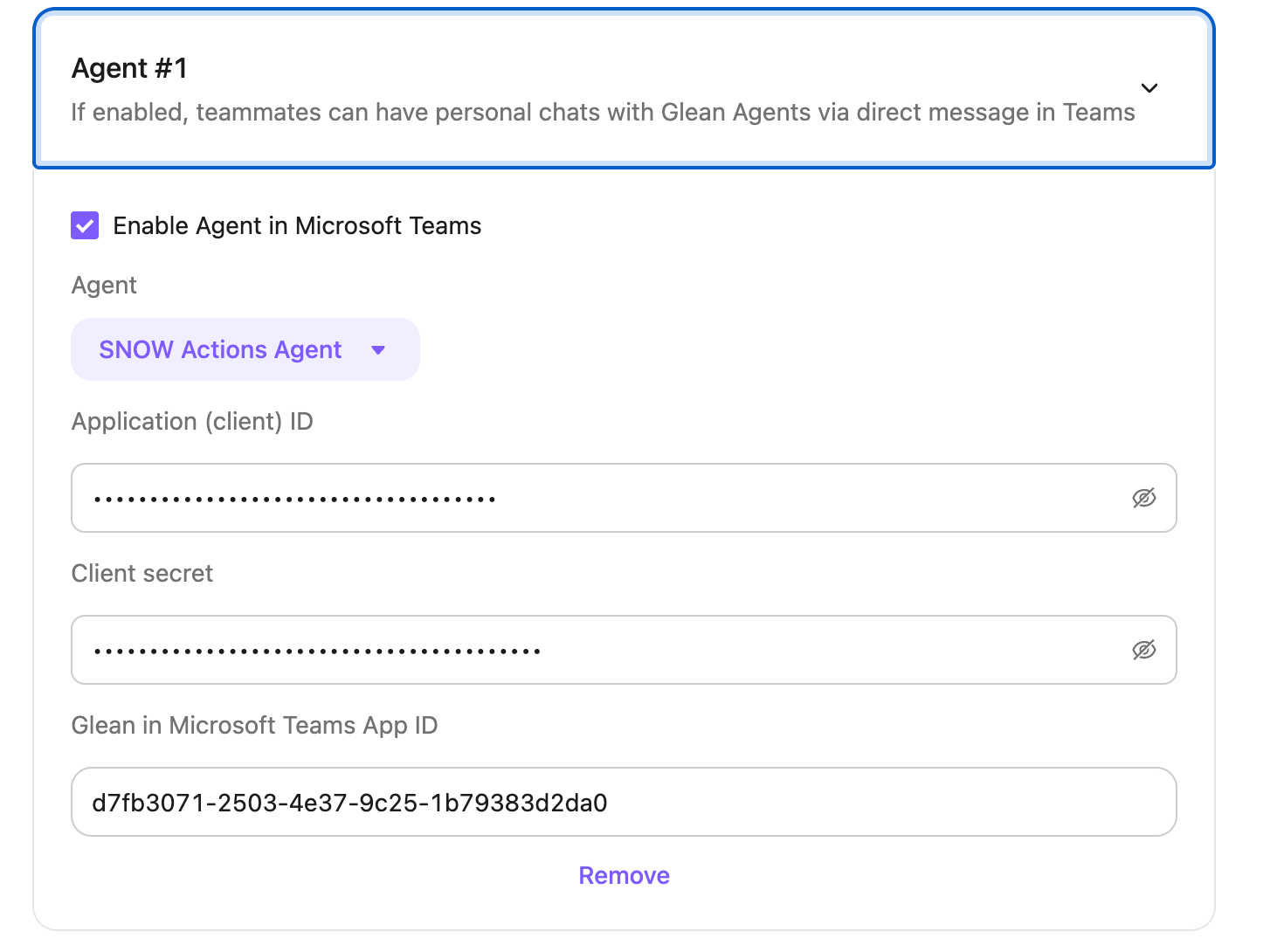
-
Enter the followinng app details added during app setup in MS Teams.
- Get the Application (client) ID from the Bot App ID created in Phase 1 → Step 3c in the Teams Developer Portal. For more information, see Upload custom bot ID.
- Get the Client secret generated in Phase 1 → Step 5b. For more information, see Generate a Client Secret.
- Get the Glean in Microsoft Teams App ID generated in Phase 2 → Step 3. For more information, see Glean in Microsoft Teams App ID.
-
Click Submit. Glean agent is now available in MS Teams sidebar for end users.
User setup
If the Glean agent name, the name provided by your administrator is not visible in your MS Teams, add this agent by performing the following steps:
- Click the Apps icon on the left side bar to access the Teams App store.
- In the search bar, type
Gleanto find the application. If Glean does not appear in the list of apps, your admin might have not enabled it for you yet. - Click Add and follow the prompts to install Glean Agent on your Teams platform.
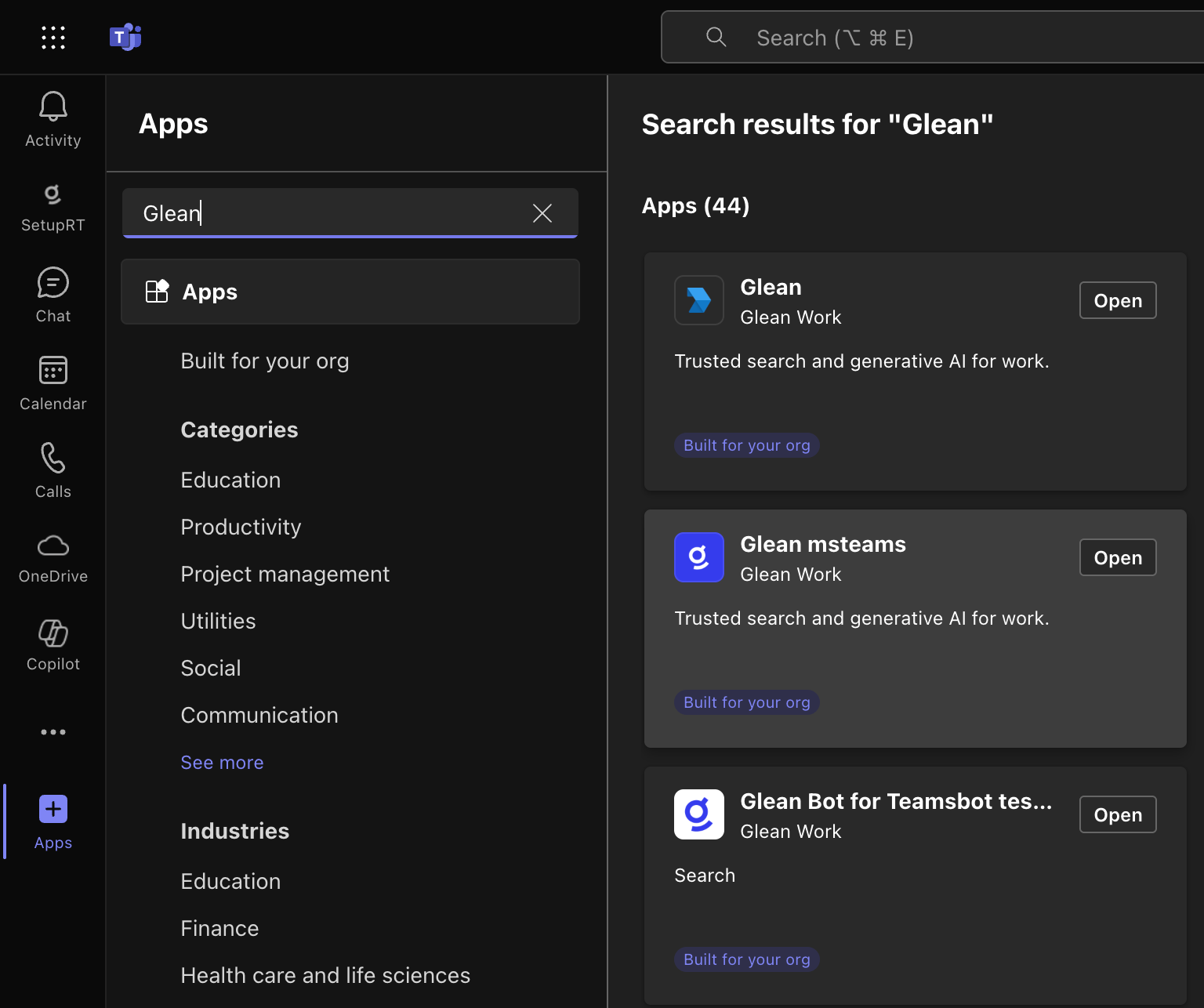
After you have added the agent in MS team, you can open the app to start a 1:1 chat and ask questions or run tasks in natural language. In any channel or group chat, @mention the agent, for example, @YourAgentName to get answers inline.
You can also pin the app to the left rail for quick access.
For any issues or concerns, reach out to the Glean support team.