

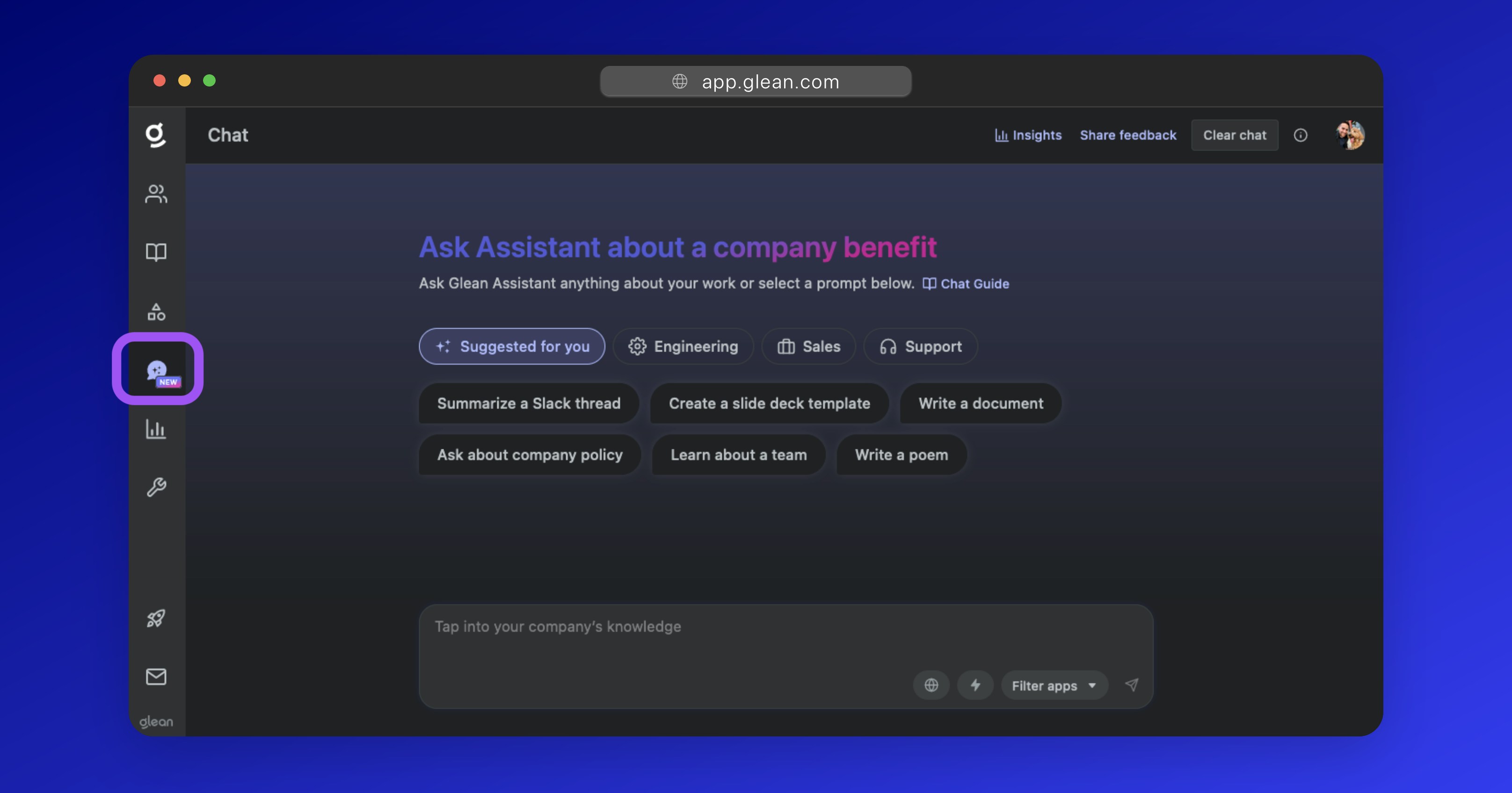
Key features
- Personalized responses based on each user’s permissions.
- High-confidence answers with verifiable citations.
- Natural language interaction with your organization’s knowledge base.
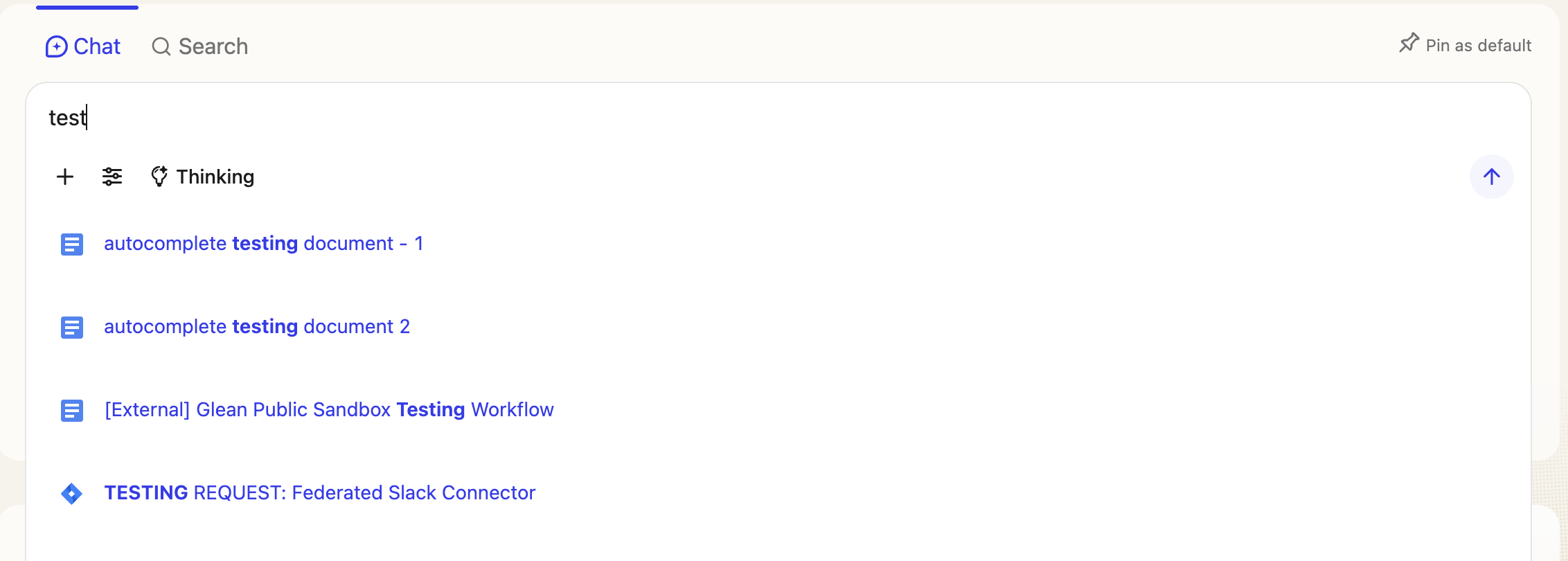
- Glean Chat surfaces a short set of high‑confidence search results directly in the chat window for keyword or search‑like queries. For more information see, Search results in Glean Chat.
Search results in Chat
Glean Chat now surfaces a short set of high‑confidence search results directly in the chat window for keyword or search‑like queries. This helps you jump straight to relevant documents and people without switching to the Search page or waiting for a full conversational answer. You will see top results inline when you enter a keyword or search‑style query, for example, a document title, team name, or a short term. Use specific keywords like Quarterly plan or OKR 2025 to trigger the inline results. How it works- Type a keyword or short, search‑like query in Glean Chat.
- A compact set of top results appears inline above the streamed chat answer.
- Click any result to open it in a new tab. You can keep chatting as usual if you still want a conversational response.
-
To browse more results, select View all search results to open the full Search results page.
When available, Glean Chat can use Zoom transcript content you have permission to access. For more information, see Use Zoom meeting transcripts in Search, Chat, and Home.
Accessing Glean Chat
You can access Glean Chat in two ways:Navigation Menu
Click the message bubble icon in the left-side menu of the Glean UI
Direct Access
Visit the Glean Chat interface directly